
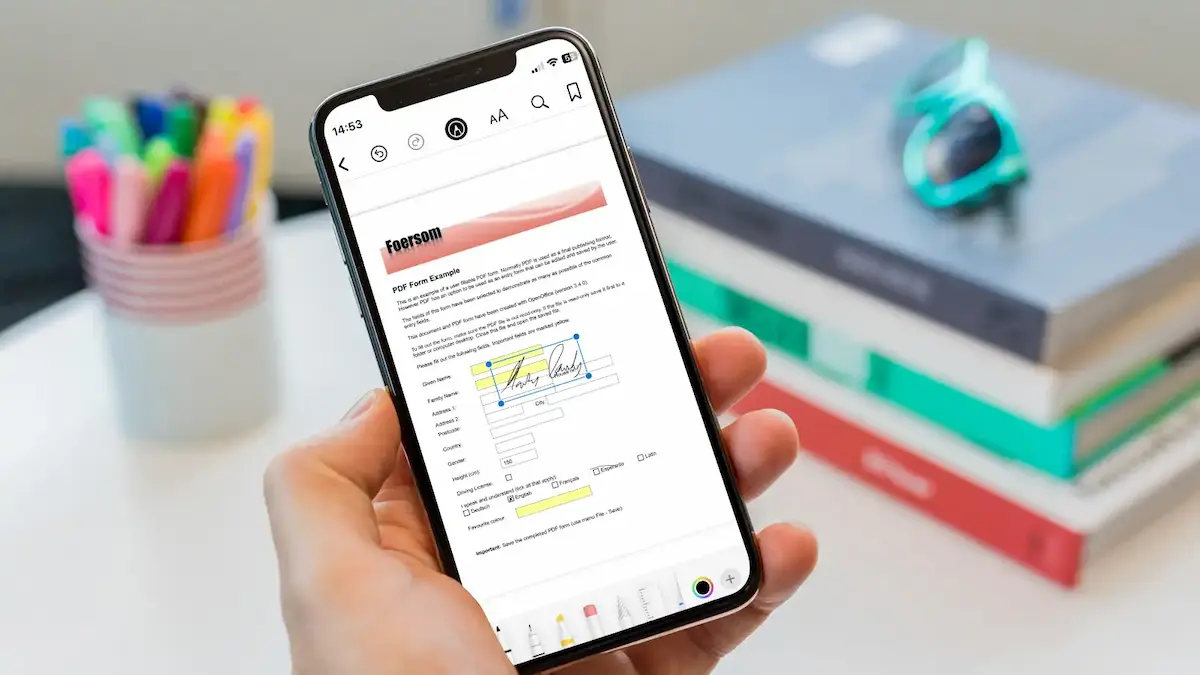
If you want to edit PDF on iPhone, you don’t need a laptop or complicated software anymore. Your iPhone is powerful enough to handle everything—from adding text and signatures to editing entire documents.
In this detailed, user-friendly guide, I’ll walk you through every method step by step so you can confidently edit any PDF right from your phone.
Why You Should Edit PDF on iPhone
Before we jump into the steps, let’s understand why editing PDFs on iPhone is so useful.
- You can edit documents anytime, anywhere
- No need for a computer or printer
- Perfect for students, freelancers, and professionals
- Fast sharing via email, WhatsApp, or cloud apps
- Secure and convenient for signing documents
Whether it’s a form, contract, or notes—you can handle it all in seconds.
Method 1: Edit PDF on iPhone Using Built-in Markup Tool (No App Needed)
Your iPhone already has a hidden but powerful PDF editor called Markup. It works inside the Files app, Mail, and even Photos.
Step-by-Step Guide:
- Open the Files app on your iPhone
- Locate and tap your PDF file
- Tap the pen icon (Markup) in the top-right corner
- Now you can:
- Highlight important text
- Draw or write notes
- Add shapes (arrows, boxes, etc.)
- Insert your signature
- Tap Done to save your changes
When to Use This:
- Quick edits
- Highlighting and notes
- Signing documents
Limit: You cannot edit existing text (only annotate)
Method 2: Edit PDF on iPhone Using Adobe Acrobat Reader
If you want more control and advanced features, Adobe Acrobat Reader is one of the best options.
Key Features:
- Edit text and formatting (premium feature)
- Add comments and highlights
- Fill forms easily
- Sign documents digitally
- Convert PDFs to other formats
Step-by-Step Guide:
- Download Adobe Acrobat Reader from the App Store
- Open the app and import your PDF
- Tap on Edit PDF
- Make changes like:
- Editing text
- Adding images
- Highlighting or commenting
- Save your file
Why Use It:
- Professional editing
- Reliable and widely used
- Great for office work
Method 3: Edit PDF on iPhone Using Apple Books
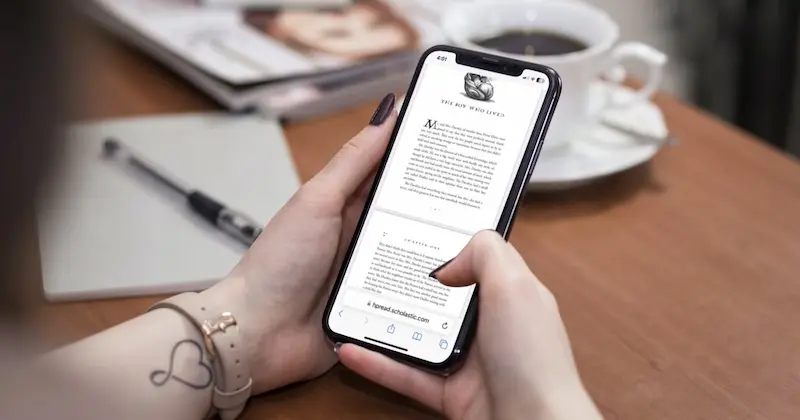
Apple Books is another simple option, especially for reading and light editing.
Steps:
- Open your PDF in Apple Books
- Tap the screen to reveal tools
- Tap the Markup icon
- Highlight text or add notes
- Save your changes
Best For:
- Students
- Reading PDFs
- Light annotations
Method 4: Edit PDF on iPhone Using Microsoft Word (For Full Editing)
If you want to completely change the content of a PDF, this method works best.
How It Works:
You convert your PDF into an editable Word document.
Steps:
- Open Microsoft Word app
- Tap Open and select your PDF
- Word will automatically convert it
- Edit text, images, and formatting freely
- Save or export back as a PDF
Best For:
- Full text editing
- Fixing formatting
- Rewriting content
Method 5: Edit PDF on iPhone Using PDF Expert
PDF Expert is a premium app known for smooth performance and powerful tools.
Features:
- Edit text directly
- Annotate and highlight
- Merge and split PDFs
- Password-protect files
Ideal For:
- Business users
- Frequent PDF editing
- Clean and fast experience
What Can You Actually Edit in a PDF?
Here’s what you can do when you edit PDF on iPhone:
Basic Editing:
- Highlight text
- Add comments
- Draw or annotate
Advanced Editing:
- Modify existing text
- Add or remove images
- Fill forms
Extra Features:
- Add digital signatures
- Merge multiple PDFs
- Convert PDF to Word or Excel
Common Problems While Editing PDFs on iPhone
1. Cannot Edit Text
Some PDFs are scanned images.
Solution: Use OCR tools in apps like Adobe Acrobat Reader.
2. Formatting Gets Messed Up
This usually happens when converting PDFs.
Solution: Use Microsoft Word for better formatting control.
3. File Not Opening
Sometimes files are corrupted or unsupported.
Solution: Try opening in another app like PDF Expert or Adobe.
Tips to Edit PDF on iPhone Like a Pro
- Use Markup for quick tasks
- Use Adobe for professional editing
- Always keep a backup of your file
- Use cloud storage (iCloud/Google Drive)
- Convert to Word if editing is complex
Best Apps to Edit PDF on iPhone (Quick List)
- Adobe Acrobat Reader – Best overall
- PDF Expert – Smooth and fast
- Foxit PDF Editor – Feature-rich
- Microsoft Word – Best for conversion
FAQs About Edit PDF on iPhone
1. Can I edit PDF on iPhone for free?
Yes, you can use built-in tools like Markup or free versions of apps like Adobe Acrobat Reader.
2. How do I add a signature to a PDF?
Use the Markup tool or Adobe Acrobat Reader to create and insert your signature easily.
3. Can I edit scanned PDFs on iPhone?
Yes, but you’ll need OCR features available in apps like Adobe Acrobat.
4. Which app is best to edit PDF on iPhone?
Adobe Acrobat Reader is best overall, while PDF Expert is great for performance.
Conclusion
Now you fully understand how to edit PDF on iPhone using different methods. If you just need quick edits, the built-in Markup tool is perfect. But if you want full control, apps like Adobe Acrobat Reader or Microsoft Word give you advanced features.
Start with the method that matches your needs, and you’ll be editing PDFs on your iPhone like a pro in no time.
