
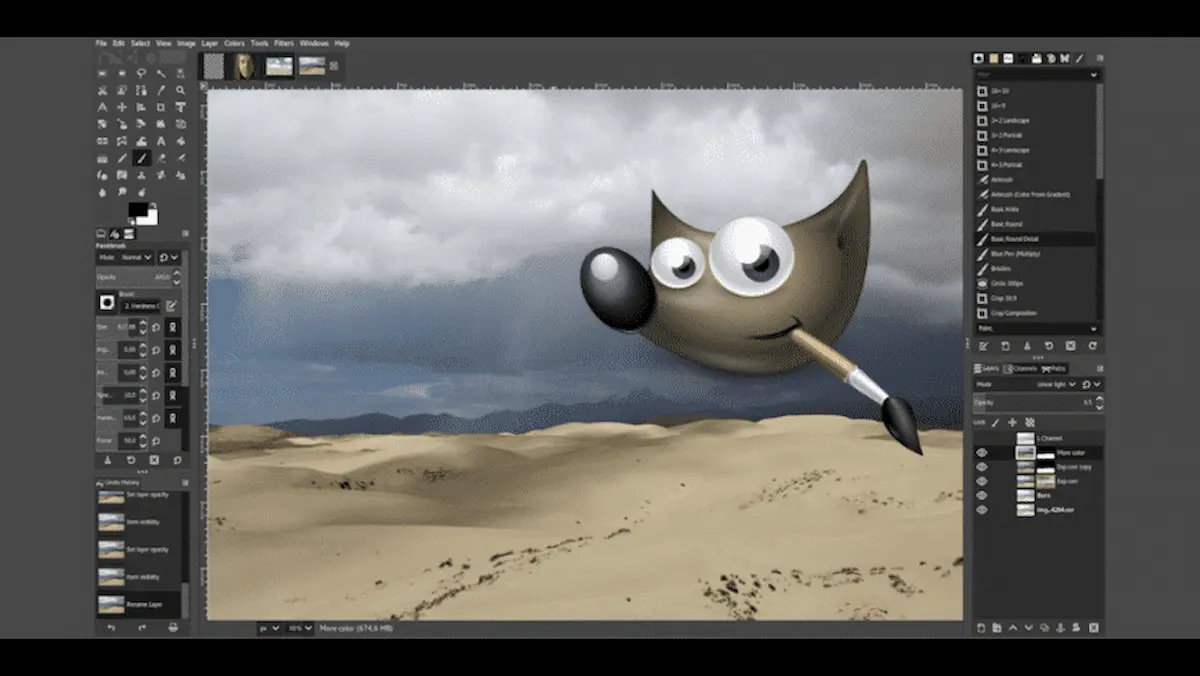
If you are looking for a powerful and free image editing tool for your Mac, GIMP is one of the best options available. Many people search for GIMP for Mac because they want a professional editing tool without paying for expensive software like Adobe Photoshop.
The good news is that GIMP works smoothly on macOS and offers many advanced features for editing photos, creating graphics, and designing digital artwork. Whether you are a beginner or an experienced designer, GIMP provides the tools you need to create high-quality images.
In this article, we will explain what GIMP for Mac is, how to download it, its features, benefits, and tips for using it effectively.
What Is GIMP for Mac?
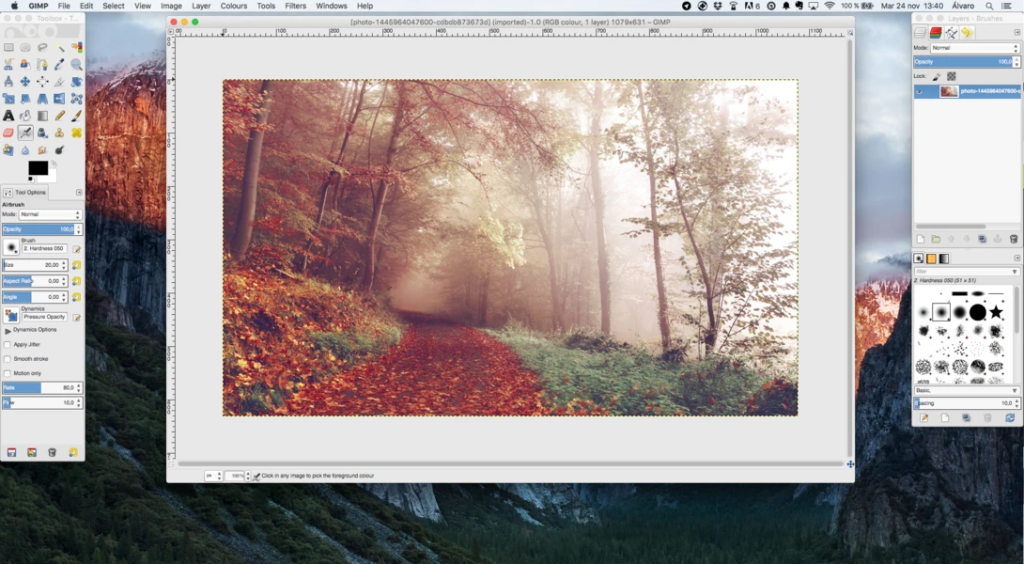
GIMP for Mac is the macOS version of the GNU Image Manipulation Program. It is a free and open-source image editing software that allows users to edit photos, design graphics, and create digital artwork.
GIMP is used by photographers, designers, illustrators, and content creators around the world. Because it is open-source, developers continuously improve it and add new features.
You can install it easily on Apple devices running macOS.
You maya slo like it:
Video Banavani App – Create Videos With Ease – Aarya Editz
Discover Snapseed QR Presets – Best Photo Editing – Aarya Editz
Camera 4K APK Features, Pros & Installation Guide – Aarya Editz
AI Photo Editing Editz – Creative, And Stunning Photos – Aarya Editz
Key Features of GIMP for Mac
One reason many users choose GIMP is its wide range of powerful editing tools.
1. Advanced Photo Editing
GIMP allows you to adjust brightness, contrast, colors, and sharpness. You can also remove imperfections and enhance images easily.
2. Layer-Based Editing
Just like professional tools such as Photoshop, GIMP supports layer editing, allowing you to work on different elements without affecting the whole image.
3. Custom Brushes and Tools
GIMP provides many built-in brushes, and you can also download or create your own brushes for unique designs.
4. Multiple File Format Support
GIMP supports many image formats including:
- JPEG
- PNG
- GIF
- PSD
- TIFF
This means you can open and edit files created in other design programs.
5. Plugins and Extensions
GIMP supports plugins that allow you to extend its functionality and add more creative tools.
How to Download GIMP for Mac
Downloading GIMP on your Mac is simple and only takes a few minutes.
Step-by-Step Installation
- Visit the official website of GIMP.
- Click the Download button.
- Select the macOS version.
- Download the installation file.
- Open the file and drag the GIMP icon into the Applications folder.
- Launch GIMP and start editing.
Once installed, you can begin using it right away without any subscription.
Why Use GIMP on Mac?
Many Mac users prefer GIMP because it offers powerful editing features without any cost.
Free and Open Source
Unlike many premium editing tools, GIMP is completely free to use.
Powerful Editing Tools
You get professional tools such as layers, masks, filters, and color correction.
Lightweight Software
GIMP runs smoothly on most Mac devices without requiring very high system resources.
Active Community
Thousands of users and developers share tutorials, plugins, and resources online.
GIMP vs Photoshop on Mac
Many users compare GIMP for Mac with Photoshop.
| Feature | GIMP | Photoshop |
| Price | Free | Paid subscription |
| Layers | Yes | Yes |
| Plugins | Yes | Yes |
| Ease of Use | Moderate | Beginner-friendly |
| Professional Tools | Many | Advanced |
If you want a free alternative, GIMP is an excellent choice.
Tips for Using GIMP on Mac
If you are new to GIMP, these tips will help you get started quickly.
Learn Keyboard Shortcuts
Using shortcuts can make editing faster and more efficient.
Use Layers
Always work with layers so you can edit elements separately.
Explore Filters
GIMP includes many filters for adding effects and enhancing images.
Watch Tutorials
There are many free tutorials online that can help you master GIMP.
Common Uses of GIMP for Mac
GIMP can be used for many creative tasks, including:
- Photo editing
- Graphic design
- Social media graphics
- Logo creation
- Website images
- Digital painting
Because of its flexibility, it is suitable for both beginners and professionals.
Final Thoughts
If you want a powerful and free image editing tool, GIMP for Mac is definitely worth trying. It offers many advanced features similar to premium software and works smoothly on macOS.
Whether you want to edit photos, create graphics, or design digital artwork, GIMP provides the tools you need without any cost.
With regular updates and a large community of users, GIMP continues to be one of the best free image editing tools available for Mac users.
FAQs
Is GIMP available for Mac?
Yes, GIMP is fully compatible with macOS and can be downloaded for free.
Is GIMP for Mac free?
Yes, GIMP is completely free and open-source software.
Can GIMP open Photoshop files?
Yes, GIMP supports PSD files, which means you can open and edit Photoshop projects.
Is GIMP good for beginners?
Yes, beginners can use GIMP, although it may take some time to learn all the features.
Does GIMP work on all Mac devices?
GIMP works on most Macs that support modern versions of macOS.
