
If you love photo editing but don’t enjoy complicated software, you might have heard about PhotoGIMP.
Many people search for PhotoGIMP because they want a simple and familiar editing experience—especially users who are used to Adobe Photoshop but want a free alternative.
So, what exactly is PhotoGIMP?
In simple words, PhotoGIMP is a customization package for GIMP that makes it look and work more like Adobe Photoshop. It changes the layout, shortcuts, tools, and overall interface so beginners and Photoshop users can feel comfortable while using GIMP.
Let’s explore PhotoGIMP completely in this guide.
What Is PhotoGIMP?
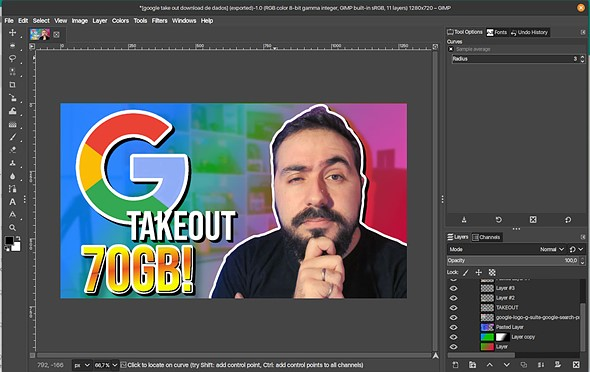
PhotoGIMP is a free modification (patch) for GIMP that transforms GIMP’s interface into a Photoshop-like layout.
GIMP (GNU Image Manipulation Program) is already a powerful free photo editing tool, but many users find it difficult because:
- The interface feels different
- Tools are in different places
- Keyboard shortcuts don’t match Photoshop
- The workflow feels confusing
PhotoGIMP solves this problem by giving you a more familiar and user-friendly layout.
Is PhotoGIMP a Separate Software?
No.
This is very important:
✅ PhotoGIMP is not a separate photo editing software.
✅ It is a custom configuration for GIMP.
That means you must install GIMP first, then apply PhotoGIMP files to it.
Why Do People Use PhotoGIMP?
Here are the main reasons PhotoGIMP is popular:
1. Photoshop-Like Interface
It makes GIMP feel similar to Photoshop.
2. Familiar Keyboard Shortcuts
Shortcuts like:
- Ctrl + N (new file)
- Ctrl + O (open)
- Ctrl + S (save)
- Ctrl + Z (undo)
work in a way that feels closer to Photoshop users.
3. Better Tool Organization
Tools, panels, and menus become easier to find.
4. Perfect for Beginners
Beginners often struggle with original GIMP layout, but PhotoGIMP makes it easier.
5. 100% Free
You get a Photoshop-like experience without paying for a subscription.
Key Features of PhotoGIMP
PhotoGIMP doesn’t add new editing tools, but it improves the experience in many ways.
✅ 1. New Interface Layout
The whole interface becomes cleaner and more Photoshop-style.
✅ 2. Updated Tool Icons
Icons look more modern and familiar.
✅ 3. Optimized Default Settings
PhotoGIMP changes default settings to improve workflow.
✅ 4. Improved Panel Setup
You get:
- Layers panel
- Tools panel
- History panel
- Brushes panel
in a more comfortable position.
✅ 5. Photoshop-Like Shortcuts
This is one of the biggest benefits for Photoshop users switching to GIMP.
PhotoGIMP vs GIMP (Main Difference)
Let’s make it simple:
| Feature | GIMP | PhotoGIMP |
| Software Type | Original editor | Patch for GIMP |
| Interface | Different from Photoshop | Similar to Photoshop |
| Shortcuts | GIMP default | Photoshop-style |
| Tools | Same | Same |
| Best For | GIMP users | Photoshop users & beginners |
So basically:
PhotoGIMP = GIMP + Photoshop-like interface and shortcuts
How to Download PhotoGIMP
PhotoGIMP is available online for free and is usually shared through GitHub.
Before installing PhotoGIMP, make sure you have:
✅ Latest version of GIMP installed
✅ A backup of your existing GIMP settings (optional but recommended)
How to Install PhotoGIMP (Simple Steps)
PhotoGIMP installation depends on your operating system, but the basic idea is the same.
Step 1: Install GIMP
Download and install the latest version of GIMP first.
Step 2: Download PhotoGIMP Files
PhotoGIMP comes as a folder containing:
- configuration files
- shortcuts
- brushes and resources
- interface settings
Step 3: Replace GIMP Settings Folder
You copy PhotoGIMP files into your GIMP configuration directory.
Step 4: Restart GIMP
Once you restart GIMP, it will load PhotoGIMP layout automatically.
Is PhotoGIMP Safe to Use?
Yes, PhotoGIMP is generally safe as long as you download it from a trusted source (like the official GitHub page).
However, keep in mind:
- PhotoGIMP changes your GIMP settings
- It does not harm your computer
- It can be removed anytime
How to Uninstall PhotoGIMP
If you don’t like PhotoGIMP and want normal GIMP back, you can easily remove it.
The simplest way:
- Reset GIMP settings
OR - Delete the modified GIMP configuration folder
Then restart GIMP, and it will return to default.
Who Should Use PhotoGIMP?
PhotoGIMP is best for:
✅ People switching from Photoshop to GIMP
✅ Beginners who find GIMP confusing
✅ Freelancers who want free editing software
✅ Students who can’t afford Photoshop
✅ Graphic designers needing a lightweight alternative
You may also like it:
Photo Banane Ki File: Best Information On File Formats & Uses
BeautyPlus Premium APK: Unlock Full Best Photo Editing Power
Aarya Name Meaning, Origin, Significance & Astrology Details
What Can You Do With PhotoGIMP?
Since PhotoGIMP is basically GIMP, you can do everything GIMP can:
- Photo retouching
- Background removal
- Skin smoothing
- Color correction
- Logo creation
- Social media designs
- Thumbnail creation
- Image resizing and cropping
- Layer-based editing
- Text and typography work
Pros and Cons of PhotoGIMP
✅ Pros
- Free and open-source
- Photoshop-like layout
- Easier for beginners
- Better shortcuts and workflow
- Works on Windows, Linux, and macOS
❌ Cons
- Still not exactly Photoshop
- Some advanced Photoshop features are missing
- Installation may feel technical for beginners
- Some users prefer original GIMP layout
Best Tips for Using PhotoGIMP
If you want the best experience, follow these tips:
1. Learn Basic Tools First
Start with:
- Move tool
- Crop tool
- Brush tool
- Eraser tool
- Layers
2. Use Keyboard Shortcuts
Shortcuts save time and improve speed.
3. Install Extra Plugins (Optional)
GIMP supports plugins that can expand features.
4. Practice with Small Projects
Start with simple tasks like:
- removing background
- color correction
- thumbnail creation
PhotoGIMP for Beginners (Best Use Cases)
If you’re a beginner, PhotoGIMP is perfect for:
- Editing profile pictures
- Making YouTube thumbnails
- Creating posters and banners
- Designing social media posts
- Simple photo retouching
Final Thoughts
PhotoGIMP is one of the best solutions for people who want a free alternative to Photoshop but don’t like GIMP’s default interface.
It doesn’t change GIMP’s core features — it simply makes the software easier, cleaner, and more familiar.
So if you want a Photoshop-style editing experience without paying money, PhotoGIMP is definitely worth trying.
FAQs for PhotoGIMP
1. What is PhotoGIMP?
PhotoGIMP is a free customization package for GIMP that changes the interface, shortcuts, and layout to look and feel like Adobe Photoshop.
2. Is PhotoGIMP a separate software?
No, PhotoGIMP is not separate software. It is a patch for GIMP, so you must install GIMP first before using PhotoGIMP.
3. Does PhotoGIMP add new tools to GIMP?
No. PhotoGIMP does not add new tools. It only changes the layout, keyboard shortcuts, icons, and default settings for a better workflow.
4. Is PhotoGIMP free to use?
Yes, PhotoGIMP is completely free and open-source, just like GIMP.
5. Is PhotoGIMP safe to install?
Yes, PhotoGIMP is generally safe if downloaded from trusted sources like the official GitHub page. It only changes GIMP settings and can be removed anytime.
