
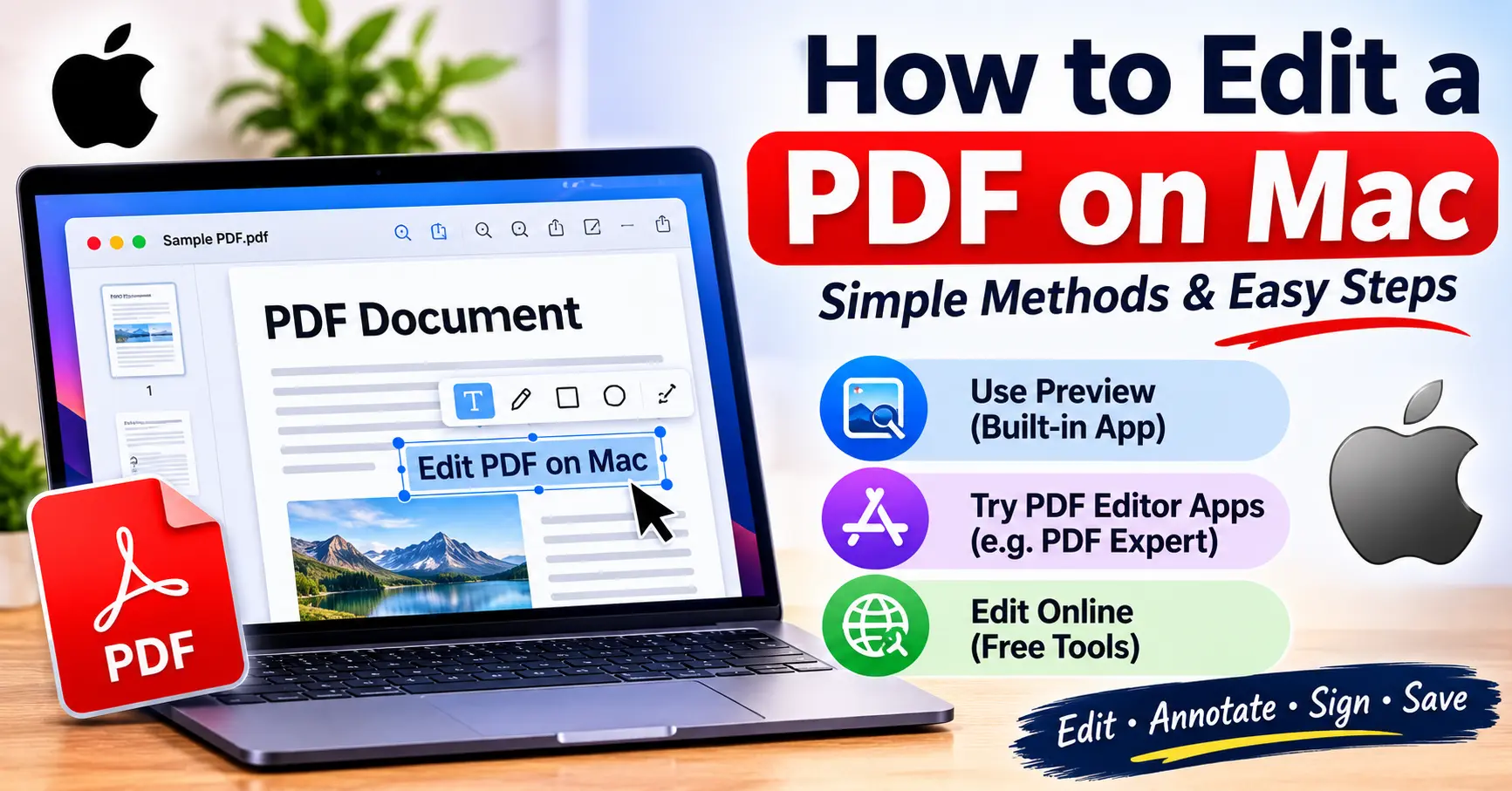
PDF files are commonly used for documents, forms, reports, invoices, and business records. Sometimes, you may need to change text, add images, insert a signature, highlight important information, or remove unwanted pages from a PDF file. If you use a MacBook or iMac, you can make many of these changes without installing expensive software.
If you are wondering how to edit a PDF on Mac, there are several simple methods available. You can use Apple’s built-in Preview app, Adobe Acrobat, online PDF editors, or other applications. This guide explains each method step by step so you can choose the easiest option for your needs.
Can You Edit a PDF on Mac?
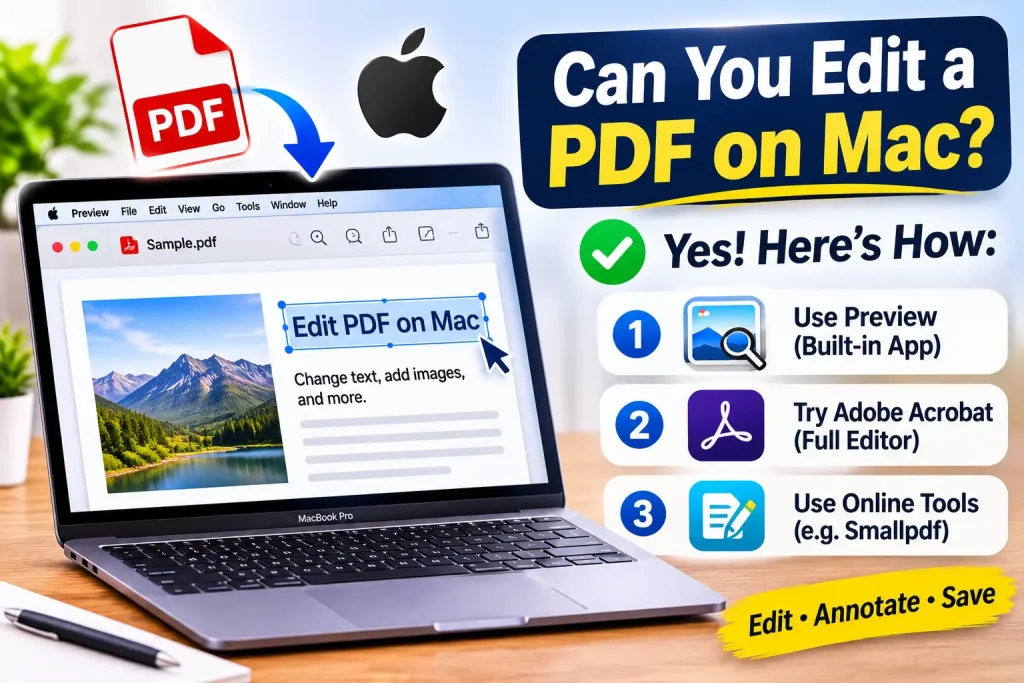
Yes, you can edit PDF files on a Mac using different tools. Apple provides a built-in application called Preview that allows users to make basic changes to PDF documents.
With Preview, you can:
- Add text boxes and notes.
- Highlight important sentences.
- Draw shapes and lines.
- Insert a signature.
- Add images.
- Rotate PDF pages.
- Delete unwanted pages.
- Rearrange pages.
- Combine multiple PDF files.
However, Preview does not provide full editing capabilities for changing existing PDF text. If you want to replace original text or make advanced layout changes, you may need Adobe Acrobat or another dedicated PDF editor.
1. How to Edit a PDF on Mac Using Preview
Preview is one of the easiest ways to edit PDF documents on macOS. It comes preinstalled on most Mac computers, so you do not need to download additional software.
Follow these steps:
Step 1: Open Your PDF File
Find the PDF document you want to edit. Right-click the file, select Open With, and choose Preview.
Step 2: Open the Markup Toolbar
Click the Markup icon in the Preview toolbar. You will see different editing options for adding text, shapes, signatures, and other elements.
Step 3: Add Text to the PDF
Click the Text option to insert a text box. Type the information you want to add and adjust its size, font, and color.
Step 4: Highlight Important Information
Select the highlighting tool and choose your preferred color. Drag over the text you want to highlight.
Step 5: Save Your Changes
After completing your edits, click File and select Save. Your updated PDF will be saved with the changes.
2. How to Edit Existing PDF Text on Mac
Editing existing text is different from adding a new text box. Preview allows you to add information, but it generally cannot directly replace the original text inside a PDF.
If you want to change existing words, numbers, or paragraphs, use a dedicated PDF editor.
Here is the general process:
- Open your PDF editor.
- Import the PDF document.
- Find the Edit PDF option.
- Select the existing text you want to change.
- Replace it with your updated information.
- Adjust the font, size, and alignment.
- Save the edited PDF.
Adobe Acrobat is one option for this type of editing. The availability of editing features depends on your subscription or plan.
3. How to Edit a PDF on Mac Using Adobe Acrobat
Adobe Acrobat provides advanced PDF editing tools for people who regularly work with documents.
Follow these steps:
Step 1: Open Adobe Acrobat on your Mac.
Step 2: Select Open File and choose your PDF document.
Step 3: Find the Edit option in the available tools.
Step 4: Select the text, image, or other content you want to change.
Step 5: Make your changes using the editing toolbar.
Step 6: Click Save to store your updated document.
Adobe Acrobat is useful for editing existing text, changing images, updating layouts, and managing professional PDF documents.
4. How to Add a Signature to a PDF on Mac
If you need to sign a digital document, Preview provides a convenient signature feature.
Follow these instructions:
- Open the PDF file in Preview.
- Click the Markup toolbar icon.
- Select the Signature option.
- Create a signature using your trackpad or camera.
- Select the saved signature.
- Place it in the correct position.
- Adjust its size if necessary.
- Save the PDF document.
This method is useful for signing applications, agreements, forms, and other documents.
5. How to Add or Remove Pages From a PDF on Mac
Sometimes, a PDF contains unnecessary pages, or you need to add additional information. Preview makes page management simple.
How to Delete a PDF Page
- Open the PDF in Preview.
- Select View from the menu.
- Choose Thumbnails.
- Click the page you want to remove.
- Press the Delete key.
- Save the document.
How to Add a Page to a PDF
- Open the PDF in Preview.
- Open the PDF document containing the page you want to add.
- Enable the thumbnail view in both documents.
- Drag the required page into the thumbnail sidebar of the main PDF.
- Place it in your preferred position.
- Save the updated file.
6. How to Edit a PDF on Mac for Free
If you do not want to spend money on PDF editing software, you can use several free options.
Here are some common choices:
| Tool | Main Features | Cost |
| Apple Preview | Annotations, signatures, highlighting, page management | Free |
| LibreOffice Draw | Editing PDF content and objects | Free |
| PDFgear | PDF editing, annotations, and conversion | Free features available |
| Online PDF Editors | Basic editing, merging, and signing | Free options available |
Preview is a good choice for simple changes. LibreOffice Draw and other PDF editors may be more suitable when you need to modify existing document content.
Always check the privacy policy before uploading confidential documents to an online PDF editor.
7. How to Edit a PDF on Mac Without Installing Software
You can edit many PDF documents without downloading additional applications.
The easiest method is to use Preview, which is already available on your Mac.
Here is what you need to do:
- Locate your PDF document.
- Open it using Preview.
- Click the Markup toolbar.
- Add text, shapes, highlights, or signatures.
- Make any required page changes.
- Save the updated document.
This method is especially useful when you only need to add information, sign a document, or highlight important details.
8. How to Convert a PDF Into an Editable Word Document on Mac
If you need to make major changes to a PDF, converting it into a Word document may be helpful.
Follow these steps:
- Open Microsoft Word on your Mac.
- Select File and then Open.
- Choose the PDF document.
- Allow Word to convert the PDF into an editable document.
- Make your required changes.
- Select Save As.
- Choose Word or PDF as your preferred file format.
Keep in mind that complex formatting, tables, and images may change during conversion. Review the document before saving the final version.
You may also like it:
How To Edit Image Text In Word – Aarya Editz
How To Edit Video In Iphone – Aarya Editz
How To Edit Resume In Laptop – Aarya Editz
How To Edit Photos In Mobile – Aarya Editz
Common Problems When Editing PDFs on Mac
Sometimes, users experience problems while editing PDF documents. Here are a few common issues and their possible solutions.
1. Cannot Edit Existing Text
Preview does not normally support direct editing of original PDF text. Use a dedicated PDF editor instead.
2. PDF Is Password Protected
Some PDF documents have editing restrictions. You may need the correct password or permission from the document owner before making changes.
3. Changes Are Not Saving
Check whether the file is read-only or stored in a location where you have permission to make changes. Try using Save As to create a new copy.
4. Text Formatting Changes
PDF formatting may change when you convert a document into Word. Use a PDF editor if preserving the original layout is important.
5. PDF Is Not Opening in Preview
Make sure the file is not damaged and that it has a valid PDF format. You can also try opening it with another PDF reader.
Frequently Asked Questions
1. How do I edit a PDF on Mac for free?
You can use Apple’s built-in Preview app to add text boxes, signatures, highlights, shapes, and notes. It also allows you to manage PDF pages without paying for additional software.
2. Can I edit PDF text using Preview on Mac?
Preview allows you to add new text, but it generally cannot directly change existing text in a PDF. For that purpose, you need a dedicated PDF editor.
3. How do I sign a PDF on Mac?
Open the PDF in Preview, select the Markup toolbar, choose Signature, create your signature, and place it in the document.
4. Is Adobe Acrobat available for Mac?
Yes, Adobe Acrobat is available for macOS. It provides tools for editing text, images, pages, and other PDF content.
5. Can I edit a PDF on Mac without downloading software?
Yes. You can use Preview, which is built into macOS. It supports basic PDF editing tasks such as annotations, signatures, and page management.
Conclusion
Editing PDF documents on a Mac is simple when you choose the right tool. Preview is an excellent free option for adding text boxes, highlighting information, signing documents, and managing pages. However, if you need to change existing text or modify complex layouts, a dedicated PDF editor such as Adobe Acrobat may be a better choice.
Whether you are editing a business document, updating a form, or signing an agreement, these methods can help you manage PDF files easily on your Mac.
