
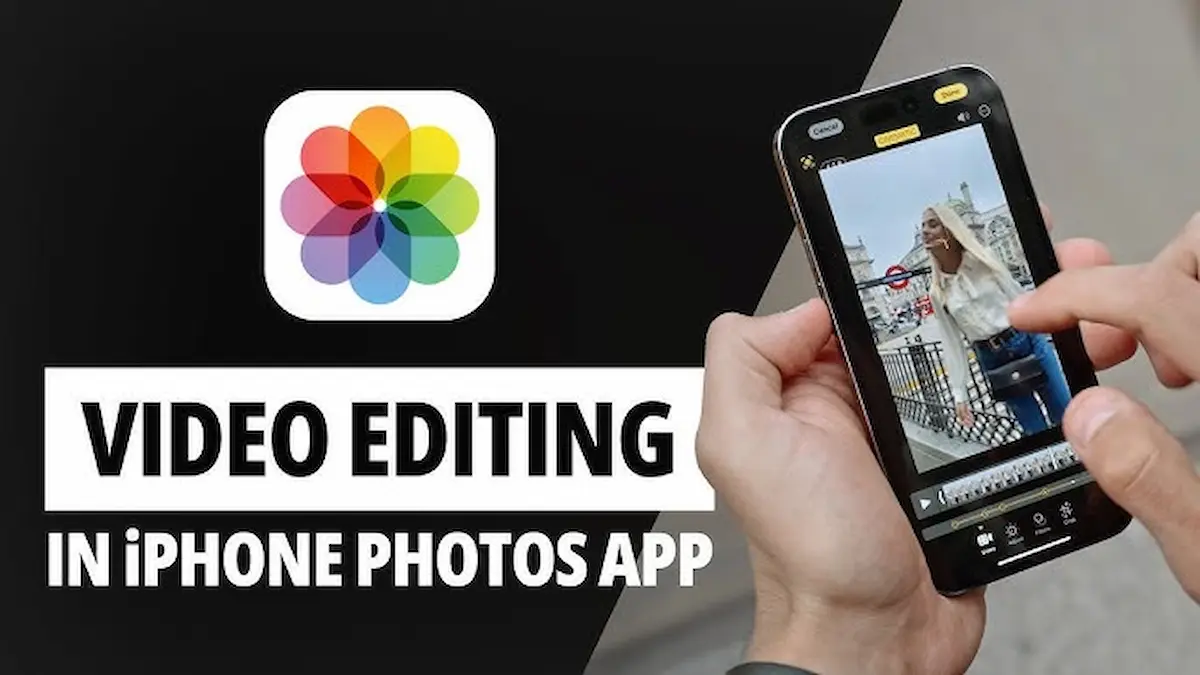
If you’re searching for How to Edit Videos on iPhone, you’ve come to the right place. Editing videos on an iPhone has become easier than ever thanks to powerful built-in tools and user-friendly editing apps. Whether you’re creating videos for Instagram, TikTok, YouTube, Facebook, or simply saving memories with family and friends, your iPhone has everything you need to create amazing videos.
Many people think video editing requires expensive software or advanced skills, but that’s no longer true. With just a few taps, you can trim clips, add music, adjust colors, include text, apply filters, and create professional-looking videos directly from your iPhone.
In this How to Edit Videos on iPhone guide, you’ll learn everything from basic editing techniques to advanced tips, the best editing apps, and common mistakes to avoid. Whether you’re a beginner or someone looking to improve your editing skills, this guide will help you create better videos with confidence.
What Does It Mean to Edit Videos on iPhone?
Editing videos on an iPhone means improving your recorded clips by making changes that enhance their quality and storytelling. You can remove unwanted sections, combine multiple clips, adjust brightness, add music, include text, apply filters, and much more.
Video editing allows you to transform ordinary recordings into engaging videos that are ready to share on social media or keep as personal memories.
Why Learn How to Edit Videos on iPhone?
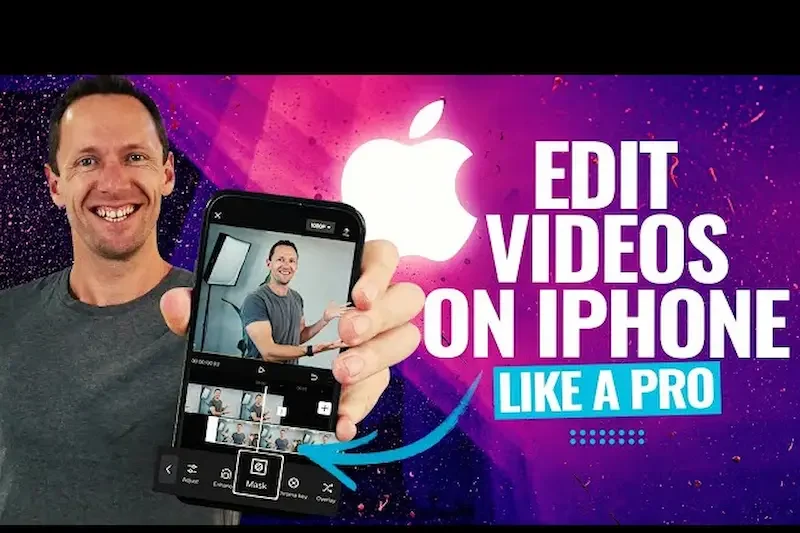
Learning How to Edit Videos on iPhone offers many benefits.
Some advantages include:
- Create professional-looking videos
- Share better content on social media
- Save time with mobile editing
- Edit anywhere without a computer
- Improve video quality
- Add creativity to your content
- Tell better stories through video
Built-in Video Editing Features on iPhone
The Photos app includes several useful editing tools.
You can:
- Trim videos
- Rotate videos
- Crop videos
- Straighten videos
- Adjust brightness
- Change contrast
- Improve saturation
- Apply filters
- Edit exposure
- Save edited copies
These tools are perfect for quick and simple edits.
How to Trim Videos on iPhone
Trimming removes unwanted parts from the beginning or end of your video.
To trim a video:
- Open the Photos app.
- Select your video.
- Tap Edit.
- Drag the handles on the timeline.
- Preview the result.
- Save your changes.
Trimming helps keep your videos short and engaging.
How to Crop Videos on iPhone
Cropping removes unwanted edges from your video.
You can crop videos to:
- Focus on your subject
- Remove distractions
- Fit social media formats
- Improve composition
Cropping creates cleaner and more professional videos.
How to Rotate Videos on iPhone
If your video was recorded in the wrong orientation, you can easily rotate it.
The built-in Photos editor allows you to rotate videos so they display correctly on every platform.
How to Add Filters to Videos
Filters change the overall appearance of your videos.
Popular filters can:
- Brighten colors
- Create cinematic effects
- Add warmth
- Improve mood
- Enhance scenery
Choose filters that match your video’s style without overdoing them.
How to Adjust Video Brightness and Colors
Lighting plays a huge role in video quality.
You can adjust:
- Brightness
- Contrast
- Exposure
- Highlights
- Shadows
- Warmth
- Saturation
- Sharpness
Small adjustments often produce the best results.
Best Apps to Edit Videos on iPhone
While the Photos app is excellent for basic editing, many free and paid apps provide more advanced features. How To Edit Videos On Iphone
Popular video editing apps include:
- iMovie
- CapCut
- VN Video Editor
- InShot
- Adobe Premiere Rush
- LumaFusion
- Splice How To Edit Videos On Iphone
- KineMaster
Choose the app that matches your editing needs and experience level.
How to Add Music to Videos
Music can completely change the mood of a video.
When adding music:
- Choose songs that match your content.
- Keep the volume balanced. How To Edit Videos On Iphone
- Avoid overpowering dialogue.
- Use royalty-free music when publishing online.
The right soundtrack makes videos more enjoyable.
How to Add Text and Captions
Text helps viewers understand your content.
You can use text to:
- Add titles
- Introduce scenes
- Display names
- Highlight important information
- Create subtitles How To Edit Videos On Iphone
- Improve accessibility
Captions also help viewers watching videos without sound.
Editing Videos for Social Media
Different platforms use different video formats.
Optimize your videos for:
- Instagram Reels
- TikTok
- YouTube Shorts
- Facebook Reels
- Snapchat How To Edit Videos On Iphone
- WhatsApp Status
Editing with the platform in mind improves the viewing experience.
You may also like it:
How To Edit Image Text In Word – Aarya Editz
How To Edit Video In Iphone – Aarya Editz
How To Edit Resume In Laptop – Aarya Editz
How To Edit Photos In Mobile – Aarya Editz
Tips for Better Video Editing on iPhone
Improve your editing skills with these simple tips:
- Keep videos short.
- Use smooth transitions.
- Remove unnecessary clips.
- Add music carefully. How To Edit Videos On Iphone
- Keep text easy to read.
- Maintain consistent colors.
- Preview before exporting.
- Practice regularly.
Common Video Editing Mistakes to Avoid
Avoid these common mistakes:
- Over
dont use end line
How to Add Transitions Between Video Clips on iPhone
Transitions help your videos flow smoothly from one scene to another. Instead of switching abruptly between clips, transitions create a more professional viewing experience.
Most iPhone video editing apps offer transitions such as fade, dissolve, slide, zoom, and wipe. Use transitions carefully because too many effects can make your video look distracting. Simple transitions usually work best for travel videos, family memories, and social media content.
How to Add Music and Sound Effects on iPhone
Music can completely change the mood of your video. Whether you’re creating a travel vlog, birthday video, or Instagram Reel, adding background music makes your content more engaging. How To Edit Videos On Iphone
When choosing music:
- Select music that matches your video’s mood.
- Keep background music lower than voice recordings.
- Use copyright-free music for public videos. How To Edit Videos On Iphone
- Avoid songs that overpower your main content.
Small sound effects can also make videos more entertaining when used naturally.
How to Add Text and Titles to Videos
Adding text helps explain your video and keeps viewers interested. Titles are useful for introductions, while captions make your videos easier to understand. How To Edit Videos On Iphone
You can use text for:
- Video titles
- Names
- Locations
- Dates
- Quotes
- Instructions
- Subtitles
- Ending messages
Keep your text simple, readable, and positioned where it doesn’t cover important parts of the video.
How to Edit Slow Motion Videos on iPhone
The iPhone records impressive slow-motion videos that you can edit directly from the Photos app.
You can:
- Shorten the slow-motion section
- Adjust where the slow motion begins
- Change where normal speed resumes
- Trim unnecessary footage How To Edit Videos On Iphone
Slow-motion editing works especially well for sports, pets, nature, and action scenes.
How to Edit Time-Lapse Videos on iPhone
Time-lapse videos capture long events in just a few seconds. They’re perfect for sunsets, busy streets, clouds, construction projects, and creative content.
After recording, you can trim the beginning and end, adjust colors, and improve brightness to make the final video more attractive.
How to Improve Video Quality on iPhone
Even if your original recording isn’t perfect, editing can significantly improve its appearance.
Simple improvements include:
- Increase brightness
- Adjust contrast
- Improve sharpness
- Correct exposure How To Edit Videos On Iphone
- Reduce overly warm or cool colors
- Straighten the frame
- Crop distracting objects
Making small adjustments often produces the most natural-looking results.
Best Video Editing Apps for Beginners
If you’re just getting started with 100+ How to Edit Videos on iPhone, beginner-friendly apps make learning much easier.
Popular beginner apps include:
- iMovie
- CapCut
- InShot How To Edit Videos On Iphone
- VN Video Editor
- Splice
These apps have simple interfaces and provide plenty of editing features without requiring professional experience.
Best Video Editing Apps for Advanced Users
If you want more creative control, several advanced apps offer professional editing tools.
These apps include features such as:
- Multi-layer editing
- Green screen effects
- Motion tracking
- Advanced color correction
- Audio mixing How To Edit Videos On Iphone
- Keyframe animation
- High-resolution exporting
They are ideal for YouTubers, content creators, filmmakers, and business videos.
Tips to Make Your iPhone Videos Look Professional
Professional-looking videos don’t always require expensive equipment.
Follow these simple tips:
- Record in good lighting.
- Keep your camera steady.
- Clean your camera lens.
- Shoot in high resolution.
- Use simple transitions.
- Keep clips short.
- Remove unnecessary footage.
- Add clear titles. How To Edit Videos On Iphone
- Use background music carefully.
- Preview your video before exporting.
Common Video Editing Mistakes to Avoid
Many beginners make small editing mistakes that reduce video quality.
Avoid these common errors:
- Adding too many transitions
- Overusing filters
- Using loud background music
- Leaving unnecessary clips
- Making text difficult to read
- Exporting in low quality How To Edit Videos On Iphone
- Shaky camera footage
- Inconsistent colors
Simple editing usually creates the most professional results.
How to Export Videos on iPhone
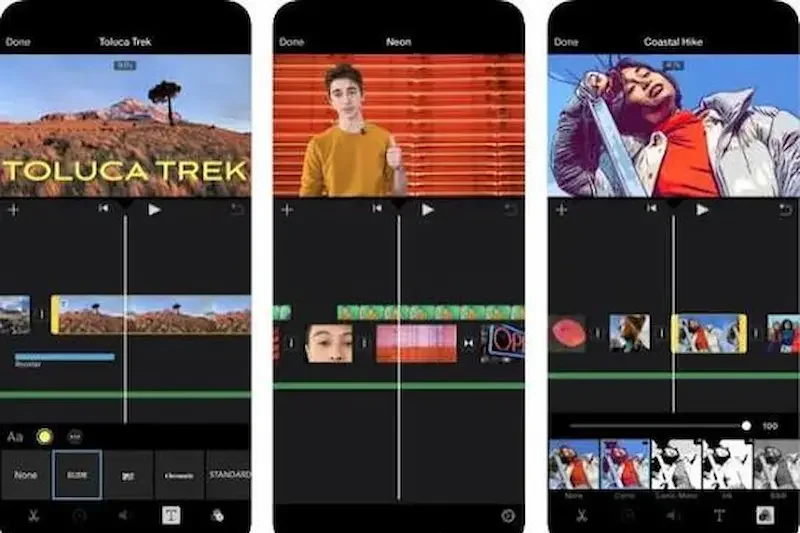
Once your editing is complete, exporting your video correctly is important.
Before saving:
- Review the entire video.
- Check video quality.
- Confirm audio levels.
- Make sure text is readable. How To Edit Videos On Iphone
- Save the highest quality available.
- Keep a backup copy of the original footage.
A properly exported video will look better across Instagram, TikTok, YouTube, Facebook, and other social media platforms.
How can I edit videos on my iPhone for free?
You can edit videos for free using the built-in Photos app or free apps like iMovie, CapCut, InShot, and VN Video Editor. These apps let you trim, crop, add music, text, filters, and transitions without paying.
Can I edit videos on iPhone without downloading an app?
Yes. The Photos app on your iPhone allows you to trim, crop, rotate, adjust brightness, apply filters, and make basic edits without installing any additional apps.
How do I trim a video on iPhone?
Open the Photos app, select your video, tap Edit, drag the trimming handles at the beginning or end of the timeline, preview the result, and save your changes.
Conclusion
Learning How to Edit Videos on iPhone is a great way to create high-quality videos without needing expensive equipment or professional editing software. Whether you’re making videos for Instagram, TikTok, YouTube, Facebook, or simply preserving personal memories, your iPhone has powerful tools that make video editing simple and enjoyable.
From trimming clips and adding music to applying filters, inserting text, and creating smooth transitions, there are countless ways to improve your videos directly from your iPhone. As you practice, you’ll become more confident and discover editing techniques that match your personal style.
The key to great video editing is keeping your content clear, engaging, and authentic. Simple edits often have the biggest impact, helping your videos look polished while still feeling natural.
Use this How to Edit Videos on iPhone guide whenever you want to improve your editing skills. With the right tools, creative ideas, and regular practice, you can turn everyday recordings into professional-looking videos that capture attention and leave a lasting impression.
