
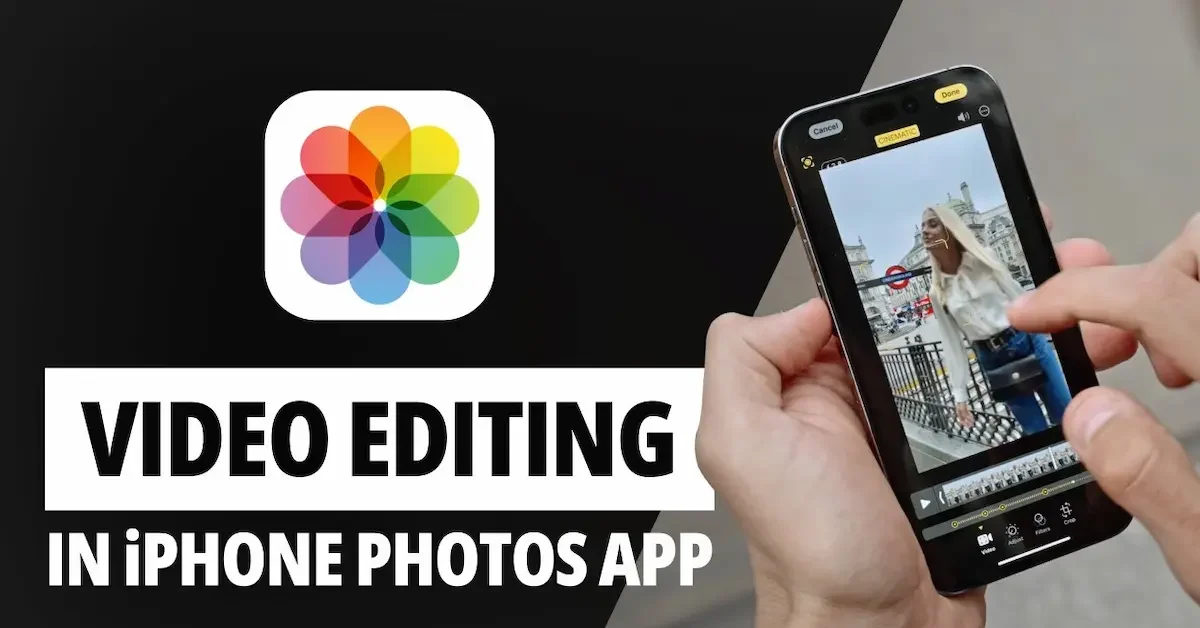
Editing videos on an iPhone has become easier than ever. You do not need a computer or complicated software to make simple changes to your videos. With the built-in editing tools on your iPhone, you can trim unwanted parts, crop the video, rotate the screen, adjust brightness and colors, and apply filters.
Learning how to edit video in iPhone is useful for creating videos for social media, family memories, school projects, business content, and many other purposes. Beginners can start with the Photos app, while users who need more advanced features can use video editing apps.
In this guide, we will explain how to edit video in iPhone step by step in an easy and user-friendly way. You will learn how to trim videos, adjust colors, crop and rotate clips, add music and text, combine multiple videos, and save the final version.
Whether you are a beginner or simply want to improve your iPhone video editing skills, this guide will help you understand the basic process and create better videos directly from your iPhone.
What Do You Need to Edit Video in iPhone?
Before learning how to edit video in iPhone, it is helpful to have a few basic things ready. You do not need a computer or expensive equipment for simple video editing.
An iPhone
You need an iPhone with the video you want to edit saved on the device. Most modern iPhones include built-in video editing tools that allow you to make basic changes.
A Video to Edit
The video should be available in your Photos app or stored in a location that you can access from your iPhone. Before editing, make sure you select the correct video file.
Enough Storage Space
Videos can use a large amount of storage, especially high-quality and long recordings. You may need extra space when saving edited copies or creating new video projects.
If your iPhone storage is almost full, consider removing unnecessary files or moving important videos to another storage location before starting.
A Video Editing Tool
For basic editing, the built-in Photos app is often enough. It can help you trim, crop, rotate, adjust colors, and apply filters.
For more advanced editing, such as adding music, text, transitions, or combining multiple clips, you may need a suitable video editing app.
Basic Editing Knowledge
You do not need professional experience to get started. Learning simple tools such as trimming, cropping, rotating, and adjusting brightness can help you make noticeable improvements.
A Copy of the Original Video
Before making major changes, it is a good idea to keep the original video. This gives you a backup and allows you to start again if you are not satisfied with the edited version.
Once you have these basics ready, you can begin editing your video directly on your iPhone.
How to Edit Video in iPhone: Basic Steps
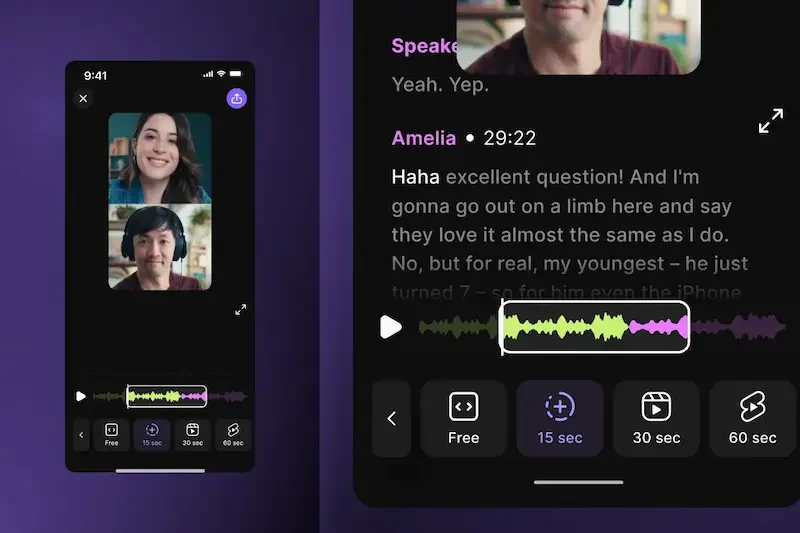
Learning how to edit video in iPhone is simple when you understand the basic editing process. The built-in Photos app allows you to make several quick changes without using a computer.
Open the Video
First, open the Photos app on your iPhone and find the video you want to edit. Tap the video to open it.
Watch the video once before editing so you can identify the parts you want to remove or improve.
Tap the Edit Option
After opening the video, tap Edit. This will open the available editing tools. How To Edit Video In Iphone
You can then access options for trimming, adjusting the appearance, applying filters, and cropping or rotating the video. How To Edit Video In Iphone
Trim Unwanted Parts
Use the handles at the beginning and end of the timeline to remove unwanted sections.
Move the starting handle to remove unnecessary content from the beginning. Move the ending handle to remove unwanted parts from the end. How To Edit Video In Iphone
Adjust the Video Appearance
Use the adjustment tools to improve brightness, exposure, contrast, highlights, shadows, and colors.
Make small changes and preview the video to avoid making it look unnatural. How To Edit Video In Iphone
Apply a Filter
If you want to change the overall style of your video, you can select a filter. Try different options and choose one that matches the mood of the video. How To Edit Video In Iphone
Use filters carefully because a very strong effect may reduce the natural appearance.
Crop or Rotate the Video
The crop tool allows you to remove unwanted areas from the frame. You can also straighten or rotate the video if it was recorded at the wrong angle. How To Edit Video In Iphone
Choose an aspect ratio that suits the way you plan to share the video.
Preview Your Changes
Before saving, watch the edited video from beginning to end. Check the trimming, colors, orientation, and overall appearance. How To Edit Video In Iphone
Make additional changes if necessary.
Save the Edited Video
When you are satisfied, tap Done to save your changes. Depending on your editing method and app, you may also have options to save a separate copy. How To Edit Video In Iphone
It is always helpful to keep the original video available in case you want to create a different edit later.
You may also like it:
Easy Friendship Drawings In Pencil – A Complete Guide – Aarya Editz
Simple Geometric Wall Paint Ideas – A Unique Guide – Aarya Editz
Best Boy Photo Editor For Men: A Unique Guide – Aarya Editz
How to Edit Video Using the iPhone Photos App
The Photos app is one of the easiest ways to edit videos directly on your iPhone. You can use it for basic editing without downloading additional software. How To Edit Video In Iphone
Open the Photos App
Unlock your iPhone and open the Photos app. Browse your videos and select the one you want to edit.
You can also use the search or album options to find a specific video more quickly. How To Edit Video In Iphone
Select the Video
Tap the video to open it in full view. Watch it before editing so you can decide which parts need to be trimmed or improved. How To Edit Video In Iphone
Tap Edit
Tap the Edit button to open the video editing tools. You will see different options for adjusting the video.
Trim the Video
Move the handles on the timeline to select the part of the video you want to keep. Anything outside the selected section will be removed from the edited version. How To Edit Video In Iphone
Preview the video after trimming to make sure the beginning and ending are correct.
Adjust Brightness and Colors
Use the adjustment tools to change the overall appearance of your video. Depending on the available options, you may adjust brightness, exposure, contrast, highlights, shadows, and color settings.
Make small adjustments and check the result before making further changes. How To Edit Video In Iphone
Apply a Filter
The Photos app allows you to apply filters to change the style or mood of a video. Browse the available filters and choose one that suits your content.
For the best results, avoid using effects that make the video look overly edited.
Crop or Rotate the Video
Open the crop and rotation tools if you want to remove unwanted areas, straighten the frame, or change the video’s orientation. How To Edit Video In Iphone
You can also select a suitable aspect ratio based on how you plan to share the video.
Preview Before Saving
Watch the edited video carefully before saving. Check that the video looks natural, the important content is visible, and no unwanted sections remain. How To Edit Video In Iphone
Save Your Changes
When you are happy with the edit, tap Done to save your changes. You can later return to the editing options to make additional changes if needed.
How to Trim a Video on iPhone
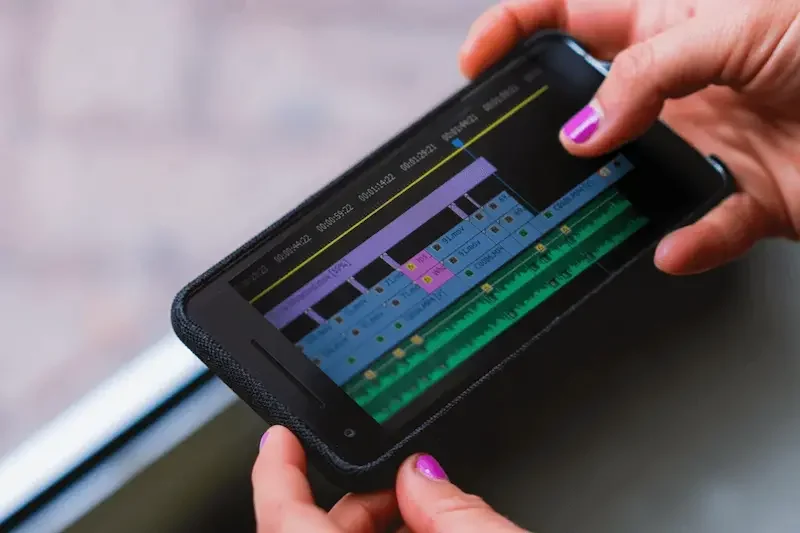
Trimming is one of the most useful editing features on an iPhone. It allows you to remove unwanted parts from the beginning or end of a video without needing complicated editing software. How To Edit Video In Iphone
Open the Video in Photos
Open the Photos app and select the video you want to shorten. Tap the video to open it, then select Edit.
Find the Video Timeline
After entering editing mode, you will see a timeline at the bottom of the screen. This timeline shows the beginning and end of your video. How To Edit Video In Iphone
Trim the Beginning of the Video
Drag the handle at the beginning of the timeline toward the right. This removes the unwanted part from the start of the video. How To Edit Video In Iphone
Move the handle slowly so you do not accidentally remove an important section.
Trim the End of the Video
Drag the handle at the end of the timeline toward the left to remove unwanted content from the end.
This is useful for removing extra footage after the main recording has finished. How To Edit Video In Iphone
Preview the Trimmed Video
Play the selected section before saving. Make sure the video starts and ends exactly where you want.
If necessary, move the handles again to make small adjustments. How To Edit Video In Iphone
Save the Changes
When you are satisfied with the trimmed video, tap Done to save your changes.
Keeping a backup of the original video is recommended, especially if you are making major changes. This allows you to return to the original footage whenever needed. How To Edit Video In Iphone
Can I edit videos directly on my iPhone?
Yes, you can edit videos directly on your iPhone. The built-in Photos app allows you to trim, crop, rotate, adjust colors, and apply filters. For more advanced editing, you can use a suitable video editing app.
How do I trim a video on iPhone?
Open the video in the Photos app, tap Edit, and use the handles on the video timeline to remove unwanted parts from the beginning or end. Preview the result and tap Done to save the changes.
Can I crop a video on iPhone?
Yes. Open the video, tap Edit, and select the crop tool. You can adjust the visible area, change the aspect ratio, straighten the frame, or rotate the video.
Conclusion
Learning how to edit video in iPhone is simple because you can make many changes directly on your device. The built-in Photos app is useful for basic editing, including trimming unwanted parts, cropping the frame, rotating videos, adjusting brightness and colors, and applying filters.
If you need more advanced features, you can use video editing apps to add music, text, captions, transitions, and combine multiple video clips. Start with simple edits and gradually learn more advanced tools as your confidence grows.
Before saving your final video, always preview it carefully and check the trimming, audio, colors, and overall quality. It is also a good idea to keep the original video as a backup.
With regular practice, you can improve your editing skills and create better videos directly from your iPhone without needing a computer.
