
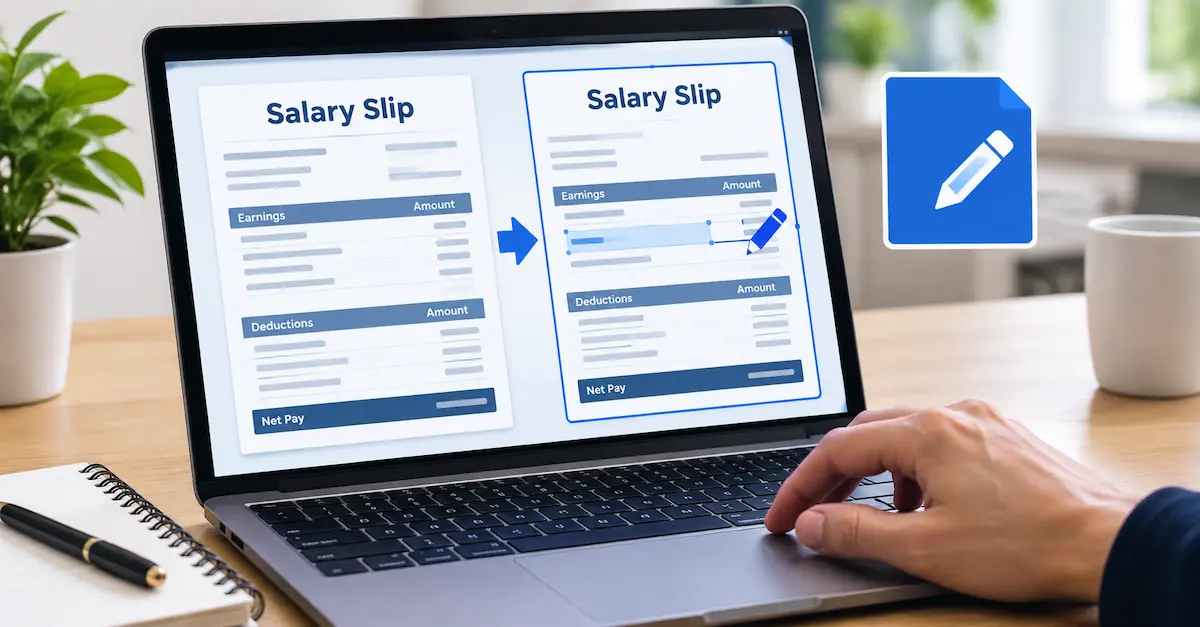
Need to correct a mistake on your salary slip or update an employee’s payroll details? The right method depends on whether the document is a PDF, Word file, Excel spreadsheet, or a payslip generated by payroll software.
To edit a salary slip correctly, start with the original file or payroll system, update only the information you are authorized to change, verify the salary calculations, and save the corrected document. If an employer has already issued the slip, contact HR or payroll to correct official records and request a revised copy.
This guide explains how to edit salary slips in different formats, which details to check, how to handle common problems, and how to keep payroll documents accurate.
What Is a Salary Slip?
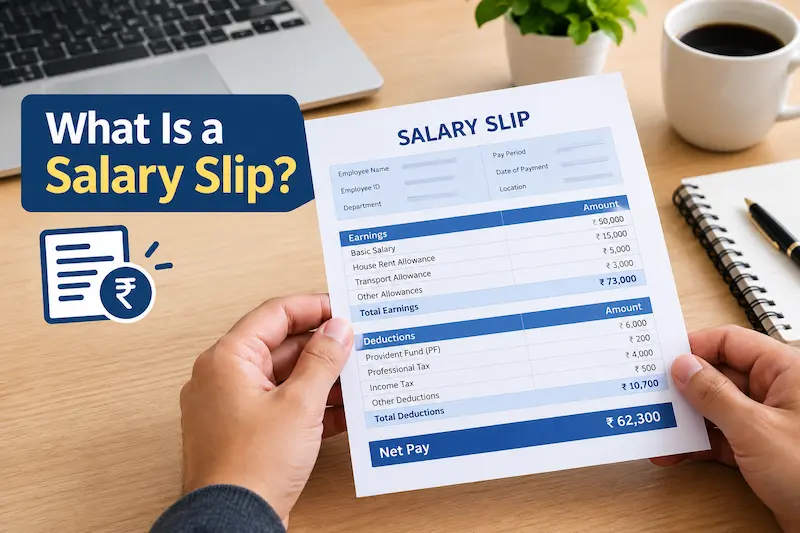
A salary slip, also called a payslip, is a document that shows an employee’s earnings and deductions for a particular pay period. Employers may provide it as a PDF, a printed document, an email attachment, or a file generated by payroll software.
A typical salary slip includes:
- Employee name and identification details
- Employee ID and job title
- Company name and payroll information
- Salary period and payment date
- Basic salary and allowances
- Overtime or other earnings, where applicable
- Tax, pension, insurance, or other deductions
- Total earnings and net salary payable
The exact fields depend on the employer, payroll system, and local requirements.
Editing a salary slip may be necessary when a genuine error appears in an employee’s name, pay period, allowance, deduction, or salary calculation. However, changing an official document to misrepresent earnings or employment details is not a legitimate correction.
How to Edit a Salary Slip Step by Step
Before making changes, identify the file format and confirm whether you are editing a working document or an officially issued payslip.
Step 1: Check the original document
Open the salary slip and review the information carefully. Identify the exact error rather than changing several fields without a clear reason.
Check the employee’s name, employee number, pay period, basic salary, allowances, deductions, and net pay.
If the document came from your employer, compare it with the original payroll records or contact the payroll department before changing financial details.
Step 2: Identify the file format
The file extension usually tells you which editing method to use.
- PDF: Use a suitable PDF editor or obtain the original editable file.
- Word: Open the .docx file in Microsoft Word or a compatible word processor.
- Excel: Open the .xlsx file in Excel or a compatible spreadsheet application.
- Payroll software: Correct the information in the authorized payroll system and regenerate the payslip.
If you only have a printed or scanned salary slip, you may need optical character recognition (OCR) to extract the text. Always compare the extracted information with the original because OCR can misread numbers, names, and decimal points.
Step 3: Correct the relevant details
Make only the changes needed to fix the identified error. For example, if an employee’s name is misspelled, correct the name without changing unrelated salary information.
For changes involving basic salary, allowances, overtime, deductions, or net pay, use the approved payroll records as the source of truth.
Do not change figures simply to make the document look more favorable. The corrected slip should accurately represent the employee’s actual payroll information.
Step 4: Check the calculations
Review the salary figures after making an authorized correction.
A basic calculation is:
Gross salary = Basic salary + Allowances + Other earnings
Net salary = Gross salary − Total deductions
These formulas are simplified. Actual payroll calculations may include adjustments, reimbursements, statutory contributions, or other items that need separate treatment.
If the salary amount changes, verify the related totals instead of updating only one number.
Step 5: Save the corrected file
Save your work in the appropriate format. For example, a corrected Word document can be saved as a PDF for distribution.
Use a clear filename that identifies the pay period and revision, such as Payslip_September_Revised.pdf.
For official payroll records, follow your organization’s document-control process. Keep the original version and record the correction where required, rather than silently replacing an issued document.
Step 6: Review the final salary slip
Open the saved file and check the entire page. Confirm that the text is readable, the figures are aligned, and no information has disappeared during conversion.
Check the employee details, salary period, gross pay, deductions, net pay, and any required approval or verification details.
If the slip is intended for a bank, landlord, government office, or another organization, submit the authentic employer-issued document or an officially revised copy.
How to Edit a Salary Slip in PDF
PDF is a common format for sharing salary slips because it helps preserve the document’s layout. However, a PDF may contain selectable text, scanned images, or restrictions that prevent direct editing.
Method 1: Use a PDF editor
If you are authorized to correct the document, a PDF editor can help you change text while retaining much of the original layout.
For example, Adobe Acrobat provides an Edit tool for changing text in supported PDFs.
- Open the PDF in Adobe Acrobat.
- Select the Edit option.
- Click the text you are authorized to correct.
- Enter the correct information.
- Check the font, alignment, and spacing.
- Save the revised file.
- Reopen the file and verify the result.
Adobe explains that the ability to edit text depends on factors such as the document’s structure, available fonts, and security restrictions. Some PDFs may not be directly editable.
Official instructions: Adobe Acrobat PDF editing guide.
Method 2: Open the PDF in Microsoft Word
Microsoft Word can convert many text-based PDFs into editable Word documents. This can be useful if you do not have the original Word file.
- Open Microsoft Word.
- Select File > Open.
- Choose the salary slip PDF.
- Accept the conversion prompt if it appears.
- Make the authorized correction.
- Save the revised document or export it as a PDF.
- Compare the output with the original.
The conversion may change page breaks, tables, fonts, or spacing. Microsoft notes that this method works best with PDFs that mainly contain text.
Official instructions: Microsoft’s guide to editing PDFs in Word.
What if the PDF is scanned or locked?
A scanned PDF may behave like a picture instead of editable text. OCR can help convert it into text, but you should verify every extracted field.
A password-protected or digitally signed PDF may also restrict editing. If the document was officially issued by an employer, request a corrected copy rather than trying to bypass its security controls.
How to Edit a Salary Slip in Word
If your salary slip is saved as a Word document, you can usually correct the relevant text directly.
- Open the .docx file in Microsoft Word.
- Save a separate working copy before editing.
- Locate the incorrect employee or payroll detail.
- Select the text and enter the correct information.
- Check tables, spacing, and alignment.
- Review the salary calculations.
- Save the revised file.
- Export it as a PDF if a PDF copy is required.
Pay attention to tables and text boxes. Changing a name or amount may cause text to wrap or move into another line.
If the slip was generated by a payroll system, editing the exported Word document alone may not correct the underlying payroll record. The payroll system should be corrected through the authorized process.
You may also like it:
Easy Friendship Drawings In Pencil – A Complete Guide – Aarya Editz
Simple Geometric Wall Paint Ideas – A Unique Guide – Aarya Editz
Best Boy Photo Editor For Men: A Unique Guide – Aarya Editz
How to Edit a Salary Slip in Excel
Some employers create salary slips using Excel templates. In these files, salary details may be entered into cells, and totals may be calculated using formulas.
Steps to update an Excel salary slip
- Open the original .xlsx workbook.
- Save a copy before making changes.
- Locate the relevant employee record or salary slip template.
- Correct the authorized information in the appropriate cells.
- Check the formulas for gross salary, deductions, and net pay.
- Confirm that the correct pay period and employee details appear.
- Review the print area and page layout.
- Export the finished slip as a PDF if needed.
Check formulas before changing salary figures
An Excel payslip may use formulas to calculate totals automatically. Replacing a formula with a manually entered number can cause errors in later calculations.
For example, if gross salary is calculated from basic pay and allowances, check that the formula includes all relevant earning fields.
Likewise, confirm that the net salary calculation subtracts the correct deductions. Never assume that a displayed total remains correct after changing an input.
If the workbook contains several employees’ records, protect confidential information and make sure you are editing the correct employee’s row or worksheet.
How to Correct an Official Salary Slip Issued by an Employer
If your salary slip has already been issued, the best approach is usually to ask HR or payroll to correct the source record and issue a revised document.
This is particularly important when the error affects salary, deductions, employment dates, tax information, or other details that third parties may verify.
Follow these steps
- Identify the incorrect field.
- Compare it with your employment or payroll records.
- Contact HR or payroll through an official communication channel.
- Explain the error and provide supporting evidence if requested.
- Ask for the payroll record to be corrected.
- Request a revised salary slip.
- Check the revised copy before using it.
For example, if your salary slip lists the wrong basic salary, do not simply replace the amount in a PDF editor. Ask payroll to check the approved salary record and correct the payslip.
This helps keep the document consistent with the employer’s records.
Common Salary Slip Editing Problems and Their Solutions
The text does not match the original font
This can happen when the required font is missing or the PDF editor substitutes another font.
Solution: Use the original editable document where possible. If you are working with a PDF, check whether the required font is available and verify the final layout.
The salary slip layout changes after conversion
Opening a PDF in Word can alter tables, line breaks, and page spacing.
Solution: Compare the converted document with the original. Correct the layout and export a new PDF only after checking the complete page.
The salary totals do not match
A total may be incorrect because a formula is missing, an allowance was omitted, or a deduction was entered incorrectly.
Solution: Return to the approved payroll data and recalculate the figures. If the slip is employer-issued, ask payroll to verify the calculation.
The PDF cannot be edited
The file may contain scanned images, a digital signature, or editing restrictions.
Solution: Request the original editable file or an official revised copy. Use OCR only when appropriate and verify the extracted information.
The corrected file looks different from the original
Changing text can affect alignment, font size, and spacing.
Solution: Use the original template or payroll system where possible. Check that all information remains legible and that the final document accurately reflects the source records.
How to Keep Salary Slips Accurate and Secure
Salary slips contain personal and financial information, so accuracy and privacy matter.
- Keep the original file before making corrections.
- Use trusted software and official payroll systems.
- Share salary documents only with authorized people.
- Avoid uploading sensitive payroll information to unknown online PDF editors.
- Check the employee’s details and calculations before sharing the file.
- Retain revised copies according to your employer’s recordkeeping policy.
- Never change a salary figure or employment detail to mislead a bank, lender, landlord, employer, or government agency.
If you need a salary slip for a loan, visa application, rental agreement, or other verification process, use a genuine document issued or confirmed by your employer.
Conclusion
Editing a salary slip depends on its format and the type of correction required. PDF editors can help with supported text changes, Word documents allow direct text editing, and Excel files require careful attention to formulas and calculations.
For an official payslip, correcting the underlying payroll record is the most reliable approach. Contact HR or payroll when the document contains an incorrect salary, deduction, or employment detail, and request a revised copy.
Always check the final document for accuracy, formatting, and privacy before sharing it. A properly corrected salary slip should match the genuine payroll records and clearly represent the employee’s actual earnings.
FAQs
Can I edit a salary slip in PDF format?
Yes. If you are authorized to make the correction, you can use a PDF editor such as Adobe Acrobat. You can also open many text-based PDFs in Microsoft Word, although the layout may change during conversion.
How can I edit a salary slip on my mobile phone?
You can use a compatible document editor on your Android phone or iPhone. The exact steps depend on whether your salary slip is a PDF, Word document, or spreadsheet. For an official payroll error, request a corrected copy from your employer.
Can I edit a salary slip in Excel?
Yes. Open the original Excel workbook, save a separate copy, and update the appropriate fields. Check all formulas for gross salary, deductions, and net pay before exporting the document as a PDF.
How can I correct my name on a salary slip?
If your employer issued the slip with an incorrect name, contact HR or payroll and provide the correct information. Ask for a revised salary slip so that the official payroll record and document match.
Can I change the salary amount on a payslip?
You should change the amount only when an authorized payroll correction or approved salary adjustment supports it. If the amount is incorrect, ask HR or payroll to verify the source records and issue a corrected slip.
Why is my salary slip PDF not editable?
The PDF may contain a scanned image, use fonts that are unavailable on your computer, or have security restrictions. You can try a compatible PDF editor or OCR for scanned text, but request an official corrected copy if the document was issued by your employer.
Can I edit a salary slip without changing its format?
Often, yes. Using the original Word or Excel file usually gives you more control over the layout. A PDF editor can also preserve much of the formatting, but font substitutions and text wrapping may affect the result.
