
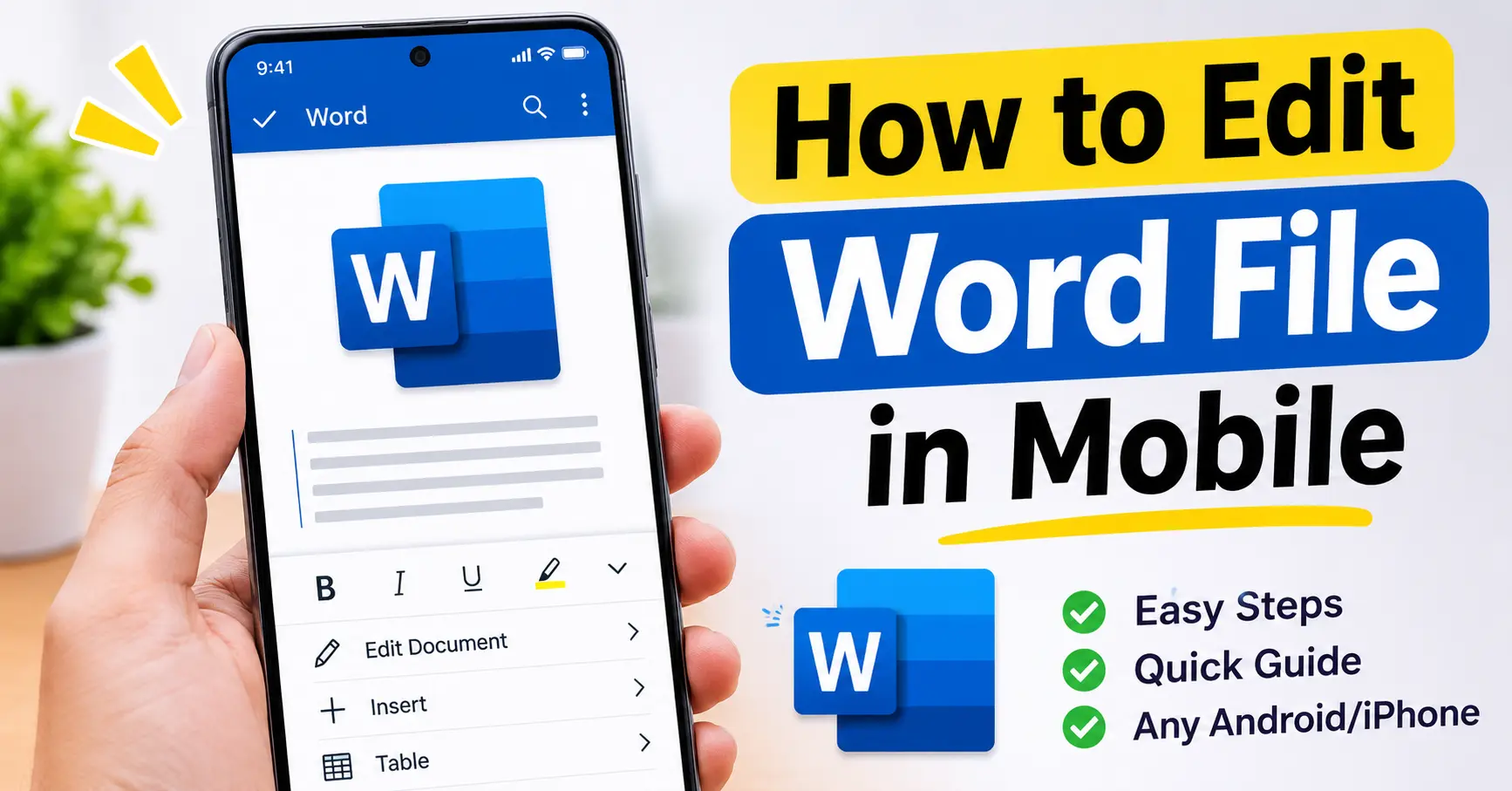
Editing documents on a computer is easy, but what if you only have a smartphone? The good news is that you do not need a laptop or desktop to make changes to your Word documents. You can easily edit, format, save, and share Word files directly from your mobile phone.
If you are wondering how to edit Word file in mobile, there are several simple methods you can use. Microsoft Word, Google Docs, and WPS Office are popular applications that allow you to work with Word documents on Android and iPhone devices.
In this guide, you will learn how to open a Word file, edit its text, change formatting, add pictures, and save your updated document using your smartphone.
Can You Edit a Word File on Mobile?
Yes, you can edit a Word file on almost any modern Android or iPhone device.
You do not need a computer to make changes to a DOC or DOCX document. Mobile office applications provide many of the same editing features available on desktop computers.
You can use your phone to:
- Add or remove text.
- Correct spelling and grammar mistakes.
- Change font size and style.
- Make text bold, italic, or underlined.
- Add pictures and tables.
- Adjust paragraph alignment.
- Create bullet points and numbered lists.
- Save and share edited documents.
These features make mobile document editing useful for students, teachers, office workers, and professionals.
How to Edit Word File in Mobile Using Microsoft Word
Microsoft Word is one of the easiest applications for editing DOC and DOCX files. It is available for Android and iPhone devices.
Follow these steps to edit your document.
Step 1: Download Microsoft Word
First, install the Microsoft Word application on your smartphone.
- Open Google Play Store on Android.
- Open the Apple App Store on iPhone.
- Search for Microsoft Word.
- Select the official Microsoft Word application.
- Tap Install or Get.
After installation, open the application.
Step 2: Sign In to Your Account
Open Microsoft Word and sign in using your Microsoft account if required.
You can use an existing Outlook, Hotmail, or Microsoft account. Some features may require a Microsoft 365 subscription.
Step 3: Open Your Word File
Once you enter the application, you can open your existing document.
Follow these instructions:
- Tap the Open option.
- Choose Browse or your device storage.
- Find the folder where your Word file is saved.
- Select the DOC or DOCX document.
- Wait for the document to open.
You can also open Word documents from supported cloud storage locations, such as OneDrive.
Step 4: Start Editing Your Document
After opening the file, tap the document or the editing icon to enter editing mode.
Now you can make changes to your content.
For example, you can:
- Add new sentences.
- Delete unnecessary words.
- Correct spelling mistakes.
- Replace existing paragraphs.
- Add headings and subheadings.
Simply tap the area where you want to make changes and use your mobile keyboard.
Step 5: Change Text Formatting
Microsoft Word also allows you to improve the appearance of your document.
Select the text you want to format and use the available editing options.
You can:
- Make text bold.
- Apply italic formatting.
- Underline important words.
- Change font size.
- Change font colour.
- Highlight important information.
- Align paragraphs.
These options help you create a clean and professional document.
Step 6: Save Your Edited Word File
After making changes, save your document.
Tap the three-dot menu or save option if available. Depending on your settings, Word may automatically save changes to your cloud document.
If you want to save a separate copy, use the Save As or a similar copy option and select your preferred location.
Your updated document will now be available for future use.
How to Edit Word File in Mobile Using Google Docs
Google Docs is another useful option for editing Word documents on smartphones. It supports Microsoft Word formats and allows users to make changes without using a computer.
Here is how to use it.
Step 1: Install Google Docs
Open the Play Store or App Store and search for Google Docs.
Download and install the official application.
Step 2: Open Your Word Document
Launch Google Docs and sign in with your Google account.
Tap the folder or file-opening option and browse your device storage to find your Word document.
You can also open a compatible file from Google Drive.
Step 3: Edit the Document
Open the file and tap the editing icon if necessary.
You can now change the text, add paragraphs, remove unwanted content, and correct mistakes.
Step 4: Apply Formatting
Google Docs provides several formatting options.
You can change fonts, adjust text size, create headings, add lists, and align paragraphs.
Step 5: Save or Export the File
Your changes may automatically save to Google Drive.
If you need the document in Microsoft Word format, use the available sharing or export options and select DOCX.
This allows you to share the edited document with people who use Microsoft Word.
How to Edit Word File in Mobile Without Microsoft Word
If you do not want to use Microsoft Word, you can choose other document-editing applications.
Here are some alternatives.
1. WPS Office
WPS Office is a popular mobile office application that supports Word documents.
Its features include:
- Opening DOC and DOCX files.
- Editing existing content.
- Changing text formatting.
- Adding images.
- Saving documents.
- Sharing files.
It is a useful option for people who want multiple office tools in one application.
2. Google Docs
Google Docs allows you to create and edit documents using your Google account.
It is useful for people who want cloud storage, automatic saving, and document collaboration.
3. Microsoft 365
Microsoft 365 provides access to Microsoft’s productivity tools. It offers document-related features and integration with OneDrive.
Some advanced features require a paid subscription.
You may also like it:
How To Edit Image Text In Word – Aarya Editz
How To Edit Video In Iphone – Aarya Editz
How To Edit Resume In Laptop – Aarya Editz
How To Edit Photos In Mobile – Aarya Editz
How to Add Pictures to a Word File on Mobile
Sometimes you may need to add pictures to an existing document. You can do this directly from your smartphone.
Follow these steps:
- Open your Word document.
- Enter editing mode.
- Place the cursor where you want the picture.
- Open the Insert menu.
- Select Pictures or Images.
- Choose a photo from your phone’s gallery.
- Adjust its size and position.
- Save the document.
You can use this method to add logos, photographs, diagrams, and other visual elements.
How to Convert an Edited Word File into PDF on Mobile
After editing your Word document, you may want to share it as a PDF file.
PDF format is useful because it helps preserve the document’s layout when sharing it with other people.
Here is how to convert a Word file into PDF using Microsoft Word:
- Open your edited document.
- Tap the three-dot menu or file options.
- Look for Export or Share as PDF.
- Select PDF as the file format.
- Choose where you want to save the file.
- Open the saved PDF to check its appearance.
The exact options may vary depending on your application version and device.
Common Problems When Editing Word Files on Mobile
Sometimes users face problems while editing documents on their smartphones. Here are some common issues and their solutions.
Word File Is Not Opening
This problem may occur because the file is damaged or the application does not support its format.
Solution: Update your document application and check whether the file has a DOC or DOCX extension.
Editing Option Is Not Available
Some documents open in read-only mode.
Solution: Check whether you have editing permission. If the file is protected, you may need the password or permission from its owner.
Changes Are Not Saving
Saving problems may happen because of an internet connection issue or insufficient device storage.
Solution: Check your internet connection, available storage, and cloud account settings. If necessary, save a local copy.
Formatting Changes After Editing
Sometimes fonts, spacing, and page layouts look different when a document is opened in another application.
Solution: Use compatible fonts and review the document before sharing it. Exporting to PDF can help preserve the final layout.
Tips for Editing Word Documents on a Smartphone
You can make mobile document editing easier by following these simple tips.
- Use a reliable document-editing application.
- Keep an original copy before making major changes.
- Check spelling and grammar after editing.
- Use headings to organise your content.
- Save your work regularly.
- Keep enough storage space on your phone.
- Update your editing application.
- Review the final document before sharing it.
If you regularly edit long documents, connecting a Bluetooth keyboard to your smartphone can also make typing easier.
Frequently Asked Questions (FAQs)
1. How to edit Word file in mobile for free?
You can use Microsoft Word, Google Docs, or WPS Office. These applications offer free editing features, although some advanced tools may require a subscription.
2. Can I edit a DOCX file on Android?
Yes, you can edit DOCX files on Android using Microsoft Word, Google Docs, or WPS Office. Simply open the document and enter editing mode.
3. Can I edit a Word document on an iPhone?
Yes, iPhone users can edit Word documents using Microsoft Word, Google Docs, and other compatible applications available in the App Store.
4. How can I edit a Word file without downloading an application?
You can use a compatible online document editor through your mobile browser. However, you may need to sign in and upload your document. Installing an application can provide a more convenient editing experience.
5. How do I save an edited Word file on my phone?
Open the application menu and select Save, Save As, or Download, depending on the application. Choose your preferred storage location.
Conclusion
Editing documents on a smartphone is simple when you use the right application. Microsoft Word, Google Docs, and WPS Office allow you to open, modify, format, and save Word files without needing a computer.
If you want a familiar editing experience, Microsoft Word is a great starting point. Google Docs is another useful choice for people who prefer working with online documents.
By following the steps in this guide, you can easily edit your Word documents anytime and anywhere using your mobile phone.
