
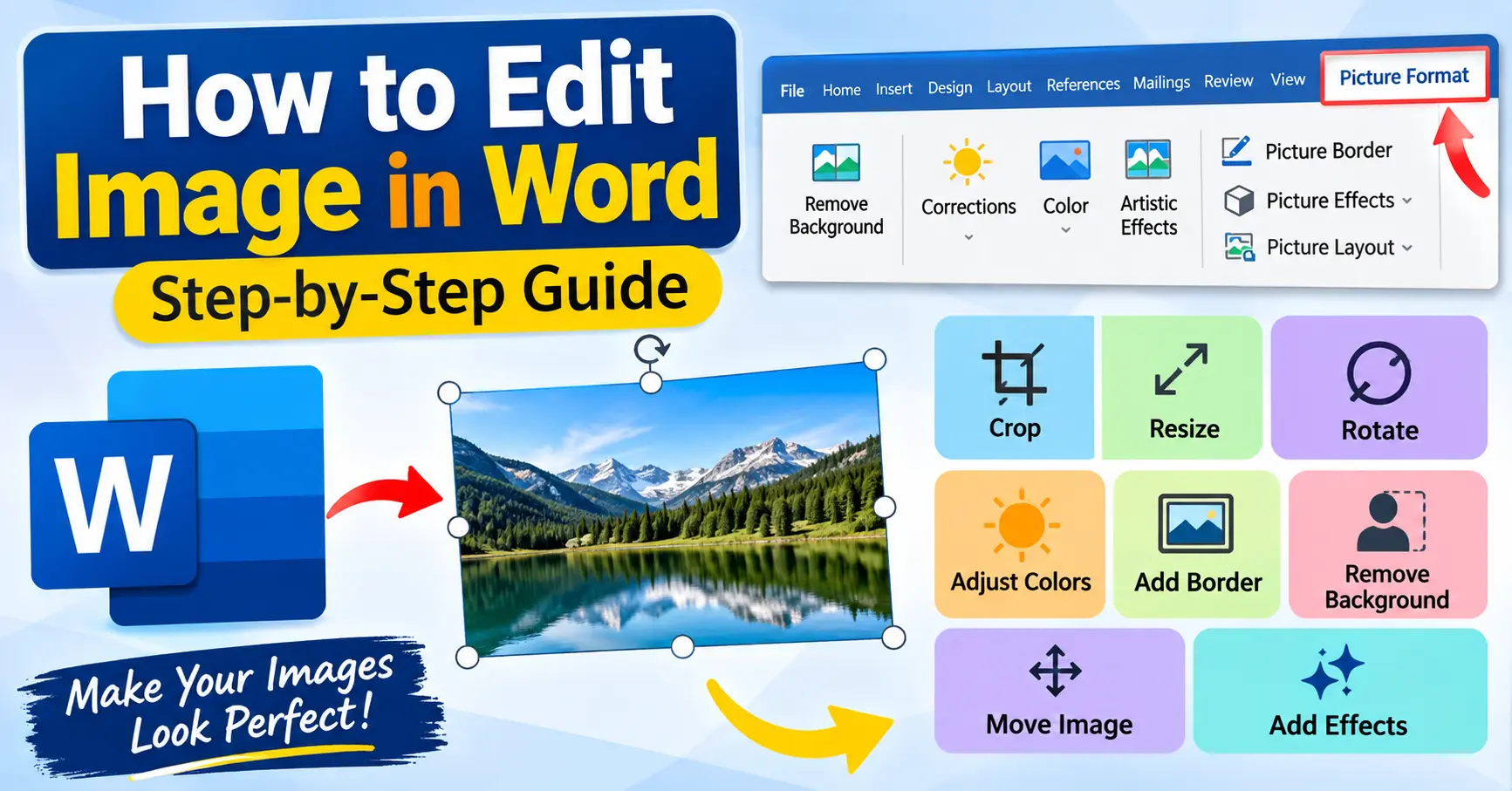
Microsoft Word is not just a tool for writing documents. It also provides several useful features for editing and adjusting images. You can insert pictures, resize them, crop unwanted areas, change brightness, add borders, and position images anywhere in your document.
If you are searching for how to edit image in Word, you do not need advanced graphic design software. Microsoft Word includes built-in picture editing tools that make it easy to improve images directly inside your document.
In this guide, you will learn how to edit images in Microsoft Word on a computer, resize pictures, crop images, remove backgrounds, add borders, and adjust picture positions.
How to Edit Image in Word
Editing an image in Microsoft Word is simple. You just need to insert a picture and use the Picture Format options.
Follow these steps:
Step 1: Open Microsoft Word
First, open Microsoft Word on your computer.
You can create a new document or open an existing Word file where you want to edit an image.
Step 2: Insert an Image
To add a picture to your document:
- Click the Insert tab.
- Select Pictures.
- Choose the image source, such as This Device.
- Select your desired picture.
- Click Insert.
Your image will now appear in the Word document.
Step 3: Select the Image
Click on the image you want to edit.
A new tab called Picture Format will appear in the top menu. This tab contains different tools for adjusting your picture.
Step 4: Use Picture Editing Options
You can now use different options to change the appearance of your image.
For example, you can crop the picture, adjust its brightness, change its colors, add borders, and apply visual effects.
How to Resize an Image in Word
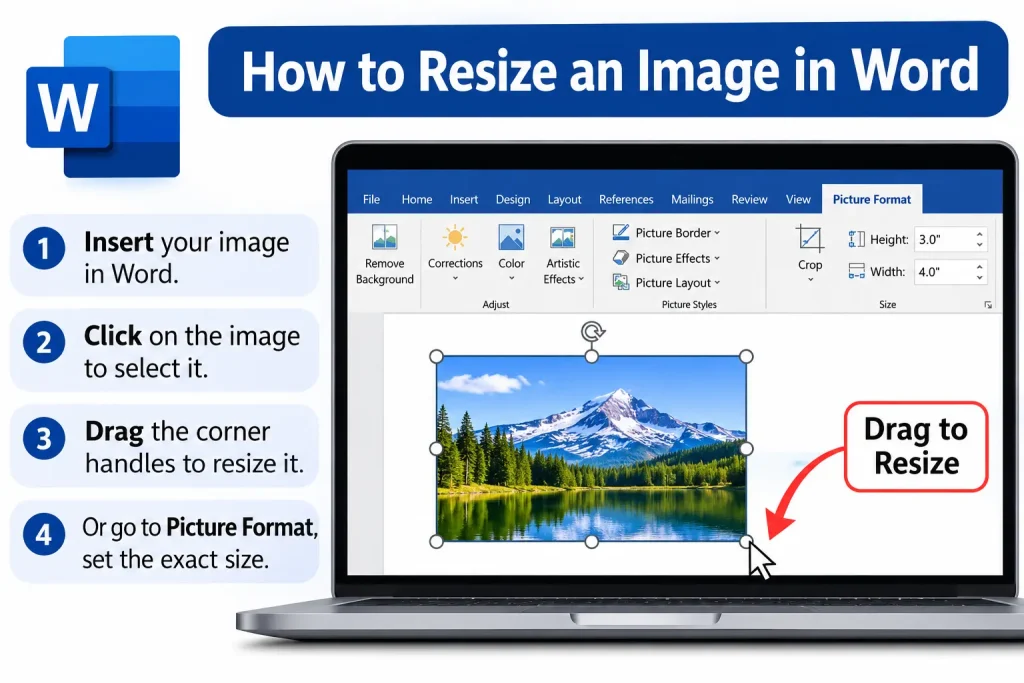
Sometimes an image looks too large or too small in a Word document. You can easily change its size.
Follow these instructions:
- Click on the image.
- Open the Picture Format tab.
- Find the Size section.
- Enter your desired height and width.
- Press Enter to apply the changes.
You can also drag the corner handles of the image to resize it manually.
Tip: Use the corner handles to maintain the image’s original proportions and avoid stretching it.
You may also like it:
How To Edit Image Text In Word – Aarya Editz
How To Edit Video In Iphone – Aarya Editz
How To Edit Resume In Laptop – Aarya Editz
How To Edit Photos In Mobile – Aarya Editz
How to Crop an Image in Word
Cropping allows you to remove unwanted parts of a picture. It is useful when you want to focus on a particular object or person.
Here is how to crop an image:
- Select the image.
- Open the Picture Format tab.
- Click the Crop option.
- Drag the black crop handles to remove unwanted areas.
- Press Enter or click outside the image.
Your picture will now display only the selected area.
How to Change Image Brightness and Contrast in Word
Microsoft Word allows you to adjust the brightness and contrast of supported images.
These settings can help improve the appearance of a dark or dull picture.
Follow these steps:
- Select your image.
- Click the Picture Format tab.
- Select Corrections.
- Choose a brightness and contrast option.
- Preview the available changes.
- Select the option that looks best.
You can try different settings until you get the desired appearance.
How to Change Image Color in Word
If you want to give your picture a different appearance, you can use the Color feature.
Follow these steps:
- Click on the image.
- Open Picture Format.
- Select Color.
- Explore the available options.
- Choose a color saturation, tone, or recoloring effect.
This feature is useful when you want to create a different visual style without opening another editing application.
How to Add a Border to an Image in Word
Adding a border can make your picture look more professional and organized.
Here is how to do it:
- Select the image.
- Open the Picture Format tab.
- Click Picture Border.
- Choose your preferred color.
- Select the border thickness under Weight.
- Choose a style if required.
You can also use Picture Effects to add shadows, reflections, and other visual effects.
How to Remove Background From an Image in Word
Microsoft Word also includes a background removal feature in supported desktop versions.
You can use it to remove unwanted backgrounds from pictures.
Follow these steps:
- Select the image.
- Open the Picture Format tab.
- Click Remove Background.
- Word will highlight the background it identifies for removal.
- Use Mark Areas to Keep or Mark Areas to Remove if needed.
- Click Keep Changes.
This feature works best with images that have a clear difference between the subject and background.
How to Rotate an Image in Word
If your picture is facing the wrong direction, you can rotate it easily.
Follow these steps:
- Select the image.
- Open the Picture Format tab.
- Click Rotate.
- Choose Rotate Right 90°, Rotate Left 90°, or Flip options.
- Check the final position.
You can also drag the circular rotation handle above the picture to rotate it manually.
How to Move an Image Anywhere in Word
Sometimes an image stays in one position and does not move freely with your mouse. This usually happens because of its text wrapping settings.
To move an image anywhere in your document:
- Select the image.
- Click the Layout Options icon beside it.
- Choose Square or In Front of Text.
- Drag the image to your preferred location.
You can also use the Position option under Picture Format to select a predefined location.
How to Edit Image in Word on Mobile
You can also make basic image adjustments using Microsoft Word on your smartphone.
Follow these steps:
- Open the Microsoft Word app.
- Open your existing document or create a new one.
- Tap the Insert option and add a picture.
- Tap the image to select it.
- Use the available picture formatting options.
- Resize, crop, or reposition the picture.
- Save your document.
Note: Some advanced image editing features may not be available in the mobile version of Microsoft Word. Their availability also depends on your device and app version.
Best Image Editing Features in Microsoft Word
Here is a quick overview of the most useful image editing features.
| Feature | Purpose |
| Crop | Remove unwanted image areas |
| Resize | Change picture dimensions |
| Corrections | Adjust brightness and contrast |
| Color | Change image colors |
| Picture Border | Add borders around images |
| Remove Background | Remove unwanted backgrounds |
| Rotate | Change image direction |
| Picture Effects | Add shadows and reflections |
| Text Wrapping | Control image placement |
Frequently Asked Questions (FAQs)
1. How to edit image in Word?
Select your picture and open the Picture Format tab. You can use its tools to crop, resize, rotate, adjust colors, and add borders.
2. Can I edit an image directly in Microsoft Word?
Yes. Microsoft Word provides built-in image editing tools that allow you to make basic changes without using separate photo editing software.
3. How do I crop an image in Word?
Select the picture, open Picture Format, click Crop, adjust the crop handles, and press Enter to apply the changes.
4. How can I remove the background of an image in Word?
Select your picture and choose Remove Background from the Picture Format tab. Adjust the selection if necessary and click Keep Changes.
5. Can I edit pictures in Word on my phone?
Yes. You can insert, resize, crop, and adjust pictures using the Microsoft Word mobile app. However, some advanced features may be limited.
Conclusion
Learning how to edit image in Word can make your documents more attractive and professional. Microsoft Word provides several useful tools for resizing, cropping, rotating, adjusting colors, adding borders, and removing image backgrounds.
Whether you are preparing a school assignment, business report, presentation, or personal document, these features can help you improve your pictures without using complicated editing software.
Start with basic options such as cropping and resizing, then explore other Picture Format tools to get the appearance you want.
