
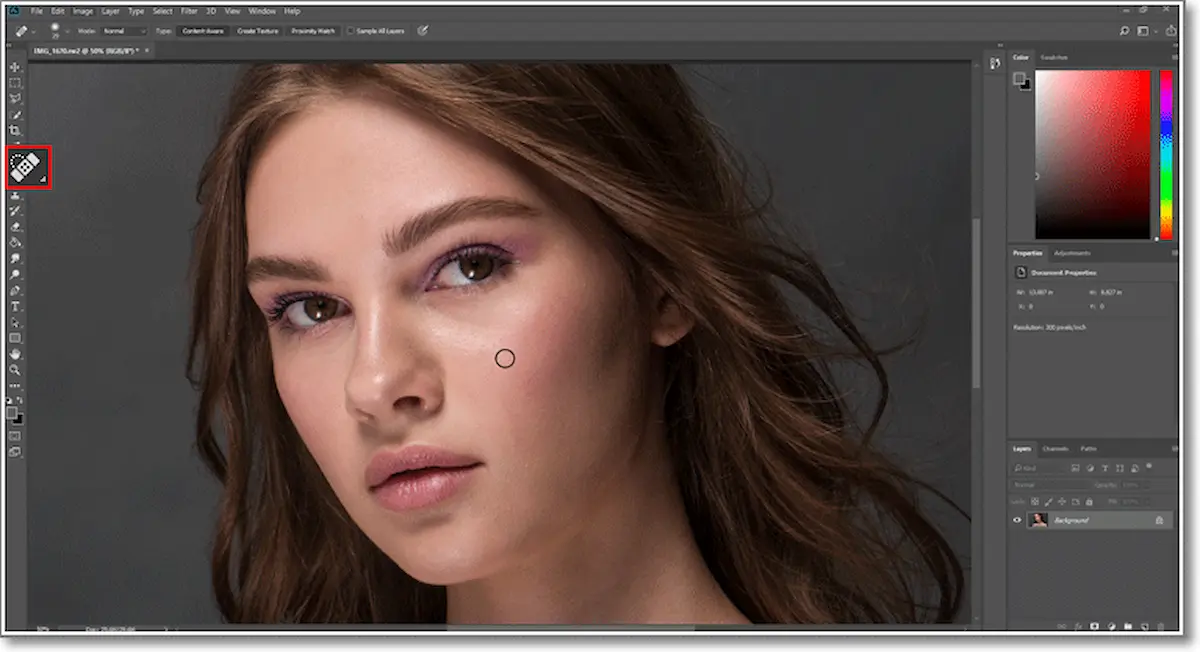
Editing photos in Adobe Photoshop can turn ordinary images into stunning visuals. Whether you’re fixing lighting, removing blemishes, or creating creative effects, Photoshop gives you full control over every detail.
In this complete guide, you’ll learn how to edit photos in Photoshop step by step, even if you’re a beginner.
What is Adobe Photoshop?
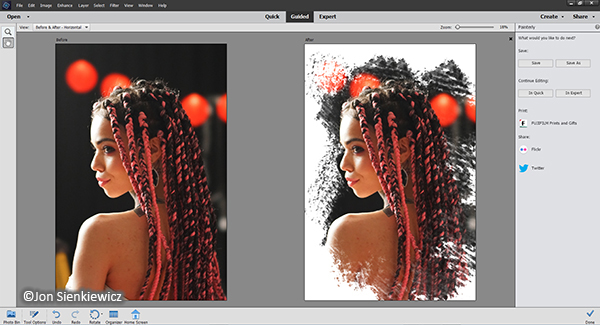
Adobe Photoshop is a professional photo editing software used by photographers, designers, and content creators. It offers powerful tools like layers, filters, retouching, and color correction.
Getting Started with Photoshop
Before you begin editing:
- Open Adobe Photoshop
- Click File > Open
- Select your image
Now you’re ready to start editing!
Basic Photo Editing in Photoshop (Step-by-Step)
1. Crop and Straighten Your Image
- Select the Crop Tool (C)
- Adjust the frame to remove unwanted areas
- Press Enter to apply
Tip: Use cropping to improve composition and focus.
2. Adjust Brightness and Contrast
- Go to Image > Adjustments > Brightness/Contrast
- Increase brightness if the image is dark
- Adjust contrast to enhance detail
3. Fix Colors (Color Correction)
- Go to Image > Adjustments > Color Balance
- Adjust shadows, midtones, and highlights
- You can also use Auto Color for quick fixes
4. Remove Blemishes and Spots
- Select Spot Healing Brush Tool (J)
- Click on pimples, dust, or unwanted marks
- Photoshop will automatically fix them
5. Smooth Skin (Optional)
- Duplicate the layer (Ctrl + J)
- Go to Filter > Blur > Gaussian Blur
- Reduce opacity for a natural look
6. Sharpen the Image
- Go to Filter > Sharpen > Unsharp Mask
- Adjust amount and radius carefully
Tip: Don’t over-sharpen, or the image will look unnatural.
You may also like it:
Stunning LR Photo Editing Presets Download – Aarya Editz
7 Best Wallpaper Banane Wala Apps- A Unique Guide – Aarya Editz
Lightroom Scanner – Digitize Photos With Pro Quality – Aarya Editz
7. Use Filters for Effects
- Go to Filter Gallery
- Apply artistic or stylized effects
8. Add Text or Graphics
- Select the Text Tool (T)
- Click on the image and type your text
- Customize font, size, and color
9. Save Your Edited Photo
- Click File > Save As
- Choose format:
- JPEG (for social media)
- PNG (for high quality)
Advanced Photo Editing Techniques
Once you understand basics, try these advanced tools:
Layers
Layers allow you to edit without affecting the original image.
Masks
Masks help hide or reveal parts of an image.
Adjustment Layers
- Brightness/Contrast
- Hue/Saturation
- Levels
These are non-destructive edits (you can change them anytime).
Pro Tips for Better Editing
- Always keep the original image safe
- Use Ctrl + Z to undo mistakes
- Zoom in for detailed editing
- Use adjustment layers instead of direct edits
- Keep edits natural and realistic
Common Mistakes to Avoid
- Over-editing photos
- Using too many filters
- Ignoring lighting balance
- Not saving in high resolution
FAQs – How to Edit Photos in Photoshop
1. Is Photoshop hard for beginners?
It may seem complex at first, but with practice, it becomes easy.
2. What is the easiest tool in Photoshop?
The Crop Tool and Auto Adjustments are the easiest for beginners.
3. Can I edit photos in Photoshop without experience?
Yes, this guide helps beginners start easily.
4. What is the best format to save edited photos?
JPEG for sharing and PNG for high-quality images.
5. How long does it take to learn Photoshop?
Basic editing can be learned in a few days, while advanced skills take time.
Conclusion
Learning how to edit photos in Photoshop is a valuable skill for anyone interested in photography or design. From basic adjustments to advanced techniques, Adobe Photoshop offers endless possibilities.
Start with simple edits, practice regularly, and gradually explore advanced tools. With time, you’ll be able to create professional-quality images effortlessly.
