
Have you sent an email in Outlook and noticed a spelling mistake, forgotten an attachment, or entered the wrong information? You may want to change the original message instead of sending another email.
Outlook does not let you directly edit a delivered email and change the recipient’s copy. However, you have a few options. You can try recalling the message with a supported work account, resend an edited version, or use Undo Send if the message is still within the cancellation window.
The right method depends on your Outlook version and the type of email account you use.
Can You Edit an Email After Sending It in Outlook?
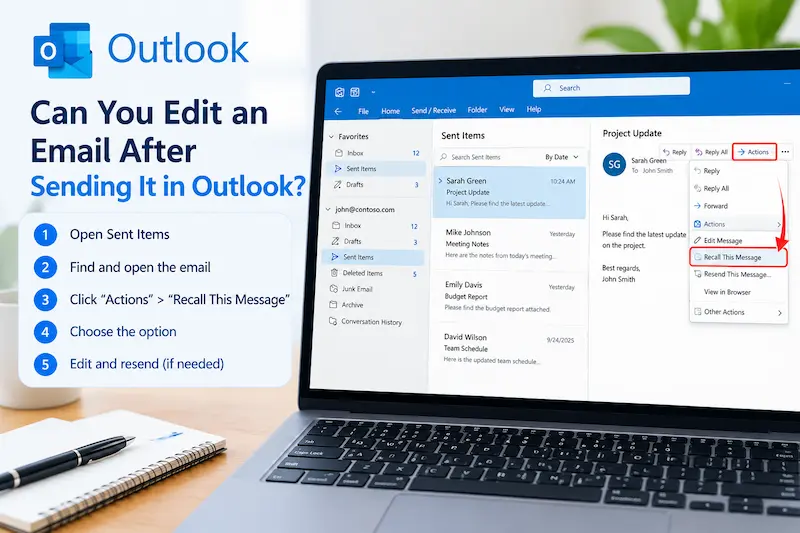
No, you cannot directly change an email that has already been delivered to someone else’s mailbox. Editing a copy in your Sent Items folder does not update the recipient’s message.
Microsoft Outlook provides alternatives that can help you correct the mistake:
- Recall a message: Try to retrieve an eligible email before the recipient opens it.
- Resend an edited message: Open a copy of the original email, make corrections, and send it again.
- Undo Send: Cancel a message during the short delay available in supported versions of Outlook.
- Send a correction: Write a new email that explains the mistake and provides the correct information.
If your email has already reached an external recipient, sending a corrected message is usually the most practical solution.
How to Edit Sent Mail in Outlook by Resending It
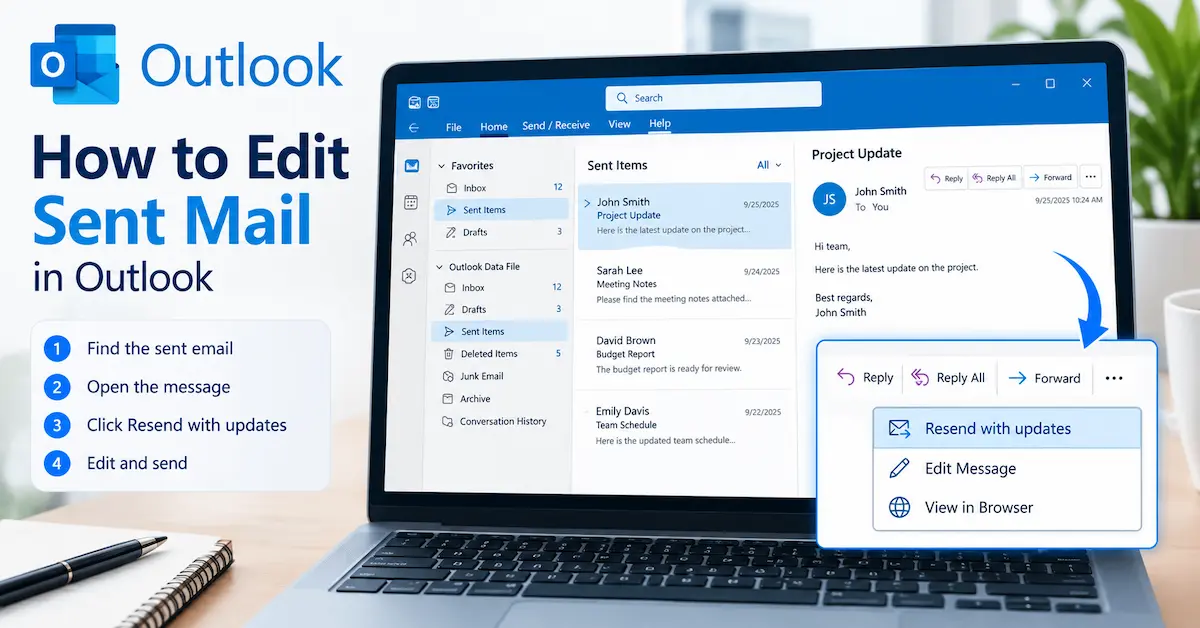
Resending an edited email is a useful option when you need to correct a typo, change a date, add an attachment, or update information.
Steps to resend an edited email in New Outlook
- Open Outlook and select Sent Items.
- Find the email you want to correct.
- Select the three-dot menu beside the message or open its available actions.
- Choose Advanced actions, then select Resend message, if available.
- Edit the message body, subject, recipients, or attachments as needed.
- Check the recipient list carefully.
- Select Send.
Microsoft documents the Resend message feature for supported versions of Outlook. In New Outlook, this option may depend on the account type, and personal accounts may not have it.
What if you cannot find Resend message?
In Classic Outlook for Windows, open the email from Sent Items in a separate window. Select the Message tab, then choose Actions and Resend This Message, if available.
If the command is missing, you can create a new email, copy the corrected text, attach the required files, and send it to the appropriate recipients.
Important: Resending creates another email. It does not erase the original message from the recipient’s inbox.
How to Recall and Replace a Sent Email in Outlook
Message recall is different from editing. It attempts to retrieve a message from the recipient’s mailbox, and eligible accounts may allow you to send a replacement.
According to Microsoft, recall is available when both the sender and recipient use Microsoft 365 work or school email accounts within the same organization. The recipient must not have opened the message for the recall to succeed under Microsoft’s stated requirements.
Steps to recall an email in New Outlook
- Open Outlook and go to Sent Items.
- Double-click the message you want to recall so it opens in a separate window.
- Select Recall Message on the ribbon.
- Confirm the recall request.
- Check your inbox for the Message Recall Report.
- Follow the report link to see whether the recall succeeded, remains pending, or failed.
If you want to correct the original information, use the available replacement workflow where offered, or send a corrected email separately.
Steps to recall an email in Classic Outlook
- Open Sent Items.
- Double-click the message you want to recall.
- Open the Message tab.
- Select Actions or More Move Actions, depending on your ribbon layout.
- Choose Recall This Message.
- Select the option to delete unread copies or delete unread copies and replace them with a new message, if available.
- Confirm the action and send the replacement if you chose that option.
The exact menu labels can vary by Outlook version and account configuration.
Does Outlook recall always work?
No. Recall is not a guaranteed way to remove an email.
It may fail if the recipient has already opened the message, the accounts are not within the same organization, or the required feature is unavailable. Always check the recall report instead of assuming the email has been removed.
You may also like it:
How To Edit Pdf In Mobile – Aarya Editz
How To Edit Call Recording – Aarya Editz
How to Edit a Sent Email in Outlook.com
Outlook.com is the personal email service used with addresses such as Outlook.com and Hotmail.com. It does not support the same message-recall feature available to eligible Microsoft 365 work or school accounts.
If you have already sent a message from Outlook.com, use one of these alternatives:
Option 1: Send a corrected email
- Open Sent Items.
- Find the email that needs a correction.
- Open a new message or reply to the original conversation.
- Explain the correction briefly.
- Include the correct information or attachment.
- Send the message.
For example, if you sent the wrong meeting time, write a short follow-up that clearly states the correct time. This helps the recipient identify which information to use.
Option 2: Use Undo Send before the message is delivered
Outlook.com offers an Undo Send setting that delays sending for a short period. Microsoft documents a delay of up to 10 seconds?
Correction for publication: Microsoft’s current support instructions state that Outlook.com can delay sending for up to 10 seconds or 30 seconds depending on the version and available setting. Check the current settings shown in your account before relying on a particular duration.
To enable the feature:
- Open Outlook.com.
- Select Settings.
- Choose Mail, then Compose and reply.
- Find Undo send.
- Select an available delay and save your settings.
After sending an email, select Undo while the prompt is available. Outlook will return the message for editing instead of completing delivery.
This feature only works during the configured delay. It cannot retrieve a message that has already been sent.
How to Fix a Sent Email in Outlook on Your Phone
If you use the Outlook mobile app on Android or iPhone, the safest approach is to check whether the message is still eligible for Undo Send or to send a corrected email.
What to do
- Open the Outlook app.
- Go to your sent messages and find the email.
- Check whether an Undo option is still available immediately after sending.
- If the message has already been delivered, open a new email or reply to the original conversation.
- Correct the information and send the update.
Mobile features and menu options can vary by app version and account type. Do not assume that editing a message displayed in your sent folder will change the copy already received by someone else.
What Happens When You Select Edit Message in Outlook?
Some Outlook desktop versions let you open a sent message and edit its local copy. However, this can be confusing because saving those changes does not update the recipient’s copy.
Microsoft Community guidance has explicitly clarified that using Edit Message to change a sent email affects the sender’s copy, not what the recipient sees.
If you need the recipient to receive corrected information, use an eligible recall-and-replace workflow or send a new message. Do not rely on a locally edited sent item as proof that the original email has been corrected for everyone.
What Should You Do If You Sent the Wrong Information?
The best response depends on the mistake.
- Typo or small wording error: Send a brief correction if the error could cause confusion.
- Missing attachment: Send a follow-up with the file attached.
- Wrong meeting time or date: Send the correct details clearly, preferably in the same conversation.
- Wrong recipient: If your account supports recall, try it immediately and check the result. If the email contained sensitive information, follow your organization’s security or privacy procedures.
- Incorrect price or business information: Send a clear correction that identifies the original detail and gives the accurate replacement.
- Email sent too early: If Undo Send is still available, cancel delivery and revise the message.
Avoid sending several confusing follow-ups. State exactly what was wrong and what the recipient should use instead.
How to Avoid Editing Sent Emails in the Future
You can reduce mistakes by reviewing a message before sending it.
- Check the recipient’s email address.
- Confirm the subject line matches the message.
- Verify dates, prices, names, and other important details.
- Make sure every promised attachment is included.
- Read the message once before selecting Send.
- Use Undo Send or a supported sending delay when available.
- Consider scheduling important emails so you have an opportunity to review them before delivery.
These habits are especially useful for work emails, client communication, invoices, and other messages where a correction could cause confusion.
Final Thoughts
If you want to know how to edit sent mail in Outlook, remember that editing your Sent Items copy is not the same as changing an email delivered to someone else.
For eligible Microsoft 365 work or school accounts, you can try recalling and replacing an unread message. For personal Outlook.com accounts or emails that have already been delivered, sending a corrected email is generally the practical choice. Use Undo Send when you catch a mistake before the delivery delay ends.
FAQs
Can I edit an email after sending it in Outlook?
You cannot directly change the recipient’s copy of an email after it has been delivered. You can resend an edited version, send a correction, or try message recall if your account supports it.
How do I edit a sent email in Outlook without sending another email?
Editing a sent message in Outlook may change only your local copy. It does not update the email already received by the recipient. To correct the recipient’s information, use a supported recall-and-replace feature or send a corrected message.
Can I recall an email in Outlook.com?
No. Personal Outlook.com accounts do not support the same message-recall feature available to eligible Microsoft 365 work or school accounts. You can use Undo Send during its available delay or send a correction.
Why can’t I see Recall Message in Outlook?
The feature may be unavailable for your account type, Outlook version, or organization. Message recall generally requires the sender and recipient to use Microsoft 365 work or school accounts in the same organization.
Does editing a sent email notify the recipient?
Editing the local copy of a sent email does not update or notify the recipient. If you recall and replace an email, the outcome depends on the recall process and recipient conditions. Sending a new correction delivers a separate message.
How can I correct a sent email with a missing attachment?
If recall is available, you can try to retrieve the original message and replace it. Otherwise, reply to the original email, briefly explain that the attachment was missing, attach the file, and send it again.
Can I edit sent emails in Outlook on my phone?
You generally cannot directly change the copy already delivered to the recipient. Check for Undo Send immediately after sending, or send a corrected email through the mobile app.
Is Resend message the same as Recall message?
No. Resend creates another email using the original message as a starting point. Recall attempts to retrieve an eligible sent message from recipients’ mailboxes. Neither should be treated as a guaranteed way to erase an email that someone has already read.
