
In the world of photography and social media, how your photo looks can make all the difference. If you’re tired of dull images or spending too much time editing each photo from scratch, then 23 LR Presets DNG are exactly what you need.
Whether you’re an influencer, traveler, or just love taking beautiful photos, these presets will help you create stunning edits with just one click.
Let’s explore everything in detail about these powerful Lightroom tools and how they can elevate your editing game—on both mobile and desktop.
🌟 What Are LR Presets DNG?
Before we dive into the features, let’s understand what these presets really are.
LR Presets (Lightroom Presets) are pre-designed editing settings for Adobe Lightroom. Instead of adjusting every setting manually—like exposure, contrast, color balance, etc.—you can apply a preset and instantly give your photo a polished, professional look.
The DNG format is specifically designed for Lightroom Mobile users. These presets are imported into the app as images, and once saved, you can apply them to your photos in one tap—no desktop required.
So, when we talk about 23 LR Presets DNG, we’re referring to a pack of 23 beautiful presets that you can use on your phone or computer to enhance your photos quickly and easily.
📦 What’s Included in the 23 LR Presets DNG Pack?
The 23 LR Presets DNG Pack is an all-in-one toolkit created to give your photos a professional and artistic edge—no matter your editing experience or photography style. Whether you’re a content creator, influencer, travel lover, or hobby photographer, this preset bundle offers a versatile range of tones and effects to suit every aesthetic.
Let’s break down exactly what you’re getting in this comprehensive pack.
💼 You’ll Receive:
🧩 23 Unique Lightroom Presets
These are not just filters—they are thoughtfully designed combinations of adjustments that instantly transform the color, light, and mood of your images. Each preset is tested across various lighting conditions and skin tones to ensure beautiful results every time.
🗂 Three File Formats Included:
- DNG – This format is perfect for Lightroom Mobile users, compatible with both iOS and Android. The DNG presets can be used even if you don’t have a paid Adobe subscription.
- XMP – These files are used in Lightroom Classic, Lightroom CC, and Adobe Camera Raw (Photoshop). Ideal for those who prefer editing on a laptop or desktop with Adobe’s latest software.
- LRTEMPLATE – These are for users who still work with older versions of Lightroom, such as Lightroom 4, 5, or 6. If you haven’t upgraded yet, you’ll still be able to enjoy the full preset collection.
Whether you’re editing on your phone, a desktop, or an older system, this pack has you covered.
You may also like to read these posts:
11 Best Lightroom Premium Presets Free Download – Aarya Editz
Aedit – Your Guide To Safe Cosmetic Enhancements – Aarya Editz
Free DNG Presets For Lightroom Mobile – Easy Photo Editing – Aarya Editz
AK Editz – Free Presets, Backgrounds & Editing Tools – Aarya Editz
🎨 Preset Styles You’ll Find in the Pack
Here’s a peek at the variety of looks included in the 23 LR Presets DNG bundle. Each preset is designed to bring a specific mood, vibe, or color balance to your image:
- Bright & Airy – Perfect for weddings, portraits, and lifestyle content. Creates a clean and soft feel with natural brightness.
- Warm & Sunset – Adds golden hues and soft warmth, ideal for golden hour and cozy aesthetics.
- Dark & Moody – Deep shadows and cool tones for dramatic, cinematic looks—popular in portrait and editorial photography.
- Golden Hour Glow – Enhances natural light and warm skin tones, perfect for outdoor shots during sunrise or sunset.
- Matte Film Look – Gives your photo a faded, vintage-inspired film effect for timeless edits.
- Clean Portrait Enhancers – Softens skin and boosts clarity for stunning close-ups and selfies.
- Travel Vibrance – Boosts colors and adds richness to landscapes, perfect for travel and nature shots.
- Urban Cool – Cool tones and contrast for street photography and city scenes.
- Vintage Film – A nostalgic vibe with grain and faded color tones that mimic classic film cameras.
- Beach & Nature Pop – Brightens skies, deepens greens, and adds contrast to nature photos.
- Boho Tones – Earthy colors and warm shadows ideal for bohemian-style photography.
- Minimal White Look – Clean, neutral, and bright—great for flat lays, interiors, or minimalist Instagram feeds.
- Cinematic Warmth – Adds soft warmth and contrast for that Hollywood-inspired mood.
…and many more! These presets can be mixed, matched, and adjusted to suit your unique style and the type of photo you’re editing.
📱 Specially Designed for Lightroom Mobile Users
One of the best things about this pack is its compatibility with Lightroom Mobile, making high-quality editing possible straight from your phone—no computer or Adobe subscription required.
The DNG format works seamlessly in the free Lightroom Mobile app on both Android and iPhone. All you need to do is:
- Import the DNG files into your Lightroom app.
- Open a preset file and save it as your own preset.
- Apply it to any of your photos in just one tap!
This means you can edit photos professionally wherever you are—whether you’re traveling, posting from a coffee shop, or updating your social media on the go.
🎯 Why This Pack Stands Out
- Perfect for all photography styles – portraits, landscapes, food, travel, fashion, lifestyle, and more.
- Supports all devices and Lightroom versions – mobile, desktop, and legacy systems.
- Easy installation & user-friendly – even if you’re a beginner.
- One-click transformation – saves time and delivers pro-level results.
- Budget-friendly – a small investment for a major photo upgrade.
💻 Also Works on Desktop
For those who prefer editing on a bigger screen, the XMP and LRTEMPLATE formats make this preset pack fully usable on Lightroom Classic and even older versions.
The XMP files are compatible with:
- Lightroom CC
- Lightroom Classic
- Adobe Camera Raw (Photoshop)
The LRTEMPLATE files are made for older versions like:
- Lightroom 4, 5, and 6
So whether you’re a mobile editor or a desktop editor—or both—this pack gives you total flexibility.
⚙️ How to Install the 23 LR Presets DNG
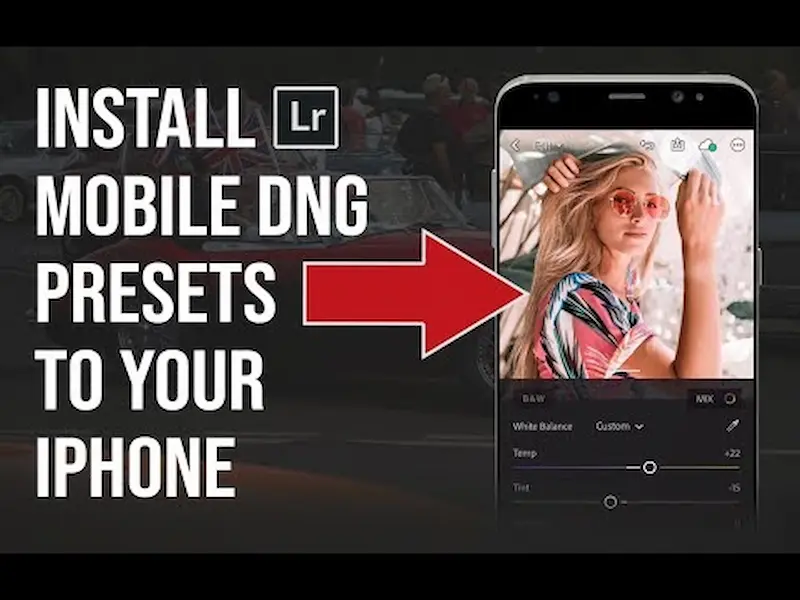
Installing these presets is easier than you might think.
📲 Installing DNG Presets in Lightroom Mobile (Free Version):
- Download the DNG files to your phone.
- Open Lightroom Mobile.
- Import each DNG image into the app.
- Tap on a DNG image → tap the three dots (•••) → tap Create Preset.
- Give it a name (e.g., “Boho Look”) and save it.
- Open your own photo, go to Presets, and apply the one you saved.
💻 Installing XMP Presets in Lightroom Desktop:
- Open Lightroom Classic or Lightroom CC.
- Go to the Develop module.
- In the Presets panel, click the “+” icon → choose Import Presets.
- Select all the .xmp files you downloaded.
- Once imported, you’ll see them in your User Presets folder.
🖥️ Installing LRTEMPLATE Files (for Old Lightroom Versions):
- Open Lightroom.
- Click Edit > Preferences > Presets tab.
- Click Show Lightroom Presets Folder.
- Open the “Develop Presets” folder.
- Paste all your .lrtemplate files here.
- Restart Lightroom to see your new presets.
✅ Key Benefits of Using These 23 LR Presets DNG
Here’s why these presets are a must-have for anyone serious about photo editing:
1. One-Click Edits
Get pro-quality edits instantly without spending hours on manual adjustments.
2. Perfect for Mobile & Desktop
Whether you’re editing selfies on your phone or client shots on your laptop, these presets work everywhere.
3. Versatile Styles
With 23 different styles, you’ll always find one that suits your mood, brand, or project.
4. Time-Saving
Batch edit dozens of photos in minutes and maintain consistency across your feed or portfolio.
5. Enhances Your Aesthetic
Stand out on Instagram or your blog with a unified, stunning photo style.
👥 Who Should Use These Presets?
These 23 LR Presets DNG are perfect for:
- 📷 Photographers (beginners & pros)
- 📱 Instagram influencers
- 🌍 Travel bloggers
- 🧕 Lifestyle content creators
- 💼 Business owners with product photos
- 🎓 Students who want better photo projects
- 🤳 Anyone who wants better selfies and portraits
⚠️ Tips for Best Results
- Use high-quality photos for editing—preset effects work better on clear, well-lit images.
- Feel free to adjust exposure, contrast, and white balance after applying a preset to fit your unique photo.
- If a preset looks too intense, reduce the preset amount (in Lightroom Desktop) or adjust specific sliders manually.
📝 Final Thoughts
The 23 LR Presets DNG pack is more than just a filter set—it’s your shortcut to creative, eye-catching photos that reflect your style. Whether you want soft and dreamy, bold and dramatic, or clean and minimal, you’ll find something in this collection to fall in love with.
They’re easy to install, fun to use, and perfect for creating a professional look on a budget. So why edit from scratch every time? Just apply, adjust, and post!
✨ Download the 23 LR Presets DNG today and start creating amazing visuals like a pro—no matter where you are or what device you’re using.
FAQs
1. What are 23 LR Presets DNG?
They are a collection of 23 pre-made photo editing filters designed for Adobe Lightroom. The presets come in DNG format for mobile use, along with XMP and LRTEMPLATE formats for desktop versions.
2. What do I need to use these presets?
You can use the DNG files with the free Lightroom Mobile app (iOS or Android). For desktops, you can use XMP files in Lightroom Classic, Lightroom CC, or Adobe Camera Raw. LRTEMPLATE files are for older Lightroom versions like 4, 5, or 6.
3. Do I need a paid Lightroom subscription?
No! You can use the DNG presets on Lightroom Mobile without a subscription. Simply install the free version from your app store.
4. How do I install the DNG presets on Lightroom Mobile?
Download the DNG files to your phone.
Import them into Lightroom Mobile.
Open a DNG file → Tap the three dots (•••) → Select Create Preset.
Name and save it. That’s it! Now you can apply it to any photo.
5. Can I use these presets on my computer?
Yes! Use the XMP files for Lightroom Classic or CC. Just go to the Develop module, click the “+” in the Presets panel, and select “Import Presets.”
