
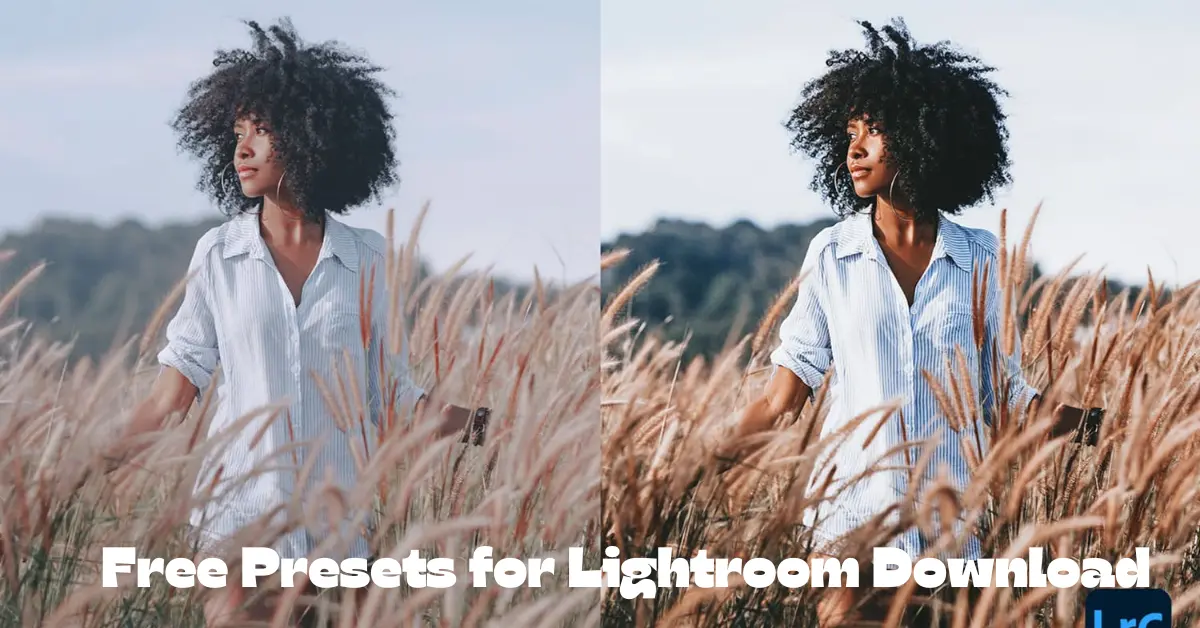
Do you love taking photos but feel stuck when it comes to editing? You’re not alone. Editing can be time-consuming—especially if you’re just starting out. That’s why Lightroom presets are a game-changer! These one-click filters can give your images a professional touch in seconds.
The best part? Many of the best presets are available for free!
So, whether you’re a content creator, travel enthusiast, or someone who just wants better Instagram photos, you’re in the right place. Let’s dive into the 11 best free presets for Lightroom download and explore their pros and cons.
🌟 What Are Lightroom Presets?
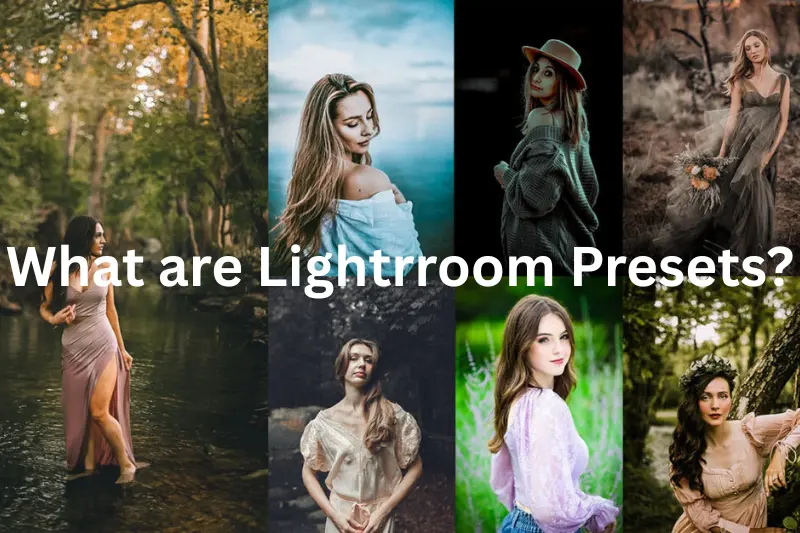
Lightroom presets are like photo recipes. Instead of adjusting brightness, contrast, shadows, and color manually, you just apply a preset, and boom—your photo transforms instantly. You can also tweak the settings afterward to match your vibe.
🔍 Quick Summary Table
| Preset Name | Best For | Key Feature |
| Warm & Cozy Vibes | Autumn, cafes, lifestyle shots | Warm tones & comfort feel |
| Moody Tones | Urban, drama, portraits | Cinematic shadows |
| Bright & Airy | Weddings, interiors | Light whites, soft hues |
| Teal and Orange | Travel, nature, beach photos | Bold colors & punchy contrast |
| B&W Classic | Portraits, street photography | Timeless black & white |
| Vintage Film Look | Retro, storytelling | Grain, faded colors |
| Matte Pastels | Fashion, floral, spring photos | Soft tones, pastel style |
| Golden Hour Magic | Outdoor, sunsets | Enhances golden light |
| Clean Minimal | Products, food, flat lays | Crisp & distraction-free |
| Cinematic Blue | Night shots, moody edits | Cool, film-style finish |
| Insta Blogger Preset | Influencers, selfies, lifestyle | Bright & social-ready look |
📸 11 Best Free Presets for Lightroom
1. Warm & Cozy Vibes
Perfect for: Autumn photos, cafés, candles, indoor settings.
This preset adds a warm, golden tone that makes your photos feel inviting and nostalgic—ideal for lifestyle bloggers.
Pros:
- Enhances warm tones beautifully
- Great for fall and homey photos
- Easy to tweak
Cons:
- Not suitable for bright outdoor photos
- May make skin tones too orange if overused
2. Moody Tones
Perfect for: Street photography, portraits, storytelling content.
Moody Tones add deep shadows and high contrast, giving your photos a cinematic feel.
Pros:
- Professional-grade look
- Highlights emotion and drama
- Works well on overcast photos
Cons:
- Not ideal for vibrant or colorful shots
- Might be too dark for some audiences
You may also like to read these posts:
7 Best Wallpaper Banane Wala Apps- A Unique Guide – Aarya Editz
Lightroom Scanner – Digitize Photos With Pro Quality – Aarya Editz
Stunning LR Photo Editing Presets Download – Aarya Editz
Best Photo Banane Wala Apps Free Download – Aarya Editz
3. Bright & Airy
Perfect for: Weddings, babies, home decor, fashion shoots.
This preset creates light, soft, and dreamy images. It’s widely loved by influencers and wedding photographers.
Pros:
- Clean and crisp look
- Great for whites and soft colors
- Makes spaces feel open and fresh
Cons:
- May blow out highlights
- Not suitable for low-light shots
4. Teal and Orange
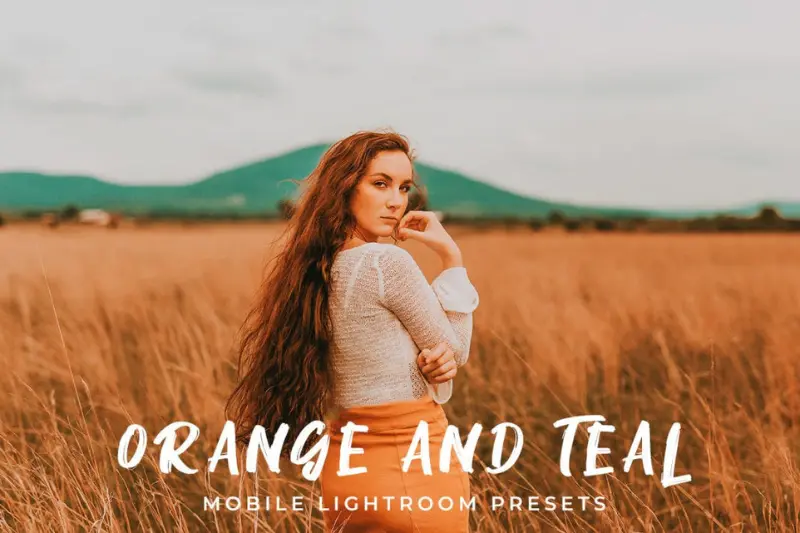
Perfect for: Travel photos, beaches, city streets.
This trendy combo enhances skin tones and makes blue skies pop. It’s especially popular on Instagram.
Pros:
- Very eye-catching
- Balances warm and cool tones
- Works well on tropical or travel shots
Cons:
- Can look unnatural if overused
- Might not suit portraits with pale skin
5. Black & White Classic
Perfect for: Portraits, street shots, historic themes.
This timeless preset strips away color and focuses on light, shadow, and emotion.
Pros:
- Great for storytelling
- Focuses attention on the subject
- Makes ordinary photos powerful
Cons:
- No color means less visual appeal on social feeds
- Can be too dramatic for casual photos
6. Vintage Film Look
Perfect for: Retro edits, creative projects, nostalgic vibes.
It mimics the look of old-school film—grainy, faded, and full of charm.
Pros:
- Adds a retro feel
- Unique and artistic
- Great for storytelling projects
Cons:
- Not suitable for high-quality commercial work
- Grain may reduce image clarity
7. Matte Pastels
Perfect for: Spring photos, fashion, kids’ photography.
This preset softens everything with light pastel tones and a smooth matte finish.
Pros:
- Dreamy and soft aesthetic
- Beautiful for flowers and fashion
- Looks elegant on Instagram
Cons:
- Can flatten contrast
- Doesn’t work well in low light
8. Golden Hour Magic
Perfect for: Landscapes, evening portraits, sunsets.
This preset boosts yellows, oranges, and reds to recreate that perfect golden-hour lighting—even if you missed it.
Pros:
- Makes outdoor photos glow
- Enhances skin tones during sunset
- Creates romantic and dramatic lighting
Cons:
- May make images too yellow
- Doesn’t suit indoor or studio photos
9. Clean Minimal
Perfect for: Product photography, flat lays, websites.
This preset focuses on clarity, whites, and minimal shadows to draw attention to the subject.
Pros:
- Professional and polished
- Clean and simple look
- Great for brands and ecommerce
Cons:
- Lacks creative flair
- May not suit personal/lifestyle photography
10. Cinematic Blue
Perfect for: Night scenes, cool tones, storytelling.
This preset enhances blues and cool shadows for a dramatic film look.
Pros:
- Great for moodier edits
- Ideal for night shots and cityscapes
- Enhances visual storytelling
Cons:
- Can feel cold and distant
- Doesn’t suit natural or warm photos
11. Insta Blogger Preset
Perfect for: Influencers, selfies, lifestyle content.
Designed with social media in mind, this preset brightens skin, softens tones, and makes everything pop.
Pros:
- Instant Instagram appeal
- Softens skin tones
- Works on selfies and indoor shots
Cons:
- Can make images look over-edited
- May not suit moody or natural styles
🛠 How to Install Lightroom Presets (Step-by-Step Guide)
Whether you’re using the desktop version of Lightroom or the mobile app, installing presets is easy once you know the steps. Here’s how you can do it:
🔹 For Desktop (Lightroom Classic)
Step 1: Download the preset file
Most free Lightroom presets for desktop come in .xmp format. Once you download the file (usually in a zip folder), extract it to access the .xmp file.
Step 2: Open Lightroom and go to the Develop Module
Launch Adobe Lightroom on your computer. From the top bar, click on the “Develop” tab.
Step 3: Import the preset
On the left-hand side, you’ll see a “Presets” panel. Click the “+” icon in the top right corner of this panel, then select “Import Presets” from the dropdown menu.
Step 4: Choose your preset file
Navigate to where you saved the .xmp file, select it, and click “Import.” Your new preset will now appear in your Presets list.
Step 5: Apply it to your photo
Click on any photo in the Develop module, then click your new preset to see the transformation instantly.
🔹 For Mobile (Lightroom Mobile App)
Step 1: Download the preset (usually a .DNG file)
Mobile presets are often shared as .DNG files. These are like image files that hold preset data. Save them to your phone (Google Drive, Dropbox, or direct download).
Step 2: Import the .DNG file into Lightroom
Open Lightroom Mobile, tap the “+” icon to add a new photo, and import the .DNG file. It will appear as a blank photo or with a sample image.
Step 3: Create a preset from the DNG file
Open the .DNG file in Lightroom. Tap the three-dot menu (•••) in the top right corner, then select “Create Preset.”
Step 4: Name and save your preset
Give it a recognizable name and assign it to a preset group if you like (e.g., “Moody Edits” or “Golden Hour”). Tap “Save.”
Step 5: Apply the preset to your own photos
Now, open any photo in Lightroom Mobile, go to the “Presets” tab, and apply your saved preset in just one tap.
✅ Benefits of Using Free Lightroom Presets (Why They’re a Game-Changer)
Using free Lightroom presets isn’t just about saving time—it’s about unlocking your creative potential while staying on budget. Here’s why so many photographers (and even beginners) love them:
1. Saves Time
Editing each photo manually can take hours—especially if you’re new to Lightroom. With presets, you can apply a professionally styled look in seconds and still make small adjustments if needed.
2. Creates Consistency
Whether you’re building a personal brand or managing a photography portfolio, consistency is key. Presets help you maintain a uniform color tone and aesthetic across your photos, making your social media or website visually cohesive.
3. Great for Inspiration
Not sure where to start with editing? Presets are a great way to spark ideas and explore different styles. Whether it’s a moody film look or a bright and airy vibe, you’ll discover new ways to tell your story visually.
4. Budget-Friendly
Why spend money on expensive editing tools when you can achieve stunning results for free? Many creators and professionals offer free presets that are just as good (or even better) than paid ones.
5. Perfect for Beginners and Experts
Presets aren’t just for newbies. Even professional photographers use presets to speed up their workflow and create signature styles. You can use them as-is or customize them to suit your personal taste.
FAQs
If you’ve been looking for the best way to level up your photo game without spending money, these 11 best free presets for Lightroom download are a fantastic place to start. From warm tones and dreamy pastels to cinematic edits and clean minimal styles—there’s a free preset here for every kind of photographer.
Give them a try, test them out, and don’t be afraid to customize them to your own taste. Your next scroll-stopping photo could be just one click away!
FAQs
Q1: What are Lightroom presets?
A: Lightroom presets are pre-made editing settings that you can apply to your photos with one click to achieve a specific look or style.
Q2: Are free Lightroom presets safe to download?
A: Yes, but always download presets from trusted sources to avoid any security risks.
Q3: Can I use Lightroom presets on both desktop and mobile?
A: Yes! Presets come in different formats for desktop (.xmp) and mobile (.DNG). Follow the installation steps for each device.
Q4: Do I need Lightroom paid subscription to use presets?
A: You need the Lightroom app (desktop or mobile). The free mobile app supports presets, but some features might require a subscription.
Q5: Can I edit the presets after applying them?
A: Absolutely! Presets are just starting points—you can tweak exposure, contrast, colors, and more to fit your style.
