
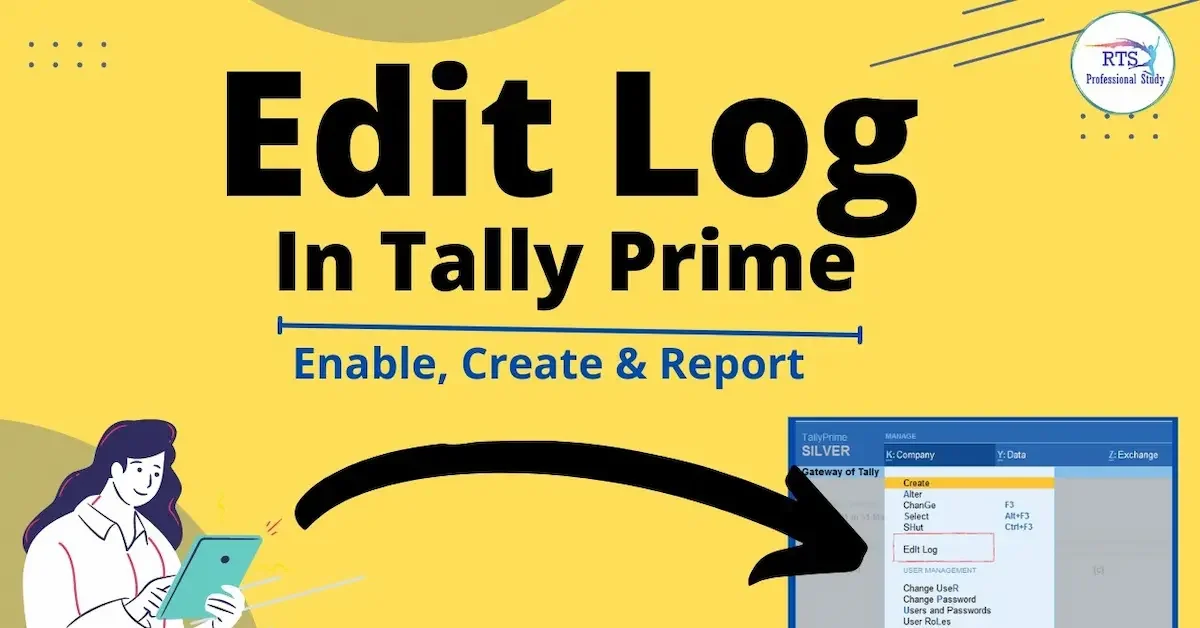
If you use TallyPrime for accounting, keeping track of changes made to vouchers and masters can be very important. TallyPrime provides an Edit Log feature that helps you see activities such as creation, alteration, resaving, and deletion of transactions and supported masters.
If you are searching for how to check edit log in tally prime, this guide will help you understand the process in simple steps. You will learn how to open the Edit Log, check who made a change, see the date and time of an activity, compare different versions, and find altered or deleted vouchers.
What Is Edit Log in TallyPrime?
Edit Log is a feature in TallyPrime that keeps a record of activities performed on transactions and supported masters. It can help you understand what was changed, when the change happened, and which user made the change.
According to TallyHelp, the Edit Log can track activities such as creation, alteration, and deletion. The report can display information such as the version, activity, username, and date and time of the change.
This can be useful when you want to review accounting records, investigate an unexpected change, or maintain better control over company data.
How to Check Edit Log in TallyPrime
Checking the Edit Log for a particular transaction is fairly simple. First, open the voucher or transaction that you want to review in alteration mode.
Once the transaction is open, press Alt+Q (Edit Log). You can also use Ctrl+O (Related Reports) > Edit Log and press Enter. TallyPrime will display the Edit Log report for that transaction.
The report can show the version, activity, username, and date and time associated with the recorded change.
How to View Changes Made in a Voucher
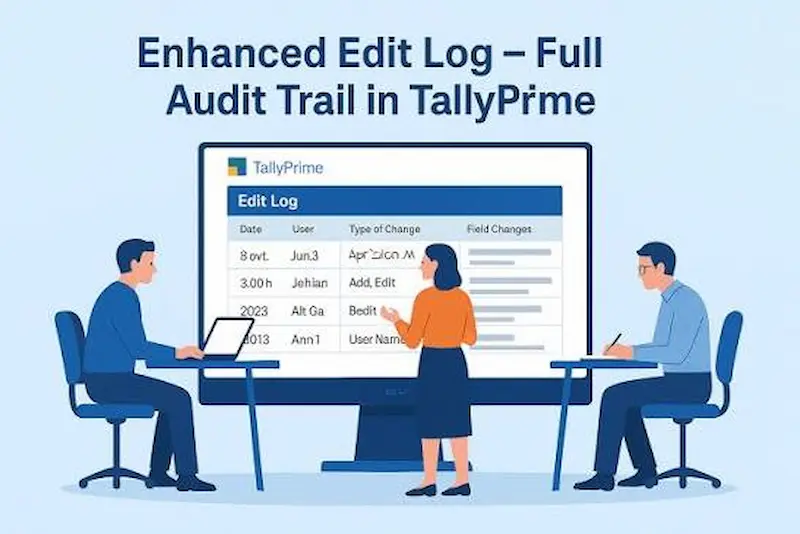
After opening the Edit Log, you can select a particular version and press Enter. TallyPrime then opens the Differences Between Edit Log Versions screen.
This comparison helps you understand what changed between the selected version and the previous version. TallyPrime highlights changed information so you can identify modifications more easily.
This is particularly useful when you need to check whether a voucher amount, narration, voucher number, or another field was modified.
How to Check Who Edited a Voucher
One useful part of the Edit Log is that it displays the Username associated with the activity. After opening the Edit Log for a voucher, look at the Username column to identify the user connected with the recorded activity.
The report also shows the date and time, which can help you understand when the modification took place.
How to Check the Date and Time of an Edit
To check when a voucher was changed, open its Edit Log using Alt+Q. The report contains the date and time of the recorded activity. How To Check Edit Log In Tally Prime
This information can be helpful when reviewing transactions during an internal accounting check or when trying to understand the sequence of changes made to a voucher.
How to Check Edit Log From Day Book
You can also find altered vouchers through the Day Book. Open Day Book and use Ctrl+B (Basis of Values) to configure the report.
Under the relevant report options, you can select Altered Vouchers. TallyPrime can also include deleted vouchers when this option is selected.
After identifying an altered voucher, open it and use Ctrl+O (Related Reports) > Edit Log to view its edit history. How To Check Edit Log In Tally Prime
How to View Edit Log Summary
If you want to review Edit Log information across multiple vouchers or masters, you can use Edit Log Summary. How To Check Edit Log In Tally Prime
Press Alt+G (Go To) and search for Edit Log Summary – Voucher Types. Alternatively, you can access it through Gateway of Tally > Display More Reports > Edit Log Summary.
The summary allows you to review altered, non-altered, and total vouchers depending on the report configuration.
How to Check All Versions of a Voucher
The Edit Log may initially show a configured set of versions. If you want to see all available versions, press F9 (All Versions) in the Edit Log report.
This allows you to review the different recorded versions of the voucher and drill down into the changes between versions. How To Check Edit Log In Tally Prime
How to Check Deleted Vouchers in TallyPrime
TallyPrime can also record deleted transactions when Edit Log is enabled. You can identify deleted vouchers through reports such as Day Book and then open the relevant Edit Log information.
This can be useful if a transaction that previously existed is no longer visible in the normal list of active vouchers.
How to Check Edit Log for Ledgers
Edit Log is not limited to vouchers. TallyPrime can also track activities involving supported masters, including ledgers, stock items, and accounting groups. How To Check Edit Log In Tally Prime
For example, when a ledger is created, altered, or deleted, the activity can be recorded in the Edit Log.
How to Check Edit Log for a Ledger
Open the relevant ledger in alteration mode and use the Edit Log option. You can then review the recorded versions and activities associated with that master.
The report can help you understand when the ledger was changed and which user performed the recorded activity.
Why Is Edit Log Useful?
Edit Log can be helpful for businesses that want better visibility over accounting changes. Instead of relying only on the current version of a transaction, you can review its recorded history and compare versions. How To Check Edit Log In Tally Prime
It can also help during internal reviews when you need to understand why a transaction looks different from an earlier version. How To Check Edit Log In Tally Prime
Tips for Using Edit Log in TallyPrime
Before reviewing a transaction, identify the exact voucher you want to investigate. This can save time when your company contains a large number of entries.
Use the Edit Log Summary when you need to review changes across multiple vouchers or masters. For a single transaction, opening the voucher and pressing Alt+Q is usually a more direct approach.
When comparing versions, pay attention to the activity, username, date, time, and changed fields. This gives you a clearer picture of what happened to the transaction.
Common Reasons to Check Edit Log
You may want to check the Edit Log when:
- A voucher amount appears different from an earlier record.
- A narration has been changed. How To Check Edit Log In Tally Prime
- You want to know who altered a transaction.
- You need to check when an entry was modified.
- A voucher appears to have been deleted. How To Check Edit Log In Tally Prime
- You want to compare two versions of a transaction.
- You are reviewing accounting records internally.
- You need to investigate an unexpected modification.
How to Enable Edit Log in TallyPrime
Before you can review changes, make sure the Edit Log feature is enabled for your company. Open the company in TallyPrime and go to the company configuration settings. Look for the Edit Log option and enable it according to your company’s requirements. How To Check Edit Log In Tally Prime
Once Edit Log is enabled, TallyPrime can start recording relevant activities for supported transactions and masters. This makes it easier to review changes later. How To Check Edit Log In Tally Prime
How to Open Edit Log for a Specific Transaction
If you want to investigate one particular transaction, open that voucher in alteration mode. From there, use the Edit Log option to view the recorded history.
You can review the available versions and select the version you want to examine. This is helpful when you already know which voucher needs to be checked.
How to Identify an Altered Voucher
An altered voucher may look different from its original version because information such as the amount, date, ledger, narration, or other details has been changed.
You can use the Edit Log to review the recorded activity and compare versions. This can help you understand what information was modified.
How to Check Changes in Voucher Amount
If you believe that the amount of a voucher was changed, open the voucher’s Edit Log and compare its available versions. How To Check Edit Log In Tally Prime
The differences between versions can help you identify whether the amount was modified and understand which version contains the change. How To Check Edit Log In Tally Prime
How to Check Changes in Voucher Date
The voucher date is another detail that may need to be reviewed during an accounting check. By comparing the recorded versions, you can identify changes to relevant voucher information.
This can be particularly useful when reviewing transactions from a specific accounting period.
How to Check Changes Made by Different Users
Businesses often have multiple people working on the same TallyPrime company. Edit Log can help you identify the username associated with a recorded activity.
This makes it easier to understand which user performed a particular action and can support internal accounting reviews. How To Check Edit Log In Tally Prime
How to Use Edit Log for Internal Auditing
Edit Log can be useful during an internal audit because it provides a record of relevant activities. Instead of checking only the current version of a transaction, you can review its history.
Auditors or authorized accounting staff can use this information to investigate unusual changes and understand how a transaction developed over time. How To Check Edit Log In Tally Prime
How Edit Log Helps Prevent Accounting Mistakes
Mistakes can happen when entering or modifying accounting data. Edit Log does not prevent every mistake, but it can make it easier to identify and review changes.
When an unexpected value appears in a voucher, checking its previous versions can help you understand whether the information was recently altered. How To Check Edit Log In Tally Prime
Difference Between Edit Log and Current Voucher
The current voucher shows the information that exists now, while the Edit Log can provide historical information about recorded activities and versions. How To Check Edit Log In Tally Prime
This difference is important when you need to understand how a transaction changed rather than simply seeing its current details.
Can Edit Log Help Find Missing Transactions?
If a transaction seems to be missing, Edit Log-related reports can help you investigate whether it was deleted or altered. The exact information available depends on the company’s Edit Log configuration and the activity recorded by TallyPrime. How To Check Edit Log In Tally Prime
This can be useful when reviewing differences between accounting records and previously entered transactions.
How to Review Edit Log Regularly
You do not always need to wait for an accounting problem before checking Edit Log. Businesses can review important transactions regularly as part of their accounting control process. How To Check Edit Log In Tally Prime
Regular reviews can help you identify unexpected changes early and keep better track of activity within the company.
Important Tips When Checking Edit Log
Always check the correct company and accounting period before reviewing a transaction. If your company contains many vouchers, use relevant reports and filters to narrow down the information you need.
When reviewing a change, pay attention to the activity type, username, date, time, and differences between versions. Keeping these details together can make your review more organized. How To Check Edit Log In Tally Prime
What Should You Do After Finding an Unexpected Change?
If you find an unexpected modification, first compare the affected versions carefully. Confirm which fields changed and review the username and date associated with the activity.
If the change requires further investigation, follow your organization’s accounting and approval procedures. Avoid making additional changes until you understand the issue. How To Check Edit Log In Tally Prime
Edit Log for Better Accounting Control
For businesses that have several users entering or modifying transactions, keeping track of changes can be an important part of accounting management. Edit Log provides useful visibility into recorded activities.
By learning how to check edit log in TallyPrime, users can review transaction history more confidently and investigate changes without relying only on memory or manual rec
How do I check the Edit Log in TallyPrime?
Open the required voucher in alteration mode and press Alt+Q (Edit Log). You can also access Edit Log through Ctrl+O (Related Reports).
How can I see who edited a voucher in TallyPrime?
Open the voucher’s Edit Log and check the Username shown in the report. This identifies the user associated with the recorded activity.
How can I check when a voucher was edited?
Open the Edit Log for the voucher. The report provides the date and time associated with the recorded activity.
Conclusion
Knowing how to check edit log in TallyPrime can make it easier to review changes made to your accounting data. You can open the Edit Log from a transaction using Alt+Q, review the username and date and time, and compare different versions to identify changes. How To Check Edit Log In Tally Prime
For a broader review, the Edit Log Summary can help you examine altered and deleted vouchers and masters. If you regularly manage company accounts in TallyPrime, understanding these features can help you keep better track of changes and review your records more efficiently.
