
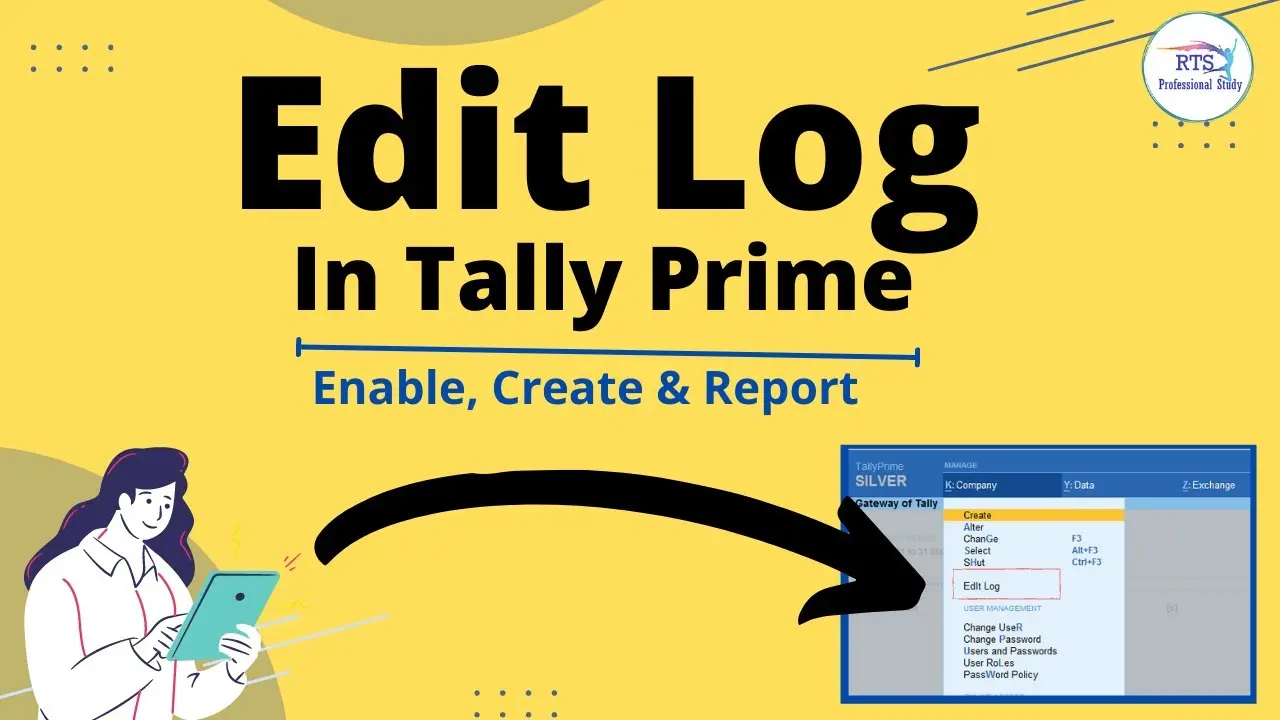
If you use Tally Prime to manage your business accounts, keeping track of changes in your financial records is very important. Sometimes, a user may edit a voucher, change a ledger, or delete an entry by mistake. Without a proper record, finding out what happened can become difficult.
This is where the Edit Log feature helps. It records important activities performed on your company data, making it easier to check who made a change and when it happened.
In this guide, you will learn how to enable edit log in Tally Prime, how to view recorded changes, and why this feature is useful for your business.
What Is Edit Log in Tally Prime?
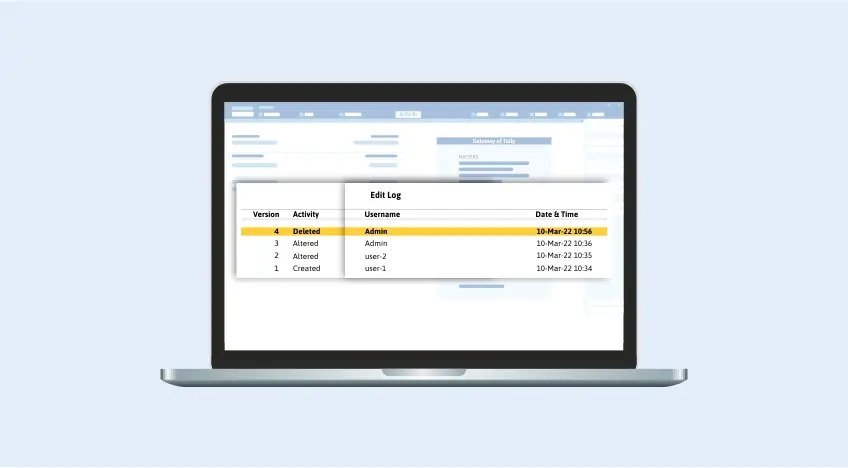
Edit Log is a feature in Tally Prime that keeps a record of changes made to transactions and selected masters. It helps you track activities such as creating, altering, and deleting vouchers, ledgers, stock items, and groups.
For example, suppose an employee changes the amount in a sales voucher. The Edit Log can help you review the previous and updated versions of that voucher.
It can display details such as:
- The type of activity performed.
- The username of the person who made the change.
- The date and time of the activity.
- The previous and updated versions of a record.
This feature is useful for businesses that want better control over their accounting information.
How to Enable Edit Log in Tally Prime
You can enable Edit Log through the Company Alteration screen in supported versions of Tally Prime. Follow these simple steps.
Step 1: Open Your Company in Tally Prime
First, open Tally Prime on your computer.
Select the company for which you want to enable Edit Log. Make sure you have the required administrator rights to change the company settings.
Step 2: Open the Company Menu
After opening your company, press Alt + K on your keyboard.
This will open the Company menu. From the available options, select Alter.
Step 3: Open the Configuration Settings
When the Company Alteration screen opens, press F12 to access the configuration settings.
Look for the option called Set Edit Log Applicability and change it to Yes.
This setting makes the Edit Log option available in the Company Alteration screen. It does not enable Edit Log by itself.
Step 4: Enable Edit Log
Now return to the Company Alteration screen.
Find the option named Enable Edit Log and set it to Yes.
This activates Edit Log for your company in the standard Tally Prime release that supports this setting.
Step 5: Save Your Settings
After enabling the feature, accept and save the Company Alteration screen.
Tally Prime may display a confirmation message explaining that future activities on masters and transactions will be recorded.
Once you complete these steps, Edit Log will start recording supported activities.
You may also like it:
How To Edit Image Text In Word – Aarya Editz
How To Edit Video In Iphone – Aarya Editz
How To Edit Resume In Laptop – Aarya Editz
How To Edit Photos In Mobile – Aarya Editz
How to View Edit Log in Tally Prime
After enabling the feature, you can check the history of a voucher or master whenever needed.
Follow these steps:
- Open the required voucher or master in alteration mode.
- Press Alt + Q to open the Edit Log report.
- Review the available versions and activities.
- Select a version and press Enter.
- Check the differences between the selected version and its previous version.
Tally Prime can highlight changed information, helping you understand what was modified.
The report may show the activity, username, version, and date and time of the change.
What Activities Does Edit Log Track?
Edit Log records several important activities performed on company data.
1. Created Entries
When a user creates a new voucher or supported master, Tally Prime records the creation activity.
2. Altered Entries
If someone changes information in an existing voucher or master, the system records the alteration.
For example, it can help you identify changes to voucher details, amounts, or other information.
3. Deleted Entries
Edit Log also helps track the deletion of supported vouchers and masters.
This is useful when you want to investigate a missing accounting entry.
4. Resaved Entries
If a user opens and saves a record without making any changes, Tally Prime may record the activity as Resaved (No Changes).
This helps you understand when a record was opened and saved again.
Benefits of Enabling Edit Log in Tally Prime
Enabling Edit Log can make accounting work easier to monitor. Here are some important benefits.
- Better tracking: You can review changes made to your accounting records.
- User identification: The report shows the username associated with recorded activities.
- Improved control: Business owners can monitor important changes in company data.
- Easy comparison: You can compare previous and updated versions of a record.
- Error investigation: It helps you investigate unexpected changes or deleted entries.
- Better record management: It provides a clearer history of supported accounting activities.
Important Things to Know Before Enabling Edit Log
Before turning on this feature, keep a few points in mind.
- Edit Log is available in TallyPrime Release 2.1 and later supported releases.
- The feature records activities from the time it is enabled. It does not automatically create a history of changes made while it was disabled.
- Existing records may not have an Edit Log history if they were created or modified before the feature was enabled.
- The standard Tally Prime release allows you to enable or disable Edit Log.
- TallyPrime Edit Log is a separate product edition in which the feature remains enabled and cannot be disabled.
If your business needs a continuous audit trail for statutory compliance, check the applicable requirements and use the appropriate TallyPrime edition. You should also consult your accountant or auditor when making compliance decisions.
Common Problems When Enabling Edit Log
Sometimes, users cannot find the Edit Log option or cannot view the required history. Here are a few possible reasons.
Edit Log Option Is Not Visible
If you cannot find the Enable Edit Log option, open the Company Alteration screen and press F12.
Set Set Edit Log Applicability to Yes. Then check the screen again.
Edit Log Report Shows No History
This can happen if the transaction was created or changed before Edit Log was enabled.
The feature does not recreate a history of earlier activities that were not recorded.
You Cannot Change the Edit Log Setting
You may not have the required access rights to alter the company settings.
Contact your Tally administrator and ask them to check your user permissions.
Frequently Asked Questions
1. How do I enable Edit Log in Tally Prime?
Press Alt + K, select Company Alter, and press F12. Set Set Edit Log Applicability to Yes. Then set Enable Edit Log to Yes in the Company Alteration screen and save your settings.
2. Which Tally Prime version supports Edit Log?
Edit Log was introduced in TallyPrime Release 2.1. It is available in supported later releases as well.
3. Can I view who changed a voucher in Tally Prime?
Yes. Open the voucher in alteration mode and press Alt + Q. The Edit Log report can show the username, activity, version, and date and time of recorded changes.
4. Can I disable Edit Log in Tally Prime?
In the standard Tally Prime release, you can enable or disable the feature. However, TallyPrime Edit Log is a separate edition where Edit Log remains permanently enabled.
5. Does Edit Log show changes made before enabling the feature?
No. Edit Log does not automatically create a history of activities that happened while the feature was disabled. It records supported activities after you enable it.
Conclusion
Enabling Edit Log in Tally Prime is a simple way to keep track of important changes in your accounting records. You only need to open the Company Alteration screen, enable the required configuration, and set Enable Edit Log to Yes.
After activation, you can review supported activities, check user details, and compare different versions of vouchers and masters. This helps you maintain better control over your company data and investigate unexpected changes more easily.
