
An E-Way Bill is an important electronic document used to track the movement of goods under India’s Goods and Services Tax (GST) system. Businesses, transporters, and suppliers use it when goods are transported from one place to another. Sometimes, users enter incorrect information while generating an E-Way Bill, such as a vehicle number, transporter ID, delivery address, or other details.
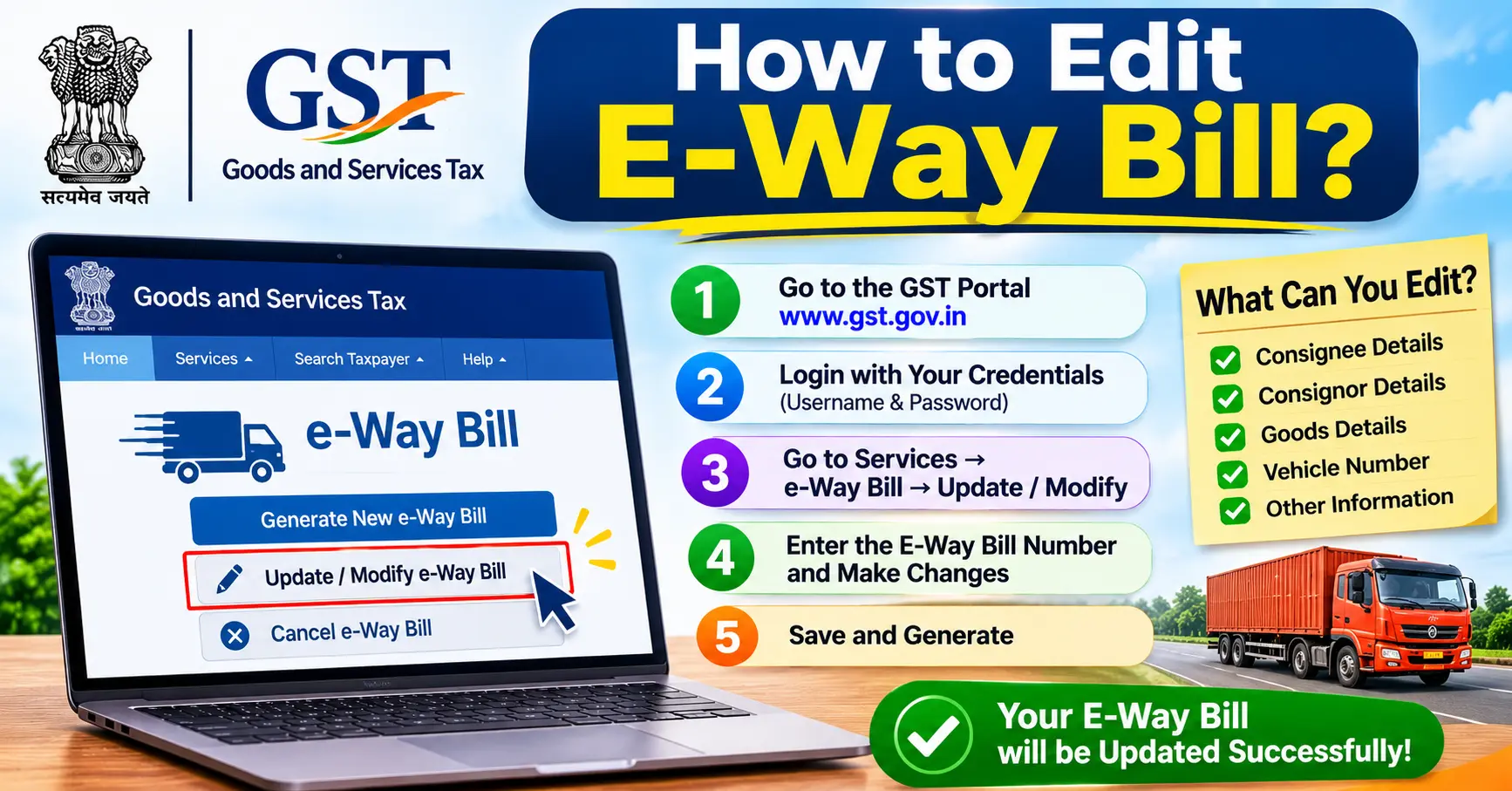
If you are wondering how to edit E-Way Bill, it is important to understand that the GST E-Way Bill portal does not allow users to directly edit every detail after generating a bill. However, certain mistakes can be corrected through available options, such as updating vehicle details, cancelling the bill, or generating a new E-Way Bill.
This guide explains the correction process, available options, important rules, and common mistakes to help you manage your E-Way Bill properly.
What Is an E-Way Bill?
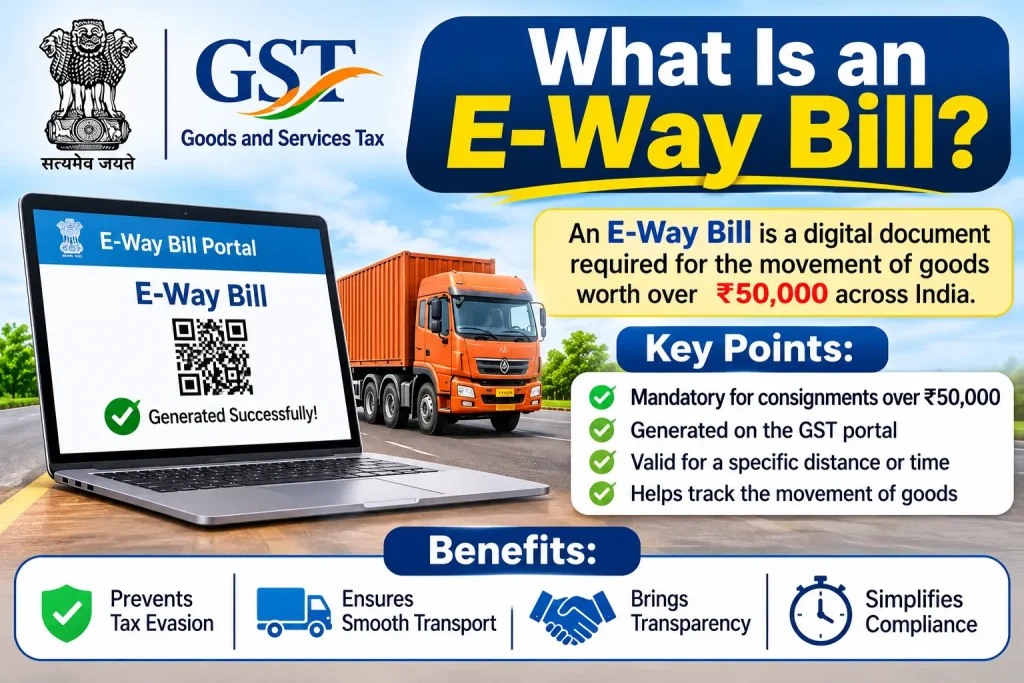
An E-Way Bill is an electronic document generated through India’s GST portal before or during the movement of goods, as required under applicable GST rules.
It contains important information about the goods and their transportation.
Some common details included in an E-Way Bill are:
- Supplier and recipient information.
- GSTIN details.
- Invoice or document number.
- Product description.
- HSN code.
- Goods value.
- Transporter ID.
- Vehicle registration number.
- Place of dispatch and delivery.
- Transportation distance.
The E-Way Bill helps businesses and tax authorities monitor the movement of goods and maintain proper GST records.
Can You Edit an E-Way Bill After Generation?
No, you generally cannot directly edit an already generated E-Way Bill.
Once an E-Way Bill is generated, the main details cannot be changed through a normal edit option. However, the portal provides specific facilities for correcting certain transportation details.
For example:
- You can update vehicle details when the vehicle changes.
- You can update transporter information where permitted.
- You can cancel an E-Way Bill within the permitted time if the goods are not transported or the transaction is cancelled.
- You can generate a fresh E-Way Bill with correct information when necessary.
It is important to select the correct option according to the type of mistake.
1. How to Update Vehicle Number in E-Way Bill
If you entered the wrong vehicle number or the transportation vehicle changes, you can use the Update Vehicle Number option on the E-Way Bill portal.
Follow these steps:
Step 1: Visit the Official E-Way Bill Portal
Open the official GST E-Way Bill website and log in using your username and password.
Step 2: Open the Update Vehicle Number Option
After logging in, find the E-Way Bill section and select Update Vehicle Number.
Step 3: Enter the E-Way Bill Number
Enter the E-Way Bill number for which you want to update the vehicle information.
Step 4: Add the Correct Vehicle Number
Enter the correct vehicle registration number and provide the required transportation details.
Step 5: Submit the Information
Review the details and submit the request.
After successful submission, the updated vehicle information will be recorded in the system.
2. How to Update Transporter Details in E-Way Bill
Sometimes, a business may need to change the transporter responsible for moving goods. The E-Way Bill portal provides a facility to update transporter details where applicable.
Follow these steps:
- Visit the official E-Way Bill portal.
- Log in using your registered account.
- Open the E-Way Bill menu.
- Select the option for updating transporter details.
- Enter the E-Way Bill number.
- Provide the new transporter ID.
- Check the information carefully.
- Submit the updated details.
The new transporter information will be associated with the E-Way Bill after successful processing.
You may also like it:
How To Edit Image Text In Word – Aarya Editz
How To Edit Video In Iphone – Aarya Editz
How To Edit Resume In Laptop – Aarya Editz
How To Edit Photos In Mobile – Aarya Editz
3. How to Cancel an E-Way Bill
If you generated an E-Way Bill with incorrect information or the goods are no longer being transported, cancellation may be necessary.
However, an E-Way Bill can generally be cancelled only within 24 hours of generation, subject to applicable rules.
Follow these steps:
Step 1: Visit the official E-Way Bill portal.
Step 2: Log in using your registered username and password.
Step 3: Open the E-Way Bill section.
Step 4: Select the Cancel option.
Step 5: Enter the E-Way Bill number.
Step 6: Select the appropriate cancellation reason.
Step 7: Submit your request.
After successful cancellation, the E-Way Bill status will be updated.
Remember that if the goods have already been verified in transit by an authorized officer, cancellation is not permitted under the applicable rules.
4. How to Generate a New E-Way Bill After Cancellation
If your previous E-Way Bill contains incorrect information, you may need to cancel it and generate a new one with the correct details.
Here is the process:
- Log in to the official E-Way Bill portal.
- Select Generate New E-Way Bill.
- Enter the supplier’s details.
- Add the recipient’s GSTIN and address.
- Enter the invoice or document number.
- Provide the goods description and value.
- Add the transportation details.
- Review all information.
- Submit the form.
- Download or print the newly generated E-Way Bill.
Always ensure that the information matches the relevant invoice and transportation documents.
5. How to Correct an Incorrect Invoice Number in E-Way Bill
An incorrect invoice number is an important mistake because the E-Way Bill is linked to the underlying document.
You generally cannot change the original invoice number after generating an E-Way Bill.
If you entered an incorrect invoice number, consider the following steps:
- Check whether the E-Way Bill is still within the cancellation period.
- Cancel it if cancellation is legally permitted.
- Correct the underlying document information where necessary.
- Generate a new E-Way Bill with accurate details.
Do not use the vehicle update facility to correct invoice information because these are separate details.
6. How to Check E-Way Bill Details After Correction
After updating transportation information or generating a new E-Way Bill, you should verify the document details.
Follow these steps:
- Open the official E-Way Bill portal.
- Select Search or Print E-Way Bill.
- Enter your E-Way Bill number.
- Submit the information.
- Review the available document details.
- Check the updated vehicle or transporter information.
- Download a copy for your business records.
This step helps ensure that the information is correctly recorded.
Important Rules for Editing an E-Way Bill
Before making changes, remember these important rules:
- An already generated E-Way Bill cannot generally be edited directly.
- Vehicle details can be updated through the designated facility.
- Transporter details can be changed where the portal permits.
- Cancellation is generally allowed within 24 hours of generation.
- An E-Way Bill cannot be cancelled after verification in transit by an authorized officer.
- A recipient who rejects an E-Way Bill can do so within the prescribed period.
- Always keep invoice and transportation information accurate.
Following these rules can help businesses avoid unnecessary errors and compliance problems.
Common Problems When Updating an E-Way Bill
Users may sometimes face issues while updating or cancelling an E-Way Bill. Here are some common problems and their possible solutions.
1. Unable to Cancel E-Way Bill
You may be unable to cancel the bill if the 24-hour cancellation period has expired or the document has already been verified in transit.
Check the bill’s status before trying again.
2. Vehicle Number Is Not Updating
Make sure the vehicle number follows the correct registration format. Also, verify that you have entered the correct E-Way Bill number.
3. Incorrect Transporter ID
Check the new transporter ID and confirm that the transporter is registered on the portal.
4. E-Way Bill Has Expired
If the validity period has expired, check whether an extension is permitted under the applicable rules. An extension may be requested through the portal within the prescribed time and conditions.
5. Portal Is Not Working
Sometimes, the website may experience technical issues. Try again later, check your internet connection, or use another supported browser.
Frequently Asked Questions
1. Can I edit an E-Way Bill after generating it?
No. You generally cannot directly edit the main details after generation. However, you can update certain transportation information or cancel and regenerate the bill where legally permitted.
2. How can I change the vehicle number in an E-Way Bill?
Log in to the E-Way Bill portal, select Update Vehicle Number, enter the E-Way Bill number, provide the correct vehicle details, and submit the request.
3. Can I cancel an E-Way Bill after 24 hours?
Generally, no. The normal cancellation period is 24 hours from generation. If this period has expired, you cannot use the standard cancellation facility.
4. Can I change the invoice number in an E-Way Bill?
No. The original invoice number cannot generally be edited after generation. If it is incorrect, cancellation and fresh generation may be necessary, subject to applicable rules.
5. How do I update transporter details in an E-Way Bill?
Log in to the E-Way Bill portal, open the transporter update facility, enter the bill number, provide the new transporter ID, and submit the information.
Conclusion
Knowing how to edit E-Way Bill details can help businesses manage transportation records and avoid unnecessary GST compliance issues. Although the portal does not provide a general option to edit an already generated bill, users can update vehicle and transporter information where permitted. For other major mistakes, cancellation and fresh generation may be necessary.
Always review the invoice, GSTIN, goods value, vehicle number, and transporter information before generating an E-Way Bill. Accurate information helps make the transportation process smoother and reduces the risk of errors.
