
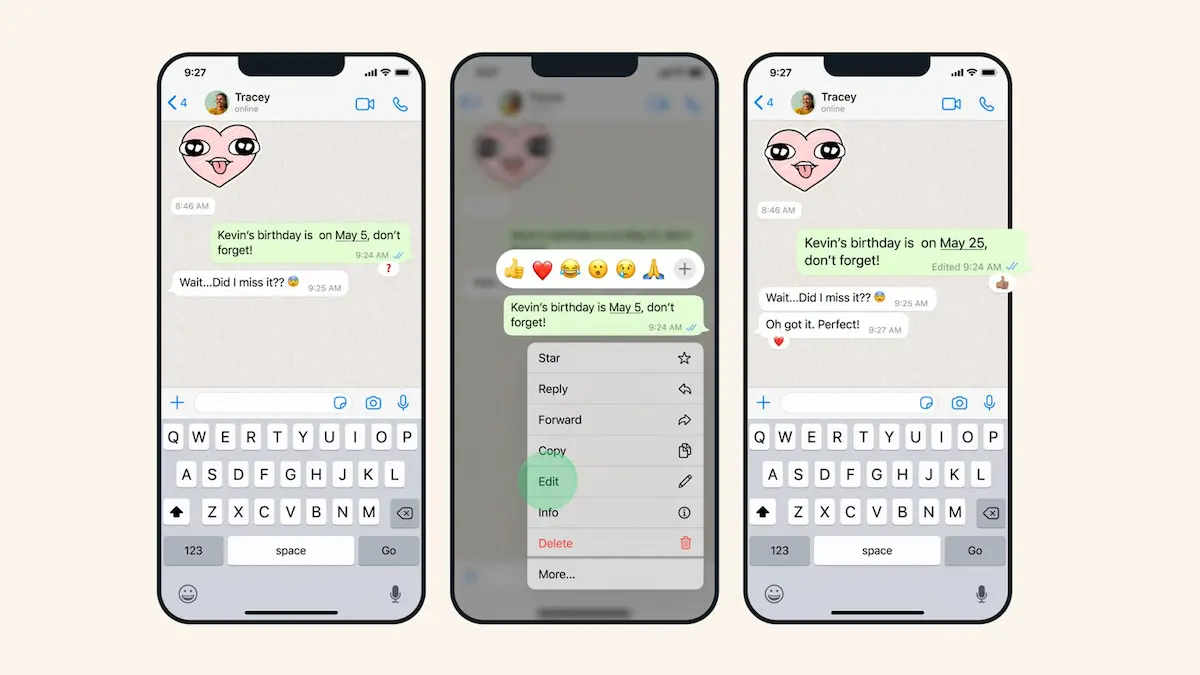
Have you ever sent a WhatsApp message and noticed a spelling mistake seconds later? Perhaps you entered the wrong time, missed an important word, or sent a sentence that needs clarification. You do not always need to delete the message and send another one.
WhatsApp has a built-in editing feature that lets you correct a sent text message within 15 minutes of sending it. The corrected message appears in the chat with an “edited” label, so other participants can see that you changed it.
This guide explains how to edit messages in WhatsApp on Android, iPhone, WhatsApp Web, and desktop. It also covers what happens after editing, why the Edit option might disappear, and what you can do when the time limit expires.
How to Edit Messages in WhatsApp

The process is simple: find your sent message, open its options, select Edit, change the text, and save your correction.
Follow these steps before the 15-minute editing window closes.
- Open WhatsApp and enter the conversation containing the message.
- Find the message you want to correct.
- Press and hold the sent message on your phone.
- Select Edit from the available options. On some Android versions, you may need to open the three-dot menu first.
- Correct the text in the editing field.
- Tap the checkmark or the confirmation option to save the change.
Your updated message will appear in the conversation. WhatsApp marks it as edited, and the change is visible to everyone in that chat.
Important: You can edit only messages you sent yourself. You cannot use this feature to rewrite another person’s message.
How to Edit WhatsApp Messages on Android
If you use an Android phone, such as a Samsung Galaxy, Google Pixel, or Xiaomi device, you can edit a message directly from the conversation.
Steps for Android users
- Open WhatsApp on your phone.
- Open the individual or group chat containing your message.
- Press and hold the message you want to change.
- Tap the three-dot menu in the upper-right corner if the Edit option is not immediately visible.
- Select Edit.
- Make the required changes to the text.
- Tap the checkmark to save your edited message.
The corrected text will replace the previous version in the chat.
What if the Edit button is missing on Android?
WhatsApp’s interface can change between app versions. If you select a message and cannot find Edit, check the three-dot menu or look for a pencil icon in the message selection toolbar.
Make sure you selected your own recently sent text message. If the message is older than 15 minutes, the editing option will no longer be available.
Updating WhatsApp through the Google Play Store is also worth trying if the feature appears to be missing unexpectedly.
How to Edit WhatsApp Messages on iPhone
The process is similar on an iPhone, although the available menu options may look slightly different.
Steps for iPhone users
- Open WhatsApp on your iPhone.
- Enter the conversation where you sent the message.
- Touch and hold the message you want to correct.
- Tap Edit in the menu.
- Change the wording, spelling, punctuation, or other text.
- Tap the checkmark or the displayed confirmation option to save it.
Check the updated message in the conversation to confirm that your correction was applied.
If Edit does not appear, first check whether the message is still within the 15-minute window. If it is, update WhatsApp and try again.
How to Edit WhatsApp Messages on Web or Desktop
You can also edit sent messages using WhatsApp Web or the desktop application. This is useful when you are chatting from a computer and notice a mistake in a message you have just sent.
Steps for computer users
- Open WhatsApp Web or the WhatsApp desktop app.
- Open the conversation containing your message.
- Move your mouse pointer over the message you want to change.
- Click the small downward arrow or message options menu.
- Choose Edit message.
- Correct the text in the editing field.
- Click the checkmark or confirmation control to save the changes.
The edited message should then appear in the conversation with the edited indicator.
If the option is missing, check the message’s age and confirm that you are selecting a message you sent. You can also reload WhatsApp Web and try again.
What Is the Time Limit for Editing a WhatsApp Message?
WhatsApp allows you to edit a sent message for up to 15 minutes after sending it. This is an official WhatsApp feature limit, not a general recommendation.
Once that period expires, you cannot use the standard Edit option to change the message.
For example, if you send a message at 2:00 PM, you need to make your correction within the permitted 15-minute window. Waiting until much later means you will need another solution.
The time limit applies whether you are correcting a spelling mistake, changing a sentence, or adding missing information.
If you know a message contains an error, correct it as soon as possible instead of waiting until the end of the editing window.
You may also like it:
DSLR Camera Editing App For Professional Photos – Aarya Editz
PicSay Pro Mod APK Free Download – All Features Unlocked
LR Editing App Download – Unlock Premium Features Free
What Happens When You Edit a WhatsApp Message?
Before editing a message, it helps to understand what the other people in the conversation will see.
1. The corrected text replaces the previous version
WhatsApp updates the message in the conversation. Recipients see the corrected version rather than a separate follow-up message containing the correction.
2. An Edited label appears
WhatsApp marks an edited message so other participants know that its text has changed.
This is useful when someone needs to distinguish an original message from a corrected one.
3. The original text is not shown in an edit history
WhatsApp’s published description of the feature says edited messages are marked without showing an edit history. Recipients cannot use the ordinary chat interface to open a revision history and compare every version.
For this reason, do not assume that editing a message leaves no indication of a change.
4. Editing does not send a new chat notification
WhatsApp states that editing a message does not send a new chat notification to the people in the conversation.
However, this does not guarantee that nobody will notice your correction. Someone may already have read the original message or seen a notification preview before you edited it.
5. The message remains protected by end-to-end encryption
WhatsApp states that messages and their edits are protected by end-to-end encryption. Editing changes the message content, but it does not remove that stated encryption protection.
Can You Edit a WhatsApp Message After 15 Minutes?
No. WhatsApp’s standard editing feature does not let you change a sent message after the 15-minute window has expired.
However, you still have practical options depending on the type of mistake.
Option 1: Send a correction. If the message contains a minor spelling mistake or incorrect detail, send a short follow-up explaining the correct information.
Option 2: Delete the message and send a new one. If the original message could cause confusion, check whether Delete for Everyone is available. Deleting is different from editing, and its availability follows separate rules.
Option 3: Clarify the message in the conversation. If the original message is still understandable but needs additional context, send another message explaining what you meant.
Avoid relying on unofficial apps or modified WhatsApp versions that claim to remove the editing time limit. They are not the standard WhatsApp editing feature and may create account or privacy risks.
Why Can’t I Edit Messages in WhatsApp?
If you cannot edit a message, the problem may be related to the time limit, the selected message, or your app’s interface.
Here are the most useful checks.
The 15-minute limit has expired
This is the first thing to check. WhatsApp removes the standard editing option when the allowed period ends.
What to do: Send a correction or check whether deleting the message is appropriate.
You selected someone else’s message
The Edit feature applies to messages you sent, not messages received from another person.
What to do: Select your own message in the conversation.
The Edit option is in a different menu
The location of the editing control may vary by device and app version. On Android, it may be inside the three-dot menu or represented by a pencil icon after you select the message.
What to do: Check the available message actions instead of assuming the feature has disappeared.
WhatsApp needs an update
An outdated app or a temporary software problem can affect how features appear or work.
What to do: Install the latest available WhatsApp update from the official app store for your device. Then reopen the conversation and try again.
The editing action is not saving
If the editing screen opens but the correction does not appear, check your internet connection and try again. On WhatsApp Web, reload the page if necessary.
If the problem continues, check WhatsApp’s official Help Center for current troubleshooting guidance.
Can You Edit Photos, Videos, or Voice Messages on WhatsApp?
WhatsApp’s standard Edit message feature is designed for text, not for changing the contents of a sent photo, video, or other media file.
If you sent the wrong image or video, you cannot use Edit to replace the actual media with a different file. You may need to delete the message if that option is available and send the correct file separately.
Likewise, you should not confuse editing a text message with changing an audio recording or voice message after sending it.
For media-related mistakes, check the available deletion options and consider sending the correct file with a brief explanation.
Editing vs. Deleting a WhatsApp Message
Editing and deleting solve different problems. Choose the option that matches the mistake you made.
- Edit: Use this when the message is correct in general but needs a text correction.
- Delete for Everyone: Consider this when you sent the wrong message, shared something accidentally, or need to remove the message from the conversation.
- Delete for Me: Use this when you want to remove the message from your own chat view. This does not remove it from other participants’ chats.
Deleting a message does not automatically restore the ability to edit it. The two features have different rules and time limits.
If your goal is simply to correct a typo, editing is usually the more direct choice while the option remains available.
Tips for Editing WhatsApp Messages Correctly
A few simple habits can help you avoid mistakes and confusion.
- Act quickly: You have only 15 minutes to edit a sent message.
- Check the complete sentence: Correct the spelling and make sure the revised wording still communicates your intended meaning.
- Confirm important details: Double-check dates, times, amounts, names, and addresses before saving.
- Use a follow-up when necessary: If the editing window has expired, send a clear correction instead of leaving incorrect information unaddressed.
- Do not assume the original was unseen: Recipients may have read the first version before you changed it.
- Use the official app: Avoid unofficial modifications that promise unsupported editing features.
These steps are especially helpful when you use WhatsApp for work, customer conversations, appointments, or important personal arrangements.
Conclusion
Learning how to edit messages in WhatsApp can help you correct mistakes without sending a separate replacement message. Open the conversation, select your sent text, choose Edit, make the correction, and save it within 15 minutes.
The steps are similar on Android, iPhone, WhatsApp Web, and desktop, although the menu layout can vary. If the editing window has expired, send a correction or consider deleting the message if the appropriate option is still available.
Remember that edited messages are labelled as edited, so the feature corrects your text without making the change invisible to other participants.
FAQs
Can I edit a WhatsApp message after sending it?
Yes. WhatsApp lets you edit a sent message for up to 15 minutes. Open the chat, select your message, tap Edit, correct the text, and save it.
How long do I have to edit a WhatsApp message?
You have up to 15 minutes after sending the message. Once this period expires, the standard Edit option is no longer available.
Can someone see my original WhatsApp message after I edit it?
WhatsApp does not provide an ordinary edit history showing the original text. However, someone may have read the original message or seen it in a notification preview before you changed it.
Does WhatsApp notify someone when I edit a message?
Editing does not send a new chat notification. However, the updated message displays an Edited label, which tells recipients that the message was changed.
Why is the Edit option missing on WhatsApp?
The message may be older than 15 minutes, or you may be looking in the wrong menu. On some Android versions, you need to open the three-dot menu or look for the pencil icon. Updating the app may also help.
Can I edit someone else’s WhatsApp message?
No. WhatsApp’s standard editing feature lets you change messages you sent yourself, not messages received from other people.
