

Introduction
Have you ever taken a great photo but felt that the background just didn’t do it justice? Maybe it was too busy or didn’t match the vibe you wanted. That’s where Snapseed comes in! Snapseed Background Colour Change Photos Editing is a fantastic photo editing app that lets you make your pictures pop by changing the background color. Whether you want a bright, cheerful backdrop or a calming, muted tone, this app has got you covered.
In this guide, we’ll walk you through the simple steps to change the background color in your photos using Snapseed. You don’t need to be a professional photographer or a tech whiz—just a few taps, and you can transform your images into stunning works of art. Let’s get started!
What is Snapseed Background Colour Change Photo Editing?
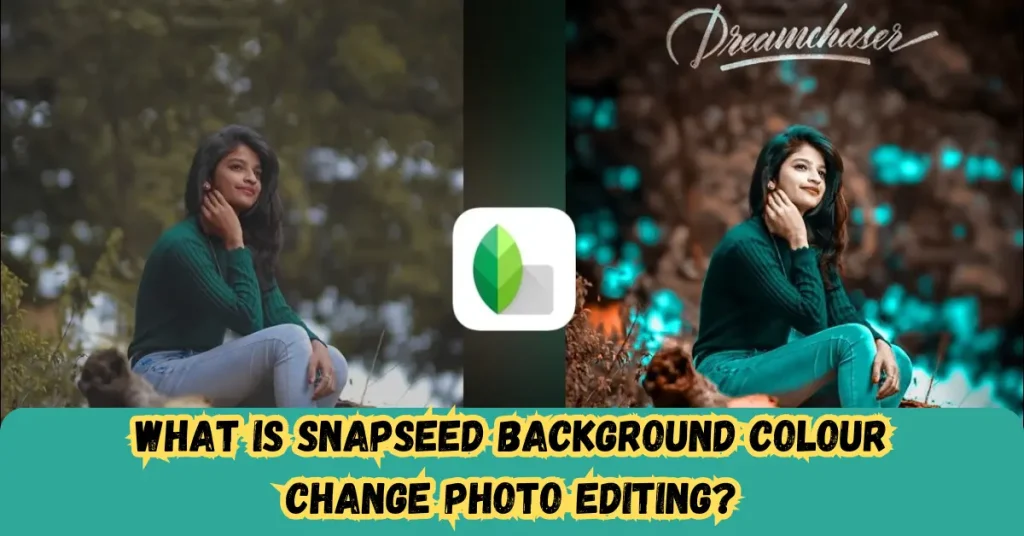
Snapseed is a versatile photo editing app developed by Google that offers a wide range of tools to enhance and transform your images. One of its standout features is the ability to change the background color of your photos. This process involves altering the color of the background while keeping the main subject intact, allowing you to create a more visually appealing composition.
Changing the background color can significantly impact the mood and focus of a photo. For example, a bright and vibrant background can convey energy and happiness, while softer, muted tones can create a sense of calm and elegance. This flexibility makes Snapseed a favorite among both amateur and professional photographers.
The process of changing the background color in Snapseed is user-friendly and intuitive. You can use various tools within the app, such as the Brush, Selective, and Double Exposure features, to precisely select and modify the background. This ability to customize your images helps you express your creative vision and make your photos stand out in a crowded digital space.
You May Also Like It:
How To Edit Photos With Snapseed App – Complete Detail – Aarya Editz
16K Photo Enhance In Just 1 Click – Complete Detail – Aarya Editz
Picsart Charistmas Special In Just Photo Editing – Aarya Editz
Why is Changing Background Color Important in Photo Editing?
Changing the background color in photo editing, especially using tools like Snapseed, is important for several reasons. Here are some key points highlighting its significance:
Enhances Visual Appeal
- Focus on the Subject: A well-chosen background color can draw attention to the main subject, making it the star of the image.
- Creates a Mood: Different colors evoke different emotions, allowing you to set the tone of your photo—warm colors can create excitement, while cool colors can evoke calmness.
Increases Creativity
- Artistic Expression: Changing the background color provides an opportunity to express your artistic vision and style, making each photo uniquely yours.
- Experimentation: The flexibility to alter background colors encourages experimentation, helping you discover new aesthetics and techniques.
Improves Composition
- Balance and Harmony: A cohesive color scheme enhances the overall composition, creating a balanced look that is pleasing to the eye.
- Elimination of Distractions: By changing or simplifying the background, you can remove distracting elements that take attention away from the subject.
Adapts to Different Contexts
- Branding and Marketing: For businesses and content creators, adjusting background colors can align images with brand colors, making them more recognizable and appealing to the target audience.
- Personalization: You can tailor images for specific occasions or themes, such as seasonal events, celebrations, or personal projects.
Enhances Professionalism
- Quality of Presentation: High-quality photo editing reflects professionalism, making images suitable for portfolios, social media, or marketing materials.
- Attention to Detail: Demonstrating the ability to manipulate backgrounds showcases your skills and dedication to producing polished work.
Step-by-Step Guide to Changing Background Colour in Snapseed
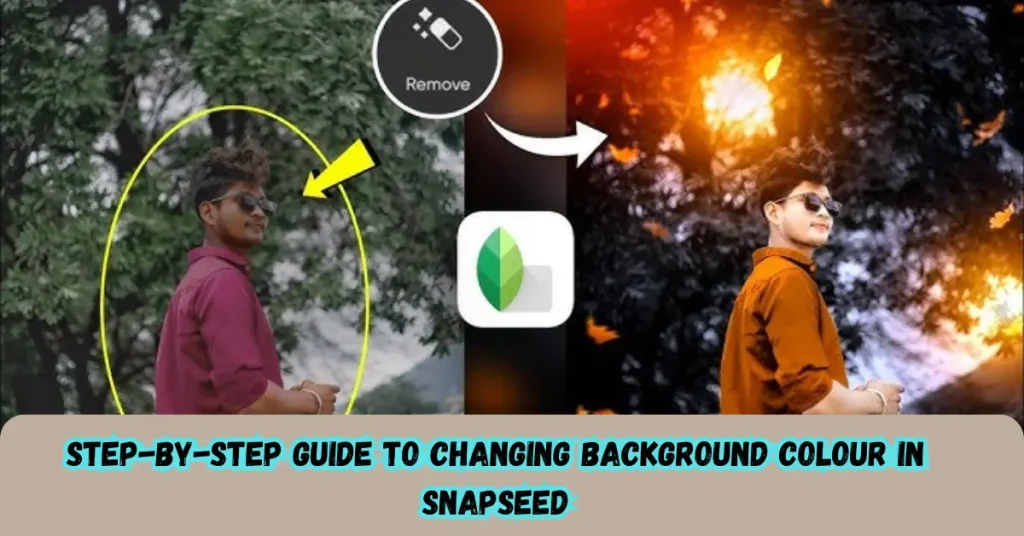
Changing the background color in Snapseed is a straightforward process. Follow these steps to achieve stunning results:
Step 1: Download and Open Snapseed
- Download the App: If you haven’t already, download Snapseed from the App Store (iOS) or Google Play Store (Android).
- Open Snapseed: Launch the app on your device.
Step 2: Import Your Photo
- Select a Photo: Tap the “+” icon or “Open” to choose the photo you want to edit from your device’s gallery.
Step 3: Use the Brush Tool
- Access the Tools: After importing your photo, tap on “Tools” at the bottom of the screen.
- Select the Brush Tool: Scroll through the tools and select the “Brush” option.
- Choose the Colour: In the Brush tool, tap on the color palette to pick the color you want for the background.
Step 4: Paint Over the Background
- Adjust Brush Size: Use the slider to adjust the brush size for better control, especially around the edges of your subject.
- Paint the Background: Carefully paint over the area you want to change. You can zoom in for more precise application.
- Undo Mistakes: If you accidentally paint over the subject, use the eraser tool to fix it.
Step 5: Fine-Tune the Background
- Adjust Opacity: If the color looks too strong, tap on the opacity slider to reduce it, blending it more naturally with the rest of the image.
- Use the Selective Tool: For further adjustments, use the “Selective” tool to fine-tune brightness, contrast, and saturation in the painted area to achieve a more realistic look.
Step 6: Apply Double Exposure (Optional)
- Add a Texture or Overlay: If you want to add a creative touch, go back to “Tools” and select “Double Exposure.”
- Import a Texture: Choose a colored texture or another image to layer on top of your background.
- Blend and Adjust: Use the masking feature to blend it seamlessly and adjust the opacity for the desired effect.
Advantages and Disadvantages of Changing Background Colour in Snapseed
| Advantages | Disadvantages |
| Enhanced Visual Appeal Changing the background color can make photos more striking and attractive, helping them stand out in a crowded digital space. | Learning Curve While Snapseed is user-friendly, beginners may still face a learning curve in mastering its various tools and features effectively. |
| Creative Freedom Snapseed allows users to express their artistic vision, enabling experimentation with different colors and styles to achieve unique results. | Risk of Over-Editing There’s a potential to overdo the editing, leading to unnatural-looking images if too many colors or effects are applied. |
| Focus on the Subject By modifying the background, you can draw attention to the main subject, ensuring it remains the focal point of the image. | Time-Consuming Depending on the complexity of the image and the desired results, changing the background color can be time-consuming, especially if multiple adjustments are needed. |
| Customization for Branding For businesses and content creators, adjusting background colors can align images with brand colors, enhancing consistency and recognition. | Limited Control Over Fine Details Although Snapseed offers good editing capabilities, it may lack the precision and control found in more advanced desktop editing software. |
| User-Friendly Interface Snapseed’s intuitive design makes it accessible for both beginners and experienced editors, allowing anyone to achieve professional-looking results with ease. | Potential for Distraction A background color change can sometimes overshadow the subject if not done carefully, leading to a less cohesive image. |
| Variety of Tools The app offers various tools like the Brush, Selective, and Double Exposure, providing multiple ways to change and enhance backgrounds creatively. | Device Limitations Performance may vary depending on the device being used. Older devices may experience lag or crashes when processing high-resolution images. |
You May Also Like It:
Premium Dark Tone Free Lightroom Preset – Aarya Editz
Blur Effect Video Editing Tutorial – Complete Guide
Lightroom Orange Effect Premium Dng Preset – Complete – Guide – Aarya Editz
Common FAQs about Changing Background Colour in Snapseed
Can I change the background color of any photo?
Yes, you can change the background color of most photos using Snapseed! However, it works best with images where the subject is clearly defined from the background.
Do I need any special skills to use Snapseed?
Not at all! Snapseed is designed to be user-friendly. With a little practice, anyone can learn to change background colors and enhance their photos.
Is it easy to undo changes if I make a mistake?
Absolutely! If you make a mistake while editing, you can easily use the “Undo” option or go back to previous edits to correct it.
Can I save my edited photos in different formats?
Snapseed allows you to save your edited photos in high resolution, which is perfect for sharing on social media or printing. However, it saves images in JPEG format only.
Will changing the background color affect the quality of my photo?
If done correctly, changing the background color should not negatively affect the quality of your photo. However, excessive editing or applying too many effects may lead to a loss in quality.
Can I use Snapseed on my computer?
Snapseed is primarily a mobile app, so it’s best used on smartphones and tablets. Currently, there’s no official version for computers, but you can use Android emulators if you want to run it on a PC.
Are there any costs associated with using Snapseed?
No, Snapseed is completely free to download and use! There are no hidden costs or in-app purchases, so you can enjoy all its features without spending a dime.
Can I use Snapseed to change background colors in videos?
Snapseed is designed for photo editing only. If you want to edit videos, you’ll need a different app specifically made for video editing.
What if I want to keep my original photo?
Snapseed automatically saves a copy of your edited photo, so your original image remains untouched. You can always go back to it if needed.
How do I learn more about using Snapseed?
There are many tutorials and guides available online, including videos on platforms like YouTube. You can also experiment with different tools within the app to learn as you go!
Conclusion
Changing the background color in your photos using Snapseed is a fun and creative way to enhance your images. With just a few simple steps, you can make your main subject pop and create a mood that fits your style. Whether you’re a beginner or an experienced editor, Snapseed makes it easy to transform your photos and express your artistic vision. So, dive in and start experimenting with different colors to see how they can elevate your photography!
Bonus Points
Use Presets for Quick Edits:
- Snapseed offers various filters and presets that can give your photo a quick makeover. Try applying a preset first before changing the background color for added effects.
Combine with Other Tools:
- Experiment with other Snapseed tools like “HDR Scape” or “Lens Blur” to enhance the overall look of your photo after changing the background.
Utilize Export Options:
- When saving your edited photo, explore different export options, such as saving a smaller file for social media or a higher resolution for prints.
Try Seasonal Themes:
- Change the background color to match seasonal themes—warm tones for fall, cool blues for winter, and bright colors for summer. This can make your photos more engaging and relevant.
Engage with the Snapseed Community:
- Join online forums or social media groups dedicated to Snapseed users. You can share your work, get feedback, and learn new tips and tricks from fellow editors.
Keep Learning:
- Continuously explore Snapseed’s features. Regular practice and experimentation can help you master the app and discover new ways to enhance your photos.
Incorporate Text or Graphics:
- After changing the background, consider adding text or graphics to your photo. This can be great for creating posters, invitations, or social media posts.
Be Mindful of Color Psychology:
- Different colors evoke different emotions. Research color psychology to choose background colors that align with the message or feeling you want to convey in your photo.
You May Also Like It:
Snapseed Double Expoure Photo Editing – A Comprehensive Guide
Picsart Editing Background Colour Change – Detail Guide – Aarya Editz
Ultimate Adobe Photoshop Hacks for Professional Creatives – Aarya editz
Aqua And Yellow Free Lightroom Preset – Detail Guide – Aarya Editz.
