
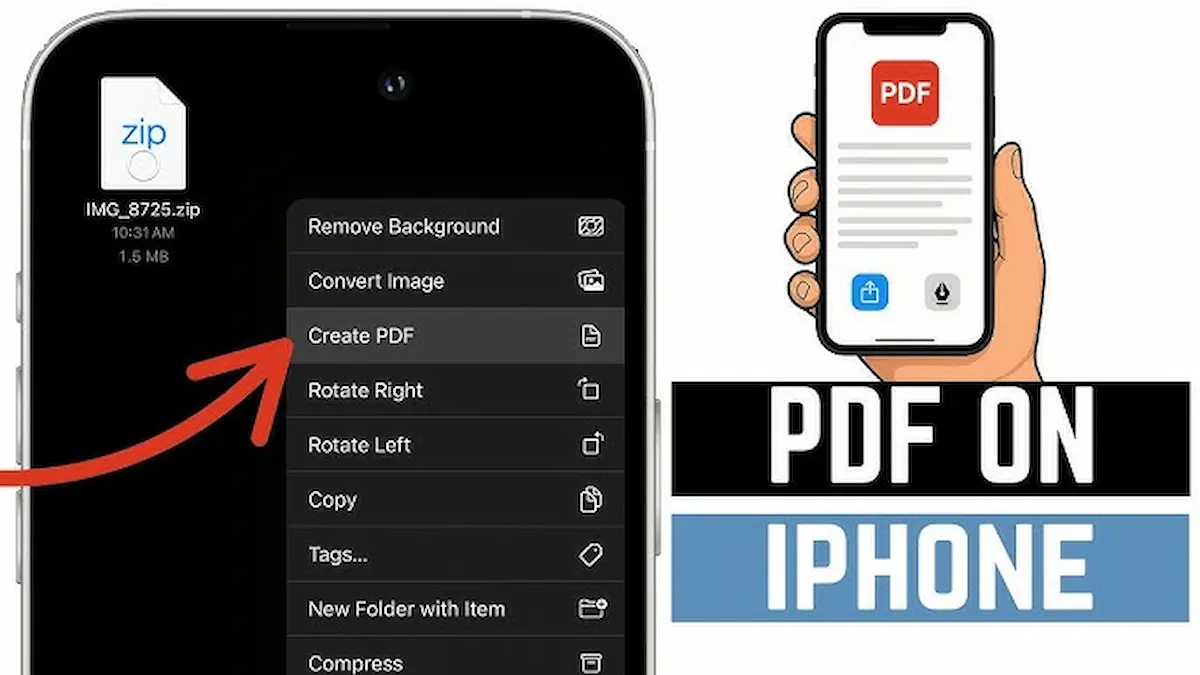
PDF files have become an essential part of daily life. Whether you are a student, business owner, freelancer, or office worker, you probably use PDFs for documents, forms, ebooks, invoices, resumes, and assignments.
If you own an iPhone, managing PDF files is easier than ever. Apple provides built-in tools that allow users to open, read, edit, scan, save, and share PDF documents directly from their devices.
In this complete guide, you will learn everything about using PDF on iPhone, including how to open PDF files, create PDFs, edit documents, sign files, and share them quickly.
What Is a PDF File?
PDF stands for Portable Document Format. It is one of the most widely used file formats because it keeps the document layout the same on every device.
PDF files are commonly used for:
- Business reports
- School assignments
- eBooks
- Invoices
- Contracts
- Bank statements
- Resumes
- Forms and applications
The biggest advantage of PDFs is that they maintain formatting across phones, tablets, and computers.
Why People Use PDFs on iPhone
Millions of users prefer reading and managing PDF files on iPhone because it is fast, secure, and convenient.
Here are some major benefits:
Easy Access
You can open PDF files anytime using the Files app, Safari browser, Mail app, or cloud storage services.
Portable and Convenient
Your important documents stay with you wherever you go.
Built-In PDF Features
Apple includes useful PDF tools directly in iOS.
No Extra Software Needed
Most PDF tasks can be completed without installing third-party apps.
Safe Document Sharing
PDF files keep formatting secure while sharing.
How to Open PDF on iPhone
Opening a PDF on iPhone is very simple.
Open PDF from Safari
If you download a PDF from a website:
- Tap the PDF link
- The file opens automatically in Safari
- Tap the Share icon
- Select “Save to Files” if you want to store it
Open PDF from Files App
- Open the Files app
- Locate your PDF document
- Tap the file to open it instantly
Open PDF from Email
- Open your Mail app
- Tap the PDF attachment
- The document opens immediately
How to Save PDF on iPhone
Saving PDF files helps you access documents offline.
Save PDF from Safari
- Open the PDF
- Tap the Share icon
- Choose “Save to Files”
- Select a folder
- Tap Save
Save PDF from WhatsApp or Email
You can also save PDFs received through messaging apps or email.
Simply:
- Open the file
- Tap Share
- Choose “Save to Files”
How to Create PDF on iPhone
Many users do not know that iPhone can create PDFs without additional apps.
Convert Photos into PDF
- Open the Photos app
- Select the image
- Tap Share
- Choose Print
- Pinch outward on the preview
- Tap Share again
- Save as PDF
Create PDF from Notes App
- Open Notes
- Write your content
- Tap Share
- Select Print
- Save as PDF
This method is useful for students and professionals.
You may also like it:
AK Editz Logo – A Key To Strong Brand Identity – Aarya Editz
Video Banavani App – Create Videos With Ease – Aarya Editz
Discover Snapseed QR Presets – Best Photo Editing – Aarya Editz
Camera 4K APK Features, Pros & Installation Guide – Aarya Editz
How to Scan Documents as PDF on iPhone
The iPhone camera can work like a document scanner.
Scan Using Notes App
- Open Notes
- Create a new note
- Tap the Camera icon
- Select “Scan Documents”
- Capture the document
- Save the scan
Your scanned document automatically becomes a PDF file.
This feature is perfect for:
- ID cards
- Receipts
- Contracts
- Homework
- Office paperwork
How to Edit PDF on iPhone
Editing PDFs on iPhone is now much easier.
Markup Tool
Apple’s built-in Markup feature lets you:
- Highlight text
- Add signatures
- Draw shapes
- Write notes
- Underline content
Steps:
- Open the PDF
- Tap the Markup icon
- Start editing
How to Sign PDF on iPhone
Digital signatures are important for online documents.
Add Signature
- Open the PDF
- Tap Markup
- Tap the “+” icon
- Select Signature
- Create or add your signature
- Place it on the document
This feature is useful for:
- Contracts
- Forms
- Agreements
- Freelance documents
Best Apps for PDF on iPhone
Although iPhone has built-in PDF tools, some users prefer advanced apps.
Adobe Acrobat Reader
Features:
- Read PDFs
- Edit files
- Add comments
- Sign documents
- Cloud sync
PDF Expert
Popular among professionals for advanced editing.
Apple Books
Great for reading ebooks and PDF documents.
Google Drive
Allows cloud storage and PDF viewing.
How to Share PDF on iPhone
Sharing PDFs is quick and easy.
Share via AirDrop
- Open the PDF
- Tap Share
- Choose AirDrop
- Select the nearby Apple device
Share via WhatsApp or Email
You can directly send PDF files using:
- Gmail
- Outlook
- Telegram
- Messenger
How to Print PDF from iPhone
Printing documents directly from iPhone saves time.
Steps to Print PDF
- Open the PDF
- Tap Share
- Choose Print
- Select your printer
- Tap Print
Your printer must support AirPrint.
How to Compress PDF on iPhone
Large PDF files can be difficult to upload or share.
You can compress PDFs using:
- Online PDF compressors
- Adobe Acrobat
- Third-party apps
Compressed files upload faster and save storage space.
Common PDF Problems on iPhone
Some users experience issues while opening or saving PDFs.
PDF Not Opening
Possible reasons:
- Corrupted file
- Poor internet connection
- Unsupported app
PDF Not Downloading
Try:
- Refreshing Safari
- Checking storage space
- Restarting your iPhone
PDF Appears Blank
This may happen because of:
- Loading errors
- Unsupported fonts
- Incomplete downloads
Tips for Managing PDFs on iPhone
Here are some smart tips to organize PDF documents better:
- Create folders in Files app
- Rename PDFs clearly
- Use iCloud backup
- Delete unnecessary files
- Keep important PDFs password-protected
These small habits improve productivity.
Why PDF Files Are Important Today
PDF files are now part of everyday digital communication.
Students use PDFs for assignments.
Businesses use PDFs for reports.
Freelancers use PDFs for invoices.
Companies use PDFs for contracts.
Because of their compatibility and professional appearance, PDFs remain one of the most trusted document formats worldwide.
Frequently Asked Questions
Can iPhone open PDF files without apps?
Yes. iPhone can open PDF files using Safari, Files app, Mail app, and Apple Books.
How do I save a PDF on iPhone?
Open the PDF, tap Share, and select “Save to Files.”
Can I edit PDF on iPhone for free?
Yes. Apple’s built-in Markup tool allows basic editing and signing.
Which app is best for PDF on iPhone?
Adobe Acrobat Reader and PDF Expert are among the best PDF apps for iPhone users.
Can I scan documents into PDF on iPhone?
Yes. The Notes app allows you to scan and save documents as PDFs.
Final Thoughts
Using PDF on iPhone is simple, fast, and highly convenient. Apple provides powerful built-in tools that help users open, edit, save, sign, scan, and share PDF files without needing complicated software.
Whether you are a student managing assignments, a freelancer sending invoices, or a professional handling contracts, your iPhone can easily become a portable PDF management device.
By understanding the features available in iOS, you can improve productivity, stay organized, and handle important documents more efficiently anytime and anywhere.
