
Editing files in Linux is a common task for beginners, developers, system administrators, and regular users. You may need to change a text file, update a configuration setting, write a script, or fix a system file.
Linux provides several tools for editing files directly from the terminal. You can also use graphical text editors if you prefer working with a mouse.
In this guide, you will learn how to edit a file in Linux using popular text editors, including Nano, Vim, and Gedit. You will also learn how to save changes, edit files with administrator permissions, and avoid common mistakes.
What Does Editing a File in Linux Mean?
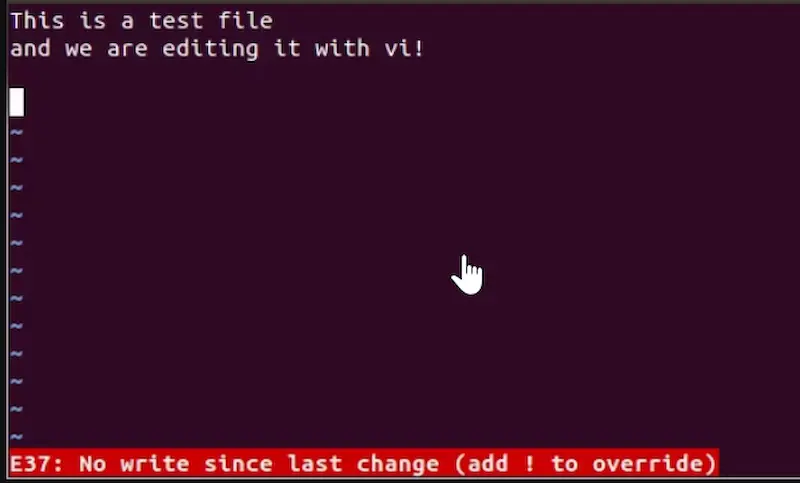
Editing a file in Linux means opening an existing file, changing its content, and saving those changes.
For example, you might edit:
- Text files
- Configuration files
- Shell scripts
- HTML and CSS files
- System settings
- Application files
Linux supports both command-line and graphical methods for editing files. The best method depends on your experience and the type of file you want to change.
How to Edit a File in Linux Using Nano
Nano is one of the easiest text editors for Linux beginners. It works inside the terminal and displays useful keyboard shortcuts at the bottom of the screen.
Follow these steps to edit a file with Nano.
Step 1: Open the Terminal
First, open the Linux terminal.
You can usually open it by pressing Ctrl + Alt + T. This shortcut works on many popular Linux distributions.
Step 2: Open the File
Type the following command:
nano filename.txt
Replace filename.txt with the actual name of your file.
For example:
nano notes.txt
If the file already exists, Nano will open it. If it does not exist, Nano will create a new file when you save it.
Step 3: Edit the File Content
Once the file opens, you can start typing or changing its content.
Use your keyboard to add new text, remove unwanted words, or update existing information.
Step 4: Save the Changes
After editing the file, press:
Ctrl + O
Nano will ask you to confirm the filename. Press Enter to save your changes.
Step 5: Exit Nano
To close the editor, press:
Ctrl + X
Your file is now saved with the updated content.
You may also like it:
How To Edit Image Text In Word – Aarya Editz
How To Edit Video In Iphone – Aarya Editz
How To Edit Resume In Laptop – Aarya Editz
How To Edit Photos In Mobile – Aarya Editz
How to Edit a File in Linux Using Vim
Vim is a powerful text editor available on many Linux systems. It offers advanced editing features, but beginners may need some time to understand its commands.
Follow these steps to edit a file using Vim.
Step 1: Open the File
Open your terminal and enter:
vim filename.txt
For example:
vim notes.txt
Step 2: Enter Insert Mode
When Vim opens, it starts in Normal mode. You cannot type text normally until you enter Insert mode.
Press the following key:
i
You can now type and edit the file.
Step 3: Save the File
After making your changes, press the Esc key to return to Normal mode.
Then type:
:w
Press Enter to save the file.
Step 4: Save and Exit Vim
To save your changes and close Vim, type:
:wq
Then press Enter.
If you want to exit without saving your changes, use:
:q!
This command discards unsaved changes.
How to Edit a File in Linux Using Gedit
If you prefer a graphical interface, you can use Gedit or another desktop text editor.
Gedit is a simple graphical text editor commonly associated with GNOME desktop environments.
Step 1: Open the Terminal
Launch your Linux terminal.
Step 2: Open the File With Gedit
Run this command:
gedit filename.txt
For example:
gedit notes.txt
The file will open in a graphical window if Gedit is installed.
Step 3: Make Changes
Use your mouse and keyboard to edit the text. You can select content, copy and paste text, and make other changes.
Step 4: Save the File
Press Ctrl + S to save your changes.
You can close the editor after saving the file.
Note: Gedit may not be installed on every Linux distribution. You can use another graphical editor, such as Text Editor, Kate, or Mousepad.
How to Edit a File in Linux With Administrator Permissions
Some Linux files require administrator permissions before you can change them. These may include system configuration files and files stored in protected directories.
For example, you may need to edit the hosts file.
Use this command:
sudo nano /etc/hosts
Enter your administrator password when prompted.
You can now edit the file using Nano. After making your changes, press Ctrl + O to save and Ctrl + X to exit.
The sudo command runs the editor with administrator privileges.
Important: Be careful when editing system files. Incorrect changes can affect your Linux system or network settings. Always understand what a file does before modifying it.
How to Edit a File in Linux Without Opening a Text Editor
You can also make simple changes directly from the terminal without opening a full text editor.
Linux provides commands such as echo, sed, and cat for working with file content.
1. Add Text to a File Using Echo
To add a new line at the end of a file, use:
echo “New text” >> filename.txt
The >> operator adds content without removing the existing text.
If you use a single > operator, the previous file content will be replaced:
echo “New text” > filename.txt
Use this command carefully because it overwrites the file.
2. Replace Text Using Sed
The sed command can replace specific words or text in a file.
For example:
sed -i ‘s/old/new/g’ filename.txt
This command replaces every occurrence of old with new in the file.
On macOS or some other systems, the sed -i syntax may differ.
3. View File Content Using Cat
To display the content of a file, use:
cat filename.txt
This command is useful when you want to check the file before editing it.
Common Linux File Editing Commands
Here are some useful commands that can help you edit and manage files in Linux.
| Command | Purpose |
| nano file.txt | Open a file in Nano |
| vim file.txt | Open a file in Vim |
| cat file.txt | Display file content |
| touch file.txt | Create an empty file |
| echo “Text” >> file.txt | Add text to a file |
| cp file.txt backup.txt | Create a file copy |
| mv old.txt new.txt | Rename or move a file |
| rm file.txt | Delete a file |
| sudo nano file.txt | Edit a protected file with administrator permissions |
Nano vs. Vim vs. Gedit: Which Editor Should You Use?
Linux offers different text editors for different needs. The following comparison can help you choose the right one.
| Editor | Best For | Difficulty |
| Nano | Beginners and simple edits | Easy |
| Vim | Developers and advanced editing | Medium to Advanced |
| Gedit | Users who prefer a graphical interface | Easy |
If you are new to Linux, Nano is a good starting point. It has simple commands and displays shortcuts on the screen.
Vim is a better choice if you want advanced editing features. Gedit or another graphical editor is useful when you prefer a familiar desktop interface.
Common Problems When Editing Files in Linux
You may face a few problems while editing files in Linux. Here are some common issues and their solutions.
1. Permission Denied Error
This error appears when you do not have permission to edit a file.
Solution: Use sudo if you are authorized to make the changes.
sudo nano filename.txt
2. File Not Found Error
This error means Linux cannot find the file at the specified location.
Solution: Check the filename and current directory. Use the ls command to view available files.
ls
You can also provide the full file path when opening it.
3. Unable to Save Changes in Vim
Beginners sometimes struggle to save files in Vim because it uses different editing modes.
Solution: Press Esc, type :w, and press Enter. To save and exit, use :wq.
4. Accidentally Replaced File Content
Using the > operator with echo can remove existing file content.
Solution: Use >> when you want to add text without replacing the existing content. For important files, create a backup before making changes.
cp filename.txt filename-backup.txt
Tips for Editing Files Safely in Linux
Keep these tips in mind when working with Linux files:
- Create a backup before changing important files.
- Check the file path before running an editing command.
- Use Nano if you are a beginner.
- Avoid changing system files unless necessary.
- Use sudo only when you understand why administrator permissions are required.
- Save your work regularly.
- Check the updated file content after editing.
- Avoid using commands that overwrite files unless you intend to replace their content.
Frequently Asked Questions
1. How do I edit a file in Linux?
You can edit a file in Linux using Nano, Vim, or a graphical text editor. For beginners, open the terminal and type nano filename.txt. Make your changes, press Ctrl + O to save, and then press Ctrl + X to exit.
2. What is the easiest Linux text editor for beginners?
Nano is one of the easiest Linux text editors for beginners. It has a simple interface and displays keyboard shortcuts at the bottom of the screen.
3. How do I save a file in Linux?
The save method depends on the editor. In Nano, press Ctrl + O. In Vim, press Esc, type :w, and press Enter. In most graphical text editors, press Ctrl + S.
4. How do I edit a root file in Linux?
You can use the sudo command to open a protected file with administrator permissions. For example, run sudo nano /etc/hosts. Only make changes if you understand the purpose of the file.
5. Can I edit a Linux file without using the terminal?
Yes. You can use graphical text editors such as Gedit, Kate, or Mousepad. Open the file in the editor, make your changes, and save it using Ctrl + S.
Conclusion
Editing a file in Linux is simple once you understand the available tools and commands. You can use Nano for basic editing, Vim for advanced work, or a graphical editor if you prefer a desktop interface.
For beginners, Nano is usually the best option because it is easy to use and provides helpful keyboard shortcuts. Always save your changes and create backups before modifying important system files.
