
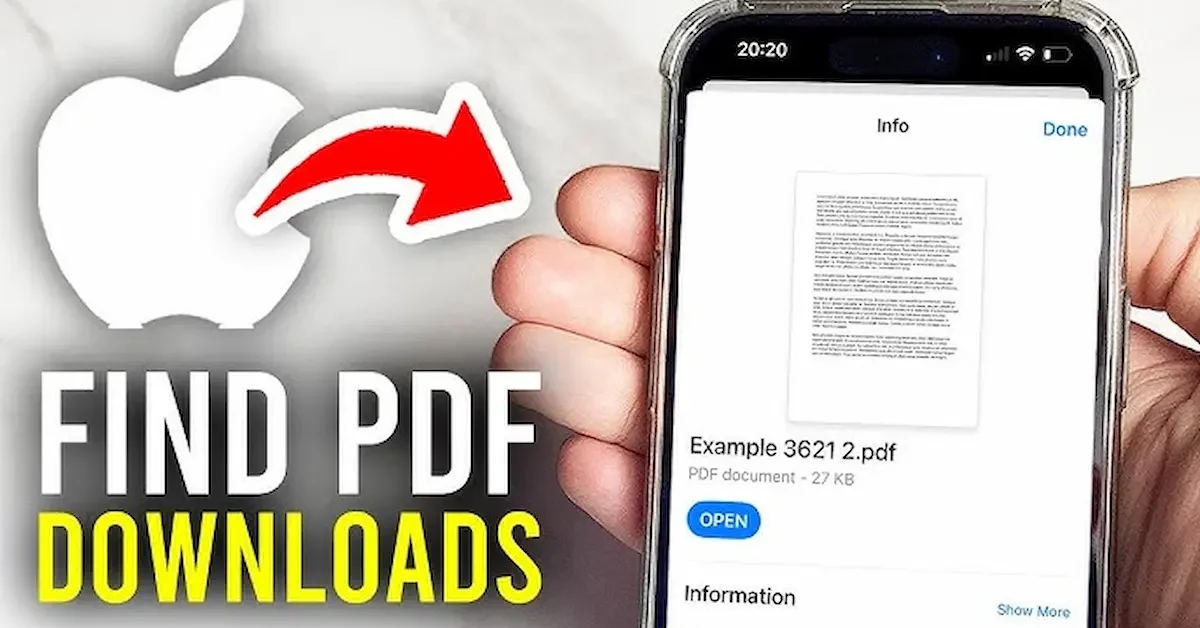
PDF files are one of the most common document formats used for sharing notes, books, forms, and important documents. If you are an iPhone user, managing PDF files is very easy because Apple provides built-in tools that allow you to open, save, edit, and share PDFs without needing advanced apps.
Many people use PDFs daily for study, work, and personal use, so knowing how to handle them on an iPhone can save time and make tasks more convenient. In this guide, you will learn simple and practical ways to manage PDF files on iPhone in an easy and user-friendly way.
What is a PDF File?
Simple Meaning of PDF
A PDF (Portable Document Format) is a type of file used to present documents in a fixed layout. This means the file looks the same on every device, whether you open it on an iPhone, Android phone, laptop, or computer.
Why PDFs Are Commonly Used
PDF files are widely used because they keep text, images, and formatting unchanged. This makes them perfect for sharing important documents like notes, assignments, ebooks, invoices, and forms.
Benefits of PDF Format
PDF files are popular because they are:
- Easy to share across devices
- Secure and reliable for documents
- Compatible with almost all platforms
- Maintain original formatting without changes
Simple Explanation
In simple words, a PDF file is a universal document format that helps you view and share information exactly as it was created, without any changes in design or layout.
How to Open PDF Files on iPhone
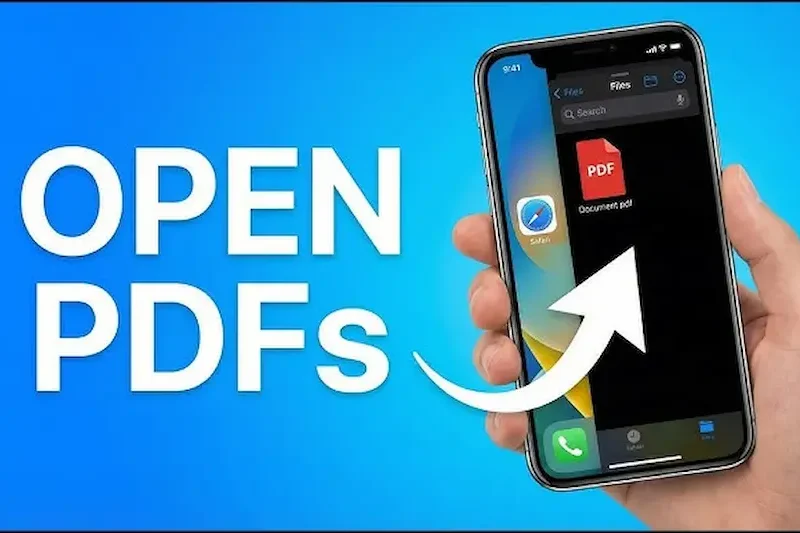
1. Using the Files App
The easiest way to open a PDF on iPhone is through the built-in Files app. When you download or receive a PDF, it is usually saved here. Simply open the Files app, find your PDF, and tap on it to view it instantly.
2. Using Safari Browser
If you open a PDF link in Safari, it will automatically display on your screen. You can read it directly or save it for later use by using the share option. PDF Files on iPhone
3. Using Apple Books App
The Apple Books app is another simple way to open PDFs. It provides a clean reading experience, making it easy to read long documents or ebooks comfortably. PDF Files on iPhone
4. From WhatsApp or Email
If someone sends you a PDF via WhatsApp or email, you can tap on it directly. It will open in preview mode, and you can choose to save or share it. PDF Files on iPhone
Simple Explanation
In simple words, iPhone gives you multiple easy ways to open PDF files using built-in apps like Files, Safari, Books, or even directly from messages and emails. PDF Files on iPhone
You may also like it:
Stylish Happy Diwali Wishes With Name And Photo Edit – Aarya Editz
Happy Holi Photo Editing Online – Complete Guide – Aarya Editz
AK Editz Logo – A Key To Strong Brand Identity – Aarya Editz
How to Save PDF Files on iPhone (Detailed Guide)
1. Save PDF from Safari
When you open any PDF link in Safari, it loads directly on your screen. To save it, tap the Share button (box with arrow icon) and choose “Save to Files”. After that, you can select a location such as iCloud Drive or On My iPhone. You can also create a new folder like “PDF Documents” to keep everything organized. PDF Files on iPhone
2. Save PDF from WhatsApp
If someone sends you a PDF on WhatsApp, open the file and tap on it to preview. Then tap the Share icon and select “Save to Files”. This will store the file in your iPhone so you can access it anytime without internet. PDF Files on iPhone
3. Save PDF from Email (Gmail or Apple Mail)
When you receive a PDF in email, open the attachment and tap the Share button. From the options, choose Save to Files or Copy to Books depending on how you want to view it later. Email is one of the most common ways to receive important PDF documents like invoices or tickets. PDF Files on iPhone
4. Save PDF from Other Apps
Many apps like Google Drive, Telegram, or browser apps also allow PDF downloads. In most cases, you just need to tap Download or Share → Save to Files. iPhone automatically stores it in the Downloads folder if you don’t choose a location. PDF Files on iPhone
5. Organizing PDF Files Properly
After saving multiple PDFs, it’s important to organize them by creating folders like “School PDFs”, “Work Documents”, or “Bills”. You should also rename files for easy searching, for example “January Bill.pdf”, and move important files into iCloud Drive for backup. PDF Files on iPhone
6. Using iCloud for Automatic Sync
If iCloud Drive is enabled, your saved PDFs automatically sync across all Apple devices. This means you can open the same file on your iPad or Mac without transferring it manually, and it also helps protect your files if your phone is lost. PDF Files on iPhone
7. Quick Access Tip
You can pin important PDFs in the Files app under Favorites so they appear at the top for quick access, which is useful for frequently used documents like ID cards, tickets, or study notes. PDF Files on iPhone
Simple Explanation
In simple words, saving PDFs on iPhone is very easy—you can download them from Safari, WhatsApp, email, or apps and store them in the Files app or iCloud for safe and organized access anytime.
How to Edit PDF Files on iPhone
1. Using the Markup Tool (Built-in Option)
iPhone has a built-in Markup tool that allows you to do basic PDF editing without any extra app. You can open a PDF in the Files app, tap the Markup icon, and start editing.
2. Add Text to PDF
With Markup, you can easily add text anywhere in the document. This is useful for filling forms, writing notes, or adding extra information to a PDF file.
3. Highlight Important Content
You can highlight important lines or sections in a PDF using different colors. This helps when you are studying, reviewing documents, or marking key points.
4. Add Signature to PDF
iPhone also allows you to add your digital signature to documents. You can draw your signature once and reuse it anytime for official forms or agreements.
5. Use Third-Party Apps for Advanced Editing
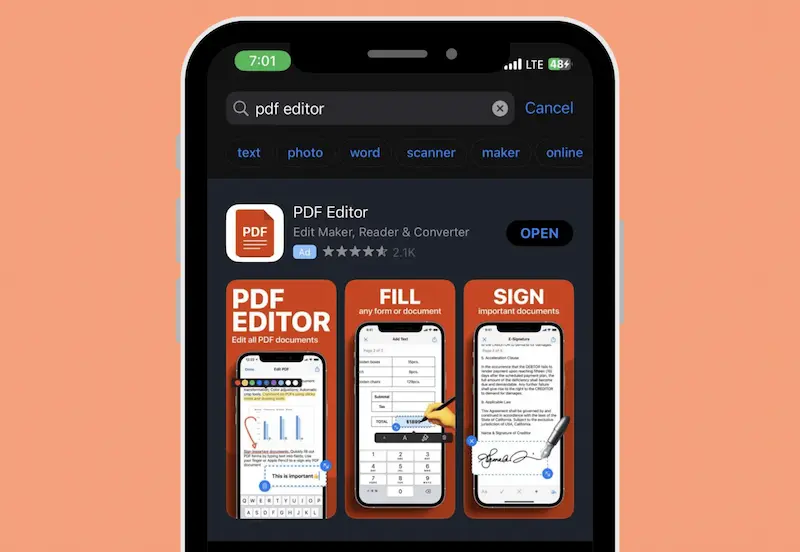
If you need advanced editing features like merging PDFs, converting files, or heavy editing, you can use apps such as Adobe Acrobat Reader, PDF Expert, or Google Drive.
6. Save Edited PDF
After editing, you can save the updated PDF directly in the Files app or share it through WhatsApp, email, or AirDrop.
Simple Explanation
In simple words, iPhone allows you to easily edit PDFs using built-in tools like Markup, and for advanced editing, you can use third-party PDF apps from the App Store.
How to Share PDF Files on iPhone
1. Using the Share Button (Fastest Method)
The easiest way to share a PDF on iPhone is by opening the file and tapping the Share button (box with arrow icon). From there, you can quickly send it to other apps or contacts.
2. Share via WhatsApp
You can send PDF files directly on WhatsApp by selecting a contact and choosing the PDF from the Files app. This is one of the most common ways to share documents quickly.
3. Share via Email
If you want to send professional documents, email is the best option. Open the PDF, tap Share, choose Mail or Gmail, and send it with a subject and message.
4. Share Using AirDrop
AirDrop is a fast Apple feature that lets you share PDFs with nearby Apple devices like iPhone, iPad, or Mac without internet. Just turn on AirDrop and select the device.
5. Share from Files App
You can also go directly to the Files app, long-press the PDF, tap Share, and choose how you want to send it.
6. Cloud Sharing (iCloud or Google Drive)
You can upload PDFs to iCloud Drive or Google Drive and share a link with others. This is useful for large files or multiple documents.
Simple Explanation
In simple words, iPhone makes it very easy to share PDFs using WhatsApp, email, AirDrop, or the Share button in the Files app.
Best Apps for PDF Files on iPhone
1. Apple Files App
The Files app is the default file manager on iPhone and is the easiest way to open, save, and organize PDF files. It allows you to access PDFs stored on your device or iCloud Drive in one place.
2. Apple Books
The Books app is perfect for reading PDF files like ebooks or long documents. It gives a clean reading experience and allows you to zoom, scroll, and bookmark pages easily.
3. Adobe Acrobat Reader
Adobe Acrobat Reader is one of the most popular PDF apps. It offers advanced features like editing, signing, commenting, and converting PDF files. It is useful for professional work and study purposes.
4. Google Drive
Google Drive lets you store and open PDF files online. It also helps you access your documents from any device and share them easily with others using links.
5. Other Useful PDF Apps
There are also other apps like PDF Expert, Foxit PDF, and Microsoft OneDrive that provide extra features such as merging files, editing text, and cloud storage.
Simple Explanation
In simple words, iPhone users can manage PDFs easily using built-in apps like Files and Books, or advanced apps like Adobe Acrobat for more professional features.
Where are PDF files stored on iPhone?
PDF files are usually stored in the Files app, under folders like Downloads, iCloud Drive, or On My iPhone depending on where you saved them.
Can I open PDF files on iPhone without any app?
Yes, iPhone can open PDF files using built-in tools like Safari, Files app, and Apple Books without installing any extra app.
How do I download a PDF on iPhone?
You can download a PDF by opening it in Safari or any app, then tapping the Share button and selecting Save to Files.
Conclusion
Managing PDF files on iPhone is simple and convenient because Apple provides built-in tools that allow you to open, save, edit, and share documents easily. Whether you are using the Files app, Apple Books, or third-party apps like Adobe Acrobat, everything is designed to make PDF handling smooth and user-friendly.
In simple words, iPhone gives you all the basic and advanced features you need to work with PDF files without any difficulty. With the right methods, you can keep your documents organized, access them anytime, and share them quickly whenever needed.
