

Adobe Acrobat Reader is one of the most trusted tools for opening, viewing, printing, and managing PDF files. Whether you use PDFs for work, study, or personal documents, keeping your software up to date is essential for a smooth and secure experience.
When you update Adobe Acrobat Reader, you gain access to the latest features, security improvements, bug fixes, and performance enhancements. Regular updates help protect your device from security risks while ensuring that PDF files open and function correctly.
In this guide, you’ll learn why updating Adobe Acrobat Reader is important, how to check your current version, and the different ways to install the latest updates on Windows, Mac, and mobile devices. You’ll also find solutions to common update problems and tips to keep your software running efficiently.
What Is Adobe Acrobat Reader?
Adobe Acrobat Reader is a free PDF viewing software developed by Adobe. It allows users to open, read, print, and interact with PDF files on computers, smartphones, and tablets. Since PDF is one of the most commonly used file formats for sharing documents, Adobe Acrobat Reader has become an essential tool for both personal and professional use.
Understanding PDF Files
PDF stands for Portable Document Format. This file format was created to ensure that documents appear the same on every device, regardless of the operating system or software being used. Whether you open a PDF on Windows, Mac, Android, or iPhone, the document’s layout, fonts, images, and formatting remain unchanged.
Adobe Acrobat Reader is specifically designed to view and work with PDF files, making it easy for users to access important documents without compatibility issues.
Key Features of Adobe Acrobat Reader
Adobe Acrobat Reader offers a variety of useful features that go beyond simply viewing PDF files. Users can:
- Open and read PDF documents
- Print PDF files with accurate formatting
- Zoom in and out for better readability
- Search for specific words or phrases within a document
- Highlight important text
- Add comments and notes
- Fill out PDF forms
- Sign documents electronically
- Share PDF files with others
These features make it a powerful tool for students, employees, business owners, and everyday users.
Who Uses Adobe Acrobat Reader?
Adobe Acrobat Reader is used by millions of people around the world. Students use it to read study materials and eBooks. Businesses use it to share contracts, reports, invoices, and presentations. Government organizations often distribute official forms and documents in PDF format. Individuals also rely on Acrobat Reader for viewing bills, manuals, tickets, and other important files.
Because of its ease of use and reliability, it has become one of the most trusted PDF readers available today.
Why Adobe Acrobat Reader Is Popular
One reason Adobe Acrobat Reader remains popular is its user-friendly interface. Even beginners can quickly learn how to open and manage PDF documents. The software is also known for its security features, regular updates, and compatibility with almost every modern device.
Adobe continuously improves the application by releasing updates that enhance performance, fix bugs, and add new features. This helps users enjoy a better and safer experience when working with PDF files.
Adobe Acrobat Reader vs Adobe Acrobat Pro
Many people confuse Adobe Acrobat Reader with Adobe Acrobat Pro. While Acrobat Reader is free and mainly used for viewing and basic PDF tasks, Acrobat Pro is a paid version that includes advanced editing features.
With Acrobat Pro, users can create PDFs, edit text and images, convert files to different formats, and perform advanced document management tasks. For most users who only need to read and interact with PDF files, Adobe Acrobat Reader is more than enough.
Why Adobe Acrobat Reader Matters
In today’s digital world, PDF documents are used everywhere. From school assignments and business contracts to user manuals and official forms, PDFs have become a standard way of sharing information. Adobe Acrobat Reader makes it easy to access these documents quickly, securely, and efficiently.
Whether you’re a student, professional, or casual user, Adobe Acrobat Reader provides a reliable solution for handling PDF files and ensuring that important documents are always accessible when you need them.
you may also like to read these posts;
Stylish Happy Diwali Wishes With Name And Photo Edit – Aarya Editz
Happy Holi Photo Editing Online – Complete Guide – Aarya Editz
AK Editz Logo – A Key To Strong Brand Identity – Aarya Editz
Why You Should Update Adobe Acrobat Reader
Keeping Adobe Acrobat Reader updated is one of the easiest ways to ensure that your PDF software remains secure, stable, and efficient. Adobe regularly releases updates to improve the user experience, fix known issues, and protect users from potential security threats. Ignoring updates can lead to performance problems and increased security risks.
Improved Security and Protection
One of the main reasons to update Adobe Acrobat Reader is security. Cybercriminals often target outdated software because it may contain vulnerabilities that can be exploited. Adobe releases security patches to fix these weaknesses and help protect your device and personal information.
By installing the latest updates, you reduce the risk of malware attacks, data breaches, and other security threats that may be associated with outdated software.
Access to New Features
Adobe frequently introduces new tools and features to improve how users work with PDF files. These updates may include better document-sharing options, enhanced commenting tools, improved accessibility features, and more efficient workflows.
Updating Adobe Acrobat Reader ensures that you can take advantage of the latest innovations and productivity improvements offered by Adobe.
Better Performance and Stability
Over time, software developers identify bugs and performance issues that can affect the user experience. Updates often include fixes that make Adobe Acrobat Reader run faster and more smoothly.
A fully updated version can help reduce:
- Application crashes
- Slow loading times
- Freezing issues
- Unexpected errors while opening PDF files
This results in a more reliable and enjoyable experience.
Improved Compatibility
Operating systems such as Windows and macOS receive regular updates. As these systems evolve, software applications must also be updated to remain compatible.
Updating Adobe Acrobat Reader helps ensure that it works properly with the latest versions of operating systems, web browsers, and PDF standards. This reduces the chances of encountering compatibility issues when opening or sharing documents.
Bug Fixes and Error Corrections
No software is perfect, and occasional bugs can affect functionality. Adobe continuously monitors user feedback and addresses reported issues through updates.
These bug fixes can resolve problems such as:
- PDF files not opening correctly
- Printing errors
- Problems with digital signatures
- Issues with annotations and comments
Regular updates help maintain a smooth and trouble-free experience.
Enhanced PDF Viewing Experience
Each update is designed to improve how users interact with PDF documents. Adobe may optimize document rendering, improve zoom functionality, enhance navigation tools, and make the interface more user-friendly.
These improvements can save time and make working with PDF files more convenient, especially for users who handle documents daily.
Reduced Risk of Software Problems
Running an outdated version of Adobe Acrobat Reader can lead to unexpected software issues. Older versions may become less stable over time, particularly when used with modern devices and operating systems.
Keeping the software updated helps prevent many common problems before they occur and ensures that your PDF reader continues to function properly.
Stay Current with Adobe’s Latest Improvements
Adobe invests significant resources into improving Acrobat Reader. Each update represents ongoing development aimed at making the software faster, safer, and more useful.
By updating regularly, you benefit from these enhancements and ensure that you are using the best version available.
Final Thoughts
Updating Adobe Acrobat Reader is not just about getting new features. It is also about protecting your device, improving performance, fixing bugs, and ensuring compatibility with modern technology. Taking a few minutes to install updates can help you avoid many common problems and enjoy a better overall PDF experience.
Signs That Adobe Acrobat Reader Needs an Update
Adobe Acrobat Reader is designed to work smoothly and efficiently, but an outdated version can cause various issues. If you notice performance problems, error messages, or missing features, it may be time to update the software. Recognizing these signs early can help you avoid bigger problems and ensure a better PDF viewing experience.
Frequent Crashes and Freezing
One of the most common signs that Adobe Acrobat Reader needs an update is frequent crashing or freezing. If the application suddenly closes while opening a PDF file or becomes unresponsive during use, outdated software may be the cause. Update Adobe Acrobat Reader
Updates often include stability improvements that fix these issues and help the program run more reliably.
Slow Performance
If Adobe Acrobat Reader takes a long time to open, load PDF files slowly, or responds sluggishly when scrolling through documents, your version may be outdated.
New updates are designed to optimize performance, making the software faster and more efficient on modern devices. Update Adobe Acrobat Reader
Error Messages While Using PDFs
Unexpected error messages can indicate that your software needs updating. You may encounter errors when:
- Opening PDF files
- Printing documents
- Saving changes
- Filling out forms Update Adobe Acrobat Reader
- Using digital signatures
Many of these issues are resolved through Adobe’s regular updates and bug fixes.
PDF Files Not Opening Properly
If certain PDF files fail to open or display incorrectly, your version of Adobe Acrobat Reader may not support the latest PDF standards. Update Adobe Acrobat Reader
Updating the software ensures compatibility with newer PDF formats and features, allowing documents to open and function correctly. Update Adobe Acrobat Reader
Missing Features or Tools
Adobe regularly introduces new features and improvements. If you notice that tutorials or guides mention tools that are not available in your version, you may be using an outdated release. Update Adobe Acrobat Reader
Installing the latest update gives you access to the newest tools and functionality offered by Adobe. Update Adobe Acrobat Reader
Security Warnings
Some operating systems and security programs may notify you when software is outdated. These warnings should not be ignored because older versions may contain security vulnerabilities that can put your device at risk.
Keeping Adobe Acrobat Reader updated helps protect your system from potential threats and security exploits. Update Adobe Acrobat Reader
Problems with Digital Signatures and Forms
Many businesses and organizations use PDF forms and electronic signatures. If you experience issues completing forms or validating digital signatures, an outdated version of Acrobat Reader could be responsible. Update Adobe Acrobat Reader
Updates often improve compatibility with modern form fields and electronic signing technologies.
Printing Issues
If PDF documents do not print correctly, show formatting problems, or cause printer errors, updating Adobe Acrobat Reader may solve the issue.
Adobe frequently releases fixes that improve printing performance and compatibility with newer printers and drivers. Update Adobe Acrobat Reader
Compatibility Issues After a System Update
After updating Windows, macOS, or your mobile operating system, you may notice that Adobe Acrobat Reader no longer performs as expected. This is often a sign that the software also needs updating. Update Adobe Acrobat Reader
Installing the latest version helps ensure smooth compatibility with the newest operating system updates.
How to Confirm If an Update Is Available
If you notice any of these signs, check for updates immediately:
- Open Adobe Acrobat Reader. Update Adobe Acrobat Reader
- Click Help in the top menu.
- Select Check for Updates.
- Follow the prompts to download and install available updates.
Regularly checking for updates can prevent many common issues before they affect your workflow.
Final Thoughts
Crashes, slow performance, error messages, printing problems, and missing features are all signs that Adobe Acrobat Reader may need an update. Staying alert to these warning signs and installing updates promptly can improve security, performance, and overall reliability. Update Adobe Acrobat Reader
How to Check Your Current Adobe Acrobat Reader Version
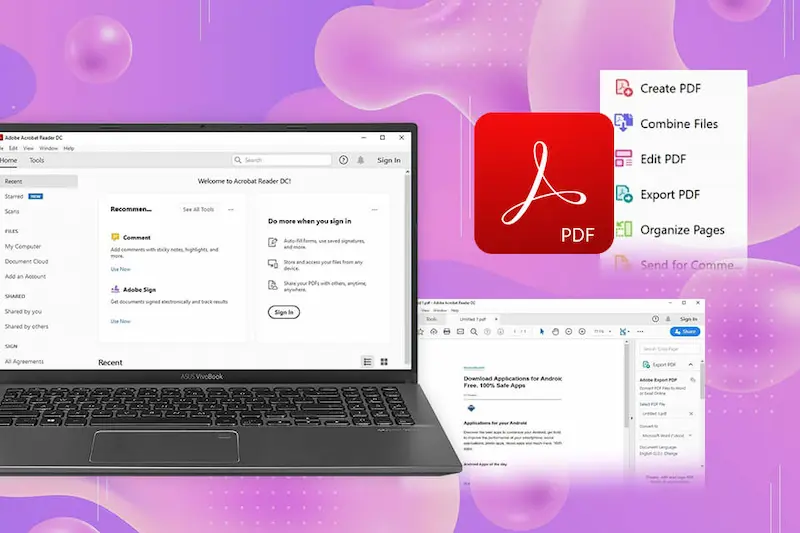
Before updating Adobe Acrobat Reader, it is a good idea to check which version is currently installed on your device. Knowing your software version helps you determine whether you are using the latest release or if an update is available. It can also be useful when troubleshooting issues or seeking technical support.
Why Checking Your Version Is Important
Adobe regularly releases updates that include security patches, bug fixes, and new features. If you are using an older version, you may miss important improvements that can enhance performance and protect your device. Update Adobe Acrobat Reader
By checking your current version, you can:
- Verify whether your software is up to date
- Identify compatibility issues Update Adobe Acrobat Reader
- Troubleshoot software problems more effectively
- Ensure you have the latest security updates installed
How to Check Adobe Acrobat Reader Version on Windows
If you are using Windows, follow these simple steps:
- Open Adobe Acrobat Reader on your computer. Update Adobe Acrobat Reader
- Click the Help menu located at the top of the screen.
- Select About Adobe Acrobat Reader from the dropdown menu. Update Adobe Acrobat Reader
- A pop-up window will appear displaying the current version number.
Make a note of the version number so you can compare it with the latest version available from Adobe.
How to Check Adobe Acrobat Reader Version on Mac
Mac users can also check their version quickly:
- Open Adobe Acrobat Reader.
- Click Acrobat Reader in the top menu bar.
- Select About Adobe Acrobat Reader. Update Adobe Acrobat Reader
- A window will open showing the installed version number.
This information helps you determine whether an update is needed.
How to Compare Your Version with the Latest Release
After finding your version number, you can compare it with the most recent release available from Adobe. If your version is older, updating is recommended to ensure you have access to the latest improvements and security fixes. Update Adobe Acrobat Reader
Regularly checking your version can help you stay current and avoid problems caused by outdated software. Update Adobe Acrobat Reader
What If Your Version Is Outdated?
If you discover that your version is not the latest one, you can update Adobe Acrobat Reader by using the built-in update feature. Simply go to the Help menu and select Check for Updates. The software will automatically search for available updates and guide you through the installation process.
Updating usually takes only a few minutes and can significantly improve the performance and security of the application.
Common Situations Where Version Information Is Needed
You may need your Adobe Acrobat Reader version number when:
- Contacting customer support
- Reporting software errors Update Adobe Acrobat Reader
- Solving compatibility problems
- Installing plugins or extensions
- Following troubleshooting guides Update Adobe Acrobat Reader
Having this information readily available can make resolving issues much easier.
Tips for Staying Updated
To avoid manually checking your version frequently, consider enabling automatic updates. This allows Adobe Acrobat Reader to download and install updates automatically, ensuring that you always have the latest version. Update Adobe Acrobat Reader
Regular updates help keep your software secure, efficient, and compatible with modern PDF documents.
Final Thoughts
Checking your current Adobe Acrobat Reader version is a simple but important step in maintaining your software. It helps you confirm whether you are running the latest release and ensures that you can benefit from improved security, bug fixes, and new features. Taking a few moments to verify your version can save time and prevent many common software issues. Update Adobe Acrobat Reader
How do I update Adobe Acrobat Reader?
You can update Adobe Acrobat Reader by opening the application, clicking Help, and selecting Check for Updates. If an update is available, follow the on-screen instructions to download and install it.
Is Adobe Acrobat Reader free to update?
Yes, Adobe Acrobat Reader updates are completely free. Users can download and install the latest updates without paying any additional fees.
Why is it important to update Adobe Acrobat Reader?
Updating Adobe Acrobat Reader helps improve security, fix software bugs, enhance performance, and provide access to the latest features. Regular updates also ensure compatibility with modern operating systems and PDF files.
Conclusion
Keeping Adobe Acrobat Reader updated is essential for maintaining a secure, fast, and reliable PDF viewing experience. Regular updates provide important security patches, performance improvements, bug fixes, and access to the latest features that help you work with PDF documents more efficiently.
Whether you use Adobe Acrobat Reader for personal, educational, or professional purposes, installing updates ensures better compatibility with modern devices and operating systems. It also helps prevent common issues such as crashes, slow performance, and document errors.
By checking for updates regularly or enabling automatic updates, you can ensure that your software stays current and continues to perform at its best. Taking a few minutes to update Adobe Acrobat Reader can save time, improve productivity, and enhance the overall security of your device.
