
Learning how to edit videos in laptop is a valuable skill for students, content creators, YouTubers, freelancers, business owners, and anyone who wants to create professional-looking videos. A laptop provides a larger screen, better performance, and access to powerful video editing software, making it much easier to edit videos than using a mobile phone.
Whether you want to create YouTube videos, social media content, school projects, business presentations, or personal travel videos, video editing helps you improve the quality of your content. You can trim unwanted clips, add music, insert text, apply transitions, improve colors, and export high-quality videos directly from your laptop.
The good news is that you don’t need to be a professional editor to get started. Many beginner-friendly video editing programs offer simple tools that allow anyone to create impressive videos with just a little practice. There are also several free editing applications that provide excellent features without requiring a paid subscription.
In this guide, you’ll learn how to edit videos in laptop step by step, discover the best free and paid editing software, understand the minimum laptop requirements, and find practical tips to make your editing process faster and more efficient. By the end of this article, you’ll have the knowledge needed to confidently edit videos and create content that looks polished and professional.
What Is Video Editing on a Laptop?
Video editing on a laptop is the process of modifying and improving video clips using video editing software installed on your computer. It allows you to arrange video clips, remove unwanted parts, add music, insert text, apply visual effects, and create a finished video that is ready to share online or save for personal use.
Learning how to edit videos in laptop gives you more control over your projects because laptops provide a larger screen, better processing power, and advanced editing tools compared to most mobile devices.
What Can You Do While Editing Videos?
Modern video editing software allows you to perform many different editing tasks, including:
- Trim unwanted sections
- Cut and split video clips
- Combine multiple videos
- Add background music
- Insert sound effects
- Add titles and captions
- Apply transitions between scenes
- Improve colors and brightness
- Adjust audio levels
- Export videos in different formats
Basic Video Editing
If you are a beginner, basic video editing usually includes:
- Importing video clips
- Arranging clips on the timeline
- Trimming unnecessary footage
- Adding simple text
- Including background music
- Saving the final video
These features are enough for creating YouTube videos, school projects, presentations, and social media content.
Advanced Video Editing
As your skills improve, you can learn more advanced techniques such as:
- Color correction
- Green screen editing
- Motion graphics
- Multi-camera editing
- Video stabilization
- Special visual effects
- Audio enhancement
Many professional video editing programs include these advanced tools.
Why Use a Laptop Instead of a Mobile Phone
Editing videos on a laptop offers several advantages:
- Larger screen for better accuracy
- Faster editing performance
- More editing features
- Easier file management
- Better support for high-resolution videos
- Greater control over exporting settings
Who Can Learn Video Editing?
Anyone can learn how to edit videos in laptop, including:
- Students
- Beginners
- YouTubers
- Social media creators
- Freelancers
- Small business owners
- Marketing professionals
With the right software and regular practice, even beginners can create high-quality videos directly from their laptop.
Why Use a Laptop for Video Editing
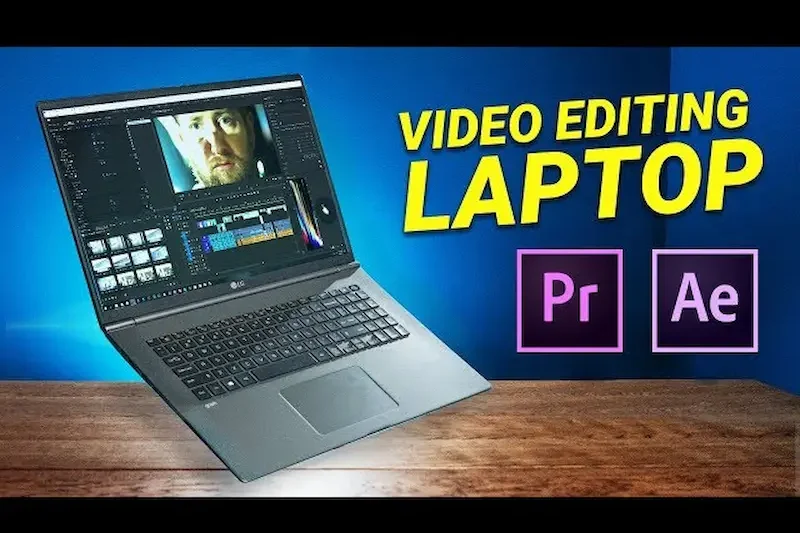
A laptop is one of the best devices for video editing because it offers more power, flexibility, and editing features than most smartphones. Whether you are creating YouTube videos, Instagram Reels, business presentations, or personal projects, editing on a laptop gives you greater control over every part of your video.
If you are learning how to edit videos in laptop, understanding these advantages will help you make the most of your editing experience.
Larger Screen for Better Editing
A laptop screen makes it much easier to:
- View video details clearly
- Edit the timeline accurately
- Arrange clips properly
- Read text and captions comfortably
The larger display reduces mistakes and makes editing more enjoyable.
Better Performance
Most laptops have more powerful processors and additional memory than mobile phones. This allows you to:
- Edit longer videos
- Handle higher-quality footage
- Apply effects smoothly
- Export videos faster
Access to Professional Software
Laptops support advanced editing programs that offer features not usually available on mobile apps.
Popular examples include:
- Adobe Premiere Pro
- DaVinci Resolve
- Filmora
- CapCut Desktop
- Shotcut
- OpenShot
These programs provide professional editing tools for beginners and experienced editors alike.
Easier File Management
Managing videos is much simpler on a laptop. You can easily:
- Organize project folders
- Store large video files
- Transfer videos from cameras or phones
- Use external hard drives for backup
This helps keep your editing projects organized.
Better Audio Editing
Laptops make it easier to improve your video’s sound quality by allowing you to:
- Add background music
- Adjust voice volume
- Remove unwanted noise
- Insert sound effects
- Synchronize audio with video
Good audio quality is just as important as good video quality.
More Export Options
After editing, you can export your videos in different formats and resolutions based on where you plan to upload them.
For example:
- YouTube
- TikTok
- Personal storage
Most laptop editing software also provides better control over video quality during export.
Suitable for Beginners and Professionals
Whether you are editing your first video or working on professional projects, a laptop provides the tools needed to produce high-quality results. As your skills improve, you can continue using the same software to learn more advanced editing techniques without changing your workflow.
Using a laptop gives you the flexibility to create polished, professional-looking videos while making the editing process faster, easier, and more efficient.
You may also like it:
Best Boy Photo Editor For Men: A Unique Guide – Aarya Editz
Edit Photos With Best Headshot And GFX Tools – Aarya Editz
Best Death Photo Frames Online Editing – Complete Guide – Aarya Editz
Things You Need Before Editing Videos on a Laptop
Before you start learning how to edit videos in laptop, it is important to prepare everything you need. Having the right equipment and software will make the editing process smoother and help you avoid unnecessary problems.
A Laptop
The first requirement is a laptop that can run video editing software efficiently. While basic laptops can handle simple editing tasks, a more powerful laptop will provide better performance when working with high-quality videos.
Video Editing Software
You need a reliable video editing program installed on your laptop.
Some popular options include:
- DaVinci Resolve
- Adobe Premiere Pro
- Filmora
- CapCut Desktop
- OpenShot
- Shotcut
- iMovie (for Mac users)
Choose software based on your experience level and editing needs.
Video Files
Before editing, make sure all your video clips are saved on your laptop. Organizing your files into folders will make it easier to find and manage them during the editing process.
Enough Storage Space
Video files can be very large, especially if they are recorded in Full HD or 4K resolution. Make sure your laptop has enough free storage for:
- Video clips
- Audio files
- Images
- Project files
- Exported videos
Using an SSD can also improve editing speed.
Good Audio Files
If you plan to add background music, voiceovers, or sound effects, keep those files ready before you begin editing. This will save time while working on your project.
Stable Internet Connection
Many editing programs work offline, but an internet connection may be required to:
- Download editing software
- Access cloud storage
- Download effects and templates
- Update your software
- Upload finished videos
External Storage (Optional)
If you edit videos regularly, an external hard drive or USB drive can help you:
- Store completed projects
- Back up important files
- Free up space on your laptop
Keep Everything Organized
Creating separate folders for videos, audio, images, and exported files makes editing much easier. A well-organized project saves time and helps you avoid losing important files.
Preparing these essentials before you begin will make learning how to edit videos in laptop much easier and allow you to focus on creating high-quality videos without unnecessary interruptions.
Minimum Laptop Requirements for Video Editing
If you want to learn how to edit videos in laptop without slow performance or frequent crashes, your laptop should meet the minimum hardware requirements for video editing. While simple projects can run on entry-level laptops, editing high-quality videos requires better specifications.
Processor (CPU)
The processor is one of the most important parts of a laptop for video editing because it handles most of the editing tasks.
For beginners:
- Intel Core i5 or equivalent
- AMD Ryzen 5 or equivalent
For professional editing:
- Intel Core i7 or Intel Core i9
- AMD Ryzen 7 or Ryzen 9
A faster processor helps reduce rendering and export times.
RAM
RAM allows your laptop to run video editing software smoothly.
Recommended:
- 8 GB RAM for basic video editing
- 16 GB RAM for Full HD editing
- 32 GB RAM or more for 4K or professional projects
More RAM provides a smoother editing experience when working with larger projects.
Graphics Card (GPU)
A dedicated graphics card improves editing performance, especially when using effects, color grading, or high-resolution videos.
Recommended:
- NVIDIA GeForce GTX or RTX series
- AMD Radeon graphics
For simple editing, integrated graphics can still work with lightweight software.
Storage
Video projects require a lot of storage space.
Recommended:
- SSD (Solid State Drive) for the operating system and editing software
- Additional SSD or HDD for storing video files and completed projects
An SSD makes your laptop faster when opening projects and exporting videos.
Display
A good display helps you edit videos more accurately.
Look for:
- Full HD (1920 × 1080) resolution or higher
- Good color accuracy
- Bright screen
- IPS display for better viewing angles
Operating System
Most editing software supports:
- Windows 10 or later
- macOS (latest supported versions)
Keeping your operating system updated improves compatibility and performance.
Battery and Cooling
Video editing uses a lot of processing power, so your laptop should have:
- A reliable cooling system to prevent overheating
- A good battery for light editing on the go, although plugging in the charger is recommended during longer editing sessions.
Do You Need an Expensive Laptop?
Not necessarily. If you are just starting to learn how to edit videos in laptop, a mid-range laptop with a modern processor, 8–16 GB RAM, and an SSD is usually enough for editing Full HD videos. As your editing skills grow and you begin working with larger projects, you can consider upgrading to more powerful hardware.
Best Free Video Editing Software for Laptop
Choosing the right software is one of the most important steps when learning how to edit videos in laptop. Fortunately, you do not have to spend money to create high-quality videos. Several free video editing programs offer powerful features that are perfect for beginners and even experienced creators.
DaVinci Resolve
DaVinci Resolve is one of the most powerful free video editing programs available. It is widely used by professional video editors because it offers advanced editing tools without requiring a paid subscription.
Key Features
- Professional video editing
- Color correction and grading
- Audio editing tools
- Visual effects
- 4K video support
Best For: YouTubers, filmmakers, and advanced users.
CapCut Desktop
CapCut Desktop has become a popular choice for beginners because of its simple interface and useful editing tools.
Key Features
- Easy drag-and-drop editing
- Built-in transitions
- Text and caption tools
- Video effects and filters
- Social media export options
Best For: Beginners and content creators.
OpenShot
OpenShot is an open-source video editor that is easy to learn and works well for basic editing tasks.
Key Features
- Trim and split videos
- Add music and titles
- Video transitions
- Unlimited editing tracks
- Multiple export formats
Best For: Students and first-time editors.
Shotcut
Shotcut is another free editor that supports a wide range of video formats and provides many useful editing features.
Key Features
- Timeline editing
- Audio filters
- Video effects
- Color adjustment
- High-resolution export
Best For: Users who want more editing control.
Clipchamp
Clipchamp is a beginner-friendly video editor that works well for creating videos for YouTube and social media.
Key Features
- Ready-made templates
- Screen recording
- Basic editing tools
- Stock media library
- Simple export process
Best For: Beginners and business users.
iMovie (Mac Users)
If you have a MacBook, iMovie comes free with macOS and offers an excellent editing experience.
Key Features
- Easy timeline editing
- Titles and transitions
- Background music
- High-quality export
- Simple interface
Best For: Apple users and beginners.
Which Free Video Editor Is Best?
The best software depends on your needs.
- DaVinci Resolve: Best for professional editing.
- CapCut Desktop: Best for beginners and social media creators.
- OpenShot: Best for simple editing projects.
- Shotcut: Best for users who want more advanced features.
- Clipchamp: Best for quick online content creation.
- iMovie: Best free option for Mac users.
Starting with free software is an excellent way to learn how to edit videos in laptop. As your editing skills improve, you can decide whether you need advanced paid software for more complex projects.
Best Paid Video Editing Software for Laptop
If you want more advanced tools and professional features, paid video editing software is a great investment. These programs offer better performance, more effects, advanced color correction, audio editing, and powerful export options. Once you understand how to edit videos in laptop, upgrading to premium software can help you create higher-quality videos more efficiently.
Adobe Premiere Pro
Adobe Premiere Pro is one of the world’s most popular professional video editing programs. It is widely used by YouTubers, filmmakers, video editors, and marketing professionals.
Key Features
- Professional timeline editing
- Advanced color correction
- Motion graphics support
- Multi-camera editing
- High-quality export options
- Integration with other Adobe apps
Best For: Professional editors and content creators.
Wondershare Filmora
Filmora is known for its beginner-friendly interface while still offering powerful editing features.
Key Features
- Drag-and-drop editing
- Built-in effects and transitions
- AI editing tools How To Edit Videos In Laptop
- Audio enhancement
- Easy export for social media
Best For: Beginners and intermediate users.
Final Cut Pro (Mac Only)
Final Cut Pro is Apple’s professional video editing software designed for macOS.
Key Features
- Fast editing performance
- Magnetic timeline
- Advanced color grading
- 360-degree video support How To Edit Videos In Laptop
- Optimized for Apple hardware
Best For: Mac users and professional creators.
CyberLink PowerDirector
PowerDirector provides a balance between ease of use and advanced editing capabilities.
Key Features
- AI-powered editing tools
- Motion tracking
- Video stabilization
- Screen recording How To Edit Videos In Laptop
- High-speed rendering
Best For: YouTubers and business users.
VEGAS Pro
VEGAS Pro is another powerful editing solution used by experienced video editors.
Key Features
- Advanced timeline editing
- Professional audio controls
- Color grading tools
- Visual effects How To Edit Videos In Laptop
- GPU acceleration
Best For: Advanced editors and video production professionals.
Which Paid Video Editor Should You Choose?
The best software depends on your experience and editing goals.
- Adobe Premiere Pro: Best for professional video production.
- Filmora: Best for beginners who want premium features.
- Final Cut Pro: Best for Mac users. How To Edit Videos In Laptop
- PowerDirector: Best for fast editing and social media content.
- VEGAS Pro: Best for advanced editing projects.
Is Paid Software Worth It?
If you edit videos regularly for YouTube, business, freelance work, or professional projects, paid software offers more creative tools, better performance, and greater flexibility. However, if you are just starting to learn how to edit videos in laptop, you can begin with free software and upgrade later as your editing skills improve. How To Edit Videos In Laptop
How to Edit Videos in Laptop (Step-by-Step)
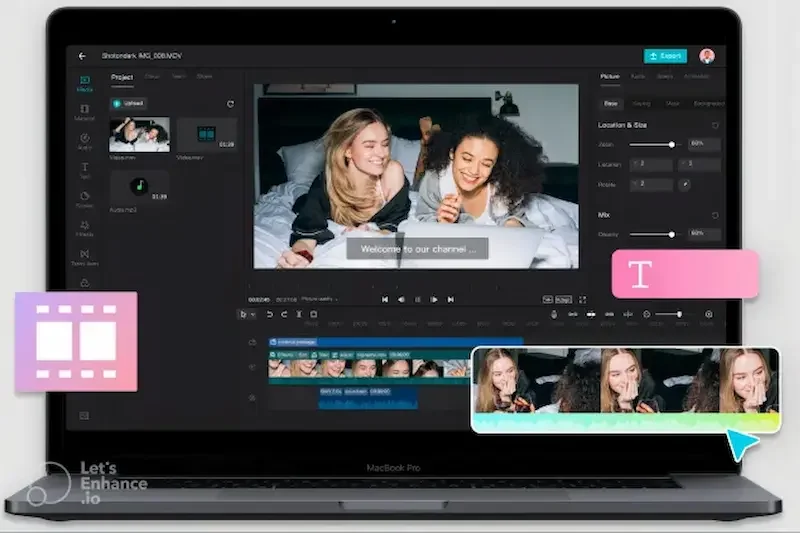
If you are new to video editing, don’t worry. Learning how to edit videos in laptop is easier than you might think. By following these simple steps, you can create professional-looking videos even if you have never edited a video before. How To Edit Videos In Laptop
Step 1: Install Video Editing Software
First, download and install a video editing program that suits your needs. You can choose a free editor like CapCut Desktop or DaVinci Resolve, or a paid program such as Adobe Premiere Pro or Filmora. How To Edit Videos In Laptop
After installation, open the software and create a new project.
Step 2: Import Your Video Files
Click the Import or Add Media button and select the videos, images, and audio files you want to edit.
It is a good idea to keep all your project files in one folder so they are easy to find. How To Edit Videos In Laptop
Step 3: Create a New Project
Most editing software asks you to create a new project before you begin.
Choose:
- Project name
- Save location How To Edit Videos In Laptop
- Video resolution
- Frame rate (if required)
Saving your project early helps prevent losing your work.
Step 4: Arrange Clips on the Timeline
Drag your imported video clips onto the editing timeline.
Arrange the clips in the order you want your story to appear.
You can:
- Move clips
- Rearrange scenes
- Delete unnecessary footage
- Split long clips How To Edit Videos In Laptop
Step 5: Trim and Cut Unwanted Parts
Use the Trim or Split tool to remove mistakes, pauses, or unnecessary scenes.
Short, well-edited videos are usually more engaging for viewers.
Step 6: Add Music and Sound
Import background music, voice recordings, or sound effects. How To Edit Videos In Laptop
Adjust the volume so that the music does not overpower the spoken audio.
Step 7: Insert Titles and Text
Add titles, captions, or subtitles where needed.
You can customize:
- Font style
- Font size
- Color
- Position
- Animation
Step 8: Apply Transitions and Effects
Use transitions between clips to create smooth scene changes. How To Edit Videos In Laptop
You can also add filters and simple visual effects, but avoid using too many, as they may distract viewers.
Step 9: Preview Your Video
Watch the entire video before exporting it.
Check for:
- Editing mistakes
- Audio issues
- Spelling errors
- Smooth transitions How To Edit Videos In Laptop
- Correct timing
Make any necessary adjustments before saving.
Step 10: Export the Final Video
Once you are satisfied with your project:
- Click Export. How To Edit Videos In Laptop
- Choose the video resolution (such as 1080p or 4K).
- Select the desired file format (for example, MP4).
- Save the video to your laptop.
Your edited video is now ready to upload to YouTube, TikTok, Instagram, Facebook, or any other platform.
Following these steps will help you master how to edit videos in laptop and create clean, professional videos with confidence. How To Edit Videos In Laptop
How can I edit videos on my laptop?
You can edit videos on your laptop by installing a video editing program, importing your video files, making the required edits, and exporting the finished video in your preferred format.
Can I edit videos on a low-end laptop?
Yes. You can edit basic Full HD videos on a low-end laptop using lightweight software like OpenShot or Shotcut. For smoother performance, close unnecessary programs while editing.
Is free video editing software good enough?
Yes. Free editors such as DaVinci Resolve, CapCut Desktop, OpenShot, and Shotcut offer excellent features for beginners and even experienced creators.
Conclusion
Learning how to edit videos in laptop is a useful skill that can help you create high-quality videos for YouTube, social media, business, education, or personal projects. With the right video editing software and a laptop that meets the basic requirements, anyone can start editing videos, even without previous experience.
Begin by choosing an editing program that matches your skill level, organize your project files before you start, and practice using tools like trimming, adding music, inserting text, and applying transitions. As you gain more experience, you can explore advanced features such as color correction, motion graphics, and special effects to make your videos even more professional. How To Edit Videos In Laptop
Remember to save your project regularly, keep backup copies of your important files, and export your videos in the appropriate format for the platform where you plan to share them. Regular practice is the key to improving your editing skills and creating engaging content.
By following the tips and step-by-step instructions in this guide, you’ll be able to confidently master how to edit videos in laptop and produce videos that look polished, professional, and ready to impress your audience.
