
PDF files are commonly used for documents, forms, notes, assignments, invoices, and other important information. Sometimes, you may need to correct text, add a signature, insert a comment, or make other changes to a PDF when you only have your mobile phone available.
If you are wondering how to edit PDF in mobile, the good news is that you can make many PDF changes directly from an Android phone or iPhone. Several PDF editing apps and mobile tools allow you to open a document, add or edit information, highlight text, add signatures, and save the updated file.
In this guide, we will explain how to edit PDF in mobile step by step. We will also cover free options, Android and iPhone methods, and useful tips to make PDF editing easier.
What Does Editing a PDF on Mobile Mean?
Editing a PDF on mobile means making changes to a PDF document using your smartphone instead of a computer. Depending on the app or tool you use, you may be able to add text, highlight important information, insert images, sign documents, fill forms, or add notes.
Edit PDF Text
Some PDF editors allow you to modify existing text in a document. This can be useful when you need to correct information or update a small part of a PDF.
Add Text and Notes
You can add new text, comments, or notes to a PDF. This is helpful for assignments, work documents, forms, and documents that need additional information.
Add a Signature
Many mobile PDF editors provide a signature feature. You can create or draw your signature and place it in the required area of the document.
Highlight or Mark Important Information
Mobile PDF tools can also help you highlight text, underline important points, or add annotations. These features are useful when reviewing documents or studying.
The exact editing features depend on the PDF app you use and whether the document allows the type of editing you need.
How to Edit PDF in Mobile
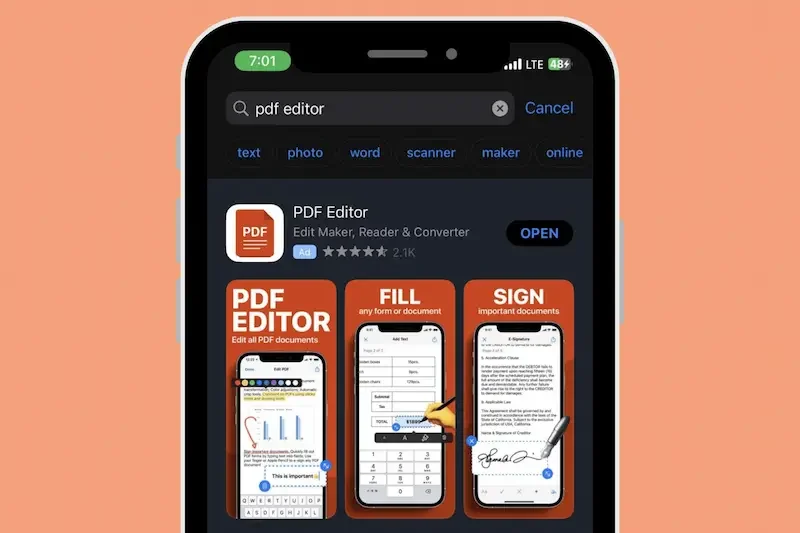
If you want to know how to edit PDF in mobile, you can use a PDF editing app that supports the changes you need. The basic process is usually simple, even if you are editing a PDF for the first time.
Choose a PDF Editing App
First, install a trusted PDF editing app on your Android phone or iPhone. Choose an app that provides the features you need, such as editing text, adding annotations, filling forms, or signing documents.
Open Your PDF File
After installing the app, open it and select the PDF file you want to edit. You can usually find the document in your phone’s storage, downloads, email attachments, or cloud storage.
Edit the PDF
Use the editing tools provided by the app to make your changes. Depending on the application, you may be able to edit existing text, add new text, highlight information, draw on the document, or insert other elements.
Review Your Changes
Before saving the document, carefully check everything you have edited. Look for spelling mistakes, missing information, misplaced text, or other changes that may affect the document.
Choose a PDF Editing App
The first step in learning how to edit PDF in mobile is choosing an app that has the tools you need. Different PDF editors offer different features, so it is useful to check what you actually need before selecting one.
Look for the Required Features
If you only need to add comments or highlight text, a basic PDF app may be enough. If you need to change existing text, add images, fill forms, or sign documents, look for an editor that supports those features.
Check Free and Paid Features
Many PDF editing apps offer basic tools for free but keep some advanced features behind a paid plan. Before editing an important document, check whether the feature you need is available without a subscription or payment.
Use a Trusted App
Choose a reputable PDF editor from the official app store on your phone. Avoid downloading unknown applications or uploading sensitive documents to websites you do not trust. How To Edit Pdf In Mobile
Check File Compatibility
Make sure the app can open the type of PDF you want to edit. Some PDFs may have restrictions, scanned pages, or formatting that makes certain types of editing more difficult. How To Edit Pdf In Mobile
Once you have selected a suitable PDF editor, open your document and start making the required changes.
Choose a PDF Editing App
The first step in learning how to edit PDF in mobile is choosing an app that has the tools you need. Different PDF editors offer different features, so it is useful to check what you actually need before selecting one. How To Edit Pdf In Mobile
Look for the Required Features
If you only need to add comments or highlight text, a basic PDF app may be enough. If you need to change existing text, add images, fill forms, or sign documents, look for an editor that supports those features.
Check Free and Paid Features
Many PDF editing apps offer basic tools for free but keep some advanced features behind a paid plan. Before editing an important document, check whether the feature you need is available without a subscription or payment. How To Edit Pdf In Mobile
Use a Trusted App
Choose a reputable PDF editor from the official app store on your phone. Avoid downloading unknown applications or uploading sensitive documents to websites you do not trust How To Edit Pdf In Mobile.
Check File Compatibility
Make sure the app can open the type of PDF you want to edit. Some PDFs may have restrictions, scanned pages, or formatting that makes certain types of editing more difficult.
Once you have selected a suitable PDF editor, open your document and start making the required changes.
Edit Text in a PDF on Mobile
One of the most common reasons people search for how to edit PDF in mobile is to change existing text. If your PDF editor supports text editing, you can open the document and select the text you want to modify.
Select the Text
Open your PDF in the editing app and look for the text-editing tool. Tap the text you want to change and see whether the app allows you to place the cursor or select the text. How To Edit Pdf In Mobile
Make Your Changes
After selecting the text, delete incorrect information or type the new content. Depending on the app, you may also be able to change basic formatting such as font size or alignment. How To Edit Pdf In Mobile
Keep the Formatting Consistent
When editing existing text, try to keep the font style, size, and spacing similar to the original document. This helps the edited section look natural and keeps the PDF easy to read. How To Edit Pdf In Mobile
Review the Document
After making the changes, read the edited section carefully. Make sure no words are missing and that the updated text is positioned correctly.
Not every PDF can be edited in the same way. For example, a scanned PDF may actually contain images of pages rather than editable text, so you may need an OCR feature or another method to modify its content.
Add Images, Signatures, or Annotations to a PDF
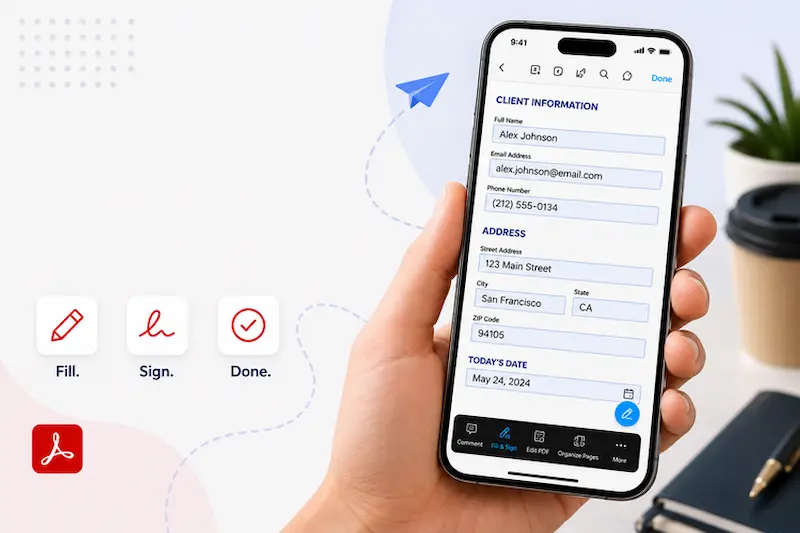
PDF editing on mobile is not limited to changing text. Many PDF editors also let you add signatures, images, highlights, drawings, and other annotations directly to a document. How To Edit Pdf In Mobile
Add a Signature
If you need to sign a document, look for the Signature or Fill & Sign option in your PDF editor. You can usually create a signature by drawing it with your finger and then place it in the required area.
Insert an Image
Some PDF editors allow you to add an image from your phone’s gallery. This can be useful when a document requires a photo, logo, or another visual element. How To Edit Pdf In Mobile
Highlight Important Text
Use the highlight tool to mark important information in the PDF. You can also use underlining or other annotation tools if they are available in your chosen app.
Add Comments or Notes
Comments and notes are useful when reviewing documents. You can add a short note beside relevant information without changing the original text. How To Edit Pdf In Mobile
Draw on the PDF
Many editors provide drawing tools that allow you to use your finger to mark or circle information. This can be helpful when reviewing forms, assignments, or other documents. How To Edit Pdf In Mobile
After making these changes, review the PDF carefully and save a copy so your edits are preserved.
Can I edit a PDF on my mobile phone?
Yes, you can edit many PDF files directly on your mobile phone using a suitable PDF editing app.
How to edit PDF in mobile for free?
You can use a PDF editor that offers free editing tools. Depending on the app, free features may include adding text, highlighting, annotations, and signatures.
Can I add a signature to a PDF on mobile?
Yes, many PDF editing apps allow you to create or add a signature and place it in the required area of a document.
Conclusion
Learning how to edit PDF in mobile can save you time when you do not have access to a computer. With a suitable PDF editing app, you can make changes such as adding text, highlighting information, inserting images, adding signatures, and making annotations. How To Edit Pdf In Mobile
Before saving your edited document, review all changes carefully and keep the original PDF as a backup. Choose a trusted app and check its available features to make sure it supports the type of editing you need.
