
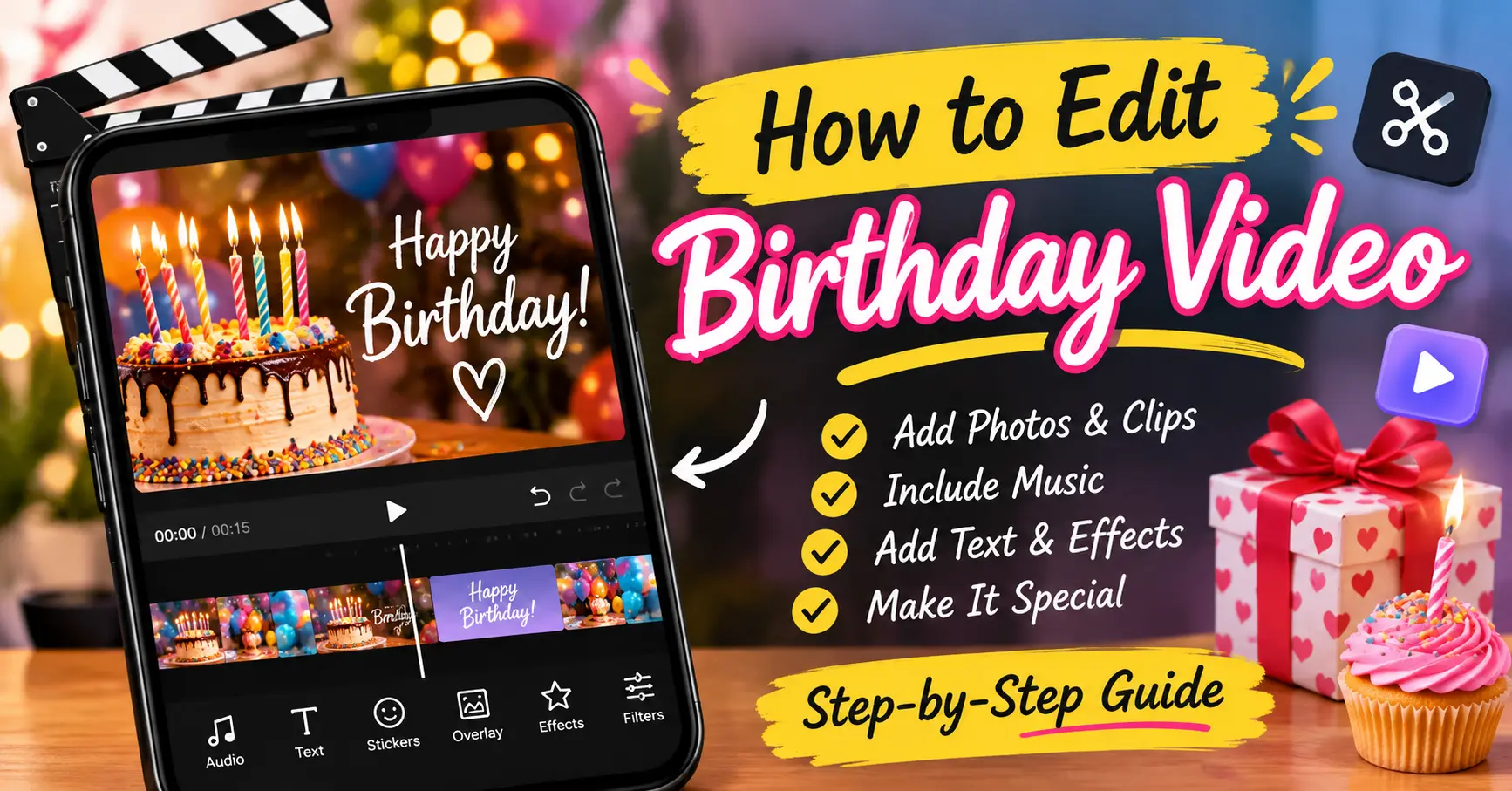
A birthday is a special moment that deserves to be remembered. Whether you are celebrating your birthday, planning a surprise for a friend, or making a video for a family member, a beautifully edited birthday video can turn simple clips and pictures into wonderful memories.
If you are wondering how to edit birthday video content, don’t worry. You do not need professional editing skills or expensive software to create something beautiful. With a smartphone or computer and a simple video editing app, you can combine pictures, add music, include birthday wishes, and create a video worth sharing.
In this guide, you will learn how to edit a birthday video step by step using mobile apps and computer software. We will also share editing tips, music ideas, and ways to make your video more attractive.
What Do You Need to Edit a Birthday Video?
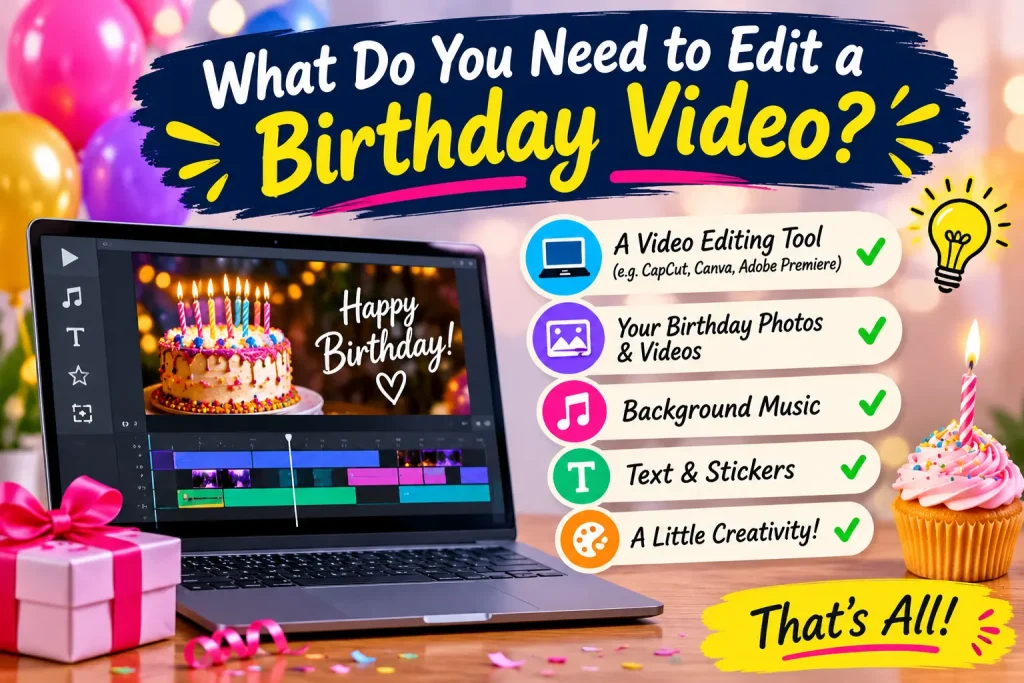
Before starting your editing project, collect everything you want to include in your video. Having your pictures and clips ready will make the editing process much easier.
Here are some things you may need:
- Photos: Collect memorable pictures of the birthday person.
- Video Clips: Include birthday celebrations, family moments, trips, and funny memories.
- Background Music: Choose a happy or emotional birthday song.
- Birthday Wishes: Prepare a few lovely messages.
- Editing App: Install a video editing application on your phone or computer.
- Creative Effects: Use transitions, filters, stickers, and animations to improve the video.
Once everything is ready, you can start creating your birthday video.
How to Edit Birthday Video on Mobile
Editing a birthday video on your mobile phone is one of the easiest methods. You can use apps such as CapCut, VN Video Editor, or InShot to create an attractive video.
Let’s understand the process using CapCut.
Step 1: Download and Open CapCut
First, download CapCut from your phone’s official app store if it is available in your region.
Open the application and tap the New Project option. This will allow you to select pictures and videos from your phone gallery.
Step 2: Select Birthday Pictures and Videos
Choose the pictures and video clips you want to include.
Try selecting different types of memories, such as:
- Childhood pictures
- Recent photographs
- Birthday party clips
- Pictures with friends
- Family memories
- Funny moments
After selecting your files, tap Add to import them into the editing timeline.
Step 3: Arrange Your Pictures and Clips
Now arrange your photos and videos in the order you want them to appear.
You can start with an old photograph and gradually move toward recent pictures. This creates a beautiful memory journey.
You can also adjust the duration of each picture. Keep important photos on the screen for a little longer so viewers have enough time to enjoy them.
Step 4: Add Birthday Text and Wishes
A birthday video looks more personal when you include meaningful messages.
Tap the Text option and write something special.
For example:
- Happy Birthday, My Best Friend!
- Wishing You Endless Happiness.
- Keep Smiling and Shining.
- May All Your Dreams Come True.
- You Deserve All the Happiness in the World.
Choose a font, color, and animation that match your video style.
You may also like it:
vHow To Edit Image Text In Word – Aarya Editz
How To Edit Video In Iphone – Aarya Editz
How To Edit Resume In Laptop – Aarya Editz
How To Edit Photos In Mobile – Aarya Editz
Step 5: Add Background Music
Music can completely change the feeling of your birthday video.
Open the Audio or Sounds section in your editing app and select a suitable track.
You can choose:
- Happy Birthday songs
- Emotional background music
- Friendship songs
- Romantic birthday music
- Soft instrumental tracks
Adjust the music volume so it does not overpower the original sound in your video clips.
Remember to use music you have permission to use, especially if you plan to publish the video publicly.
Step 6: Apply Transitions and Effects
Transitions make your video move smoothly from one picture to another.
You can try effects such as:
- Fade
- Zoom
- Slide
- Dissolve
- Blur
You can also apply filters to give your pictures a consistent appearance.
However, avoid using too many effects. Simple editing often looks more professional.
Step 7: Preview and Export Your Video
After completing the editing process, watch your entire video.
Check whether:
- Pictures appear in the correct order.
- Text is readable.
- Music matches the video.
- Transitions look smooth.
- No important clips are missing.
Finally, tap Export and select your preferred video quality. Full HD (1080p) is a good choice for most social media posts.
Your birthday video is now ready to share!
How to Edit Birthday Video on a Computer
If you prefer editing on a laptop or desktop computer, you can use software such as Clipchamp, Adobe Premiere Pro, or DaVinci Resolve.
Here is a simple editing process:
Step 1: Open Your Video Editing Software
Install your preferred editing program and create a new project.
Choose a project name, such as Birthday Memories, so you can easily find it later.
Step 2: Import Your Media Files
Import all the pictures, videos, and music you want to use.
Organize your files into separate folders if you have many photographs. This makes the editing process easier.
Step 3: Add Pictures to the Timeline
Drag your selected pictures and video clips into the timeline.
Arrange them according to your preferred story. You can begin with childhood memories, show special moments, and finish with a birthday wish.
Step 4: Add Titles and Text
Use the text or title feature to add birthday messages.
You can create an opening title such as:
Happy Birthday!
Then add short messages between photographs to make the video more meaningful.
Step 5: Add Music and Transitions
Import your background music and place it on the audio timeline.
Add transitions between clips to create a smooth viewing experience. Adjust the music volume and trim unnecessary parts.
Step 6: Export the Final Video
Preview your project and export it in MP4 format.
Choose 1080p resolution for a clear video that you can easily share with friends and family.
Best Apps to Edit Birthday Videos
You can choose from several mobile and desktop editing tools. Each application offers different features, so select one that matches your editing skills.
| Editing App | Best For |
| CapCut | Creative effects and transitions |
| InShot | Simple birthday videos |
| VN Video Editor | Timeline-based editing |
| Canva | Birthday video templates |
| Clipchamp | Editing on a computer |
1. CapCut
CapCut is a popular video editing application with tools for adding music, text, transitions, filters, and animations. It is useful for creating birthday videos with creative effects.
2. InShot
InShot is a beginner-friendly editing app. You can combine pictures, trim clips, add music, and adjust video dimensions.
3. VN Video Editor
VN offers timeline editing tools that help you arrange photos, videos, and audio. It is a good option if you want more control over your project.
4. Canva
Canva provides ready-made video templates and design elements. You can use these templates to create birthday videos without starting from scratch.
5. Clipchamp
Clipchamp is a computer-based video editor that helps you combine pictures, add text, insert music, and export your finished birthday video.
Note: App features, pricing, and availability may vary by device and region.
How to Make a Birthday Video With Pictures and Music
Do you only have photographs instead of video clips? That’s completely fine. You can still create a beautiful birthday slideshow.
Follow these simple steps:
- Select 15 to 30 memorable photographs.
- Open a video editing application.
- Import all the selected pictures.
- Arrange them in chronological order.
- Set the duration of each picture.
- Add background music.
- Include birthday wishes and names.
- Apply simple transitions.
- Preview and export the video.
A slideshow with personal photographs and meaningful music can be just as special as a professionally edited video.
Tips to Make Your Birthday Video More Attractive
A few small editing choices can make a big difference. Here are some tips to help you create a beautiful birthday video.
1. Choose High-Quality Pictures
Always use clear photographs whenever possible. Blurry or low-resolution pictures can reduce the overall quality of your video.
2. Tell a Story
Do not add pictures randomly. Arrange them to show the birthday person’s journey, favorite memories, and special relationships.
3. Select Suitable Music
Choose music that matches the mood of your video. Happy songs work well for party videos, while soft music is suitable for emotional birthday memories.
4. Use Beautiful Text Styles
Use readable fonts and colors. Avoid adding too much text to one screen because it can make your video look crowded.
5. Keep the Video at a Suitable Length
A birthday video of one to three minutes is usually enough for a social media post or personal greeting. You can make it longer if you have many important memories to share.
6. Select the Correct Video Size
Choose the video dimensions according to where you want to share it:
- Instagram Reels: 9:16
- Instagram Stories: 9:16
- YouTube: 16:9
- WhatsApp Status: 9:16
This helps your video fit the platform properly.
Frequently Asked Questions (FAQs)
1. How to edit birthday video for free?
You can use free editing tools such as CapCut, VN, InShot, or Canva. Import your pictures and videos, add music and text, apply transitions, and export your project.
2. Which app is best for birthday video editing?
CapCut is a popular choice for creative birthday videos. InShot is suitable for beginners, while Canva is useful for people who prefer ready-made templates.
3. How can I make a birthday video using pictures?
Select your favorite photographs, import them into a video editing app, arrange them in order, add music and birthday wishes, and export the slideshow as a video.
4. Can I edit a birthday video on my mobile phone?
Yes. You can easily edit birthday videos on Android and iPhone using mobile editing applications. You do not need a computer for basic video editing.
5. How do I add music to a birthday video?
Open your editing application, import your video, select the Audio or Music option, and add your preferred track. Adjust its volume and length before exporting.
Final Words
Learning how to edit birthday video content is easier than you might think. You only need your favorite pictures, some memorable clips, suitable music, and a simple editing application.
Whether you use CapCut, InShot, VN, Canva, or computer software, you can create a beautiful birthday video without professional editing experience.
Take your time, arrange your memories, add personal birthday wishes, and choose music that makes the video special. Most importantly, make it personal because the best birthday videos are the ones that bring smiles and beautiful memories.
