
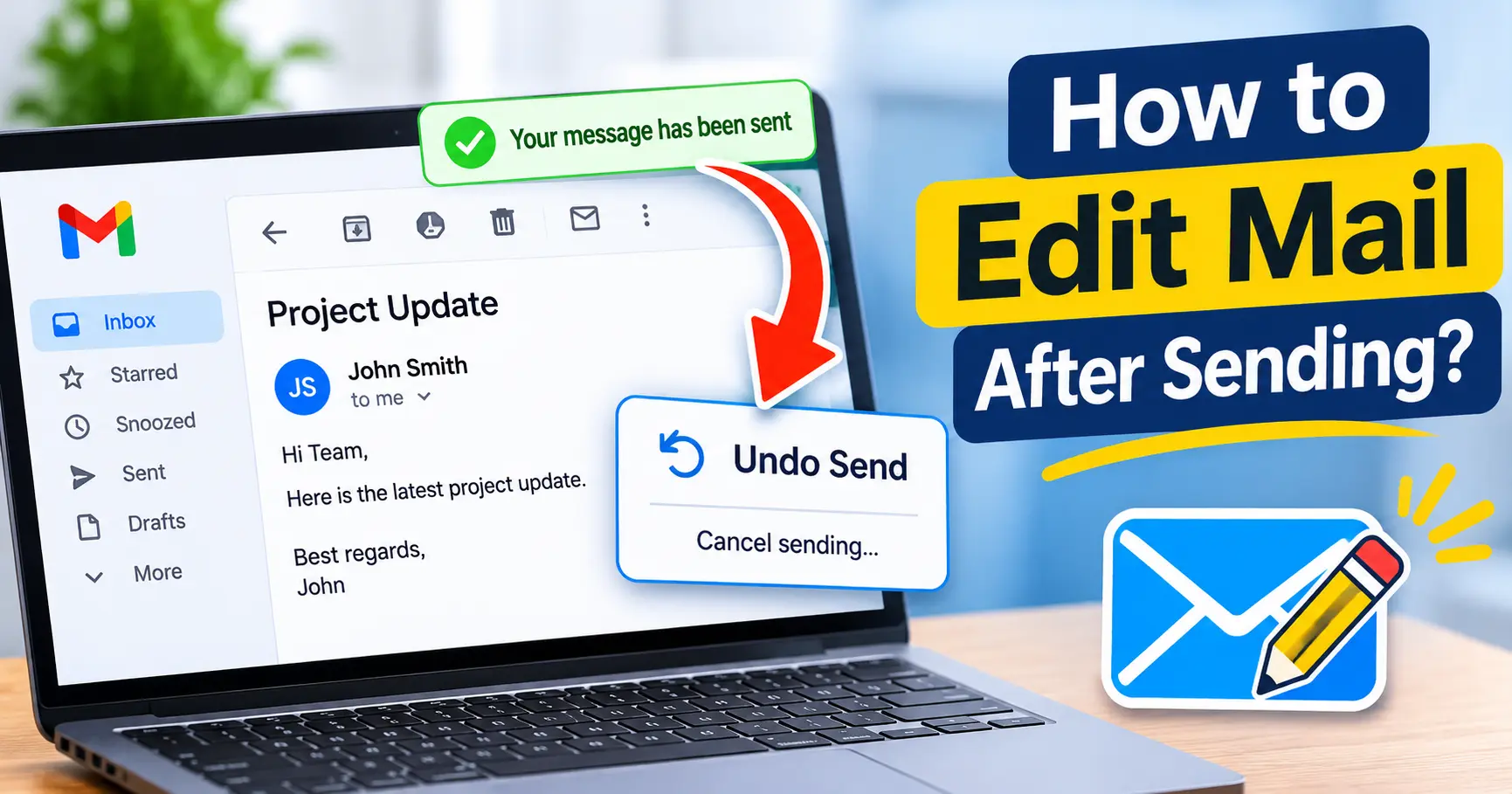
Have you ever sent an email and noticed a spelling mistake, missing attachment, or incorrect information immediately afterward? It happens to almost everyone. You may wonder how to edit mail after sending without creating another email.
Unfortunately, most email services do not allow users to directly edit an email after it has been delivered to the recipient’s inbox. However, some platforms provide features that let you cancel or recall a recently sent email.
Gmail offers an Undo Send feature, while Microsoft Outlook provides a recall option for certain accounts and situations. You can also send a corrected email if the original message has already reached the recipient.
In this guide, you will learn how to edit an email after sending, how to recall a message, and what to do if the undo option is no longer available.
Can You Edit an Email After Sending?
No, you generally cannot directly edit an email after it has been successfully delivered to someone else’s inbox.
Once an email reaches the recipient’s mailbox, you cannot open the original message and change its text, attachments, or subject line.
However, you have a few options:
- Use Undo Send immediately after sending an email.
- Recall an email in supported Microsoft Outlook accounts.
- Send a corrected email with the updated information.
- Follow up with the recipient if you forgot an attachment or included incorrect details.
The available options depend on your email service and how much time has passed since you sent the message.
How to Edit Mail After Sending in Gmail
Gmail provides an Undo Send feature that allows you to cancel an email shortly after sending it.
When you use this feature, Gmail stops the message from being sent and returns it to the compose window. You can then make changes and send it again.
Follow these steps:
Step 1: Open Gmail
Open Gmail on your computer or mobile device.
Sign in using the Google account from which you sent the email.
Step 2: Send Your Email
Compose a new email by clicking the Compose button.
Enter the recipient’s email address, subject, and message. Click Send when your email is ready.
Step 3: Click Undo
Immediately after sending the email, Gmail displays a notification at the bottom of the screen.
You will see an option called Undo.
Click Undo before the cancellation period expires.
Step 4: Edit Your Email
Gmail will reopen the email in the compose window.
Now you can:
- Correct spelling mistakes.
- Change the email subject.
- Add missing information.
- Attach forgotten files.
- Update the recipient’s address.
After making the necessary changes, click Send again.
You may also like it:
How To Edit Image Text In Word – Aarya Editz
How To Edit Video In Iphone – Aarya Editz
How To Edit Resume In Laptop – Aarya Editz
How To Edit Photos In Mobile – Aarya Editz
Step 5: Increase the Undo Send Time
You can increase the time available to cancel an email in Gmail.
Follow these instructions:
- Open Gmail on your computer.
- Click the Settings gear icon.
- Select See all settings.
- Find the Undo Send section under the General tab.
- Choose 5, 10, 20, or 30 seconds.
- Scroll down and click Save Changes.
Choosing 30 seconds gives you more time to notice mistakes and cancel an email before it is sent.
Important: Gmail’s Undo Send feature does not edit an already delivered email. It delays the actual sending process so you have a short opportunity to cancel it.
How to Recall an Email After Sending in Outlook
Microsoft Outlook provides an email recall feature for certain Microsoft 365 work or school accounts.
This feature may allow you to retrieve an email and replace it with a corrected version. However, it works only under specific conditions.
For example, the recipient generally needs to use a Microsoft Exchange or Microsoft 365 work or school account within the same organization.
Follow these steps to recall an email in Outlook:
Step 1: Open Microsoft Outlook
Visit Outlook or open the Outlook desktop application.
Sign in using the account from which you sent the message.
Step 2: Open the Sent Items Folder
Find the Sent Items folder in the left-side menu.
Open the email you want to recall.
Step 3: Select the Recall Option
Open the sent message in its own window.
Look for the Recall Message option. Depending on your Outlook version, it may appear under the Message menu or the More actions menu.
Step 4: Recall the Message
Select Recall Message and follow the instructions displayed on your screen.
If the recall is supported, Outlook will attempt to remove the original email from the recipient’s mailbox.
Step 5: Send a Corrected Email
After recalling the original message, make the necessary changes.
Correct the subject, message, or attachment and send the updated email.
Note: Outlook recall is not guaranteed. Its success depends on the recipient’s account, organisation settings, and whether the original message has already been opened or processed.
How to Edit an Email After Sending on a Mobile Phone
If you use Gmail or Outlook on your smartphone, you can also cancel a recently sent email when the relevant option is available.
For Gmail Android and iPhone
- Open the Gmail application.
- Compose and send your email.
- Look for the Sent notification at the bottom of the screen.
- Tap Undo immediately.
- Make the required changes.
- Send the corrected email.
The Undo option appears only for a short time after sending.
For Outlook Mobile
Outlook mobile offers an Undo Send option in supported versions and account configurations.
If the option is available, use it immediately after sending the message. Otherwise, you may need to send a follow-up email with the corrected information.
Do not assume that Outlook’s desktop recall feature is available in every mobile account.
What to Do If the Undo Option Has Disappeared?
If the Undo option is no longer visible, you generally cannot cancel the email through Gmail’s Undo Send feature.
However, you can still handle the situation professionally.
Here are some practical solutions:
1. Send a Corrected Email
Write a new email with the correct information. You can use a subject such as “Corrected Email” or “Updated Information.”
2. Explain the Mistake
If the mistake is important, briefly explain what happened and provide the correct information.
3. Send the Missing Attachment
If you forgot to attach a document, send another email with the missing file attached.
4. Contact the Recipient
For urgent or sensitive mistakes, contact the recipient directly and ask them to disregard the previous email.
How to Write a Correction Email After Sending?
If you cannot edit or recall your original email, sending a polite correction message is the best option.
Here is a simple example:
Subject: Correction to My Previous Email
Dear [Recipient’s Name],
I apologize for the mistake in my previous email. I noticed that some information was incorrect.
Please disregard the earlier message and refer to the updated information below.
[Insert Correct Information]
Thank you for your understanding.
Best regards,
[Your Name]
This approach helps you correct the mistake without creating confusion for the recipient.
Can You Delete an Email From the Recipient’s Inbox?
In most cases, no. Deleting an email from your Sent Items folder does not remove it from the recipient’s inbox.
For example, if you send an email through Gmail and then delete it from your account, the recipient can still read the original message.
Some Microsoft Outlook accounts support message recall, but it has specific limitations.
Therefore, always review important emails before sending them.
Tips to Avoid Email Mistakes
Sending an incorrect email can create confusion, especially in professional communication. You can avoid many mistakes by following these simple tips.
Review Your Email Before Sending
Read your message carefully before clicking Send. Check the spelling, grammar, subject, and recipient’s address.
Check Attachments
If you mention a document in your email, make sure you have attached the correct file.
Use the Correct Recipient
Double-check the To, CC, and BCC fields before sending confidential or professional messages.
Enable Undo Send
Set Gmail’s Undo Send period to 30 seconds. This gives you additional time to cancel an email if you notice a mistake.
Avoid Sending Emails in a Hurry
Take a few extra seconds to review your message. A quick check can prevent unnecessary corrections later.
Conclusion
Knowing how to edit mail after sending can help you handle common email mistakes more effectively. Although most email services do not allow direct editing of delivered messages, they provide other ways to correct them.
Gmail users can use Undo Send to cancel a recently sent email and make changes before sending it again. Outlook users may be able to recall a message if their account meets the required conditions.
If neither option is available, sending a corrected email is the simplest solution.
Always review your email before sending it, check attachments, and enable the Undo Send feature to reduce the chances of making mistakes.
Frequently Asked Questions (FAQs)
1. Can I edit an email after sending it in Gmail?
No, Gmail does not allow direct editing of an email after delivery. However, you can use Undo Send within the available cancellation period to reopen and correct the message.
2. How long do I have to undo a sent email in Gmail?
Gmail allows you to set the Undo Send cancellation period to 5, 10, 20, or 30 seconds. The default setting is generally 5 seconds.
3. Can I recall an email in Outlook?
Yes, Outlook supports message recall for eligible Microsoft 365 work or school accounts. The feature has specific requirements and does not work in every situation.
4. Can I edit an email after 30 seconds?
You generally cannot edit or cancel an already delivered email after the Undo Send period expires. You can send a new email containing the corrected information.
5. Does deleting a sent email remove it from the recipient’s inbox?
No. Deleting an email from your Sent Items folder only removes your copy. The recipient can still access the original message.
