
Knowing how to edit drop down list in Excel is an important skill for anyone who works with spreadsheets. Drop down lists help users enter data quickly, reduce typing mistakes, and keep information organized. They are commonly used in employee records, sales reports, inventory management, attendance sheets, and many other Excel worksheets.
As your data changes over time, you may need to update your drop down list by adding new options, removing outdated items, or changing the source of the list. Learning how to make these changes correctly helps ensure that your spreadsheet remains accurate and easy to use.
The good news is that editing a drop down list in Excel is simple once you understand where the list gets its data. Whether your drop down list is created from a manual list, a cell range, a named range, or an Excel table, you can update it in just a few steps.
In this guide, you’ll learn how to edit drop down list in Excel using easy step-by-step instructions. You’ll also discover how to add and remove list items, change the data source, fix common problems, and use best practices to manage your Excel drop down lists more efficiently. By the end of this article, you’ll be able to edit Excel drop down lists with confidence, even if you’re a beginner.
What Is a Drop Down List in Excel?
A drop down list in Excel is a feature that allows users to choose a value from a predefined list instead of typing it manually. This makes data entry faster, more accurate, and more consistent. Instead of entering different spellings or incorrect values, users simply select the correct option from the list.
Understanding what a drop down list is will make it easier to learn how to edit drop down list in Excel when you need to update or change the available options.
How Does a Drop Down List Work?
Excel creates drop down lists using the Data Validation feature. The list can be linked to:
- A manually entered list
- A range of cells
- A named range
- An Excel table
- A dynamic data source
Whenever a user clicks the drop down arrow, Excel displays all the available options.
Why Are Drop Down Lists Useful?
Drop down lists provide several benefits, including:
- Reduce typing errors
- Save time during data entry
- Keep data consistent
- Improve spreadsheet organization
- Make reports easier to analyze
- Simplify large data-entry tasks
Where Are Drop Down Lists Commonly Used?
Drop down lists are widely used in many types of Excel worksheets, such as:
- Employee information forms
- Attendance records
- Inventory management
- Sales reports
- Customer databases
- Project tracking sheets
- Budget and expense reports
Types of Drop Down Lists
Excel supports several types of drop down lists, including:
- Manual lists
- Cell range lists
- Named range lists
- Table-based lists
- Dynamic drop down lists
Each type can be edited differently, which is why understanding the source of your list is important before making changes.
Why Learn to Edit a Drop Down List?
As your data changes, your drop down list should also be updated. You may need to:
- Add new options
- Remove old items
- Rename existing choices
- Change the list source
- Expand the list automatically
Learning how to edit drop down list in Excel helps keep your spreadsheets accurate, professional, and easy to maintain.
You may also like it:
Best Boy Photo Editor For Men: A Unique Guide – Aarya Editz
Edit Photos With Best Headshot And GFX Tools – Aarya Editz
Best Death Photo Frames Online Editing – Complete Guide – Aarya Editz
Why Edit a Drop Down List in Excel
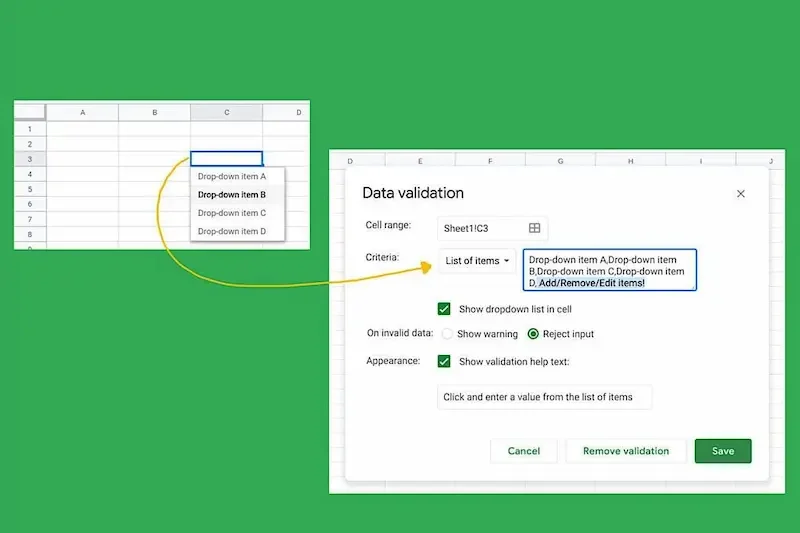
Editing a drop down list is important because the information in your spreadsheet may change over time. New products, employees, customers, or categories may need to be added, while outdated options may need to be removed. By learning how to edit drop down list in Excel, you can keep your worksheets accurate, organized, and easy to use.
Keep Your Data Up to Date
As your business or projects grow, your existing drop down list may no longer contain all the required options. Editing the list allows you to include the latest information so users can always select the correct value.
Add New Options
You may need to add new items when:
- New products are introduced
- New employees join the company
- New departments are created
- New project categories are added
- Business requirements change
Updating the list ensures everyone has access to the latest choices.
Remove Outdated Items
Old or unused options can confuse users and lead to incorrect data entry. Removing unnecessary items keeps your drop down list clean and relevant.
Improve Data Accuracy
One of the biggest benefits of editing a drop down list is maintaining accurate data. When users select from updated options instead of typing manually, there are fewer spelling mistakes and duplicate entries.
Make Data Entry Faster
A well-maintained drop down list allows users to quickly choose the correct option without searching or typing. This saves time, especially in large spreadsheets used daily.
Keep Reports Organized
Many Excel reports rely on consistent data. If your drop down list contains outdated or incorrect values, reports and charts may become inaccurate. Regular updates help maintain reliable reports and better data analysis.
Support Business Growth
As businesses expand, spreadsheets often require new categories, products, services, or team members. Editing your drop down lists ensures your Excel files continue to meet your changing needs.
Reduce User Confusion
An updated drop down list makes it easier for everyone using the spreadsheet. Users only see valid and relevant options, reducing mistakes and making the worksheet more user-friendly.
By understanding why updates are necessary, you’ll see the value of learning how to edit drop down list in Excel and keeping your spreadsheets accurate, efficient, and easy to manage.
Things You Need Before Editing a Drop Down List in Excel
Before you start learning how to edit drop down list in Excel, it is helpful to make sure you have everything ready. Preparing your workbook and understanding how the drop down list was created will make the editing process much easier.
Microsoft Excel Installed
First, make sure Microsoft Excel is installed on your computer. Most versions of Excel support Data Validation, which is the feature used to create and edit drop down lists.
Access to the Workbook
You need access to the Excel file that contains the drop down list. If the workbook is password-protected or shared with restricted permissions, you may not be able to make changes until editing access is granted.
Permission to Edit
If the workbook belongs to someone else, confirm that you have permission to edit it. Some Excel files are protected to prevent accidental changes.
Know the Source of the Drop Down List
Before editing, identify where the list gets its values. A drop down list may use:
- A manually entered list
- A range of cells
- A named range
- An Excel table
- A dynamic data source
Knowing the source helps you update the correct information.
Create a Backup Copy
Before making changes, save a copy of your workbook. This allows you to restore the original file if something goes wrong during editing.
Basic Excel Knowledge
You don’t need to be an Excel expert, but understanding a few basic features will help, such as:
- Selecting cells
- Opening the Data tab
- Using Data Validation
- Saving your workbook
Keep the Source Data Organized
If your drop down list uses a range of cells or an Excel table, make sure the source data is clean and free from duplicate or incorrect entries before editing.
Test the Drop Down List After Editing
Once you finish making changes, always click the drop down arrow and test every option. This helps confirm that the updated list is working correctly and displays all the expected values.
Preparing these simple requirements before you begin will make learning how to edit drop down list in Excel much easier and help you avoid common editing mistakes.
Different Types of Excel Drop Down Lists
Before learning how to edit drop down list in Excel, it is important to understand that not all drop down lists are created the same way. Excel supports several types of drop down lists, and the editing method depends on how the list was originally created.
Manual Drop Down List
A manual drop down list is created by typing the list items directly into the Data Validation settings.
Example:
- Yes
- No
- Pending
This type of list is simple to create and edit, but it is not ideal for large lists because every change must be made manually.
Cell Range Drop Down List
This is one of the most common types of drop down lists. The list gets its values from a range of cells in the worksheet.
For example, if cells A1:A10 contain product names, the drop down list will display those products.
To edit this type of list, you simply update the values in the source cells. How To Edit Drop Down List In Excel
Named Range Drop Down List
A named range is a group of cells that has been given a custom name, such as Products or Departments.
Instead of using cell references, the drop down list uses the named range as its source. How To Edit Drop Down List In Excel
This method keeps formulas cleaner and makes large workbooks easier to manage.
Table-Based Drop Down List
Excel tables automatically expand when you add new rows. If a drop down list uses an Excel table as its source, new items can often appear automatically without changing the Data Validation settings. How To Edit Drop Down List In Excel
This type is ideal for lists that grow frequently.
Dynamic Drop Down List
A dynamic drop down list updates automatically whenever new data is added to the source.
It is commonly created using:
- Excel Tables
- Named ranges How To Edit Drop Down List In Excel
- Dynamic formulas
Dynamic lists reduce maintenance because you do not need to update the source range every time new data is added.
Which Type Is Best?
The best option depends on your needs.
- Manual List: Best for small, fixed lists. How To Edit Drop Down List In Excel
- Cell Range: Best for simple spreadsheets.
- Named Range: Best for organized workbooks.
- Table-Based List: Best for expanding data.
- Dynamic List: Best for frequently changing information.
Understanding these different types makes it much easier to learn how to edit drop down list in Excel because you’ll know exactly where your drop down list gets its values and how to update it correctly.
How to Edit Drop Down List in Excel (Step-by-Step)
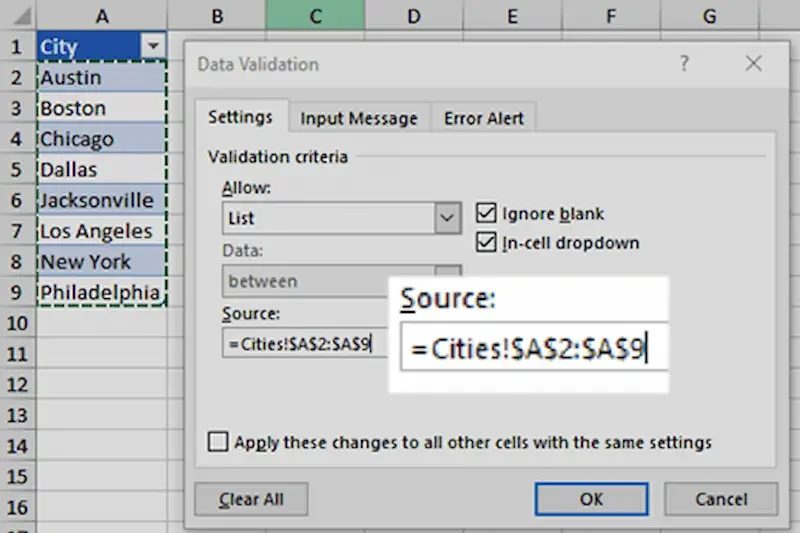
If you’re wondering how to edit drop down list in Excel, the process is quite simple. Excel uses the Data Validation feature to create drop down lists, and you can edit the list by updating its source or changing the Data Validation settings. How To Edit Drop Down List In Excel
Follow these steps to edit an existing drop down list.
Step 1: Open the Excel Workbook
Open the Excel file that contains the drop down list you want to edit.
Make sure the worksheet is not protected, otherwise you may not be able to make changes.
Step 2: Select the Cell
Click on the cell that contains the drop down list. How To Edit Drop Down List In Excel
You should see a small drop down arrow when the cell is selected.
Step 3: Open Data Validation
Go to the Data tab on the Excel ribbon. How To Edit Drop Down List In Excel
In the Data Tools group, click Data Validation.
A new window will appear showing the settings used for the selected drop down list.
Step 4: Check the Source
In the Settings tab, look for the Source box.
The source may be:
- A manually entered list
- A range of cells
- A named range
- An Excel table
This tells you where the drop down list gets its values.
Step 5: Edit the List
Depending on the source, you can now make the required changes.
For example, you can:
- Add new items
- Remove old items
- Correct spelling mistakes
- Change the source range
Step 6: Save Your Changes
After editing the list or updating the source, click OK to save the new Data Validation settings.
Then save your Excel workbook. How To Edit Drop Down List In Excel
Step 7: Test the Drop Down List
Click the drop down arrow again to confirm that:
- The new options appear.
- Removed items no longer appear.
- All list values display correctly.
- The drop down works without errors.
Tips for Successful Editing
To make editing easier:
- Keep your source list organized.
- Avoid duplicate entries. How To Edit Drop Down List In Excel
- Use Excel Tables for lists that grow regularly.
- Create a backup before making major changes.
- Test the list after every update.
By following these simple steps, you’ll quickly master how to edit drop down list in Excel and keep your spreadsheets accurate, organized, and easy to maintain. How To Edit Drop Down List In Excel
How do I edit a drop down list in Excel?
Select the cell that contains the drop down list, go to the Data tab, click Data Validation, and update the source list or change the source range. Click OK to save your changes.
Why can’t I edit my drop down list?
You may not be able to edit the drop down list if the worksheet is protected, the workbook is shared with restricted permissions, or you do not have editing access.
How do I add new items to a drop down list?
Add the new values to the source list. If the drop down uses a manual list, update the items in the Source box inside Data Validation.
Conclusion
Learning how to edit drop down list in Excel is a valuable skill that helps you keep your spreadsheets accurate, organized, and easy to manage. Whether you need to add new options, remove outdated items, update the source list, or change a named range, Excel provides simple tools that make the process straightforward.
By understanding the different types of drop down lists and following the correct editing steps, you can maintain clean and consistent data across your worksheets. Regularly updating your drop down lists also reduces data entry errors and makes your spreadsheets more efficient for everyone who uses them.
Remember to identify the source of your drop down list before making changes, create a backup of important workbooks, and test the updated list after editing to ensure everything works correctly. Using Excel Tables or dynamic ranges can also make future updates much easier.
With regular practice, you’ll become confident in how to edit drop down list in Excel and be able to manage your Excel workbooks more effectively, whether you’re a beginner, student, office employee, or business professional.
