
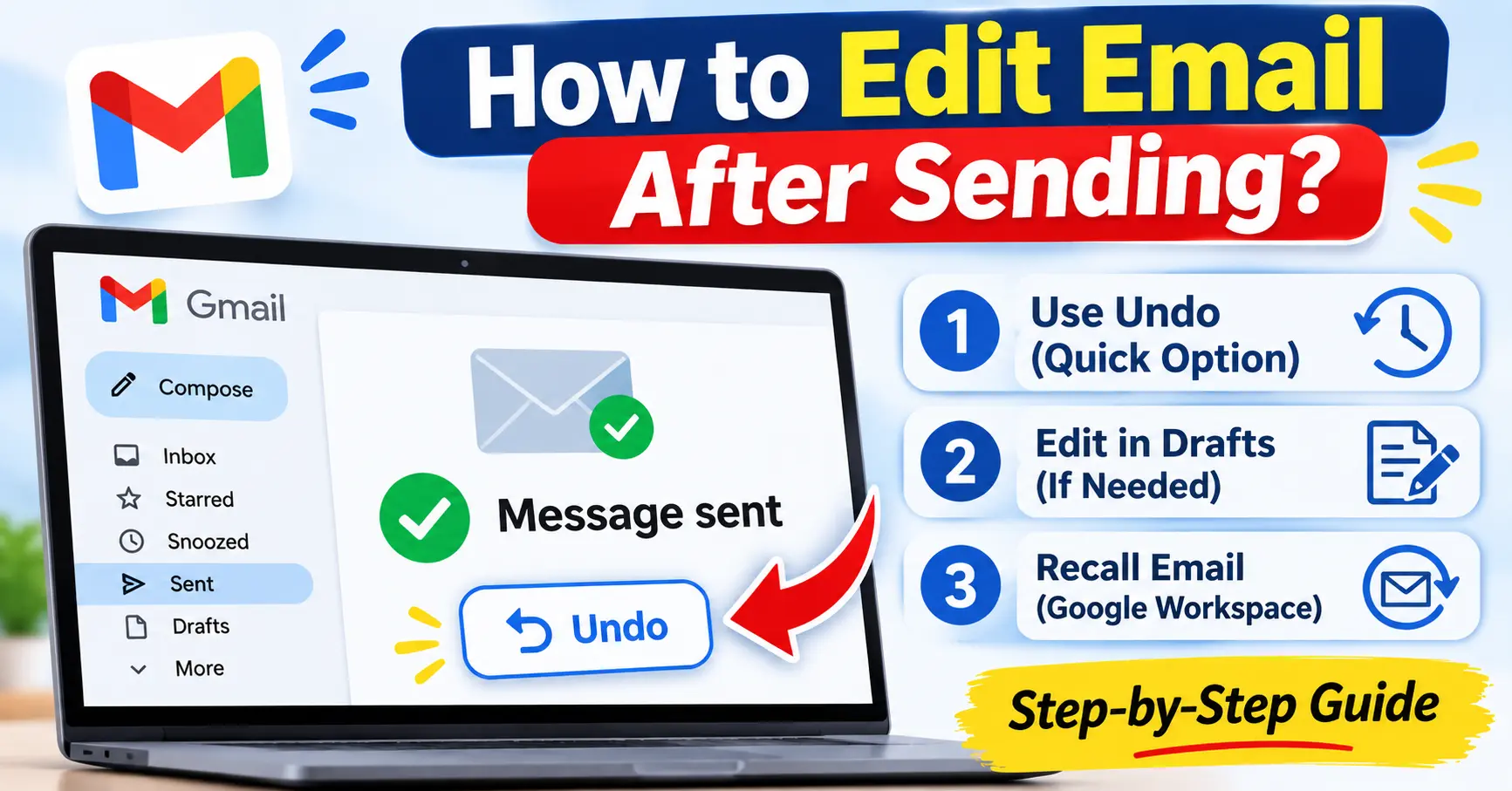
Have you ever sent an email and noticed a spelling mistake, incorrect information, or a missing attachment immediately afterward? It can be frustrating, especially when you have sent the message to a client, colleague, teacher, or business partner. You may wonder whether you can make changes to the email without sending another message.
If you are searching for how to edit email after sending, the answer depends on the email service you use. Most email platforms do not allow users to directly edit an email after it has reached the recipient’s inbox. However, some services offer an Undo Send feature that gives you a short time to cancel an email before it is delivered.
In this guide, you will learn how to correct sent emails in Gmail, Outlook, and other email services. We will also explain how to recall an email, fix mistakes, and avoid common email-sending problems.
Can You Edit an Email After Sending It?
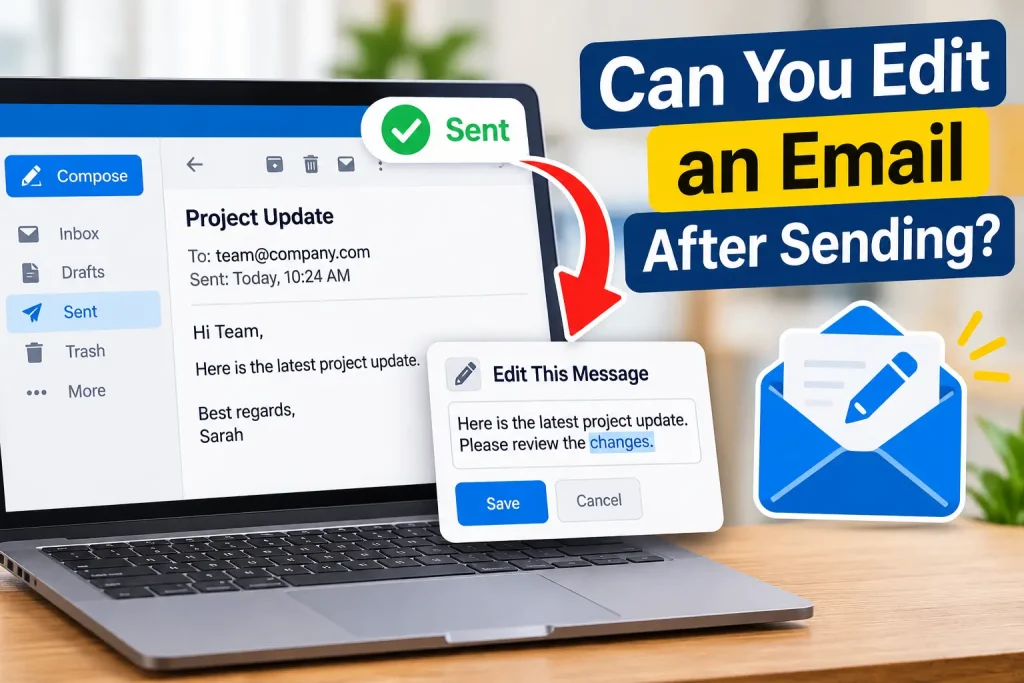
No, most email services do not allow you to directly edit an email after sending it. Once an email reaches the recipient’s inbox, you cannot open the original message and change its text, subject, or attachments.
However, there are a few ways to handle this situation:
- Use Undo Send if the email has not been delivered yet.
- Use the Recall feature if your email service supports it.
- Send a corrected email with the updated information.
- Send a follow-up message explaining the mistake.
- Attach any missing documents in a new email.
The available options depend on your email provider and how much time has passed since you sent the message.
How to Edit Email After Sending in Gmail
Gmail offers an Undo Send feature that allows you to cancel an email shortly after sending it. However, this feature does not let you edit an email that has already reached the recipient.
If you notice a mistake immediately after clicking Send, follow these steps:
- Open Gmail on your computer or smartphone.
- Compose your email and click Send.
- Look for the Message sent notification.
- Click or tap Undo immediately.
- Gmail will bring your message back into the draft section.
- Open the draft and make the necessary changes.
- Check the updated email carefully.
- Click Send again.
Your corrected email will now be sent to the recipient.
How to Increase the Undo Send Time in Gmail
Gmail allows you to increase the cancellation period so you have more time to stop an email.
Follow these instructions:
- Open Gmail on your computer.
- Click the Settings gear icon.
- Select See all settings.
- Find the Undo Send section under the General tab.
- Choose a cancellation period of 5, 10, 20, or 30 seconds.
- Scroll down and click Save Changes.
Selecting 30 seconds gives you the maximum available time to cancel a sent email.
You may also like it:
How To Edit Image Text In Word – Aarya Editz
How To Edit Video In Iphone – Aarya Editz
How To Edit Resume In Laptop – Aarya Editz
How To Edit Photos In Mobile – Aarya Editz
How to Edit an Email After Sending in Outlook
Microsoft Outlook provides a message recall feature for certain accounts. However, it does not work in every situation.
If you use a supported Microsoft 365 or Exchange account, you may be able to recall a message and send a corrected version.
Follow these steps:
- Open Microsoft Outlook.
- Go to the Sent Items folder.
- Open the email you want to recall.
- Find the Recall Message option.
- Select Recall This Message if available.
- Choose whether to delete unread copies or replace the message with a corrected version.
- Follow the instructions to complete the process.
Important: Outlook message recall has specific requirements. It generally works within the same Microsoft 365 or Exchange organization and may not work if the recipient has already opened the message or uses an unsupported email service.
How to Use Outlook Undo Send
Some Outlook accounts also provide an Undo Send option.
To check its availability:
- Open Outlook.
- Click Settings.
- Select Mail.
- Open Compose and reply.
- Find the Undo Send option.
- Set the available delay.
- Save your settings.
When available, this option gives you a short period to cancel an outgoing email before it is delivered.
How to Correct an Email After It Has Been Delivered
If your email has already reached the recipient, the easiest solution is to send a corrected version.
You do not need to write a completely new message. You can reply to the original email and explain the correction.
Here is a simple example:
Subject: Correction to My Previous Email
Dear [Recipient’s Name],
I apologize for the mistake in my previous email. I would like to correct the information shared earlier.
Please find the updated details below.
Thank you for your understanding.
Best regards,
[Your Name]
This approach is useful for professional communication because it clearly explains the correction without confusing the recipient.
How to Send a Missing Attachment After Sending an Email
Sometimes, you remember that you forgot to attach a document after clicking Send.
Unfortunately, you cannot normally add an attachment to an email that has already been delivered.
Instead, follow these steps:
- Open your Sent Items folder.
- Find the email you previously sent.
- Open the original message.
- Click Reply or Forward.
- Write a short explanation about the missing attachment.
- Click the attachment icon.
- Select the correct document from your device.
- Review the message and click Send.
You can use this short message:
“Apologies, I forgot to attach the document to my previous email. Please find the attachment included with this message.”
This makes the correction simple and professional.
Can You Recall an Email After 24 Hours?
In most cases, you cannot recall an email after 24 hours through standard email services.
Gmail’s Undo Send feature only works within the cancellation period you selected, which can be up to 30 seconds.
Outlook’s recall feature has different requirements and does not provide a universal 24-hour recall option.
If the email has already been delivered, your best option is to send a follow-up message with the correct information.
What Happens When You Delete a Sent Email?
Deleting an email from your Sent folder does not delete it from the recipient’s inbox.
It only removes the message from your own mailbox.
For example, if you send an email to a business client and then delete it from Sent Items, the client can still open and read the original message.
Therefore, deleting a sent email is not the same as recalling or editing it.
Tips to Avoid Email Mistakes Before Sending
Making mistakes in emails is common, but you can reduce them by checking a few important details before clicking Send.
1. Check the Recipient’s Email Address
Always verify the recipient’s email address. Sending confidential information to the wrong person can create serious problems.
2. Review the Subject Line
Write a clear subject line that explains the purpose of your message.
3. Check Spelling and Grammar
Read your email once before sending it. Correct spelling and grammar mistakes to make your communication more professional.
4. Verify Attachments
If your email mentions a document, image, or PDF, make sure the file is attached.
5. Use the Undo Send Feature
Enable the maximum available cancellation period in Gmail or Outlook. This gives you an extra opportunity to stop an email if you notice a mistake.
6. Review Important Emails Carefully
For business proposals, job applications, and official communication, check the complete message before sending it.
Frequently Asked Questions (FAQs)
1. Can I edit an email after sending it in Gmail?
No, Gmail does not allow direct editing after delivery. However, you can use Undo Send within the selected cancellation period to bring the message back as a draft and make changes.
2. How do I edit an email after sending it in Outlook?
You may use Outlook’s recall feature if your account and recipient meet the requirements. Otherwise, send a corrected email explaining the changes.
3. Can I delete an email after sending it?
You can delete an email from your Sent folder, but this does not remove it from the recipient’s inbox. You need a supported recall feature to attempt to withdraw a delivered message.
4. Can I change the subject of an email after sending it?
No, you generally cannot change the subject of an email after delivery. You can send a new email with the corrected subject line.
5. How long do I have to undo a sent email in Gmail?
Gmail offers cancellation periods of 5, 10, 20, and 30 seconds. You can select your preferred period in Gmail settings.
Final Thoughts
Learning how to edit email after sending can help you handle mistakes without creating unnecessary confusion. Although most email services do not allow direct editing of delivered messages, features such as Gmail Undo Send and Outlook Recall can help in certain situations.
If the message has already reached the recipient, sending a corrected email is usually the best solution. Always review your message, verify the recipient, and check attachments before sending important emails. These simple habits can help you avoid mistakes and maintain professional communication.
