
YouTube Shorts are a popular way to share short videos, attract viewers, and grow a YouTube channel. However, creating an interesting video is only one part of getting attention. The thumbnail also plays an important role because it gives viewers a quick idea of what your Short is about.
If you have uploaded a Short with an unattractive thumbnail or want to choose a better image, you may be wondering how to change it. The good news is that YouTube provides options to select a thumbnail frame and, through YouTube Studio, upload a custom thumbnail.
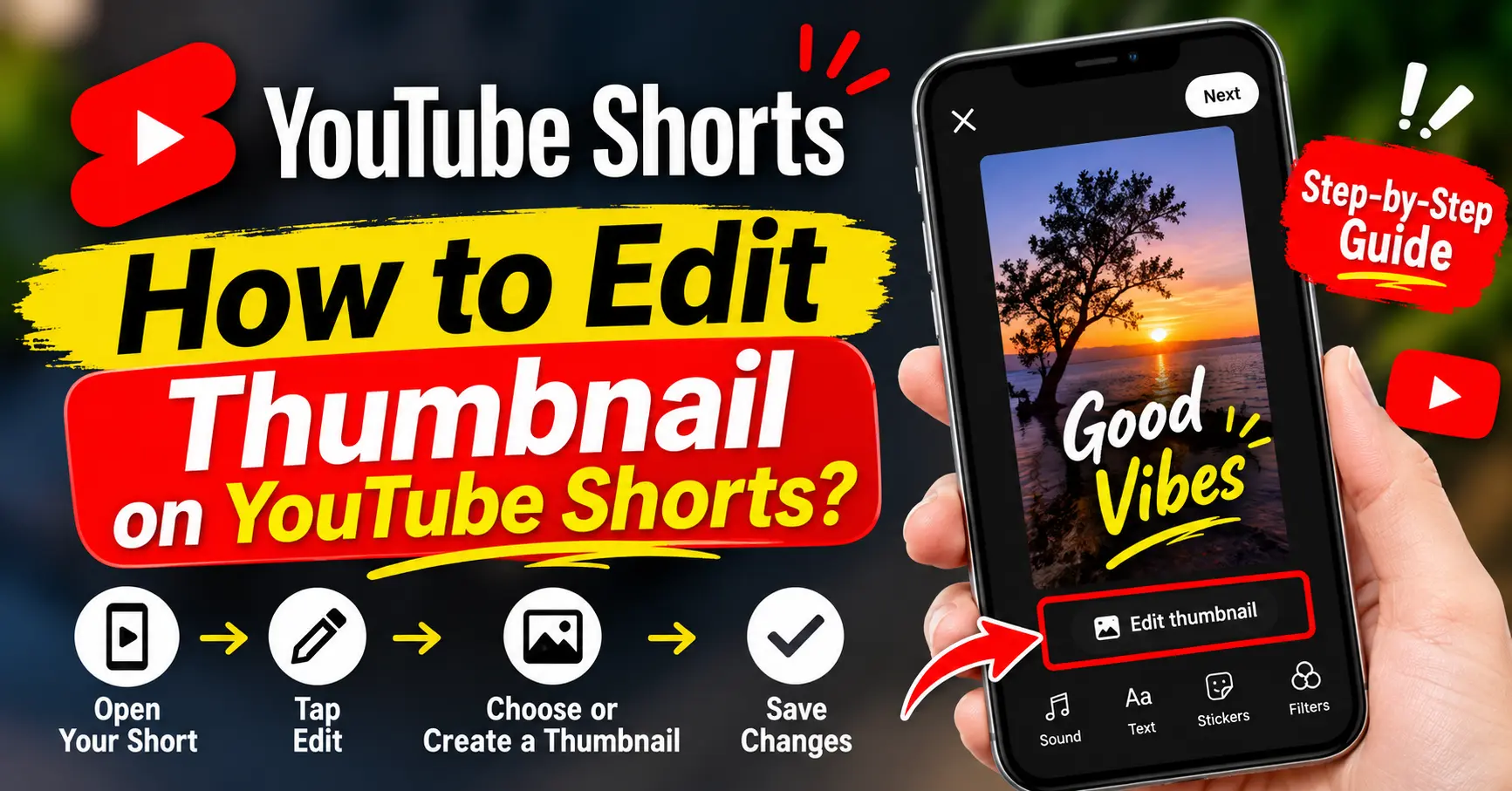
In this guide, you will learn how to edit thumbnail on YouTube Shorts using Android, iPhone, and a computer. We will also explain how to choose a good thumbnail and fix common problems.
What Is a YouTube Shorts Thumbnail?
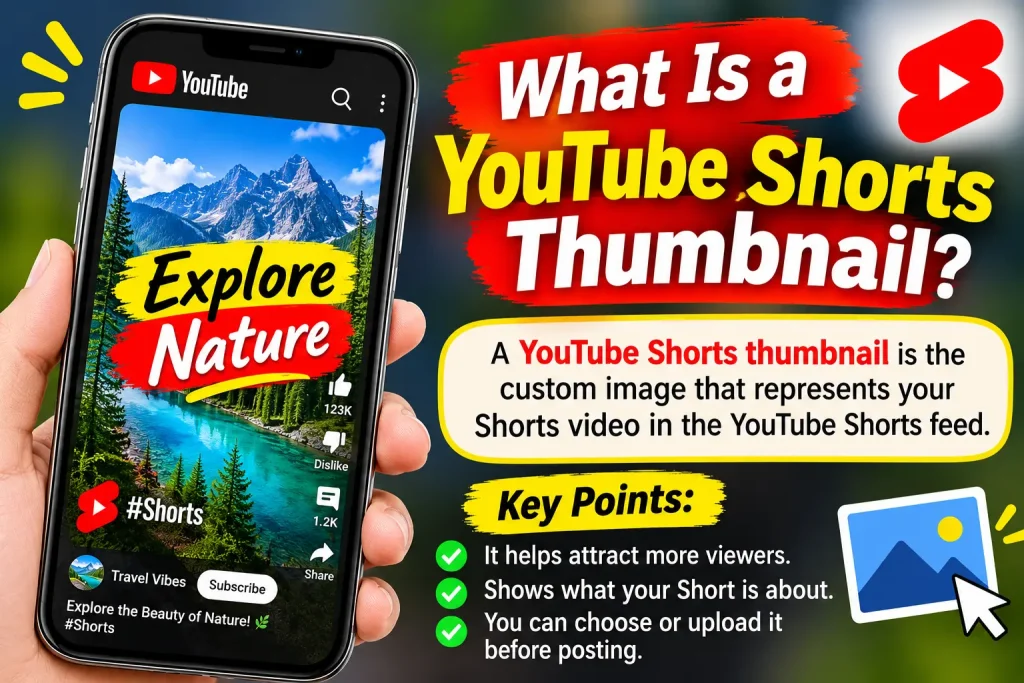
A YouTube Shorts thumbnail is the preview image that represents your short-form video. It helps viewers understand the video’s topic before they decide to watch it.
For example, if you upload a cooking Short, you can select a frame showing the finished meal. Similarly, if your video is about technology, you can choose a clear frame showing the device or product.
A good thumbnail can:
- Make your video look more attractive.
- Give viewers an idea of your content.
- Make your channel look professional.
- Help your videos stand out on your channel page.
- Encourage people to explore your content.
YouTube allows creators to select a frame from their Short. It also supports custom thumbnail uploads through YouTube Studio on supported devices and accounts.
How to Edit Thumbnail on YouTube Shorts Before Uploading
The easiest way to select a thumbnail is before publishing your Short. You can choose a suitable frame while preparing your video for upload.
Follow these steps:
- Open the YouTube app on your Android phone or iPhone.
- Tap the Create (+) button.
- Select the Short option.
- Record a new video or select an existing video.
- Complete your video editing and tap Next.
- On the final upload screen, find the video thumbnail preview.
- Tap the Edit or pencil icon.
- Move through the video frames and select your preferred image.
- Add text or apply a filter if needed.
- Tap Done and complete the upload process.
Your selected frame will become the thumbnail for your Short.
Tip: Choose a frame that clearly represents your video. Avoid blurry images or frames where the main subject is difficult to recognize.
How to Change YouTube Shorts Thumbnail After Uploading
Have you already published your Short but want to replace its thumbnail? You can edit the selected frame through the YouTube mobile app.
Here is how to do it:
- Open the YouTube app on your smartphone.
- Sign in to the account where you uploaded the Short.
- Visit your channel page.
- Tap Your videos.
- Find the Short you want to edit.
- Tap the three-dot menu next to the video.
- Select Edit.
- Tap the thumbnail’s Edit option.
- Choose another frame from your video.
- Add text or filters if you want.
- Tap Done to save your selection.
Your thumbnail selection will be updated.
Remember that YouTube’s mobile frame-selection feature allows you to choose an image from the existing video. It does not necessarily provide the option to upload any picture from your phone’s gallery.
You may also like it:
How To Edit Image Text In Word – Aarya Editz
How To Edit Video In Iphone – Aarya Editz
How To Edit Resume In Laptop – Aarya Editz
How To Edit Photos In Mobile – Aarya Editz
How to Upload a Custom Thumbnail for YouTube Shorts on a Computer
If you want to use a completely different image instead of selecting a frame from your video, YouTube Studio provides a custom thumbnail upload option on supported accounts.
Follow these steps:
- Open a web browser on your computer.
- Visit YouTube Studio.
- Sign in to your YouTube account.
- Click Content from the left-side menu.
- Select the Shorts tab.
- Find the Short you want to edit.
- Click its Details or Edit option.
- Find the Thumbnail section.
- Click Upload file.
- Select your prepared thumbnail image.
- Review the image and click Save.
Your custom thumbnail will be saved once YouTube processes the update.
Important: Your account must meet YouTube’s eligibility requirements for custom thumbnails. Feature availability can also vary by device and account.
How to Upload a Custom YouTube Shorts Thumbnail on Mobile
YouTube has also introduced custom Shorts thumbnail uploading through the YouTube Studio mobile app in its newer rollout. If this option is available on your device, you can use it without a computer.
Follow these steps:
- Open the YouTube Studio app.
- Tap Content.
- Select the Short you want to edit.
- Tap the pencil or Edit icon.
- Open the Edit thumbnail option.
- Choose Upload Image if the option appears.
- Select an image from your phone.
- Confirm your selection and update the Short.
If you cannot find the Upload Image option, update your app and check again later. You can also use YouTube Studio on a computer.
What Is the Best Thumbnail Size for YouTube Shorts?
Choosing the correct image size is important because an incorrectly sized thumbnail may appear cropped on different YouTube screens.
YouTube recommends a vertical 9:16 aspect ratio for Shorts thumbnails.
Here are the recommended specifications:
| Thumbnail Element | Recommended Setting |
| Aspect ratio | 9:16 |
| Recommended resolution | 2160 × 3840 pixels |
| Minimum height | 640 pixels |
| Image format | JPG or PNG |
| Important content | Keep it near the center |
Try to keep important text and visual elements within the central area. This helps prevent them from being cut off when YouTube displays the thumbnail in different layouts.
Tips for Creating an Attractive YouTube Shorts Thumbnail
A good thumbnail should be simple, clear, and related to your video. You do not need complicated graphics to make your content look professional.
Here are some useful tips:
1. Use a Clear Image
Choose a high-quality image that viewers can understand immediately. Avoid blurry screenshots and dark frames.
2. Add Short and Readable Text
If you want to add text, keep it short. Use a clear font and make sure the words are easy to read on mobile screens.
3. Choose Attractive Colors
Use colors that make the main subject stand out. Good contrast between the background and text can improve readability.
4. Show the Main Subject
Your thumbnail should represent the actual video. If you are creating a travel Short, show an interesting location rather than an unrelated picture.
5. Avoid Too Many Elements
Do not add too many stickers, shapes, or words. A simple design often communicates the video’s message more effectively.
6. Maintain a Consistent Style
If you regularly upload Shorts, use similar fonts, colors, and design elements. This can help viewers recognize your channel.
Why Can’t I Change My YouTube Shorts Thumbnail?
Sometimes, creators cannot find the thumbnail editing option. This can happen because of app limitations, outdated software, or account-specific feature availability.
Here are some common reasons and possible solutions.
YouTube App Is Outdated
An older version of YouTube may not show all editing options.
Solution: Visit the Google Play Store or Apple App Store and update the YouTube app.
You Are Using YouTube Studio Instead of YouTube
The standard mobile frame-selection feature is available through the main YouTube app, not the regular YouTube Studio frame editor.
Solution: Open the YouTube app and follow the steps under Your videos.
The Custom Thumbnail Option Is Missing
Custom thumbnail uploading may not be available for every account or device.
Solution: Check YouTube Studio on a computer and confirm that your channel meets the eligibility requirements.
Your Thumbnail Has Not Updated Yet
Sometimes, YouTube takes time to display thumbnail changes across its different sections.
Solution: Wait a little, refresh the page, and check your Short again.
Can You Change a YouTube Shorts Thumbnail Without Reuploading?
Yes. You can change the selected thumbnail frame of an already published Short without deleting or uploading the video again.
Simply open the YouTube mobile app, visit Your videos, select the Short, and use the Edit option to choose another frame.
You can also update an existing Short with a custom thumbnail through YouTube Studio when the feature is available to your account.
This means you do not need to lose your existing views, comments, and engagement just to change the thumbnail.
Does Changing a YouTube Shorts Thumbnail Affect Views?
Changing a thumbnail does not automatically remove your existing views or reset your video’s engagement. Your Short remains published.
However, a better thumbnail may help viewers recognize your content when they see it on your channel page or other browsing surfaces.
Keep in mind that thumbnails are only one part of video performance. Content quality, video topics, audience interest, and viewer retention also matter.
Frequently Asked Questions (FAQs)
1. Can I edit a YouTube Shorts thumbnail after uploading?
Yes. Open the YouTube mobile app, visit Your videos, tap the three-dot menu next to your Short, and select Edit. Choose another frame and tap Done.
2. Can I upload my own picture as a YouTube Shorts thumbnail?
Yes. YouTube supports custom Shorts thumbnail uploads through YouTube Studio on a computer for eligible accounts. The option is also rolling out through the Studio mobile app.
3. Can I change a Shorts thumbnail from my computer?
Yes. Open YouTube Studio, select Content, choose Shorts, edit your video details, and use Upload file in the Thumbnail section.
4. What is the best size for a YouTube Shorts thumbnail?
The recommended aspect ratio is 9:16, with a recommended resolution of 2160 × 3840 pixels. JPG and PNG are suitable image formats.
5. Does changing a Shorts thumbnail delete existing views?
No. Changing the thumbnail does not delete your existing views, comments, or likes. Your published video remains available.
Final Thoughts
Learning how to edit thumbnail on YouTube Shorts is simple once you know which editing option to use. You can select a frame before uploading or change the selected frame after publishing through the YouTube mobile app.
If you want to use a completely different image, YouTube Studio also offers a custom thumbnail upload option for eligible creators.
Always choose a clear, attractive, and relevant thumbnail. A well-designed preview can make your channel look more professional and help viewers understand what your videos offer.
