
If you are wondering how to edit footer in PPT, you can easily change the footer text, date, slide number, position, or formatting in PowerPoint. A footer appears at the bottom of a slide and can be used to show information such as a company name, presentation title, date, copyright notice, or other useful details.
PowerPoint provides different ways to edit footers depending on what you want to change. You can use Insert > Header & Footer to add or change footer text and apply it to one slide or all slides. Microsoft also recommends using Slide Master when you need more control over the footer’s position, appearance, or layout.
In this guide, we will explain how to edit footer in PPT step by step. You will learn how to change footer text, edit a footer on one or all slides, change its font and position, remove it, and fix common problems when the footer cannot be edited.
Whether you are using PowerPoint on Windows or Mac, these simple steps can help you customize your presentation and make your slides look more professional.
What Is a Footer in PowerPoint?
A footer in PowerPoint is information that appears near the bottom of a slide. It can contain useful details such as a presentation title, company name, date, copyright notice, or other text. PowerPoint can also display slide numbers and date or time information as footer elements.
Footers can be useful when you want to give your presentation a consistent and professional appearance. For example, a business presentation might include the company name at the bottom of every slide, while a school presentation could include the presentation title or date.
PowerPoint allows you to apply a footer to all slides or only to selected slides. You can also control how footer elements look by using the Slide Master, which is especially useful when you want to change the font, size, color, or position across multiple slides.
Understanding how footers work makes it easier to learn how to edit footer in PPT. Once you know where the footer settings are located, you can quickly add, change, format, or remove footer information from your presentation. How To Edit Footer In Ppt
Why Is a Footer Useful in PowerPoint?
A footer can make your presentation easier to understand and more organized. You can use it to display information that should remain visible without taking up much space on the slide. For example, a footer can include your name, company name, presentation date, website, or a copyright notice.
Footers are especially helpful when a presentation contains many slides. Instead of manually adding the same information to every slide, PowerPoint can display footer information across multiple slides. You can choose whether to apply the footer to all slides or only the selected slide.
What Can You Add to a PowerPoint Footer
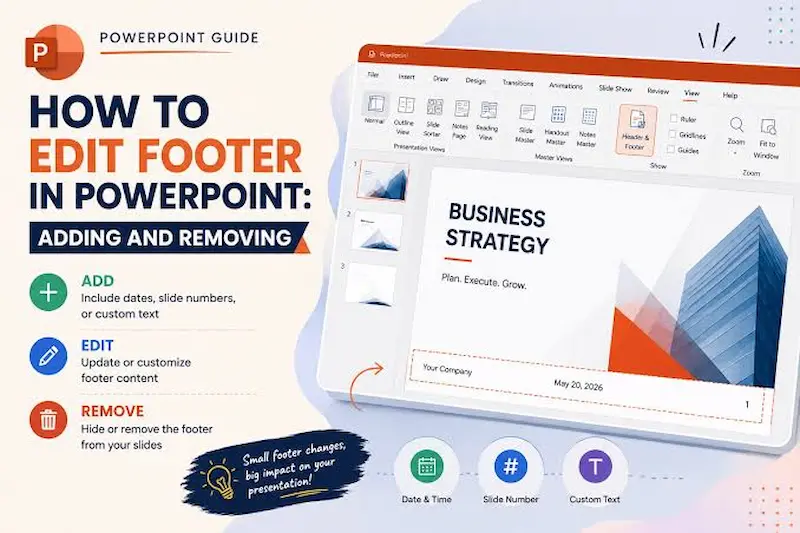
PowerPoint footers can contain different types of information. Common examples include a short text message, date and time, and slide number. These footer elements can be turned on or off depending on what you need for your presentation.
For example, a business presentation might use a footer such as “Company Name – Confidential,” while a school presentation might include the student’s name and presentation date. Keeping the footer short can help your slides look clean and professional.
Can You Edit a Footer on Every Slide?
Yes, you can edit footer information across a presentation. The Header & Footer options allow you to enter footer text and choose whether it should appear on all slides or only the current slide.
If you need to change the appearance of footers across the entire presentation, Slide Master is useful. You can change the footer’s font style, size, color, and other formatting in one place instead of editing each slide separately. How To Edit Footer In Ppt
What Is the Difference Between a Footer and a Text Box?
A PowerPoint footer is a dedicated footer element that can be managed through the Header & Footer settings. A regular text box, on the other hand, is an object that you manually place anywhere on a slide.
This difference is important when learning how to edit footer in PPT. If you cannot select or change the text at the bottom of a slide, it may be controlled by the slide layout or Slide Master rather than being a normal text box. How To Edit Footer In Ppt
Where Are Footer Settings in PowerPoint?
In most desktop versions of PowerPoint, you can access footer settings by going to the Insert tab and selecting Header & Footer. From there, you can select the Footer option and enter the text you want to display. You can then choose Apply for the current slide or Apply to All for the presentation.
For more advanced formatting, go to View > Slide Master. The Slide Master controls the appearance and layout of multiple slides, making it easier to manage footer formatting throughout a presentation. How To Edit Footer In Ppt
Why Can’t I Edit the Footer Directly?
Sometimes a footer cannot be edited by simply clicking it in Normal view. This can happen when footer elements are controlled by the Slide Master or when footers are turned off for a particular slide layout.
If the footer is not appearing or cannot be selected, open View > Slide Master and check whether the footer option is enabled for the relevant layout. Microsoft notes that footer placeholders need to be enabled before they can appear on slides.
Once the footer is enabled, you can return to Normal view and continue editing the presentation. This is one of the most useful things to understand when learning how to edit footer in PPT.
How to Edit Footer in PPT
If you want to learn how to edit footer in PPT, PowerPoint gives you a simple way to change the footer text from the Header & Footer settings. You can update the text, choose whether it appears on one slide or all slides, and also include options such as the date or slide number. How To Edit Footer In Ppt
Open the Header and Footer Settings
First, open your PowerPoint presentation and select the slide where you want to change the footer. Go to the Insert tab from the top menu and select Header & Footer. A dialog box will appear with different options for your slide.
Change the Footer Text
In the Slide tab, look for the Footer option and make sure its checkbox is selected. You will see a text box where you can enter or replace the existing footer text. You can type something such as your name, company name, presentation title, website, or copyright information. How To Edit Footer In Ppt
Apply the New Footer
After changing the footer text, you can choose Apply if you want the change to affect only the selected slide. If you want the same footer to appear throughout the presentation, choose Apply to All. This makes it easier to update a footer without changing every slide individually. How To Edit Footer In Ppt
Change the Footer Appearance
If you also want to change the footer’s font, size, color, or other formatting, you can use Slide Master. Go to View > Slide Master, select the appropriate footer element, and use the formatting options to customize its appearance. Changes made to the slide master can be used across the presentation.
What If the Footer Does Not Appear?
If you have added a footer but cannot see it on your slide, the footer may be turned off for the current slide layout. Open View > Slide Master and check the Footers option under Master Layout. Microsoft notes that footer placeholders must be enabled before they can appear on slides.
Once you understand these options, how to edit footer in PPT becomes much easier. You can quickly change the footer content, apply it to selected slides or the entire presentation, and customize its appearance to match your presentation design. How To Edit Footer In Ppt
Can I edit the footer on only one PowerPoint slide?
Yes. Select the slide, open Insert > Header & Footer, change the footer text, and select Apply instead of Apply to All.
How do I edit the footer on all slides in PPT?
Open Insert > Header & Footer, select the Footer option, enter your text, and choose Apply to All. This adds the same footer information across the presentation.
Why can’t I edit my footer in PowerPoint?
If the footer does not appear or cannot be changed normally, it may be controlled by the Slide Master or disabled for the slide layout. Go to View > Slide Master and check that the Footers option is enabled.
Conclusion
Learning how to edit footer in PPT is simple once you know where the footer settings are located. You can use Insert > Header & Footer to change footer text, add slide numbers or dates, and apply the changes to one slide or the entire presentation.
If you need more control over the footer’s design, Slide Master lets you adjust its font, size, color, and position. It is also helpful when the footer is not showing correctly on your slides.
Whether you are preparing a school project, business presentation, or personal slideshow, these simple methods can help you create clean and professional-looking PowerPoint slides. How To Edit Footer In Ppt
