
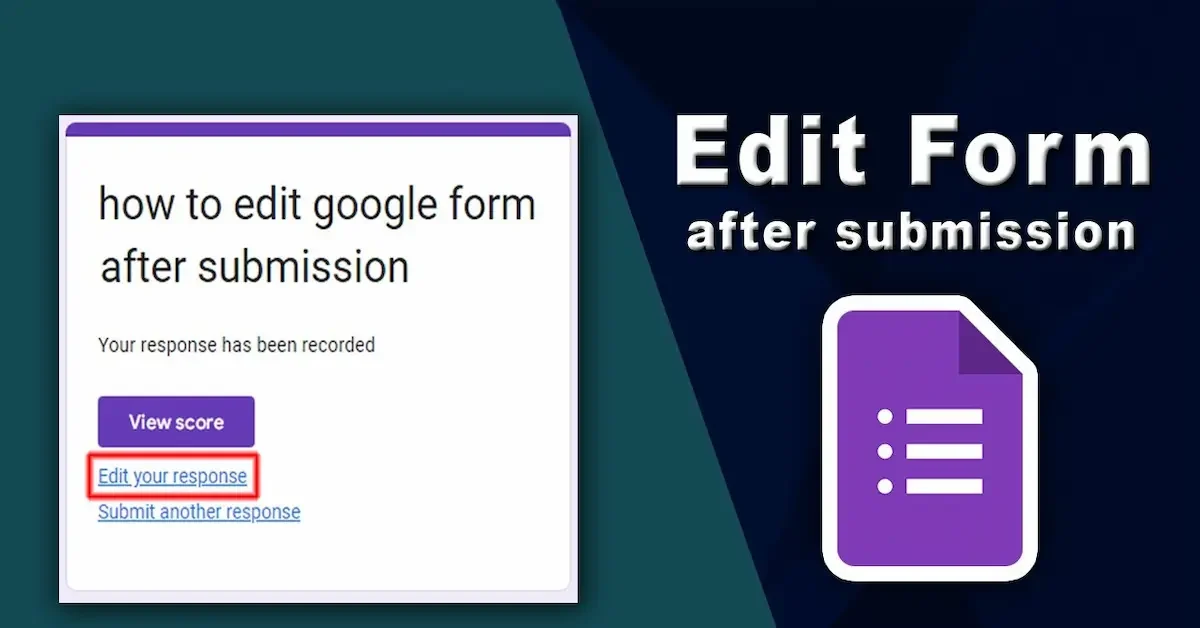
If you are wondering how to edit Google Form, the process is quite simple once you know where to find the editing options. Google Forms lets you change questions, titles, descriptions, answer choices, images, videos, sections, and other parts of an existing form.
You may want to edit a Google Form because you need to correct a question, add new information, remove an unnecessary question, change the form design, or update its settings. You can make these changes directly from the form editor without creating a completely new form.
In this guide, we will explain how to edit Google Form step by step. You will learn how to edit questions, change the title and description, add or delete questions, rearrange sections, customize the design, and manage important form settings.
Whether you created a survey, quiz, registration form, feedback form, or another type of online form, these simple steps can help you update it quickly and keep it organized.
How to Edit Google Form
If you want to know how to edit Google Form, you first need to open the form in Google Forms with editing access. Once the form is open, you can click on the text, question, answer option, or other element that you want to change. Google Forms allows you to edit questions, descriptions, images, videos, and sections directly from the form editor.
Open Your Google Form
Go to Google Forms and sign in to the Google Account that has access to the form. Open the form you want to edit. Make sure you are opening the editing version of the form rather than the link that respondents use to fill it out.
Edit the Existing Question
To change a question, click on the question text and make your required changes. You can rewrite the question, change its question type, update the available answers, or turn the Required option on or off.
Add a New Question
If you need more information from respondents, click the Add question button. You can then enter your new question and select the type of answer you want, such as short answer, multiple choice, checkboxes, or another available option.
Change the Form Title or Description
You can also change the title and description of your Google Form. Simply click the existing text and replace it with the information you want to show. A clear title and short description can help people understand the purpose of your form before they start answering it.
Delete Unwanted Questions
If a question is no longer needed, select it and click the Delete button. This removes the question from your form. You can also delete unwanted images or sections when necessary.
Preview Your Changes
After editing your form, use the Preview option to see how it will look to respondents. This is useful for checking questions, answer choices, instructions, and the overall appearance before sharing the form.
Learning how to edit Google Form gives you more control over your surveys, quizzes, registration forms, and feedback forms. You can update your content whenever needed and keep your form clear and useful for respondents.
How to Edit Questions in Google Form
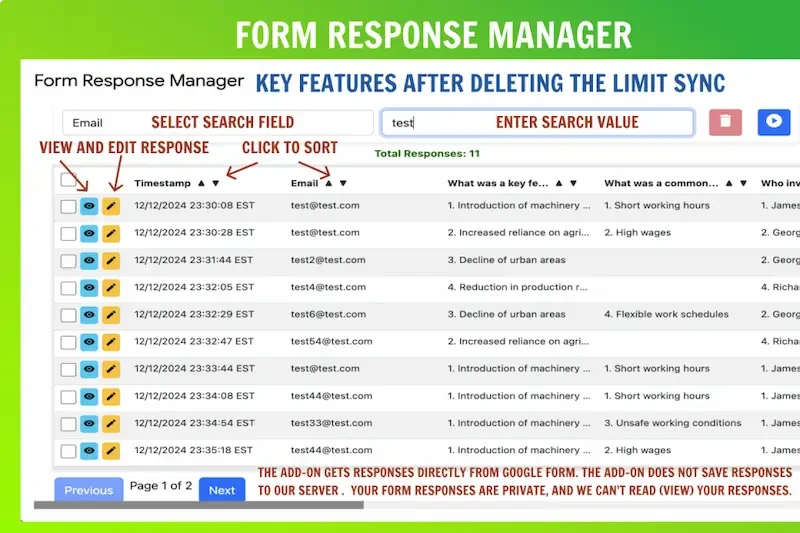
One of the most common reasons people search for how to edit Google Form is to change an existing question. You can easily update the wording of a question, change its answer type, edit the available choices, or make the question required. Google Forms lets you edit questions directly from the form editor. How To Edit Google Form
Change the Question Text
Open your Google Form and click on the question you want to change. You can select the existing text and replace it with your new question. This is useful when you want to correct spelling mistakes, make a question clearer, or update information. How To Edit Google Form
Change the Question Type
Google Forms offers different question types, including short answer, paragraph, multiple choice, checkboxes, and dropdown options. To change the question type, click the question and select the type you need from the question-type menu.
Edit Answer Choices
If your question has multiple answer options, you can click on each option and change its text. You can also add new choices or remove options that are no longer needed. This helps keep your form accurate and relevant. How To Edit Google Form
Make a Question Required
If you want respondents to answer a particular question before submitting the form, turn on the Required option for that question. This can be useful when certain information is necessary for your survey, registration, or feedback form.
Move a Question to a Different Position
You can also change the order of questions by dragging a question to a new position. Rearranging questions can make your form easier to follow and can help create a more natural flow for respondents.
Add a Description to a Question
If a question needs extra instructions, you can add a description beneath it. A short explanation can help respondents understand exactly what information they should provide. How To Edit Google Form
These simple options make it easy to update your questions whenever needed. Once you know how to edit Google Form, you can quickly correct old questions, update answer choices, and organize your form without creating a new one.
How to Add a New Question to Google Form
When learning how to edit Google Form, you may also need to add new questions to an existing form. Google Forms makes this easy, and you can choose from different question types depending on the information you want to collect. How To Edit Google Form
Open the Google Form
Open the Google Form you want to update and make sure you have editing access. Once the form editor is open, you can add new questions without creating a separate form. How To Edit Google Form
Click Add Question
On the right side of the form editor, click the Add question button. A new question box will appear where you can enter your question and choose the type of response you want.
Choose a Question Type
Google Forms provides different question types, such as short answer, paragraph, multiple choice, checkboxes, and dropdown. Choose the option that best matches the information you want respondents to provide. How To Edit Google Form
Add Answer Choices
For questions that require predefined answers, enter the choices below the question. You can add, remove, or change the options whenever needed.
Make the Question Required
If respondents must answer the new question, turn on the Required option. This prevents the form from being submitted without an answer to that question. How To Edit Google Form
Arrange the New Question
After adding the question, you can drag it to another position if you want to change the order of your form. Organizing questions in a logical order can make the form easier for people to complete.
Preview the Updated Form
After adding your new question, click Preview to see how the form looks to respondents. This gives you a chance to check the question and make sure everything works as expected before sharing the form.
Adding new questions is one of the easiest ways to update an existing form. Once you understand how to edit Google Form, you can continue improving your survey, registration form, quiz, or feedback form whenever your needs change. How To Edit Google Form
How to Edit the Google Form Title and Description
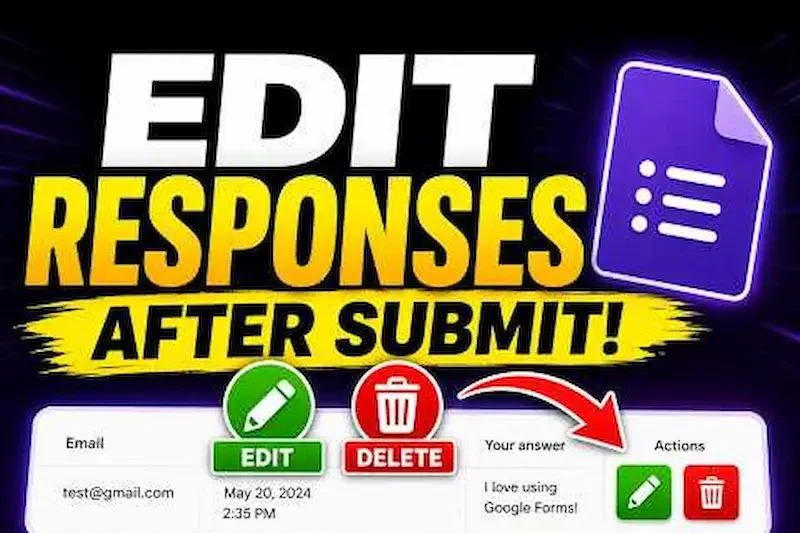
When learning how to edit Google Form, changing the title and description is one of the easiest updates you can make. A clear title tells people what the form is about, while the description can provide useful instructions or additional information. Google Forms allows you to edit these text areas directly in the form editor. How To Edit Google Form
Change the Google Form Title
Open your Google Form and click on the existing title at the top of the form. Select the current text and type your new title. You can change the title if the purpose of your form has changed or if you simply want to make it clearer for respondents.
For example, if your original title is “Customer Survey,” you could change it to “2026 Customer Feedback Survey” to make the purpose more specific. How To Edit Google Form
Edit the Form Description
The description appears below the form title and can be used to explain what respondents need to do. Click the description area and replace or update the existing text.
You can use the description to provide instructions, explain how the information will be used, mention important details, or tell respondents approximately how long the form may take to complete.
Keep the Title Clear and Simple
When editing your form, try to keep the title short and easy to understand. Respondents should be able to know the purpose of the form without reading a long explanation. How To Edit Google Form
A good title can also make your form look more professional and organized, especially when it is used for school projects, business surveys, registrations, applications, or customer feedback.
Update the Description When Needed
If you change questions or instructions in your form, remember to check the description as well. An old description can confuse respondents if it no longer matches the information being collected.
After making your changes, use the Preview option to check how the updated title and description appear to people filling out the form. Google recommends previewing changes before sending or publishing a form.
Knowing how to edit Google Form title and description helps you keep your form accurate, clear, and easy for respondents to understand. How To Edit Google Form
Can I edit a Google Form after creating it?
Yes. If you have editing access, you can open the form and change questions, answer choices, title, description, sections, and other settings.
How do I edit an existing Google Form?
Open the Google Form with your editing access, select the part you want to change, make your edits, and preview the form before sharing it again.
Can I edit Google Form questions?
Yes. You can change the question text, answer options, question type, and required setting directly from the form editor.
Conclusion
Learning how to edit Google Form is simple and useful when you need to update an existing survey, quiz, registration form, or feedback form. You can easily change questions, answer options, titles, descriptions, sections, and other parts of your form.
Before sharing the updated form, take a moment to preview it and check that all questions and settings are correct. Regularly updating your Google Form can help keep the information clear, accurate, and useful for respondents.
