
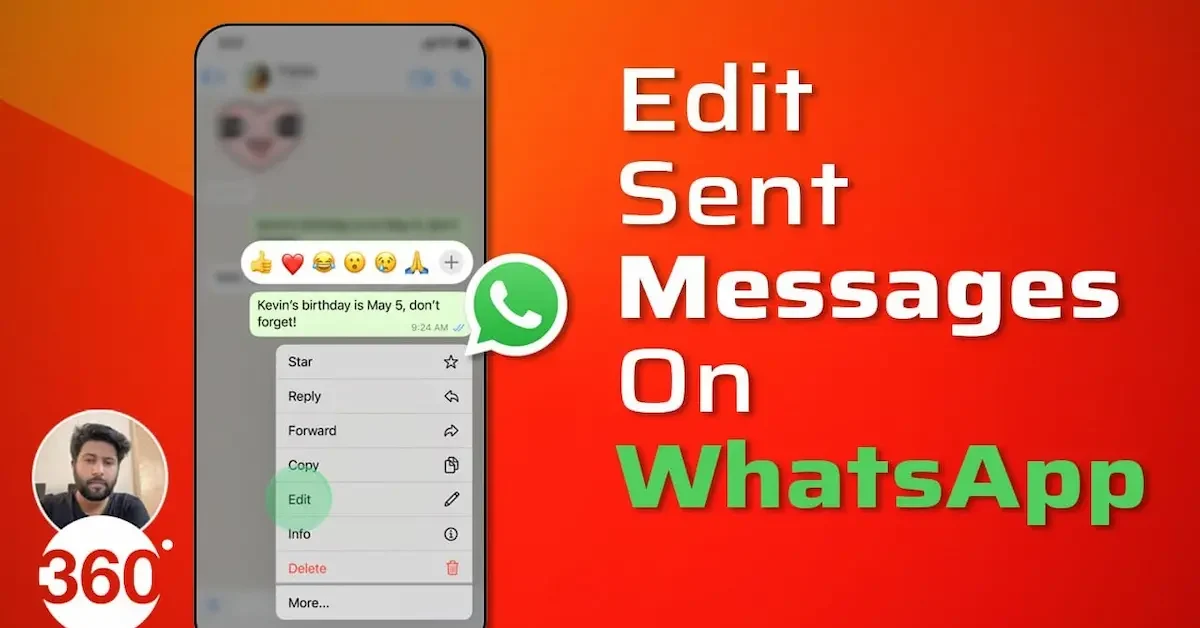
Have you ever sent a WhatsApp message and immediately noticed a spelling mistake, wrong word, or missing information? It happens to almost everyone. In the past, you had to delete the message or send another message to correct the mistake. Now, WhatsApp offers an editing feature that makes this process much easier.
Learning how to edit messages in WhatsApp can help you quickly fix mistakes in a message you have already sent. Instead of deleting the entire message, you can make changes and send the corrected version within the available editing time.
In this guide, you will learn how to edit messages in WhatsApp on Android, iPhone, and WhatsApp Web. We will also explain the editing time limit, what happens after editing a message, why the Edit option may not appear, and how to solve common problems. This simple guide will help you use the WhatsApp message editing feature with confidence.
What Is the WhatsApp Message Edit Feature?
The WhatsApp message edit feature allows you to make changes to a message after sending it. This feature is helpful when you notice a spelling mistake, incorrect information, or a missing word in your message.
Before this feature, users often had to delete the incorrect message and send a new one. Now, learning how to edit messages in WhatsApp makes it easier to correct small mistakes without creating extra messages in the conversation.
Why Is the Message Edit Feature Useful?
The edit feature can save time and make your conversations look cleaner. Instead of sending messages such as “Sorry, I meant to say…” or sending the same message again with corrections, you can simply edit the original message.
This can be especially useful when you are sending important information to friends, family members, classmates, customers, or colleagues.
What Types of Mistakes Can You Fix?
You can use the editing feature to correct different types of mistakes, such as:
- Spelling mistakes
- Typing errors
- Wrong words
- Missing words
- Incorrect information
- Small sentence mistakes
For example, if you accidentally write the wrong meeting time, you may be able to edit the message and correct the information within the available editing period.
What Happens After You Edit a Message?
After you make changes and save the edited message, the corrected version replaces the original message in the chat. WhatsApp shows an “Edited” label to indicate that the message has been changed.
This helps keep the conversation transparent while still allowing you to fix mistakes.
Is Editing Better Than Deleting a Message?
Editing and deleting are useful for different situations. Editing is usually better when you only need to correct a small mistake or update information. Deleting may be more suitable when you accidentally send a completely wrong message.
If you simply made a typing error, learning how to edit messages in WhatsApp can be a quick and convenient solution.
Important Things to Remember
The message editing feature has certain limits. You can only edit messages that you have sent, and the option is generally available for a limited time after sending the message.
It is also important to remember that the person receiving the message may see an “Edited” label after you make changes. Therefore, always check your corrected message before saving it.
Why You Should Learn How to Edit Messages in WhatsApp
Knowing how to edit messages in WhatsApp can help you communicate more clearly and correct mistakes quickly. It is a simple feature, but it can be very useful for everyday conversations, work chats, group discussions, and important messages.
Once you understand how the feature works, you can fix common message mistakes without needing to delete the entire message and start again.
Can You Edit Messages in WhatsApp
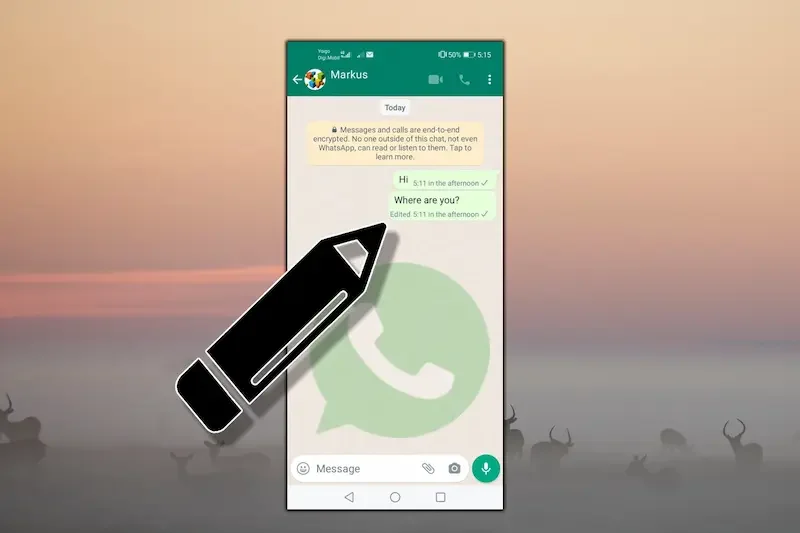
Yes, WhatsApp allows users to edit messages after sending them. This feature is useful when you notice a spelling mistake, type incorrect information, or want to make a small change to your message.
However, there are some limits to remember. You can only edit messages that you have sent yourself, and the Edit option is available for a limited period after the message is sent. If the allowed time has passed, you may need to send a new correction instead.
You Can Edit Your Own Sent Messages
When learning how to edit messages in WhatsApp, it is important to know that you can only change messages sent from your own account. You cannot edit messages sent by another person in a private chat or group conversation.
To make changes, select your sent message and look for the Edit option. The exact steps may be slightly different depending on whether you use an Android phone, iPhone, or WhatsApp Web.
The Edit Option Has a Time Limit
WhatsApp does not allow messages to be edited forever. The Edit option is only available for a certain period after you send the message. Therefore, if you notice a mistake, it is best to correct it as soon as possible.
Once the editing time expires, the Edit option may disappear. In that situation, you can send another message with the correct information.
Edited Messages Are Marked in the Chat
After you edit a message, WhatsApp adds an “Edited” label to show that the original message has been changed. This keeps the conversation clear and lets other people know that an update was made.
The label does not normally explain exactly what you changed. It simply shows that the message was edited.
Make Sure WhatsApp Is Updated
If you cannot find the Edit option, make sure you are using the latest version of WhatsApp. Older versions of the app may not support all available features.
You can check your phone’s app store for updates. After updating WhatsApp, reopen the app and try editing a recently sent message again.
Understanding these basic rules will make it easier to learn how to edit messages in WhatsApp and use the feature correctly whenever you need to fix a message.
How to Edit Messages in WhatsApp on Android
If you use an Android phone, editing a WhatsApp message is simple. You can quickly correct typing mistakes, wrong words, or missing information by selecting the message and using the Edit option.
Open the WhatsApp Chat
First, open WhatsApp on your Android phone. Go to the individual or group chat where you sent the message that you want to change.
Make sure you find the correct message because you can only edit messages sent from your own WhatsApp account.
Press and Hold the Message
Press and hold the message you want to edit. After selecting the message, several options will appear at the top of the screen.
If the message is still within the allowed editing time, you should be able to find the option for editing it.
Tap the Three-Dot Menu
On many Android devices, you may need to tap the three-dot menu in the top-right corner after selecting the message. This opens additional options.
Look for the Edit option and tap it to start changing your message.
Make the Necessary Changes
After selecting Edit, the message text will become available for changes. You can correct spelling mistakes, remove incorrect words, or add missing information. How To Edit Messages In Whatsapp
Take a moment to read the message again before saving it. This can help you avoid making another mistake.
Save the Edited Message
Once you finish making changes, tap the send or confirmation button to save the updated message. The corrected version will replace the original message in the chat. How To Edit Messages In Whatsapp
WhatsApp will show an “Edited” label with the message to indicate that changes were made.
Important Things to Remember
When learning how to edit messages in WhatsApp, remember that you can only edit your own messages and only within WhatsApp’s allowed editing period. If you do not see the Edit option, the message may be too old, or your WhatsApp app may need an update. How To Edit Messages In Whatsapp
Editing is a quick and useful way to fix small mistakes without deleting the entire message and sending it again.
How to Edit Messages in WhatsApp on iPhone
If you use an iPhone, editing a sent WhatsApp message is also simple. The process is slightly different from Android, but you can still correct spelling mistakes, wrong words, or missing information quickly.
Open the WhatsApp Conversation
Open the WhatsApp app on your iPhone and go to the chat where you sent the message. This can be an individual chat or a group conversation. How To Edit Messages In Whatsapp
Find the message that you want to correct. Remember that you can only edit messages sent from your own WhatsApp account. How To Edit Messages In Whatsapp
Press and Hold the Message
Touch and hold the message you want to edit. A menu with different options will appear on your screen.
If the message is still within the allowed editing period, you should see the Edit option in the available menu. How To Edit Messages In Whatsapp
Select the Edit Option
Tap Edit to open the message for changes. The message text will become editable, allowing you to correct typing mistakes or change the information.
You can remove words, add missing details, or rewrite part of the message to make it clearer.
Make Your Changes Carefully
After opening the editing screen, make the necessary changes to your message. It is a good idea to read the updated text before saving it, especially if the message contains important information.
This helps you make sure that your corrected message is clear and accurate. How To Edit Messages In Whatsapp
Tap the Confirmation Button
When you finish editing, tap the confirmation or send button to save your changes. The updated message will appear in the WhatsApp conversation. How To Edit Messages In Whatsapp
The message will usually show an “Edited” label, letting other people in the chat know that changes were made.
What If the Edit Option Does Not Appear?
If you do not see the Edit option, the message may be outside WhatsApp’s allowed editing time. You may also need to update the WhatsApp app to the latest version.
Try updating WhatsApp and editing a recently sent message. If the option still does not appear, restarting the app or your iPhone may help.
Learning how to edit messages in WhatsApp on iPhone can save you time and help you quickly correct small mistakes without deleting the entire message. How To Edit Messages In Whatsapp
How to Edit Messages in WhatsApp Web

If you use WhatsApp on a computer, you can also edit recently sent messages. This is useful when you are chatting from your laptop or desktop and notice a typing mistake after sending a message.
Open WhatsApp Web or WhatsApp Desktop
First, open WhatsApp Web in your browser or launch the WhatsApp Desktop application. Then open the chat where you sent the message you want to change. How To Edit Messages In Whatsapp
Make sure you are signed in to the correct WhatsApp account and select the conversation containing your sent message.
Find the Message You Want to Edit
Scroll through the conversation and find the message you want to correct. Remember that you can only edit messages sent from your own account and only while they are still within the allowed editing period.
Open the Message Menu
Move your cursor over the message. Depending on the version you are using, a small menu or downward arrow may appear next to the message. How To Edit Messages In Whatsapp
Click the menu icon to see more options.
Select Edit
Look for the Edit option and click it. The message will become editable, allowing you to change the text.
You can correct spelling mistakes, remove incorrect information, or add missing words.
Save Your Changes
After making the necessary changes, review the message carefully. When you are satisfied with the corrected text, click the confirmation button or press the appropriate key to save the changes.
The updated message will replace the original message and may display an “Edited” label in the conversation. How To Edit Messages In Whatsapp
Troubleshooting the Edit Option on WhatsApp Web
If you cannot find the Edit option, check whether the message is still within the allowed editing time. You should also make sure your browser or WhatsApp Desktop application is updated and working correctly.
If the problem continues, refresh WhatsApp Web or sign out and sign back in. You can also try editing a newly sent message to check whether the feature is working. How To Edit Messages In Whatsapp
Knowing how to edit messages in WhatsApp on a computer can make your chats more convenient and help you quickly fix mistakes while working or communicating online.
How do I edit messages in WhatsApp?
To edit a message, open the WhatsApp chat and select the message you sent. On Android, press and hold the message and look for the Edit option. On iPhone, press and hold the message and tap Edit. After making changes, save the updated message.
How long do I have to edit a WhatsApp message?
WhatsApp allows you to edit a sent message only for a limited period after sending it. If the editing time has expired, the Edit option will no longer appear. It is best to correct mistakes as soon as possible.
Can I edit messages in WhatsApp after one hour?
It depends on whether the message is still within WhatsApp’s available editing period. Once the allowed time limit has passed, you cannot normally edit the message.
Conclusion
Learning how to edit messages in WhatsApp is a simple and useful way to correct mistakes after sending a message. Whether you made a spelling error, typed the wrong information, or forgot to add an important detail, the Edit feature can help you quickly update your message.
You can edit eligible messages on Android, iPhone, and WhatsApp Web. Simply select your sent message, choose the Edit option, make the necessary changes, and save the updated version.
Remember that WhatsApp only allows message editing for a limited time after sending. You can also edit only messages sent from your own account. Once the allowed editing period has expired, you may need to send a new message with the correct information.
Now that you know how to edit messages in WhatsApp, you can fix common messaging mistakes more easily and keep your conversations clear and organized. Always review your edited message before saving it to make sure the final version says exactly what you want.
