
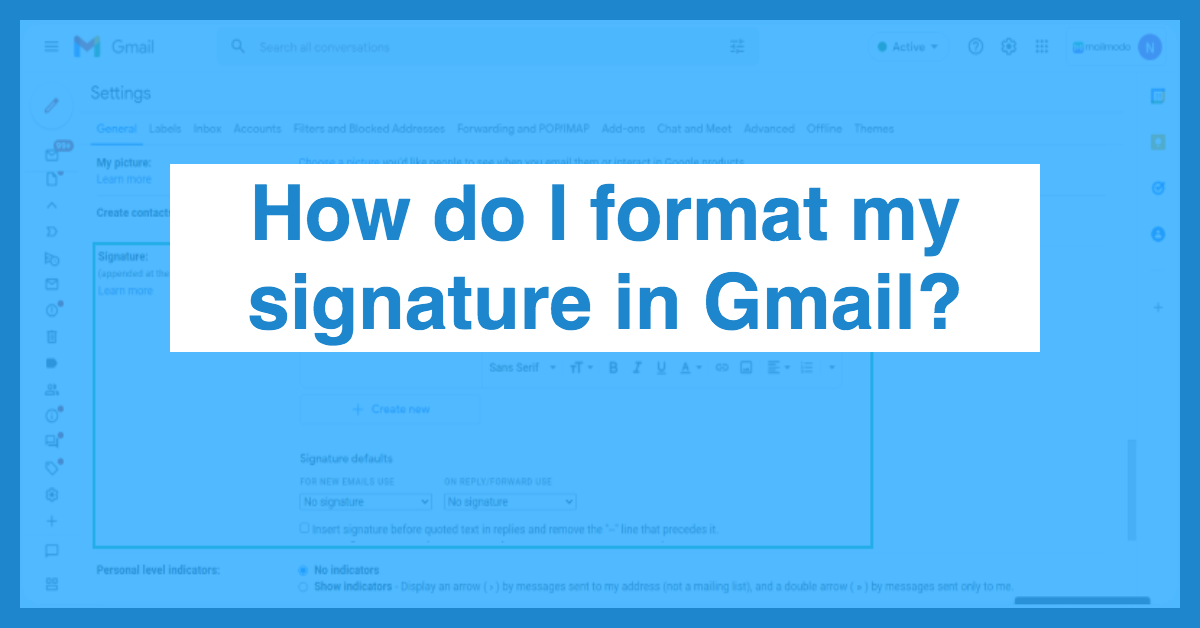
If you use Gmail regularly, having a clear and professional email signature can make your messages look more complete. Your signature can include your name, job title, phone number, website, or other useful information. Gmail lets you create and edit signatures so you can keep your email footer updated.
If you are wondering how to edit signature in Gmail, the process is quite simple. On a computer, you can open Gmail Settings, go to the Signature section, select the signature you want to change, edit the text, and save your changes.
You can also change your mobile signature from the Gmail app. The steps are slightly different on Android and iPhone, but both allow you to edit the signature used when sending emails from the app.
In this guide, we will explain how to edit signature in Gmail step by step. We will also cover how to change the text, add images or links, customize the signature, create multiple signatures, and fix common signature problems.
What Is a Gmail Signature?
A Gmail signature is a block of text, contact information, or other details that can automatically appear at the bottom of your emails. It works like an email footer and can help recipients quickly identify who sent the message. How To Edit Signature In Gmail
You can use a Gmail signature to include your name, job title, phone number, company name, website, or a short message. You can also customize the signature with different text styles, links, and images.
Why Should You Edit Your Gmail Signature?
Your contact information may change over time. For example, you might get a new phone number, change your job title, update your website, or simply want to make your signature look more professional.
Instead of creating a completely new signature, you can simply edit the existing one in Gmail’s settings. Gmail allows you to select the signature you want to change, edit its contents, and save the updated version. How To Edit Signature In Gmail
What Can You Change in a Gmail Signature?
When editing your signature, you can change the text and adjust its appearance. You can also add or update images and links to make the signature more useful.
For example, a simple personal signature could include your name and contact information, while a business signature could include your name, position, company, website, and logo.
Once you save the changes, the updated signature can be used in your new emails or replies according to your Gmail signature settings.
How to Edit Signature in Gmail on a Computer
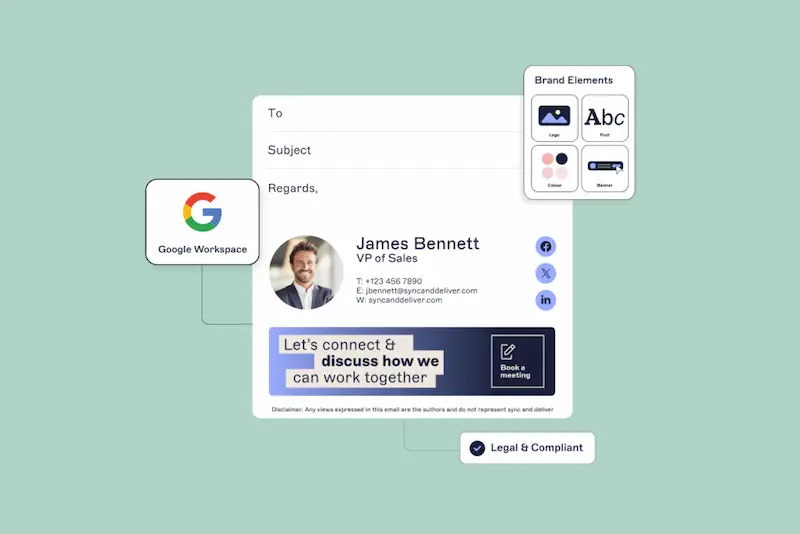
If you want to know how to edit signature in Gmail on your computer, you can change it directly from Gmail’s Settings. The process is simple and only takes a few steps. Gmail allows you to edit the existing signature, change its text and formatting, and then save the updated version. How To Edit Signature In Gmail
Open Gmail Settings
First, open Gmail in your web browser and sign in to your Google account. Once your inbox is open, look at the top-right corner and click the Settings gear icon. How To Edit Signature In Gmail
From the Quick Settings panel, click See all settings. This will open the full Gmail settings page.
Go to the Signature Section
After opening all settings, stay on the General tab and scroll down until you find the Signature section. This is where Gmail stores your existing signatures and provides options for creating and editing them.
If you have more than one signature, you will see the available signatures in the signature list. Select the signature you want to update.
Edit Your Gmail Signature
Once you select the signature, its contents will appear in the editing box. You can change your name, job title, contact information, website, or any other text you have included.
You can also use the available formatting options to adjust the appearance of your signature. Gmail allows you to change text styles and add links or images to the signature.
Save Your Changes
After making your changes, scroll to the bottom of the Gmail Settings page and click Save Changes. Your updated signature will then be saved.
It is important to save your changes before leaving the settings page. Otherwise, your edits may not be applied.
Check Your Updated Signature
After saving, click Compose to start a new email. Check the bottom of the message to see whether your updated signature appears correctly.
If you have different default signatures for new emails and replies, make sure the correct signature is selected in the signature defaults section. Gmail allows you to set different signatures for new messages and replies or forwards. How To Edit Signature In Gmail
How to Edit Signature in Gmail on Mobile
If you usually send emails from your phone, you can also edit your Gmail signature directly from the Gmail app. The steps are slightly different on Android and iPhone, but both versions provide a mobile signature setting.
How to Edit Signature in Gmail on Android
To edit your Gmail signature on an Android phone, open the Gmail app and tap the three-line menu in the top-left corner. Scroll down and select Settings.
Next, choose the Google Account for which you want to change the signature. Look for Mobile signature and tap it. You can then edit the existing signature text or replace it with new information.
After making your changes, tap OK to save the updated mobile signature. The new signature will be used for emails you send from the Gmail app.
How to Edit Signature in Gmail on iPhone
If you use an iPhone or iPad, open the Gmail app and tap the menu icon in the top-left corner. Then tap Settings and select the Gmail account you want to update. How To Edit Signature In Gmail
Under Compose and Reply, tap Signature settings. Turn on Mobile Signature if it is not already enabled, and then edit the signature text.
When you finish editing, tap Back to save your changes. The updated mobile signature will apply to emails sent through the Gmail app.
Mobile Signature vs. Computer Signature
One important thing to remember is that Gmail’s mobile signature settings are handled separately from the signature you create in Gmail on your computer. If you want a different signature when sending emails from your phone, you can edit the mobile signature in the Gmail app. How To Edit Signature In Gmail
For example, you could use a detailed signature with your job title, website, and contact information on your computer, while keeping a shorter signature on your phone. How To Edit Signature In Gmail
Check Your Signature After Editing
After you finish how to edit signature in Gmail on your phone, compose a new email and check the bottom of the message. This lets you confirm that the updated signature appears correctly.
If you use more than one Google Account in the Gmail app, make sure you edit the signature for the correct account. On iPhone and iPad, Google specifically notes that signature settings need to be changed for each account separately. How To Edit Signature In Gmail
How to Change the Text in a Gmail Signature

If you already have a Gmail signature but want to update your name, job title, phone number, website, or other information, you can easily edit the existing signature. Gmail lets you select the signature and make changes directly in the signature editor.
Select the Signature You Want to Change
Open Gmail on your computer and click the Settings gear icon. Select See all settings, then stay on the General tab and scroll down to the Signature section.
If you have multiple signatures, select the one you want to edit. Gmail will display the existing signature in the editing box, where you can make your changes.
Update Your Name and Contact Information
You can replace outdated information with your current details. For example, if your phone number has changed, simply remove the old number and enter the new one.
You can also update your job title, company name, website, social media link, or any other information included in your signature. Keeping these details accurate helps make your emails look more professional.
Change the Signature Style
Gmail also provides formatting options that allow you to change the appearance of your signature. You can adjust text styling and add links or images from the signature editor.
Try to keep your formatting simple and easy to read. A clean signature is usually more useful than one with too many fonts, colors, or design elements.
Save the Updated Signature
Once you finish editing, scroll to the bottom of the Settings page and click Save Changes. Gmail saves the updated signature after you confirm your changes.
After saving, open a new email and check the signature. This is a simple way to make sure your updated information appears correctly.
Edit Your Signature While Writing an Email
If you have multiple signatures, Gmail also allows you to choose a different signature while composing an email. Click the Insert signature option at the bottom of the compose window and select the signature you want to use. How To Edit Signature In Gmail
This can be helpful when you want to use a professional signature for work emails and a shorter signature for personal messages.
How do I edit my signature in Gmail?
Open Gmail, go to Settings, select See all settings, find the Signature section, choose your signature, make your changes, and click Save Changes.
Can I edit my Gmail signature on my phone?
Yes. You can edit a mobile signature through the Gmail app on both Android and iPhone. The exact settings are slightly different depending on your device.
Why is my Gmail signature not updating?
Make sure you save your changes after editing the signature. Then compose a new email and check whether the updated signature appears.
Conclusion
Learning how to edit signature in Gmail is simple once you know where the signature settings are located. On a computer, you can open Gmail Settings, find the Signature section, edit your existing signature, and save the changes.
If you normally send emails from your phone, you can also update your mobile signature through the Gmail app. Android and iPhone users have separate mobile signature settings, so you can keep your signature suitable for the device you use.
A well-organized Gmail signature can make your emails look more professional and keep your contact information up to date. Whenever your name, job title, phone number, website, or other details change, you can return to the signature settings and update them. How To Edit Signature In Gmail
