
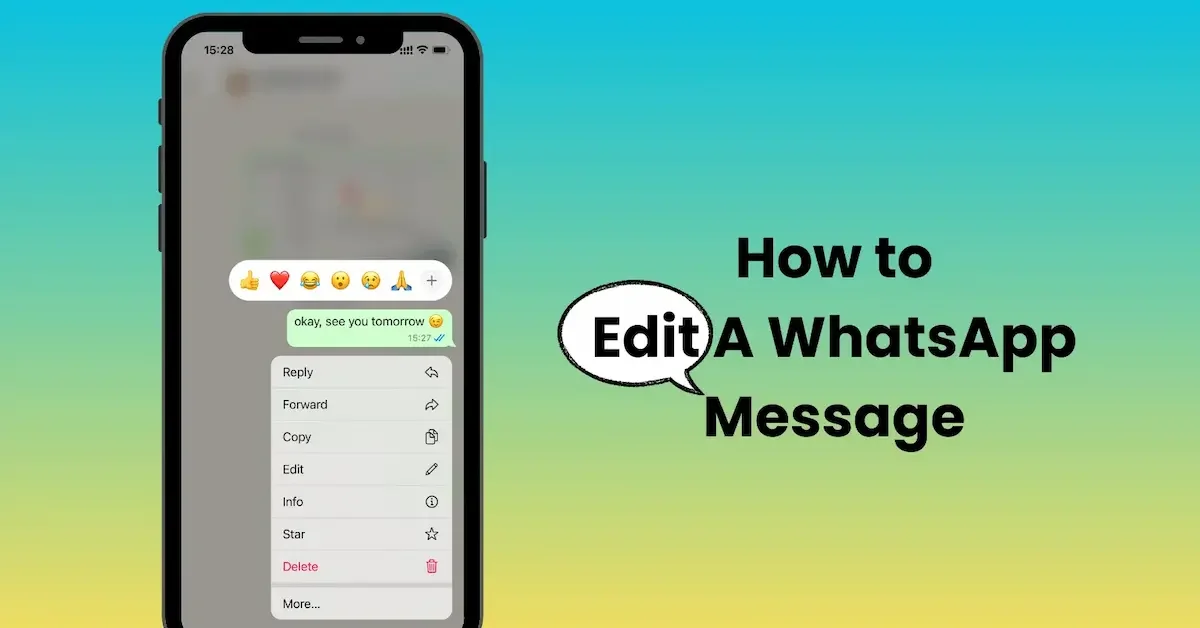
Have you ever sent a WhatsApp message and noticed a spelling mistake right after pressing send? Maybe you entered the wrong word, forgot to add some information, or simply want to make your message clearer. In the past, you would have to delete the message and send it again. Now, WhatsApp makes this much easier with its message editing feature.
If you want to learn how to edit text in WhatsApp, the process is quick and simple. You can change the text of a sent message without deleting the entire message, which can save time and keep your conversations neat.
In this guide, we will explain how to edit WhatsApp messages on Android and iPhone, how long you have to edit a message, what happens after editing, and what you can do if the Edit option is not available.
What Is the WhatsApp Message Edit Feature?
The WhatsApp message edit feature lets you make changes to a message after you have already sent it. It is a useful option when you notice a typing mistake, spelling error, missing word, or incorrect information in your message. Instead of deleting the message and writing a new one, you can quickly correct the existing message.
Why Is the Edit Feature Useful?
Small mistakes can easily happen when you are chatting quickly. You might type the wrong name, enter an incorrect time, or forget to mention an important detail. The Edit feature allows you to fix these mistakes without interrupting the conversation.
For example, if you send a message saying, “I will meet you at 5 PM,” but later realize that the correct time is 6 PM, you can edit the message and change the time. This makes conversations more convenient and organized.
Edit a Message Instead of Deleting It
Before the Edit feature was available, users often had to delete an incorrect message and send it again. This could make the conversation confusing, especially when the other person had already read the original message.
Editing is a simpler option because the corrected message stays in the same place in the chat. You do not need to send a separate correction message for a small mistake.
What Happens After You Edit a WhatsApp Message?
When you edit a sent message, WhatsApp marks it with an “Edited” label. This indicates that the message has been changed after it was originally sent.
The edited version replaces the previous text in the chat. Other people can see the updated message and the Edited label, but they cannot normally see the original text through WhatsApp’s message interface.
What Can You Correct With the Edit Feature?
You can use the feature for many common typing mistakes. For example, you can correct spelling and grammar errors, change a word, add missing information, or fix details such as names, dates, and times.
This makes the feature particularly helpful when you send messages quickly and notice an error immediately afterward.
Is Editing Available for Every WhatsApp Message?
The Edit feature is designed for messages that you have sent yourself. You cannot use it to change another person’s message. There is also a limited period in which a sent message can be edited, so you need to make corrections within WhatsApp’s allowed editing time.
If the editing option is no longer available, you may need to delete the message or send a new correction instead.
Does Editing Delete the Original Message?
No. You do not have to manually delete the message before editing it. When you use the Edit option, WhatsApp changes the text of the existing message and marks it as edited.
This is one of the main reasons why learning how to edit text in WhatsApp is useful. You can quickly correct a message without creating another message in the conversation.
Where Can You Use WhatsApp Message Editing?
Message editing can be useful in everyday personal conversations, work-related chats, family groups, and other WhatsApp conversations. It can help keep messages clear when you need to correct a small mistake.
Whether you accidentally make a typing error or send the wrong information, the Edit feature gives you a quick way to fix the message and keep the conversation easy to understand.
How To Edit Text In Whatsapp
Editing a WhatsApp message is quite simple. If you have sent a message and notice a mistake shortly afterward, you can change the text without deleting the message. The process only takes a few seconds when you know where to find the Edit option. How To Edit Text In Whatsapp
Open the WhatsApp Chat
First, open WhatsApp on your phone and go to the individual or group chat where you sent the message. Make sure you are looking at the message that you want to correct. How To Edit Text In Whatsapp
Select the Message You Want to Edit
Find the message you want to change. On most phones, press and hold the message to select it. A menu with different options will appear.
Look for the Edit option in this menu. If you do not see it, the message may be too old to edit, or your WhatsApp app may need to be updated.
Tap the Edit Option
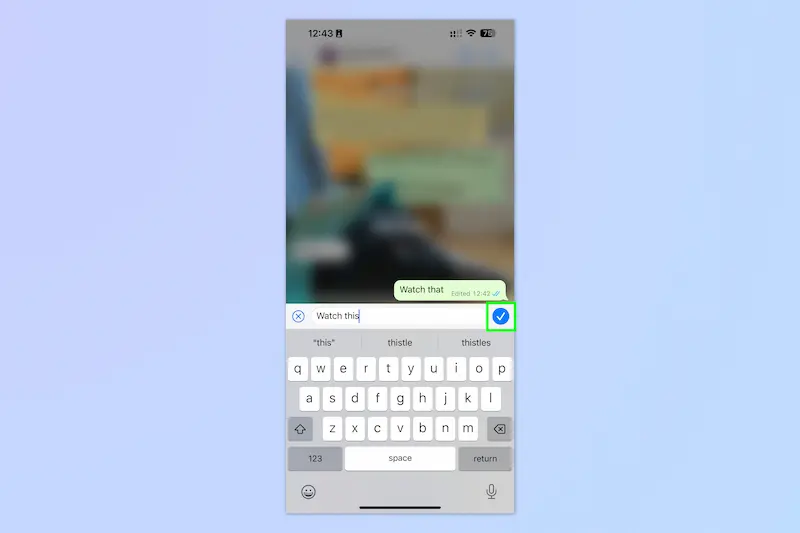
Once you select Edit, WhatsApp will allow you to change the text of your sent message. The existing message will appear in an editing field so you can make the required changes. How To Edit Text In Whatsapp
You can correct a spelling mistake, replace a word, add missing information, or change a detail in the message.
Make the Required Changes
Edit the message carefully and make sure the new text says exactly what you want. You do not need to rewrite the entire message if only one small part is incorrect. How To Edit Text In Whatsapp
For example, if you accidentally write, “I will call you tommorow,” you can edit the word and change it to “tomorrow.”
Save the Edited Message
After making your changes, confirm or save the edited message using the option shown by WhatsApp. The updated text will then appear in the chat. How To Edit Text In Whatsapp
WhatsApp will also display an “Edited” label beside the message. This tells people in the conversation that the message was changed after it was sent.
Check the Message After Editing
It is a good idea to read the edited message once more. This helps you make sure there are no additional spelling mistakes or incorrect details. How To Edit Text In Whatsapp
This is especially important when you are correcting important information such as a meeting time, address, date, phone number, or work-related details.
What If the Edit Option Does Not Appear?
If you cannot find the Edit option, first check whether you are trying to edit your own message. You should also make sure that the message is still within the allowed editing period and that you are using an updated version of WhatsApp. How To Edit Text In Whatsapp
If the editing period has expired, you may need to delete the message or send a new message with the correct information.
Learning how to edit text in WhatsApp can save time and make your conversations much cleaner. Once you use the feature a few times, correcting a sent message becomes a quick and easy process.
How to Edit WhatsApp Messages on Android
If you use WhatsApp on an Android phone, you can easily edit a sent message when you notice a mistake. The feature is useful for correcting spelling errors, changing words, or updating information without deleting the original message.
Open WhatsApp on Your Android Phone
Start by opening the WhatsApp app on your Android device. Go to the individual chat or group conversation where you sent the message you want to correct.
Find the Message You Want to Edit
Scroll through the conversation and find your sent message. Make sure you select the message that you want to change. How To Edit Text In Whatsapp
Press and hold the message for a moment until the message options appear on your screen.
Select the Edit Option
After selecting the message, tap the Edit option from the menu. WhatsApp will open the message so that you can change its text.
If you cannot see the Edit option, check whether the message is still within the allowed editing period. You should also make sure that your WhatsApp app is updated.
Correct the Message
Now make the changes you need. You can remove a spelling mistake, replace a word, add missing information, or correct a detail.
For example, if you sent “I will visit you on Monday” but meant Tuesday, you can edit the message and replace “Monday” with “Tuesday.”
Save Your Changes
Once you have finished editing, confirm the changes using the option provided by WhatsApp. Your updated message will appear in the same place in the conversation. How To Edit Text In Whatsapp
An “Edited” label will appear next to the updated message, letting other people know that the message was changed.
Check Your Edited Message
After saving the changes, read the message again to make sure everything is correct. This is particularly helpful when you are changing important information such as dates, times, locations, names, or numbers.
Learning how to edit text in WhatsApp on Android can make everyday chatting easier and help you quickly fix mistakes without sending another message. How To Edit Text In Whatsapp
How to Edit WhatsApp Messages on iPhone
If you use WhatsApp on an iPhone, editing a sent message is also a simple process. You can correct a typo, change a word, or update information without deleting the entire message. The steps are slightly different in appearance from Android, but the basic process is easy to follow. How To Edit Text In Whatsapp
Open WhatsApp on Your iPhone
Open WhatsApp on your iPhone and enter the individual or group chat where you sent the message you want to change.
Take a moment to find the exact message that needs correction. How To Edit Text In Whatsapp
Press and Hold the Message
Once you find the message, press and hold it. A menu will appear with different options for managing the message.
Look for the Edit option in the menu and tap it to start making changes.
Change the Message Text
The message will become editable, allowing you to correct the text. You can fix spelling mistakes, replace words, add missing information, or change incorrect details.
For example, if you accidentally write, “The meeting is at 3 PM,” when the correct time is 4 PM, you can change the message to show the correct time. How To Edit Text In Whatsapp
Confirm the Edited Message
After making your changes, confirm the edit using the option displayed by WhatsApp. The corrected message will appear in the chat in place of the previous version.
WhatsApp adds an “Edited” label to the message so people can tell that the text was changed after it was sent.
Review the Updated Message
After editing, read the message again to make sure your changes are correct. This can help prevent another mistake, especially when the message contains important information. How To Edit Text In Whatsapp
If you are correcting a date, time, name, address, or other details, double-check everything before finishing.
What If You Cannot Find the Edit Option?
If the Edit option does not appear on your iPhone, there could be several reasons. The message may be outside the allowed editing period, you may have selected someone else’s message, or your WhatsApp application may need an update.
Updating WhatsApp to the latest available version can help ensure that you have access to the latest features.
Knowing how to edit text in WhatsApp on an iPhone can save you from deleting and resending messages whenever you make a small mistake. The process is quick, convenient, and useful for everyday conversations.
How Long Do You Have to Edit a WhatsApp Message

WhatsApp gives you a limited amount of time to make changes to a message after sending it. This is helpful because you can quickly correct mistakes without having to delete the message or send another one.
WhatsApp Message Editing Time Limit
You can edit a sent WhatsApp message for up to 15 minutes after sending it. Once this time has passed, the Edit option will no longer be available for that message. How To Edit Text In Whatsapp
Because of this time limit, it is best to make corrections as soon as you notice a mistake.
What Happens After 15 Minutes?
After the 15-minute editing window has expired, you cannot normally edit that sent message. If you discover a mistake later, you may need to delete the message if that option is available or send a new message with the correct information.
For example, if you notice a spelling mistake several hours after sending a message, you will not be able to use the Edit option for that old message.
Why Does WhatsApp Have an Editing Time Limit?
The time limit helps keep conversations clear and prevents old messages from being changed long after they were sent. It also makes the feature useful for fixing recent mistakes rather than changing the history of a conversation. How To Edit Text In Whatsapp
The 15-minute period is usually enough to correct common errors such as spelling mistakes, missing words, or incorrect details.
What Should You Do If You Miss the Editing Time?
If you miss the editing window, there is no need to worry. You can simply send another message explaining the correction.
For example, if you accidentally send the wrong meeting time, you can send a new message saying that the previous time was incorrect and provide the correct time.
Edit Your Message as Soon as Possible
If you want to know how to edit text in WhatsApp, remember that timing is important. As soon as you notice an error, press and hold your message and look for the Edit option. How To Edit Text In Whatsapp
Making the correction quickly can save you from deleting the message or sending an additional correction message.
How do I edit text in WhatsApp?
To edit text in WhatsApp, open the chat, press and hold the message you sent, and select the Edit option. Make your changes and confirm them. The updated message will show an Edited label.
How long can I edit a WhatsApp message?
WhatsApp allows you to edit a sent message for up to 15 minutes after sending it. After this period, the Edit option is no longer available for that message.
Can I edit a WhatsApp message after sending it?
Yes, you can edit a sent WhatsApp message as long as you are within the allowed editing period. You can correct spelling mistakes, change words, or update information without deleting the message.
Conclusion
Knowing how to edit text in WhatsApp can make your daily conversations much easier. If you accidentally make a spelling mistake, use the wrong word, or send incorrect information, you can quickly edit your sent message instead of deleting it and sending a new one. How To Edit Text In Whatsapp
The process is simple on both Android and iPhone. Just select your sent message, choose the Edit option, make the required changes, and save the updated text. Remember that WhatsApp only allows you to edit a message for a limited time after sending it.
Whether you are chatting with friends, family, coworkers, or participating in a group conversation, the Edit feature is a convenient way to keep your messages clear and accurate. With these simple steps, you can easily learn how to edit text in WhatsApp and correct your messages whenever needed.
