
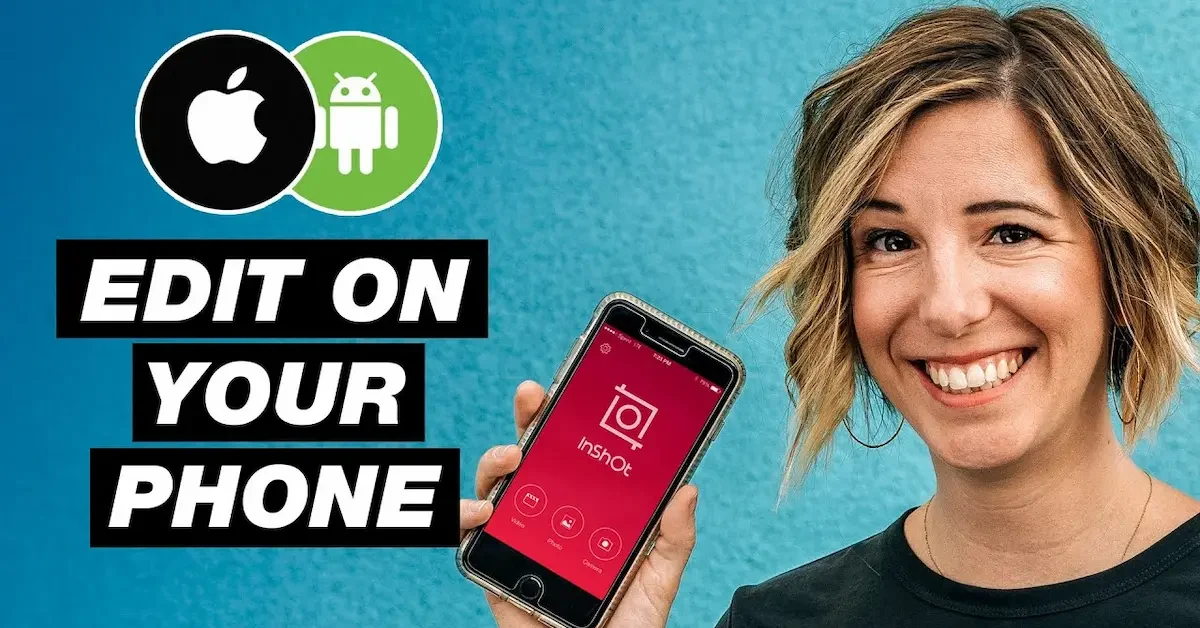
Video editing is no longer limited to computers and professional software. Today, you can create and edit high-quality videos directly from your smartphone. Whether you want to post videos on Instagram, TikTok, YouTube, Facebook, or simply save personal memories, learning how to edit videos on mobile can be very useful.
Mobile video editing is simple and convenient for beginners. With the right app, you can trim unwanted parts, join video clips, add music, insert text, use transitions, apply filters, adjust video speed, and much more. You do not need advanced editing skills to get started.
In this guide, you will learn how to edit videos on mobile step by step in an easy and user-friendly way. We will cover the basic tools, important editing features, helpful tips, common mistakes to avoid, and simple ways to make your videos look more professional.
Whether you use an Android phone or an iPhone, this guide will help you understand the basics of mobile video editing and start creating better videos with confidence.
What Does Editing Videos on Mobile Mean?
Editing videos on mobile means using your smartphone to make changes and improvements to a video. Instead of using a computer, you can use your phone’s built-in editing tools or a video editing app to create a polished video.
Today, mobile video editing is popular because smartphones are easy to use and always available. You can record a video, edit it, and share it on social media without moving the files to a computer.
Basic Mobile Video Editing
Basic video editing includes simple changes that help improve your video. For example, you can trim the beginning or end of a clip, remove unwanted parts, and combine different clips into one video.
These basic tools are easy to learn and are usually enough for simple social media videos and personal content.
Adding Music and Audio
You can add background music, sound effects, or your own voice to make a video more interesting. Music can help create a specific mood, while voiceovers can explain what is happening in the video.
Always make sure the music volume does not cover important speech or sounds in your video.
Adding Text and Captions
Text can help explain your video or highlight important information. You can add titles, names, short messages, or captions directly to the video.
Captions are especially useful because some people watch videos without sound. Clear text can help viewers understand your content even when the audio is turned off.
Using Filters and Effects
Filters can change the overall appearance of your video. You can adjust brightness, contrast, saturation, and colors to improve the look of your clips.
Effects can also add creative elements, but it is best to use them carefully. Too many effects can make a video look distracting.
Combining Multiple Video Clips
Mobile editing apps allow you to combine several clips into one video. You can arrange the clips in the correct order to tell a story or show different moments.
For example, you can combine short clips from a trip, event, product demonstration, or daily activity into one complete video.
Adding Transitions
Transitions help one video clip move smoothly into the next. A simple transition can make your video feel more organized and professional.
However, using too many different transitions can distract viewers. Simple and consistent transitions usually work best.
Adjusting Video Speed
You can make parts of your video faster or slower. Slow motion can highlight an important moment, while fast motion can make a long activity shorter and more interesting.
Speed adjustments can also help improve the overall timing of your video.
Why Mobile Video Editing Is Useful
Learning how to edit videos on mobile gives you the freedom to create content wherever you are. You do not always need a computer or complicated software to make an interesting video.
With a smartphone and the right editing tools, you can create videos for social media, YouTube, school projects, business promotion, travel memories, and personal use. As you practice, you can learn new editing skills and make your videos look better over time.
Things You Need Before Editing Videos on Mobile
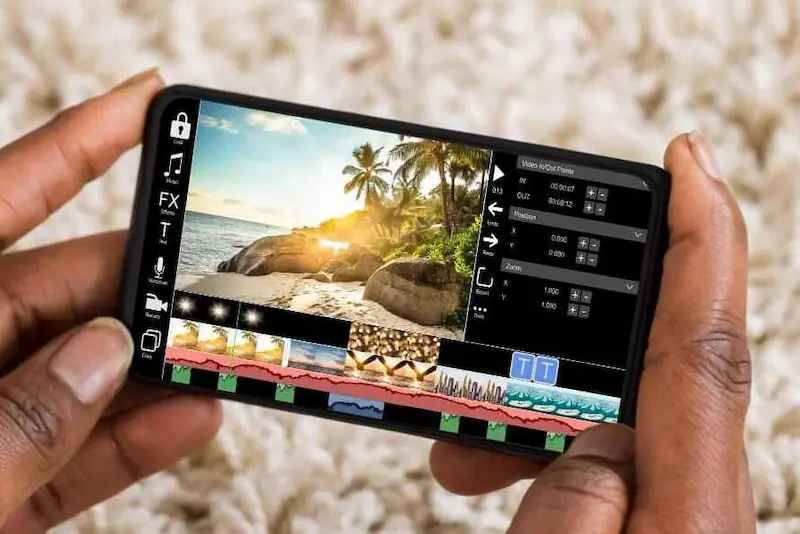
Before you start learning how to edit videos on mobile, it is helpful to prepare a few basic things. Having everything ready can make the editing process faster and easier.
A Smartphone
You need a smartphone that can record and play videos smoothly. Most modern Android phones and iPhones can handle basic video editing without any problem.
If you want to edit long or high-quality videos, a phone with good performance and enough available storage can provide a smoother editing experience.
A Video Editing App
You may use your phone’s built-in video editor for simple changes, but a dedicated video editing app can provide more features. Different apps offer tools for trimming, adding music, text, transitions, filters, captions, and other editing options.
Choose an app that matches your skill level and the type of videos you want to create.
Video Clips and Photos
Before starting your project, collect all the video clips and photos you want to use. Check them first and remove unnecessary files if possible.
Organizing your clips can save time because you will know exactly what content you want to include in the final video.
Enough Storage Space
Video files can use a large amount of storage, especially high-quality videos. Your phone also needs extra space while the editing app processes and exports the final video.
Check your available storage before starting. If your phone is almost full, remove unnecessary files or move important files to a safe backup location.
A Clear Idea or Plan
You do not need a complicated plan, but having a simple idea can make editing easier. Think about the purpose of your video and what message you want to share.
For example, you may want to create a short travel video, a product video, a tutorial, a vlog, or a social media reel. Knowing your goal can help you choose the right clips, music, text, and editing style.
Good Audio Files
If your video needs music, a voiceover, or sound effects, prepare those files before you begin. Make sure you have permission to use any music or audio that is not your own, especially for public or commercial content.
A Stable Internet Connection
An internet connection may be useful if you need to download an editing app, upload videos, access online templates, or use cloud features. However, many basic editing tasks can be completed without an internet connection.
Preparing these things before you start can make how to edit videos on mobile much easier. Once everything is ready, you can begin importing your clips and editing your video step by step.
How to Edit Videos on Mobile Step by Step
Learning how to edit videos on mobile is easier when you follow a simple process. Most mobile video editing apps use similar tools, so the basic steps are almost the same.
Choose a Video Editing App
First, choose a video editing app that is easy to understand and matches your needs. Beginners should start with simple tools for cutting clips, adding text, music, and transitions.
You can use your phone’s built-in editor for basic changes or a dedicated app if you need more editing features.
Create a New Project
Open your chosen editing app and create a new project. Most apps will ask you to select the videos and photos you want to include.
Choose the files you need and make sure you select the correct clips before moving to the editing screen.
Import Your Video Clips
After creating the project, your clips will usually appear on a timeline. The timeline helps you see the order of your videos and makes it easier to edit each part.
You can add more clips later if needed.
Trim and Cut Unwanted Parts
Watch each clip and remove unnecessary sections. You can trim the beginning or end of a video or split a longer clip into smaller parts.
Removing mistakes, long pauses, and unnecessary scenes can make your video more interesting and easier to watch.
Arrange the Clips in the Right Order
Move your video clips into the order that tells your story clearly. Think about how you want the video to begin, what should happen in the middle, and how it should end.
A good sequence helps viewers understand your content without confusion.
Add Music or Audio
Background music can make a video more enjoyable, while a voiceover can help explain important information. Add your audio carefully and adjust the volume so it does not overpower voices or important sounds.
Make sure you have the right to use music in videos that you plan to publish or use commercially.
Add Text and Titles
You can add text to introduce your video, explain important points, or highlight useful information. Keep the text short, clear, and easy to read.
Choose a simple font and make sure the text stays visible long enough for viewers to read it.
Add Captions or Subtitles
Captions can make your video easier to understand, especially for viewers watching without sound. They can also improve accessibility for people who have difficulty hearing the audio.
Review captions carefully to make sure the words are correct and appear at the right time.
Add Transitions
Transitions help connect clips smoothly. Simple transitions such as fades or cuts are often enough for most videos.
Avoid using too many different transition styles because they can make the video feel distracting.
Use Filters and Effects
Filters can improve the mood and appearance of your video. You can also use effects to add creative elements.
Use these features carefully. A simple and natural look is often better than adding too many effects.
Adjust Video Speed
Speed controls allow you to make a clip faster or slower. Slow motion can highlight an important moment, while faster speed can shorten repetitive or long scenes.
Use speed changes only when they improve the story or viewing experience.
Improve Brightness and Colors
If your video looks too dark or dull, use basic adjustment tools to improve brightness, contrast, saturation, and other color settings.
Small adjustments can make a big difference. Avoid extreme changes that make your video look unnatural.
Add a Voiceover
A voiceover can help you explain a tutorial, tell a story, or provide information that is not visible in the video. Record your voice in a quiet place for clearer audio.
Listen to the voiceover before exporting to make sure it is easy to understand.
Preview Your Edited Video
Before saving your final video, watch it from beginning to end. Check for mistakes, incorrect text, sudden audio changes, unnecessary clips, or timing problems.
Making corrections before exporting can save you time later.
Export and Save the Video
Once you are satisfied, export the video in a suitable resolution and quality. The best settings depend on where you plan to share the video.
After exporting, watch the saved video once more to make sure the final file looks and sounds correct.
How to Edit Videos on Android
Editing videos on an Android phone is simple because you can use either the built-in video editing tools or a mobile video editing app. The exact steps may be different depending on your phone model and the app you choose, but the basic process is usually similar.
Use Your Phone’s Built-In Video Editor
Many Android phones include basic editing tools in the Gallery or Photos app. These tools can be useful when you only need to make simple changes.
You may be able to:
- Trim the beginning or end of a video
- Cut unwanted sections
- Rotate the video
- Adjust brightness and colors
- Add simple filters
- Change the video speed
- Add basic music or text on some devices
Built-in tools are a good option for quick editing because you do not need to install another app.
Use a Video Editing App
If you need more features, you can use a dedicated video editing app. These apps often provide tools for adding multiple clips, music, captions, transitions, effects, voiceovers, and advanced adjustments.
Start by creating a new project and selecting the video clips you want to edit. The clips will usually appear on a timeline where you can arrange, trim, and improve them.
Organize Your Video Clips
Before adding too many effects, arrange your clips in the correct order. Remove mistakes and unnecessary sections to keep the video clear and interesting.
A well-organized video often looks better even with simple editing.
Add Music and Text
You can add background music to create a mood or use text to explain important information. Keep the volume balanced so viewers can hear important voices or sounds.
For text, use simple fonts and place the words where they do not cover important parts of the video.
Check the Video Before Exporting
Watch the complete video before saving it. Check the timing, audio, captions, and transitions carefully.
Once everything looks correct, export the video in a suitable quality. For most social media videos, a clear resolution and properly sized format can help your content look better.
Learning how to edit videos on mobile on Android does not require advanced skills. Start with simple tools, practice regularly, and gradually explore more editing features as you become comfortable.
How to Edit Videos on iPhone
Editing videos on an iPhone is simple because iPhones include built-in editing tools, and you can also use dedicated video editing apps for more advanced features. Whether you want to make a quick change or create a complete social media video, you can do much of the work directly from your phone.
Use the Built-In Photos App
The Photos app allows you to make basic changes to your videos. You can trim the beginning or end of a clip, adjust some visual settings, and make simple improvements.
Open the video in the Photos app and tap the Edit option. Review the available tools and make the changes you need. When finished, save your edited version.
Use a Mobile Video Editing App
For more control, you can use a dedicated video editing app on your iPhone. These apps can provide features such as:
- Combining multiple clips
- Cutting and splitting videos
- Adding music
- Adding text and titles
- Creating captions
- Adding transitions How To Edit Videos On Mobile
- Applying filters and effects
- Adjusting video speed
- Recording voiceovers
The basic process is similar to other mobile devices. Create a project, import your clips, edit them on the timeline, preview the video, and export the final version. How To Edit Videos On Mobile
Organize Your Videos Before Editing
If you have many clips, organize them before starting your project. Review your videos and select only the clips you need. How To Edit Videos On Mobile
This can save time and make your editing process more organized.
Choose the Right Video Format
Think about where you plan to share your video. Vertical videos are commonly used for short-form social media content, while horizontal videos may work better for traditional videos and some YouTube content.
Choosing the right format before editing can prevent unnecessary cropping later.
Check Storage and Battery
High-quality videos can take up significant storage space. Before starting a large project, make sure your iPhone has enough free storage for the original clips and the final exported video. How To Edit Videos On Mobile
It is also helpful to have enough battery power, especially when exporting longer videos.
Preview Before Saving
Always watch your video before exporting it. Check that the clips are in the correct order, the text is easy to read, and the music or voice is balanced.
Learning how to edit videos on mobile with an iPhone becomes easier when you start with basic tools and practice regularly. Over time, you can explore more advanced editing features and develop your own editing style.
Best Video Editing Features to Learn on Mobile
When you are learning how to edit videos on mobile, you do not need to understand every tool at once. Start with the basic features that can make the biggest difference in your videos. How To Edit Videos On Mobile
Cutting and Trimming
Cutting and trimming are two of the most important video editing skills. Trimming helps you remove unwanted parts from the beginning or end of a video, while cutting or splitting allows you to divide a long clip into smaller sections. How To Edit Videos On Mobile
Removing unnecessary scenes, mistakes, long pauses, and repeated footage can make your video shorter and more engaging.
Combining Video Clips
You can combine multiple video clips to create one complete video. This feature is useful for travel videos, vlogs, tutorials, event videos, and social media content. How To Edit Videos On Mobile
Arrange the clips in a logical order so viewers can easily understand the story or message of your video.
Adding Music
Background music can make a video feel more interesting and emotional. Choose music that matches the mood and purpose of your content. How To Edit Videos On Mobile
Keep the music volume balanced, especially when your video includes speech or a voiceover. Always use audio you have permission to use. How To Edit Videos On Mobile
Adding Text and Titles
Text can introduce your topic, explain important information, or highlight key points. For example, you can add a title at the beginning of your video or use short text to explain each step in a tutorial.
Use simple fonts and make sure the text is easy to read on a mobile screen. How To Edit Videos On Mobile
Adding Captions
Captions display spoken words as text on the screen. They are useful because many people watch social media videos without turning on the sound. How To Edit Videos On Mobile
Check your captions carefully for spelling mistakes and timing errors before exporting your video.
Using Transitions
Transitions help one clip move into the next. Simple transitions such as fades can make your video look smooth and organized.
Avoid adding a different transition between every clip. Consistent and simple editing usually creates a better viewing experience.
Using Filters and Effects
Filters can change the overall appearance of your video, while effects can add creative elements. You can use them to create a specific mood or style. How To Edit Videos On Mobile
Try not to overuse effects. A natural and clean video often looks more professional.
Adjusting Video Speed
Speed controls allow you to create slow-motion or fast-motion effects. Slow motion can highlight important moments, while fast motion can make long activities shorter and more interesting.
Use speed adjustments when they improve the story of your video. How To Edit Videos On Mobile
Adjusting Brightness and Colors
Poor lighting can make a good video look less appealing. Basic editing tools can help you adjust brightness, contrast, shadows, and colors. How To Edit Videos On Mobile
Make small changes and preview the results to avoid making your video look unnatural.
Adding Voiceovers
A voiceover allows you to explain what is happening in the video. This is useful for tutorials, educational content, product demonstrations, and storytelling videos. How To Edit Videos On Mobile
Record your voice in a quiet environment and speak clearly. You can also adjust the voiceover volume during editing. How To Edit Videos On Mobile
Learning these basic features will give you a strong foundation for how to edit videos on mobile. Once you feel comfortable with these tools, you can explore more advanced features and develop your own editing style.
Tips for Editing Better Videos on Mobile
Learning how to edit videos on mobile is not only about using editing tools. A few simple habits can make your videos look cleaner, more professional, and more enjoyable to watch. How To Edit Videos On Mobile
Start With a Clear Plan
Before editing, think about the purpose of your video. Decide what message you want to share and who will watch it.
A simple plan can help you choose the right clips and avoid making your video too long or confusing.
Keep Your Video Short and Focused
Try to include only the parts that are useful or interesting. Long pauses, repeated scenes, and unnecessary clips can make viewers lose interest. How To Edit Videos On Mobile
Remove anything that does not add value to your video.
Use Good Quality Video Clips
Editing can improve a video, but it cannot always fix poor-quality footage. Try to record videos in good lighting and keep your phone as steady as possible. How To Edit Videos On Mobile
Clear original clips usually produce better final results.
Keep the Audio Clear
Good audio is just as important as good visuals. Make sure voices are easy to hear and background music is not too loud. How To Edit Videos On Mobile
If possible, record voiceovers in a quiet place to reduce unwanted background noise.
Use Simple Transitions
Simple cuts and smooth transitions often look better than too many dramatic effects. Use transitions only when they help connect scenes naturally.
Keeping your editing style consistent can make your video look more professional.
Use Text Carefully
Add text only when it provides useful information. Keep it short, readable, and large enough for people watching on small screens.
Avoid placing important text where social media buttons or interface elements may cover it.
Choose Music That Matches the Video
The right music can improve the mood of your video. For example, calm music may work well for relaxing content, while energetic music may suit a fast-paced video. How To Edit Videos On Mobile
Always make sure you have permission to use the music, especially for public or commercial videos.
Keep Colors Natural
Use color adjustment tools carefully. Small changes to brightness, contrast, and saturation can improve your clips. How To Edit Videos On Mobile
Avoid using extreme filters that make skin tones, objects, or backgrounds look unnatural.
Watch Your Video Before Exporting
Always preview your complete video before saving it. Look for spelling mistakes, incorrect clip order, sudden volume changes, or other problems. How To Edit Videos On Mobile
A final review can help you fix small mistakes before sharing the video.
Practice Regularly
The best way to improve your mobile editing skills is to practice. Start with short and simple videos, then gradually try new tools and techniques.
The more you practice how to edit videos on mobile, the easier it becomes to create videos that match your style and purpose. How To Edit Videos On Mobile
How to Make Videos Look Professional on Mobile
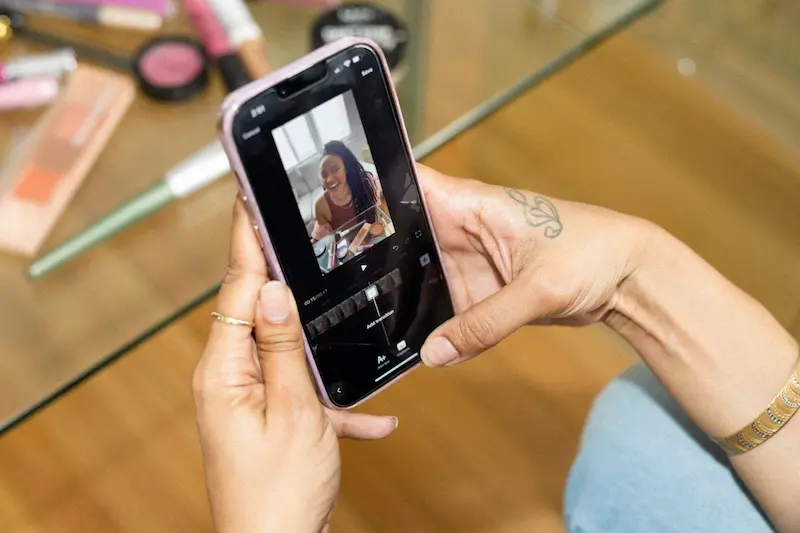
You do not need expensive equipment or a computer to create a professional-looking video. With good planning, quality clips, and simple editing techniques, you can improve your videos directly from your smartphone.
Start With a Clear Story
Before you begin editing, decide what you want your video to communicate. A clear beginning, middle, and ending can make your content easier to follow.
For example, a tutorial can start by introducing the topic, show the main steps in the middle, and end with a short summary. How To Edit Videos On Mobile
Use High-Quality Video Clips
Try to record your original videos in good lighting and at a suitable quality. Keep your camera lens clean and avoid recording in very dark places when possible.
Clear and stable footage gives you a better starting point for editing.
Keep Your Editing Style Simple
A professional video does not need too many effects. Use clean cuts, simple transitions, and consistent text styles. How To Edit Videos On Mobile
Using the same fonts, text sizes, and overall style throughout the video can make it look more organized.
Improve Audio Quality
Clear audio can greatly improve the viewing experience. If your video includes speaking, make sure the voice is easy to hear.
Reduce unnecessary background noise when possible and keep background music at a lower volume than important speech. How To Edit Videos On Mobile
Use Consistent Colors
Try to keep the brightness and colors similar across different clips. If one clip is very dark and another is very bright, the video may look inconsistent.
Basic color adjustments can help create a more balanced and professional appearance.
Add Text That Is Easy to Read
Use simple fonts and avoid adding too much text at one time. Make sure viewers have enough time to read each message.
Keep important text away from the edges of the screen so it is less likely to be covered by buttons on social media platforms. How To Edit Videos On Mobile
Choose the Right Video Format
Select the format based on where you plan to share your video. Vertical videos are commonly used for mobile-focused short videos, while horizontal videos can work better for traditional video content.
Planning the format before editing can help you avoid unwanted cropping. How To Edit Videos On Mobile
Focus on Good Timing
Keep each scene on screen long enough for viewers to understand what is happening. At the same time, avoid keeping unimportant clips for too long.
Good timing can make a video feel smooth and keep viewers interested. How To Edit Videos On Mobile
Add Captions When Helpful
Captions can help viewers understand your video when they cannot listen to the audio. They are especially useful for tutorials, educational videos, interviews, and social media content.
Review captions before publishing to check spelling and timing.
Keep Practicing Your Editing Skills
Creating professional-looking videos takes practice. Each project can help you learn what works well and what needs improvement.
As you continue learning how to edit videos on mobile, you will become more comfortable with different editing tools and develop a style that works best for your content. How To Edit Videos On Mobile
How can I edit videos on mobile?
You can edit videos on mobile by using your phone’s built-in editing tools or a video editing app. Import your video, trim unwanted parts, arrange clips, add music or text, preview the result, and export the finished video.
Which app is best for editing videos on mobile?
The best app depends on your needs and experience. Beginners can start with an app that offers simple tools such as trimming, text, music, transitions, captions, and filters.
Can I edit videos on my phone without a computer?
Yes. Modern smartphones can handle many video editing tasks without a computer. You can record, edit, and share videos directly from your phone.
Conclusion
Learning how to edit videos on mobile is easier than ever. With a smartphone and a suitable editing app, you can trim clips, add music, insert text, create captions, use transitions, adjust colors, and improve your videos without needing a computer.
If you are a beginner, start with simple edits and focus on making your videos clear and enjoyable. As you practice, you can gradually explore more advanced features and develop your own editing style.
The key is to keep your editing simple, use good-quality footage, pay attention to audio, and always preview your video before sharing it. With regular practice, your mobile phone can become a useful tool for creating impressive videos for social media, YouTube, work, or personal memories.
