
WhatsApp Status is a simple way to share photos, videos, text, and updates with your friends and family. Sometimes, you may want to make a few changes before sharing a Status, such as cropping a photo, adding text, using emojis, trimming a video, or changing the background. Knowing how to edit WhatsApp status can help you make your updates look more attractive and personal.
WhatsApp provides several built-in editing options that you can use before posting your Status. You can add captions, stickers, drawings, emojis, and other creative elements to your photos and videos. If you have already posted a Status and notice a mistake, you generally cannot edit that same Status directly. Instead, you can delete it and upload the corrected version.
In this guide, we will explain how to edit WhatsApp status step by step. You will also learn how to edit photos, videos, and text, add emojis and stickers, delete and repost a Status, and make your updates look better.
Can You Edit WhatsApp Status After Posting?
If you have already posted a WhatsApp Status and then notice a mistake, you may wonder if you can edit it directly. At the moment, WhatsApp does not generally provide a direct editing option for a Status that has already been posted. This means you cannot simply open the published Status, change the text or edit the photo, and save the changes.
However, there is an easy solution. You can delete the existing Status and create a new one with the changes you want. For example, if you posted a photo with the wrong caption, you can remove that Status, edit the photo or caption, and upload it again. How To Edit Whatsapp Status
Why Can’t You Edit a Posted Status?
WhatsApp provides most of its Status editing tools before you share the update. Once the Status is published, the content is already visible to the people included in your Status privacy settings. Because of this, there is no normal edit button for changing the published content.
How to Correct a WhatsApp Status
If you need to correct your Status, follow these simple steps:
Open WhatsApp and go to the Updates or Status section. Find the Status you want to change and delete it. After removing it, create the Status again using the correct photo, video, or text. Use the available editing tools, preview your update, and post it again. How To Edit Whatsapp Status
This is the easiest method when you are learning how to edit WhatsApp status after it has already been shared. It also gives you a chance to check everything carefully before posting the corrected version.
How to Edit WhatsApp Status Before Posting
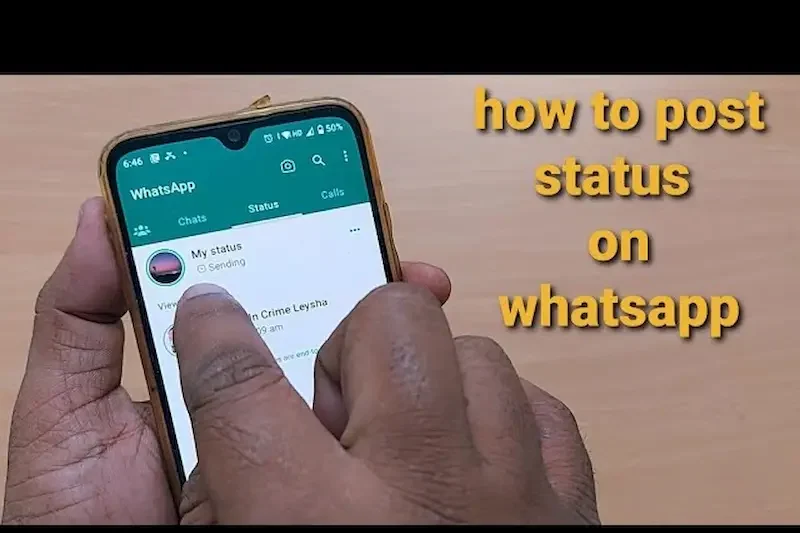
Editing your WhatsApp Status before posting is simple because WhatsApp provides several useful tools on the Status screen. You can make changes to a photo, video, or text update before sharing it with your contacts. This allows you to remove unwanted parts, add text, use emojis, or make your Status more attractive.
Open WhatsApp Status
First, open WhatsApp on your Android phone or iPhone and go to the Updates or Status section. Tap the option to create a new Status and select the photo or video you want to share from your phone’s gallery. You can also choose the camera option if you want to take a new photo or record a video. How To Edit Whatsapp Status
Use the Editing Tools
After selecting your photo or video, WhatsApp will show different editing options. Depending on your app version, you may be able to crop the image, rotate it, add text, draw on it, use emojis or stickers, and add a caption. For videos, you can also trim the clip before posting. How To Edit Whatsapp Status
Preview Your Status
Take a moment to check your Status before sharing it. Make sure the text is readable, the photo is properly positioned, and the video contains only the part you want to show. This small check can help you avoid deleting and reposting the Status later. How To Edit Whatsapp Status
Post the Edited Status
Once you are happy with your changes, tap the Send button to publish your Status. Your edited photo, video, or text will then be shared according to your WhatsApp Status privacy settings. How To Edit Whatsapp Status
Learning how to edit WhatsApp status before posting gives you more control over how your updates look. With a few simple edits, you can turn an ordinary photo or video into a cleaner and more interesting Status.
How to Edit a Photo for WhatsApp Status
Photos are one of the most common types of WhatsApp Status updates. Before posting a photo, you can use WhatsApp’s built-in editing tools to make it more attractive, remove unwanted areas, or add a personal touch. You do not always need a separate photo editing app for simple changes. How To Edit Whatsapp Status
Select a Photo
Open WhatsApp and go to the Updates or Status section. Tap the option to create a new Status and choose a photo from your phone’s gallery. You can also take a new picture using the camera option.
Crop or Rotate the Photo
After selecting the photo, use the crop tool to remove unwanted areas or adjust how the image appears on the Status screen. You can also rotate the photo if it was saved in the wrong orientation. Cropping can help you focus attention on the most important part of the picture. How To Edit Whatsapp Status
Add Text to the Photo
You can add a short message, quote, name, or other text to your photo. WhatsApp allows you to position the text where you want it and customize its appearance using the available options. Keep the text short so that it does not cover the main subject of your photo. How To Edit Whatsapp Status
Add Emojis or Stickers
Emojis and stickers can make a photo Status more fun and expressive. Choose an emoji or sticker and place it on the image. Try to use them carefully so the photo does not look too crowded.
Draw on the Photo
WhatsApp also provides a drawing tool that lets you write or highlight parts of an image. You can use it to circle something, add a simple design, or give the photo a creative look.
Add a Caption
Before posting, you can add a caption to explain your photo or share a short message with your contacts. A simple and relevant caption can make your Status more interesting.
Preview Before Posting
Once you finish editing, check the complete photo carefully. Make sure the text is readable, stickers are in the right place, and nothing important is hidden. When everything looks good, tap the Send button to share your edited photo as a WhatsApp Status.
These simple tools make how to edit WhatsApp status much easier, especially when you only need quick edits before sharing a photo.
How to Edit a Video for WhatsApp Status
WhatsApp lets you make simple edits to a video before sharing it as a Status. You can choose the part of the video you want to share, add text or emojis, and include a caption. These built-in tools are useful when you want to quickly prepare a video without using another editing app.
Select the Video
Open WhatsApp and go to the Updates or Status section. Choose the option to create a new Status and select the video you want to edit from your phone’s gallery. How To Edit Whatsapp Status
Trim the Video
After selecting the video, use the trimming tool to choose the section you want to share. Move the handles at the beginning or end of the timeline to remove unwanted parts. Trimming is useful when the original video is longer than the portion you want to show.
Add Text to the Video
You can add a message, quote, title, or other text to your video. Place the text where it is easy to see and make sure it does not cover an important part of the video. How To Edit Whatsapp Status
Add Emojis or Stickers
WhatsApp also allows you to add emojis and stickers to your Status. You can use them to make the video more expressive or fun. Try not to add too many elements because they can make the video look crowded.
Add a Caption
Before posting, you can write a short caption for your video. A simple caption can give your contacts more context about what you are sharing. How To Edit Whatsapp Status
Check the Video Before Posting
Preview the edited video to make sure the correct section is selected and all added elements are positioned properly. If everything looks good, tap the Send button to publish it as your WhatsApp Status.
If you are learning how to edit WhatsApp status, these basic video editing options can help you create a clean and engaging Status directly inside WhatsApp.
How to Edit Text WhatsApp Status
A text WhatsApp Status is a simple way to share a thought, quote, announcement, or short message without uploading a photo or video. You can customize the text and background before posting to make your Status look more interesting. How To Edit Whatsapp Status
Open the Text Status Option
Open WhatsApp and go to the Updates or Status section. Choose the option to create a new Status and select the text option. A screen will appear where you can type the message you want to share. How To Edit Whatsapp Status
Write Your Status
Type your message in the text area. You can share a short quote, a personal thought, a question, or any other message you want your contacts to see. Try to keep the text clear and easy to read. How To Edit Whatsapp Status
Change the Text Style
WhatsApp provides different text formatting or font-style options depending on the version of the app. You can use the available style options to give your message a different appearance. Choose a style that matches the mood of your Status. How To Edit Whatsapp Status
Change the Background
You can also customize the background of a text Status using the available color options. Select a background that provides enough contrast with your text so that the message remains easy to read.
Add Emojis
If you want to make your text Status more expressive, you can add emojis. Use a few relevant emojis instead of filling the entire Status with them. This keeps the update clean and easy to understand.
Check the Status Before Posting
Read your message once before sharing it. Check for spelling mistakes, make sure the background looks suitable, and confirm that the text is positioned correctly. When you are satisfied, tap the Send button to publish your Status. How To Edit Whatsapp Status
Can I edit a WhatsApp Status after posting?
WhatsApp generally does not offer a direct option to edit a Status after it has been posted. If you need to make changes, you can delete the existing Status, edit the content, and post it again.
How do I edit WhatsApp Status before posting?
Select a photo, video, or text for your Status and use the available editing tools. You can crop photos, trim videos, add text, emojis, stickers, drawings, and captions before posting.
Can I edit the text on an existing WhatsApp Status?
You cannot normally change the text of a Status that has already been posted. The easiest option is to delete the old Status, create a new one, and add the corrected text.
Conclusion
Learning how to edit WhatsApp status is easy when you know where to find the built-in editing tools. Before posting, you can customize photos, videos, and text by adding captions, emojis, stickers, drawings, and other available options. You can also crop photos and trim videos to make your Status look cleaner and more attractive. How To Edit Whatsapp Status
If you notice a mistake after posting, WhatsApp generally does not allow you to directly edit the existing Status. The easiest solution is to delete the old Status, make the required changes, and post it again.
Whether you use Android or iPhone, taking a few moments to edit and preview your Status can help you share better-looking updates with your contacts. By following these simple steps, you can easily create and edit WhatsApp Status updates according to your style.
