
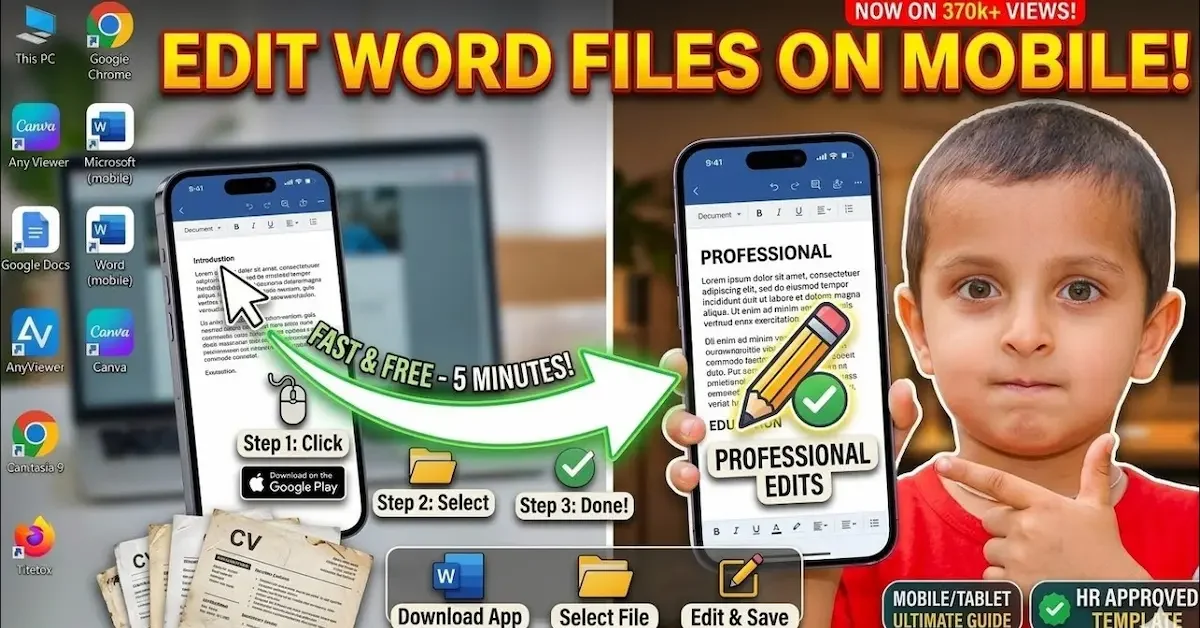
Today, you do not always need a computer or laptop to make changes to a document. If you have a Word file that needs a quick correction, you can easily edit it using your mobile phone. Whether you need to update a school assignment, correct a work document, add information, or make small changes to an important file, your smartphone can handle the task.
If you are wondering how to edit Word file in mobile, the process is quite simple. You can use apps such as Microsoft Word or Google Docs to open, edit, format, and save Word documents directly on your Android phone or iPhone. These apps provide useful editing tools that make working with documents much easier on a small screen.
In this guide, we will explain how to edit Word file in mobile step by step. You will learn how to open a Word file, change or delete text, format content, add images, save the edited document, and share it with others. By the end, you will be able to edit your Word files from your phone without depending on a computer.
Why Edit Word Files on Mobile?
Editing Word files on a mobile phone is useful when you do not have access to a computer. You can make quick changes while traveling, at work, at school, or even from home. A smartphone lets you correct mistakes, add information, update documents, and share the finished file without needing a laptop.
Mobile editing is also helpful when someone sends you a document through WhatsApp or email and asks you to make changes. Instead of downloading the file to a computer, you can open it on your phone, edit it, save the changes, and send it back within a few minutes. How To Edit Word File In Mobile
What Do You Need to Edit a Word File on Mobile?
You mainly need a smartphone and a suitable document-editing app. Android and iPhone users can choose from several apps that support Word documents. Microsoft Word is one of the most commonly used options, while Google Docs can also be useful for opening and editing compatible Word files.
You should also have enough storage space on your phone to download and save the document. For files stored online, such as in cloud storage, an internet connection may be needed to access or synchronize your changes. How To Edit Word File In Mobile
Can You Edit a Word File on Android?
Yes, you can edit a Word file on an Android phone. You can install a compatible Word-processing app from the Google Play Store and use it to open your document. After opening the file, you can change text, add new content, adjust formatting, and save the edited version. How To Edit Word File In Mobile
The exact editing options may depend on the app you use and the type of document. Simple documents are generally easy to edit, while files containing advanced formatting, complicated tables, or special features may work better on a computer. How To Edit Word File In Mobile
Can You Edit a Word File on iPhone?
Yes, iPhone users can also edit Word documents directly from their phones. You can open a DOC or DOCX file using a compatible document-editing app and then make the required changes. How To Edit Word File In Mobile
You can receive a Word file through email, messaging apps, cloud storage, or your phone’s Files app. Once the document is open, you can edit the content and save the updated version for later use or sharing.
What Can You Change in a Word File on Mobile?
A mobile Word-processing app can provide many useful editing features. Depending on the app and document, you may be able to add or remove text, correct spelling mistakes, change fonts, adjust text size, apply bold or italic formatting, add images, and work with tables. How To Edit Word File In Mobile
You can also make basic layout changes and organize the document so that it looks cleaner and easier to read. For everyday editing tasks, a mobile phone can be enough without requiring a computer.
Is It Free to Edit Word Files on Mobile?
Some apps allow basic Word document editing for free, while certain advanced features may require a subscription or account. The available features can also vary depending on the device, app, and document.
If you only need to make simple changes, you may not need advanced tools. Before choosing an app, check which editing features are available for free and whether they support the type of Word file you need to edit. How To Edit Word File In Mobile
Things to Check Before Editing a Word File
Before making changes, it is a good idea to create a copy of an important document. This helps protect the original file in case you accidentally remove information or change its formatting.
You should also check whether the document is read-only or protected. If you cannot type or make changes, the file may have editing restrictions. In that situation, you may need permission from the document owner or the appropriate password to make changes. How To Edit Word File In Mobile
How to Edit Word File in Mobile Using Microsoft Word

Microsoft Word is one of the easiest options when you want to edit a Word document on your smartphone. The app is available for both Android and iPhone, and it provides many useful tools for making changes to your documents. How To Edit Word File In Mobile
Install the Microsoft Word App
First, install the Microsoft Word app on your mobile phone from your device’s official app store. After installing it, open the app and sign in with your Microsoft account if the app asks you to do so.
Once the app is ready, you can access Word documents stored on your phone or in supported cloud storage services. How To Edit Word File In Mobile
Open Your Word File
Find the Word document you want to edit. You can open a file saved on your phone, downloaded from the internet, or received through an app such as WhatsApp or email.
Tap the document and select Microsoft Word when your phone asks which app you want to use. The document will open in Word, where you can view its contents.
Start Editing the Document
After opening the file, tap the Edit option or tap inside the document to begin making changes. You can place the cursor wherever you want to add or remove text.
You can type new words, correct spelling mistakes, remove unwanted sentences, or replace existing information. The editing tools are usually displayed on the screen or inside the toolbar. How To Edit Word File In Mobile
Format the Text
Microsoft Word also allows you to format text from your mobile. You can select a word, sentence, or paragraph and change its font style, size, color, alignment, or other formatting options.
You can also use options such as Bold, Italic, and Underline to make important information stand out.
Save the Edited Word File
After making your changes, save the document so you do not lose your work. Depending on your version of the app, changes may be saved automatically, or you may need to use the Save option.
If you want to keep the original document unchanged, save the edited version with a different file name. This gives you a backup of the original file and a separate copy containing your changes.
How to Open a Word File on Your Mobile

Before you can edit a Word document, you first need to open it on your phone. The process is simple, whether the file is already saved on your device or you received it through WhatsApp, email, or another app. How To Edit Word File In Mobile
Open a Word File From Your Phone Storage
If the Word file is already saved on your mobile, open the Files or File Manager app. Browse through your folders and find the document you want to edit. Word files usually have a .doc or .docx extension.
Tap the file and choose a compatible document-editing app, such as Microsoft Word. Once the document opens, you can select the editing option and start making changes.
Open a Word File From WhatsApp
Sometimes you may receive a Word document through WhatsApp. First, download the document to your phone by tapping the file. After it finishes downloading, open it and select Microsoft Word or another compatible app.
Once the document is open, you can edit the text, add information, or make other changes. Remember to save the edited file before closing the app. How To Edit Word File In Mobile
Open a Word File From Email
If someone sends you a Word document by email, open the email and tap the attached file. Your phone may give you several options for opening the document. Select a Word-processing app that supports DOC or DOCX files.
After the file opens, you can begin editing it. If you need to keep the original version, save the edited document as a separate copy. How To Edit Word File In Mobile
What to Do If the Word File Does Not Open
If your Word file does not open, check whether you have a suitable document-editing app installed on your phone. You should also make sure the file has finished downloading and is not damaged.
If the problem continues, try opening the document with another compatible app or ask the person who sent the file to send it again. For important documents, avoid using unknown apps that could put your files or personal information at risk.
Can I edit a Word file on my mobile phone?
Yes, you can edit a Word file directly on your mobile phone. You can use Microsoft Word, Google Docs, or another compatible document-editing app to open and modify DOC or DOCX files.
How to edit Word file in mobile without a computer?
You can edit a Word file without a computer by installing a document-editing app on your smartphone. Open the Word file in the app, make your changes, and save the updated document on your phone.
Can I edit a Word file on Android?
Yes, Android users can easily edit Word documents using Microsoft Word or other compatible apps. You can change text, format content, add images, and save the edited document.
Conclusion
Editing a Word document on your phone is a simple and convenient way to manage your files when you do not have access to a computer. Whether you use Android or iPhone, you can open, edit, format, save, and share Word documents with the help of a suitable mobile app.
If you were looking for how to edit Word file in mobile, Microsoft Word and other document-editing apps can make the process easy. You can correct text, add new information, insert images, change formatting, and save the updated file directly on your smartphone.
For important documents, always keep a backup of the original file before making major changes. With the right app and a few simple steps, you can edit your Word files anytime and from almost anywhere using your mobile phone. How To Edit Word File In Mobile
