LATEST POST'S

    Best Laptop for Adobe Creative Cloud (2026 Guide)

    16 Apr 2026

    GIMP Pixel Art – Complete Beginner to Pro Guide

    15 Apr 2026

    Best Photo App – Complete Guide to Choosing the Right One

    14 Apr 2026
    Facebook Twitter Instagram Pinterest YouTube WhatsApp
    Facebook Twitter Instagram Pinterest YouTube WhatsApp
    Aarya Editz
    • Homepage
    • Adobe Lightroom
    • Adobe Photoshop
    • Creative Photo Effects
    • Mobile Editing Apps
    • Portrait Retouching
    • Caption
    • Blog
    Aarya Editz
    Home»Blog»GIMP Pixel Art – Complete Beginner to Pro Guide
    Blog

    GIMP Pixel Art – Complete Beginner to Pro Guide

    Rabia AlamBy Rabia Alam15 Apr 2026No Comments4 Mins Read
    Facebook Twitter Pinterest LinkedIn Tumblr Email WhatsApp
    gimp pixel art
    Share
    Facebook Twitter LinkedIn Pinterest Email WhatsApp

    Table of Contents

    Toggle
    • What is Pixel Art?
    • Why Use GIMP for Pixel Art?
    • Setting Up GIMP for Pixel Art
      • 1. Create a New Canvas
      • 2. Enable Grid
      • 3. Disable Anti-Aliasing
    • Essential Tools in GIMP
      • Pencil Tool
      • Bucket Fill Tool
      • Eraser Tool
      • Zoom Tool
    • How to Create Pixel Art Step-by-Step
      • Step 1: Sketch Outline
      • Step 2: Add Base Colors
      • Step 4: Clean Edges
      • Step 5: Add Details
    • Color Tips for Better Pixel Art
    • Pixel Art Styles You Can Create
    • Advanced GIMP Pixel Art Techniques
      • Dithering
      • Palette Optimization
      • Animation
    • Exporting Pixel Art Correctly
    • Common Mistakes to Avoid
    • Pro Tips for Beginners
    • Final Thoughts
    • FAQs
      • 1. Is GIMP good for pixel art?
      • 2. What size should beginners start with?
      • 3. Can I animate pixel art in GIMP?
      • 4. Why does pixel art look blurry?
      • 5. Do I need a drawing tablet?5. Do I need a drawing tablet?

    Pixel art is a creative style where images are built using tiny squares (pixels). If you want to create retro-style graphics like classic video games, GIMP is one of the best free tools to get started.

    This guide will walk you through everything—from basics to advanced tips—so you can create GIMP pixel art effectively.

    What is Pixel Art?
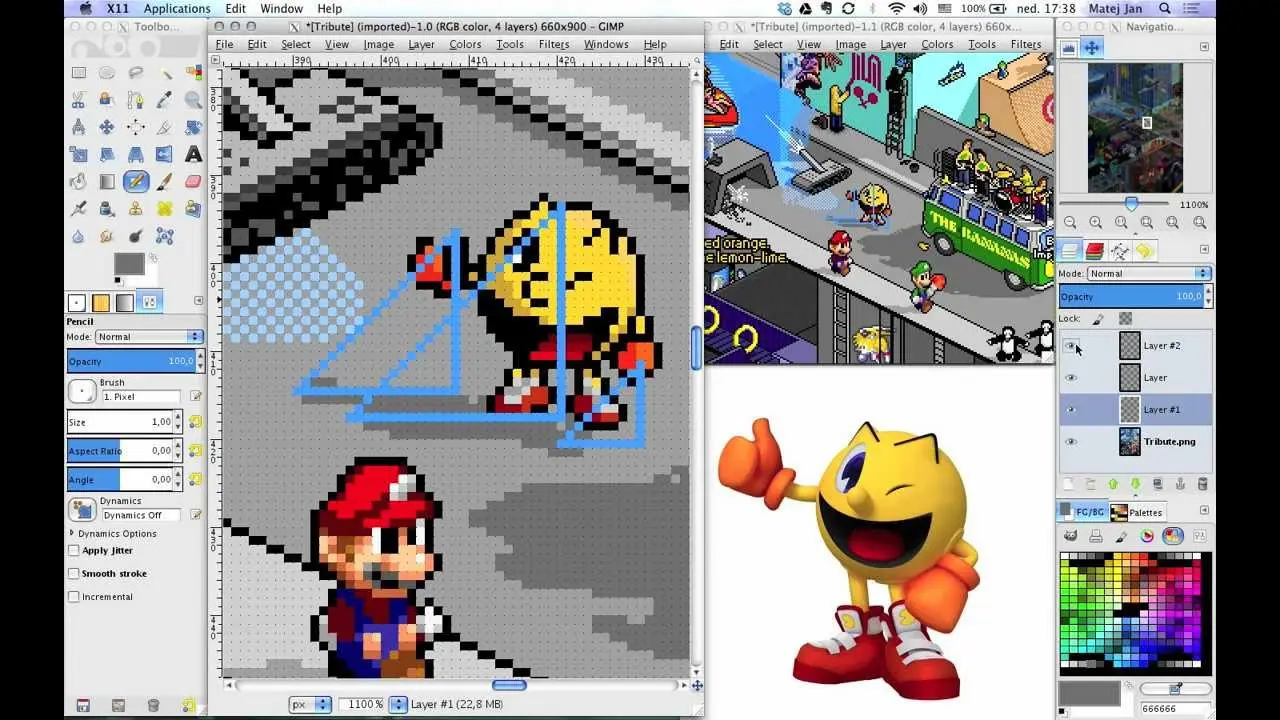
    Pixel art is a digital art form where each pixel is carefully placed to create an image. It was popular in early games like Super Mario Bros. and Pac-Man, and it remains widely used today.

    Key Features:

    • Low resolution
    • Sharp edges (no blur)
    • Manual pixel placement
    • Retro visual style

    Why Use GIMP for Pixel Art?

    GIMP is ideal for pixel art because:

    • Free and open-source
    • Available on Windows, Mac, and Linux
    • Supports precise pixel-level editing
    • Highly customizable tools

    Setting Up GIMP for Pixel Art

    Before starting, configure GIMP properly.

    1. Create a New Canvas

    • Go to File → New
    • Use small sizes such as:
      • 16×16 (icons)
      • 32×32 (sprites)
      • 64×64 (detailed sprites)

    2. Enable Grid

    • Go to View → Show Grid
    • Then Image → Configure Grid
    • Set spacing (e.g., 1×1 or 8×8)

    3. Disable Anti-Aliasing

    Pixel art should remain sharp:

    • Use the Pencil Tool instead of Brush
    • Turn off anti-aliasing

    Essential Tools in GIMP

    Pencil Tool

    • Main tool for pixel art
    • Produces sharp, hard edges

    Bucket Fill Tool

    • Fills areas quickly with color

    Eraser Tool

    • Removes pixels cleanly

    Zoom Tool

    • Zoom in (800% or more) for precision

    You may also like it:

    Download IPhone Gallery APK For Android Phones – Aarya Editz

    Best Photo Banane Wala Editor Apps For Android – Aarya Editz

    Best Photo Banane Application Download 2025 – Aarya Editz

    What Is Face APK? Pros, Cons & Safety Tips – Aarya Editz

    How to Create Pixel Art Step-by-Step

    Step 1: Sketch Outline

    • Use a dark color
    • Draw the shape pixel by pixel

    Step 2: Add Base Colors

    • Fill areas with simple colors
    • Limit to a small palette

    Step 3: Shading

    • Add lighter and darker tones
    • Use 2–3 shades per color

    Step 4: Clean Edges

    • Remove unwanted pixels
    • Smooth jagged lines

    Step 5: Add Details

    • Add highlights
    • Include small features and texture

    Color Tips for Better Pixel Art

    • Use a limited color palette
    • Avoid automatic gradients
    • Use contrast for clarity
    • Study classic game color styles

    Pixel Art Styles You Can Create

    • Game sprites
    • Icons
    • Characters
    • Background tiles
    • User interface elements

    Advanced GIMP Pixel Art Techniques

    Dithering

    Uses patterns of pixels to simulate shading.

    Palette Optimization

    Keeps colors consistent for a cleaner design.

    Animation

    • Use layers as frames
    • Export as GIF

    Exporting Pixel Art Correctly

    When exporting:

    • Go to File → Export As
    • Choose PNG format
    • Disable interpolation when scaling
    • Use “Nearest Neighbor” to keep edges sharp

    Common Mistakes to Avoid

    • Using Brush instead of Pencil
    • Using too many colors
    • Blurry scaling
    • Over-detailing small designs
    • Ignoring grid alignment

    Pro Tips for Beginners

    • Start with small sizes like 16×16 or 32×32
    • Practice regularly
    • Copy simple designs first
    • Study classic pixel art
    • Use references

    Final Thoughts

    Creating pixel art in GIMP is simple once you understand the fundamentals. With consistent practice and the right techniques, you can create clean, professional-looking pixel designs for games, icons, or personal projects.

    FAQs

    1. Is GIMP good for pixel art?

    Yes, GIMP is one of the best free tools available.

    2. What size should beginners start with?

    16×16 or 32×32 is recommended.

    3. Can I animate pixel art in GIMP?

    Yes, by using layers and exporting as a GIF.

    4. Why does pixel art look blurry?

    This usually happens due to interpolation. Use “Nearest Neighbor” scaling.

    5. Do I need a drawing tablet?5. Do I need a drawing tablet?

    No, a mouse is sufficient for creating pixel art.

    Spread the love


    Share. Facebook Twitter Pinterest LinkedIn Tumblr Email WhatsApp
    Rabia Alam
    • Website

    Related Posts

    Best Photo Editing App for PC – Complete Guide (2026)

    09 Apr 2026

    Is Clipchamp Good? A Complete Review

    07 Apr 2026

    7 Things Travelers Must Know Before Getting an eSIM for Egypt and The UAE in 2026

    01 Apr 2026

    Leave A Reply Cancel Reply

    Ad
    • Facebook
    • Twitter
    • Pinterest
    • Instagram
    • YouTube
    • TikTok
    • Telegram
    • WhatsApp
    LATEST POST'S

    Best Laptop for Adobe Creative Cloud (2026 Guide)

    16 Apr 2026

    GIMP Pixel Art – Complete Beginner to Pro Guide

    15 Apr 2026

    Best Photo App – Complete Guide to Choosing the Right One

    14 Apr 2026

    PicsArt – Complete Guide to Photo Editing App

    12 Apr 2026
    Ad2
    About Us

    Aarya Editz brings creativity and quality together, offering engaging content and services that inform, inspire, and entertain. Connect with us to explore our latest work.

    You should also write articles for Aarya Editz

    We're accepting new partnerships right now.

    Email Us:
    blooginga@gmail.com |
    WhatsApp:
    +92 348 273 6504

    | ซื้อหวยออนไลน์

    บาคาร่า ออนไลน์

    สล็อต

    LATEST POST'S

    Best Laptop for Adobe Creative Cloud (2026 Guide)

    16 Apr 2026

    GIMP Pixel Art – Complete Beginner to Pro Guide

    15 Apr 2026

    Best Photo App – Complete Guide to Choosing the Right One

    14 Apr 2026

    Subscribe to Updates

    Get the latest creative news from FooBar about art, design and business.

    Facebook Twitter Instagram Pinterest YouTube WhatsApp
    • Homepage
    • Privacy Policy
    • About Us
    • Contact Us
    • Terms and Conditions
    • Disclaimer
    • Write For Us
    © 2026 Designed by Aarya Editz.

    Type above and press Enter to search. Press Esc to cancel.