
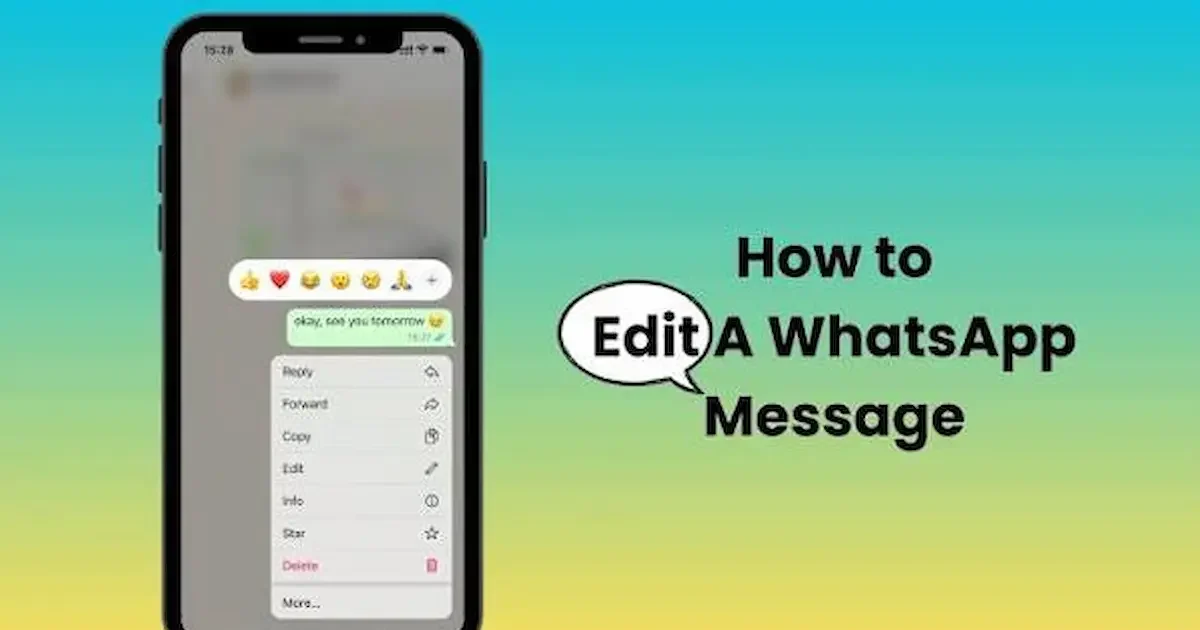
Have you ever sent a WhatsApp message and immediately noticed a spelling mistake or realized that you wanted to change something? You do not always need to delete the message and send it again. WhatsApp has an Edit feature that lets you correct a sent text message quickly.
If you are wondering how to edit message on WhatsApp, the process is quite simple. You can edit a sent message within 15 minutes of sending it. After making the change, the message will show an edited label so people in the chat know that it was changed.
In this guide, you will learn how to edit message on WhatsApp on Android, iPhone, and WhatsApp Web. We will also explain the editing time limit, why the Edit option may not appear, and what happens after you change a message.
How to Edit Message on WhatsApp
Editing a sent message on WhatsApp is useful when you notice a spelling mistake, enter the wrong information, or simply want to change the wording. Instead of deleting the message and sending another one, you can use WhatsApp’s Edit feature to make a quick correction.
If you are learning how to edit message on WhatsApp, the process is straightforward. WhatsApp currently allows you to edit a sent text message within 15 minutes after sending it.
Find the Message You Want to Edit
First, open WhatsApp and go to the individual or group chat where you sent the message. Scroll through the conversation and find the specific message you want to correct.
Take a moment to check that you have selected the right message, especially if you have sent several messages one after another.
Press and Hold the Sent Message
Once you find the message, press and hold it. A menu with different options will appear on your screen. Look for the Edit option in this menu.
The exact appearance of the menu can vary depending on whether you are using Android, iPhone, or another supported device.
Select the Edit Option
Tap Edit to open the message for changes. The existing text will become editable, allowing you to correct a spelling mistake, remove unwanted words, or rewrite part of the message.
You can make the changes you need without creating a completely new message.
Make Your Changes
Now edit the text as needed. For example, if you accidentally wrote “tomorow” instead of “tomorrow,” you can simply correct the spelling.
You can also change a sentence if you realize that your original wording was unclear. Before confirming the change, read the message once to make sure the updated version is correct.
Save the Edited Message
After making your changes, confirm the edit using the option provided by WhatsApp. The updated text will then appear in the conversation.
WhatsApp adds an edited label to the message so that people in the chat can see that the message was changed.
Remember the 15-Minute Time Limit
One important thing to remember is that WhatsApp’s message-editing feature has a time limit. You can edit a sent message for up to 15 minutes after sending it.
If more than 15 minutes have passed, the Edit option will no longer be available for that message. In that situation, you may need to send a new correction or use WhatsApp’s message deletion options when appropriate.
Why Is the Edit Feature Useful?
The Edit feature can save you time and keep conversations cleaner. If you make a small typing error, you do not have to delete the entire message just to correct one word.
It can also be helpful when you accidentally send the wrong date, name, or detail and notice the mistake shortly after sending the message.
What Happens After You Edit a Message?
After you edit a message, WhatsApp replaces the original text with your updated version. The message also displays an edited label.
This means people can see that the message was changed, but the editing feature does not simply create a separate corrected message in the chat.
Keep WhatsApp Updated
If you cannot find the Edit option, make sure WhatsApp is updated to the latest version available for your device. Feature availability can also depend on the platform and version you are using.
It is also worth checking whether the message is still within the 15-minute editing period.
Edit Your Message Instead of Sending Another One
For a simple typo or small correction, editing can be more convenient than sending another message. It keeps the conversation easier to follow and prevents unnecessary duplicate messages.
For example, instead of sending “Meeting is at 5pm” and then “Sorry, meeting is at 6pm,” you can edit the original message if you are still within the allowed editing period.
Check the Message Before Confirming
Before you finish editing, read the entire message again. This can help you catch another spelling mistake or incorrect detail.
A quick check is especially useful when you are correcting important information such as a time, date, location, phone number, or appointment detail. How To Edit Message On Whatsapp
How to Edit WhatsApp Messages on Android
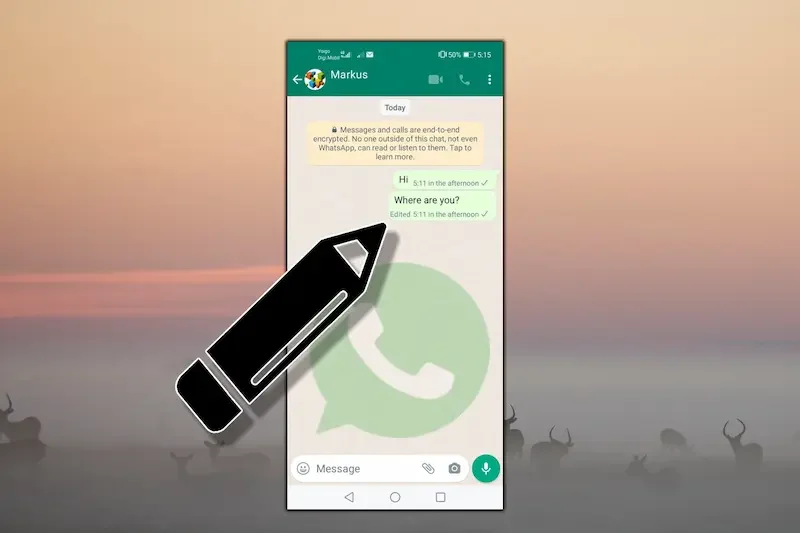
If you use an Android phone, editing a sent WhatsApp message is quite simple. The feature is useful when you notice a typing mistake or want to change the wording shortly after sending a message.
Open WhatsApp on Your Android Phone
Start by opening the WhatsApp app on your Android phone. From the Chats section, open the individual or group conversation where you sent the message. How To Edit Message On Whatsapp
Find the Message
Scroll through the conversation and find the text message you want to edit. Remember that WhatsApp only allows you to edit a sent message within the permitted editing period.
Press and Hold the Message
Press and hold the message you want to change. A menu with different message options will appear on your screen. How To Edit Message On Whatsapp
Look for the Edit option. If it is available, tap it to make changes to your message.
Change the Text
After selecting Edit, the original message will become editable. Correct the spelling, change a word, or rewrite the sentence as needed.
For example, if you accidentally type “I will come at 4pm” when you meant “I will come at 5pm,” you can correct the time without sending a separate message. How To Edit Message On Whatsapp
Confirm the Edit
Once you are happy with the changes, confirm the edit using the option shown by WhatsApp. Your updated message will appear in the conversation.
An edited label will appear with the changed message so that people in the chat know it has been modified.
What If the Edit Option Is Missing?
If you cannot see the Edit option, first check how much time has passed since you sent the message. WhatsApp currently allows sent messages to be edited for up to 15 minutes.
If you are still within that period, make sure your WhatsApp app is updated. An outdated app may not have the latest features or may display them differently. How To Edit Message On Whatsapp
Tips for Editing Messages on Android
When editing a message, check the complete sentence before confirming the change. This is especially important if you are correcting dates, times, names, addresses, or other important information.
If the 15-minute editing period has already passed, you can send a new message explaining the correction instead.
How to Edit WhatsApp Messages on iPhone
If you use WhatsApp on an iPhone, you can also edit a sent text message when you notice a mistake or want to change the wording. The process only takes a few seconds as long as the message is still within WhatsApp’s editing time limit. How To Edit Message On Whatsapp
Open WhatsApp on Your iPhone
Open the WhatsApp app and go to the Chats tab. Select the individual or group conversation where you sent the message you want to change.
Find the Sent Message
Scroll through the conversation until you find the message you want to edit. Make sure you select the correct message, especially if several messages were sent close together.
Press and Hold the Message
Press and hold the sent message until the message options appear. From the available options, select Edit.
If you do not see the Edit option, check whether more than 15 minutes have passed since you sent the message. How To Edit Message On Whatsapp
Correct the Message
After selecting Edit, the message will become editable. Make the changes you need, such as correcting a spelling mistake, changing a word, or updating a detail.
Take a moment to read the updated message before confirming the change.
Confirm Your Edited Message
Once you have finished making changes, confirm the edit using the option shown on your iPhone. WhatsApp will update the message in the conversation. How To Edit Message On Whatsapp
An edited label will appear next to the message to indicate that its content was changed.
What If You Cannot Edit a Message on iPhone?
The most common reason is the 15-minute editing limit. WhatsApp only allows a sent message to be edited during this period.
If you are within the time limit but still cannot find the option, check that WhatsApp is updated to the latest version available for your iPhone. You can also close and reopen the app and try again.
Edit Messages Carefully
Before confirming an edited message, check the complete text. This is particularly useful when changing important details such as a meeting time, date, location, or other information. How To Edit Message On Whatsapp
Knowing how to edit message on WhatsApp on iPhone can save you from deleting a message and sending a replacement every time you
How to Edit Message on WhatsApp Web
If you use WhatsApp on your computer, you can also edit sent text messages through WhatsApp Web. This is useful when you are chatting from a laptop or desktop and notice a mistake in a message you have recently sent.
Open WhatsApp Web
Open WhatsApp Web in your computer browser and sign in by linking your WhatsApp account. Once your chats appear, open the conversation where you sent the message you want to change.
Find the Message You Want to Edit
Scroll through the chat and locate the message you want to correct. Remember that the message must still be within WhatsApp’s editing time limit. How To Edit Message On Whatsapp
Open the Message Menu
Move your mouse over the message and select the menu option that appears next to it. From the available options, choose Edit if it is shown.
Change the Message
The message will become editable. Make the required correction, whether it is a spelling mistake, incorrect word, or other small change. How To Edit Message On Whatsapp
Before confirming, read the updated message to make sure everything is correct.
Confirm the Edited Message
After making your changes, confirm the edit. WhatsApp will update the message in the chat and display an edited label next to it.
Other people in the conversation can see the updated message and the edited label.
Why Can’t I Edit a Message on WhatsApp Web?
If the Edit option does not appear, check whether more than 15 minutes have passed since you sent the message. WhatsApp’s editing feature is limited to this period.
You should also make sure your WhatsApp Web session is working correctly and that you are using an up-to-date version of WhatsApp or your browser. How To Edit Message On Whatsapp
WhatsApp Web Makes Editing Convenient
Editing messages on WhatsApp Web can be especially useful when you regularly use WhatsApp from your computer. Instead of reaching for your phone to correct a simple typo, you can make the change directly from your desktop or laptop. How To Edit Message On Whatsapp
Whether you use Android, iPhone, or WhatsApp Web, knowing how to edit message on WhatsApp makes it easier to correct mistakes without sending another message.
How Long Can You Edit a Message on WhatsApp?
When learning how to edit message on WhatsApp, one of the most important things to know is the time limit. WhatsApp currently allows you to edit a sent text message for up to 15 minutes after you send it. How To Edit Message On Whatsapp
What Happens After 15 Minutes?
Once the 15-minute editing period has passed, the Edit option will no longer be available for that message. You cannot reopen the old message and change its text through the editing feature.
If you notice a mistake after the time limit, you can send another message with the correct information. If appropriate, you can also use WhatsApp’s delete feature and then send a corrected message.
Can You Edit a Message More Than Once?
During the allowed editing period, you can make corrections to a sent message. However, the message must remain within WhatsApp’s 15-minute editing window.
For this reason, it is a good idea to check the entire message after editing instead of making several unnecessary changes. How To Edit Message On Whatsapp
Does the Edited Message Show a Label?
Yes. When a message is edited, WhatsApp displays an edited label with the message. This tells people in the conversation that the message has been changed.
The label helps make the conversation more transparent because recipients can see that the message is not exactly as it was when originally sent. How To Edit Message On Whatsapp
What Should You Do If You Miss the Editing Window?
Do not worry if you notice a mistake after 15 minutes. You can simply send a new message explaining the correction.
For example, if you originally sent the wrong meeting time, you can send a follow-up message such as, “Correction: the meeting is at 6 PM.” This is often clearer than leaving incorrect information in the conversation. How To Edit Message On Whatsapp
Why Is the 15-Minute Limit Useful?
The editing window gives you enough time to correct common mistakes while keeping the conversation history clear. It is particularly useful for fixing spelling errors, changing wording, or correcting small details shortly after sending a message. How To Edit Message On Whatsapp
How to Know If a WhatsApp Message Was Edited

When you edit a message on WhatsApp, the updated message is marked with an edited label. This makes it easy for people in the conversation to know that the message was changed after it was originally sent.
Look for the “Edited” Label
After you edit a message, WhatsApp displays the word edited next to the message. The label appears in the chat alongside the updated text. How To Edit Message On Whatsapp
This means that if you are learning how to edit message on WhatsApp, you should also know that editing does not happen completely invisibly. Other participants can see that the message has been modified.
Can You See the Original Message?
WhatsApp’s editing feature does not provide a visible edit history that lets chat participants view the previous version of the message. The conversation shows the updated message with the edited label.
Therefore, editing is mainly designed for correcting mistakes or making quick changes rather than maintaining multiple versions of the same message. How To Edit Message On Whatsapp
Does WhatsApp Notify Someone When You Edit a Message?
Editing changes the existing message instead of creating a separate new message. The edited label indicates that a change was made, while the conversation continues normally.
If the correction is important, you may still want to make the updated wording clear so there is no confusion.
What Types of Changes Can You Make?
You can use the Edit feature to correct things such as spelling mistakes, grammar, incorrect words, or other text details. For example, you might change a wrong name, time, date, or sentence shortly after sending it.
The feature is particularly useful when the mistake is small and you do not want to delete the entire message. How To Edit Message On Whatsapp
Check the Edited Message Carefully
After making an edit, read the complete message once more. This is especially important when correcting important information.
A quick check can help you avoid replacing one mistake with another and ensure that the final version clearly communicates what you mean. How To Edit Message On Whatsapp
How do I edit a message on WhatsApp?
Press and hold the sent text message, select Edit, make your changes, and confirm the edit. WhatsApp currently allows you to edit a message within 15 minutes of sending it.
Can I edit a WhatsApp message after 15 minutes?
No. Once the 15-minute editing period has passed, the Edit option is no longer available for that message. You can send a new message with the correction instead.
Can I edit WhatsApp messages on iPhone?
Yes. Open the WhatsApp chat, press and hold the message, select Edit, change the text, and confirm the update.
Conclusion
Knowing how to edit message on WhatsApp can save you time when you make a spelling mistake or need to correct something you have recently sent. The process is simple: select the sent message, choose Edit, make your changes, and confirm them. How To Edit Message On Whatsapp
Remember that WhatsApp currently provides a 15-minute editing window for sent messages. If the time has passed, you can send a new message with the correction. Keeping WhatsApp updated can also help ensure you have access to the latest features.
