
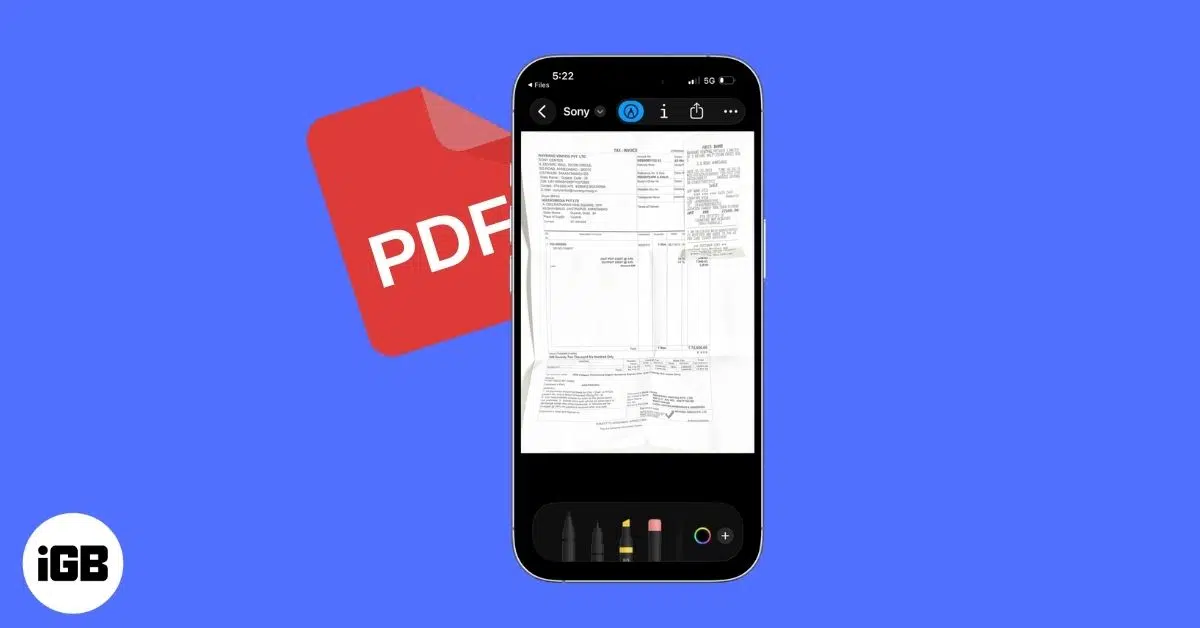
PDF files are widely used for forms, documents, resumes, invoices, notes, and many other types of information. Sometimes, you may need to make a quick change to a PDF but only have your iPhone available. The good news is that you can handle many common PDF tasks directly from your iPhone.
If you are wondering how to edit PDF on iPhone, there are several options available. You can use built-in iPhone features for tasks such as adding text, highlighting information, drawing, filling forms, and adding signatures. For more advanced editing, dedicated PDF editor apps can provide additional features.
In this guide, we will explain how to edit PDF on iPhone step by step. You will learn how to annotate PDFs, add signatures and text, fill out forms, make changes using PDF apps, and save or share your edited documents easily.
What Can You Edit in a PDF on iPhone?
When learning how to edit PDF on iPhone, it is important to understand that there are different types of PDF editing. Basic editing usually means adding information or making notes, while advanced editing involves changing the original content of the document.
On an iPhone, you can perform several useful tasks such as adding text, highlighting important sections, drawing on a document, adding a signature, and filling out forms.
Add Text to a PDF
If you need to add information to a PDF, you can use text tools available in supported PDF features or editing apps. This is useful for filling out forms, adding notes, entering contact details, or providing additional information.
For more advanced editing, some PDF apps allow you to change existing text rather than simply placing new text over the document.
Highlight Important Information
Highlighting is useful when you are reviewing a document, studying notes, or marking important information. You can select the highlighting tool and mark the relevant parts of the PDF.
This method does not change the original wording, but it makes important sections easier to find later.
Draw or Add Notes
You can also use markup tools to draw on a PDF or add handwritten notes. This can be helpful when reviewing documents, marking corrections, or pointing out specific information.
You can usually use your finger or a compatible stylus to make annotations directly on the screen.
Add a Digital Signature
One of the most useful PDF features on an iPhone is adding a signature. This can save time when you receive documents that need to be signed and returned.
You can create a signature using the available markup or PDF editing tools and place it in the required area of the document.
Fill Out PDF Forms
Many PDF forms can be completed directly on an iPhone. You can enter information into available fields and add a signature when required.
After completing the form, review all the information carefully before saving or sending the document.
When Do You Need a PDF Editing App?
Built-in iPhone tools are useful for basic PDF tasks, but they may not provide every feature you need. If you want to edit existing text, move images, reorganize pages, convert files, or use other advanced tools, a dedicated PDF editor may be more suitable. How To Edit Pdf On Iphone
When choosing an app, check whether the features you need are available in its free version or require a subscription or purchase.
How to Edit PDF on iPhone Using the Files App
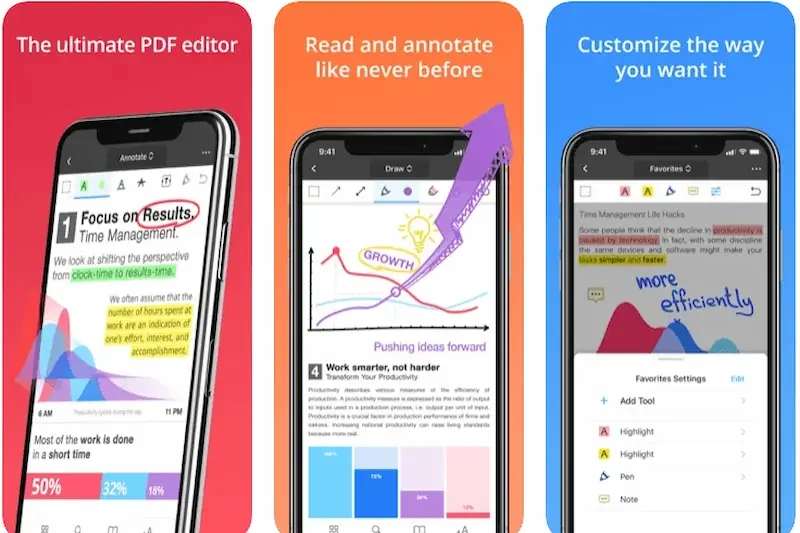
The Files app is a convenient place to open and manage PDF documents on an iPhone. For basic changes such as adding notes, highlighting text, drawing, or signing a document, you may not need to install another app.
Open the PDF in the Files App
First, locate the PDF you want to edit in the Files app. It may be stored under On My iPhone, iCloud Drive, or another available location. How To Edit Pdf On Iphone
Tap the PDF to open it and view the document.
Use Markup Tools
After opening the PDF, look for the Markup option or the markup icon. This gives you tools for making basic annotations. How To Edit Pdf On Iphone
You can use these tools to:
- Add text
- Highlight information
- Draw on the document
- Add shapes How To Edit Pdf On Iphone
- Add a signature
- Make handwritten notes
Add Text to the PDF
If you need to enter information, select the text tool and place a text box where you want the information to appear. Type your content and adjust its position as needed. How To Edit Pdf On Iphone
This is particularly useful for forms and documents that require additional information.
Add a Signature
If the document needs your signature, select the signature option from the markup tools. You can create a signature and place it in the appropriate location on the PDF. How To Edit Pdf On Iphone
After positioning the signature, review the document to make sure everything looks correct.
Save the Edited PDF
Once you finish making your changes, save or close the document according to the available option. Before sharing it, open the saved PDF again and check that your edits are still present.
Important Difference Between Markup and Editing
The Files app is useful for annotating a PDF, but basic markup is not the same as changing the original PDF text. If you need to delete existing words, rewrite paragraphs, replace images, or change the document’s original layout, you may need a dedicated PDF editor. How To Edit Pdf On Iphone
This distinction is important when learning how to edit PDF on iPhone, because the right method depends on the type of change you want to make.
How to Mark Up a PDF on iPhone
If you only need to make notes or highlight information, the iPhone’s built-in Markup feature can be a simple solution. It allows you to make changes to the appearance of a PDF without needing a separate editing app.
Open Your PDF
Open the Files app and find the PDF you want to work on. Tap the document to open it and navigate to the page where you want to make changes. How To Edit Pdf On Iphone
Select the Markup Tool
Tap the Markup icon to open the available editing tools. Depending on your iPhone and iOS version, you may see tools for drawing, highlighting, adding text, inserting a signature, and creating shapes.
Highlight Text
Choose the highlighting tool and drag your finger over the information you want to emphasize. Highlighting can be useful for study materials, contracts, reports, and other documents that you need to review. How To Edit Pdf On Iphone
Draw on the PDF
The drawing tools allow you to make handwritten notes, circles, arrows, or other simple marks on the document. You can use your finger or a compatible stylus for greater control.
Add Text Boxes
You can add a text box when you need to type additional information onto the PDF. Enter your text and move the box to the appropriate location on the page.
Add Shapes
Markup can also allow you to add basic shapes such as circles, squares, or arrows. These can help draw attention to particular sections of a document.
Add Your Signature
If a document needs to be signed, use the signature tool to create or insert your signature. Position it where required and adjust its size if necessary.
Save and Review Your Changes
After finishing your annotations, save the PDF and open it again to make sure everything appears correctly. Keep an original copy if the document is important, especially before making significant changes. How To Edit Pdf On Iphone
Markup is excellent for basic PDF editing on iPhone, but if you need to change the original text or images within a PDF, an advanced PDF editor may be required.
How to Add Text to a PDF on iPhone
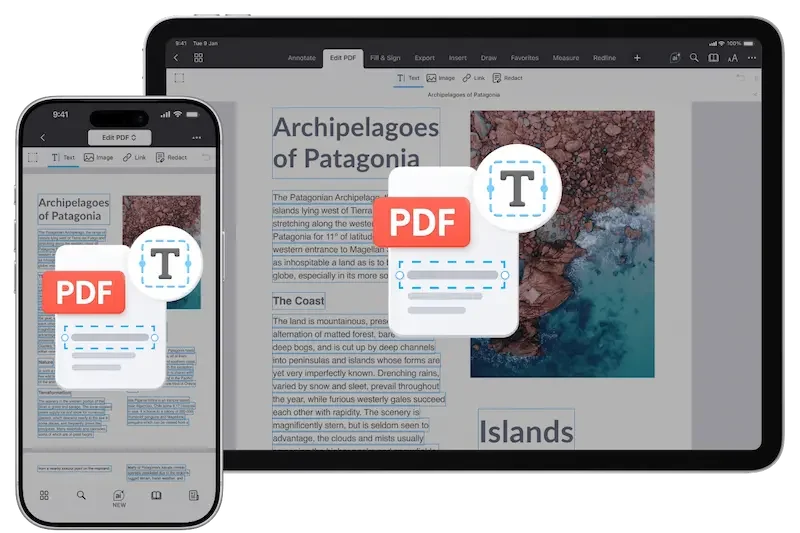
Adding text to a PDF can be useful when you need to fill out a form, add a note, enter personal information, or make a quick correction. The method you use depends on whether you want to place new text on the PDF or change text that already exists.
Add New Text Using Markup
Open the PDF on your iPhone and select the Markup option. Choose the text tool and tap on the area where you want to add information. A text box will appear where you can type your content.
You can move the text box to the correct position and adjust its appearance using the available formatting options. How To Edit Pdf On Iphone
Edit Existing PDF Text
Adding a new text box is different from editing the original words in a PDF. If you want to delete existing text and replace it with new wording, you may need a dedicated PDF editor that supports direct text editing.
This feature can be particularly useful for documents such as resumes, forms, reports, and business documents.
Use a PDF Editor App
For more advanced text editing, you can install a PDF editor from the App Store. Open your document in the app, select its editing tools, and look for an option that allows you to modify existing text. How To Edit Pdf On Iphone
The available features vary between apps, and some advanced tools may require a paid plan.
Check the Formatting
After adding or changing text, carefully review the document. Make sure the new text is correctly positioned and that the font size and spacing look appropriate.
If the PDF is an important document, save a copy of the original before making major edits. This gives you a backup in case you need to return to the original version. How To Edit Pdf On Iphone
Save the Edited PDF
Once you are satisfied with your changes, save the edited document. You can then keep it in the Files app or share it through email, messaging, cloud storage, or another supported service.
Knowing how to edit PDF on iPhone becomes much easier when you first identify whether you need simple text annotations or full editing of the original PDF content.
How to edit PDF on iPhone for free?
You can use the built-in Markup tools on your iPhone for basic tasks such as adding text, highlighting, drawing, and adding signatures. For advanced editing, you may need a PDF editor app.
Can I edit PDF text directly on iPhone?
Yes, but changing existing PDF text usually requires a PDF editing app with direct text-editing features. Basic Markup tools are mainly designed for annotations.
Can I edit a PDF without downloading an app?
Yes. For basic tasks such as adding notes, signatures, highlights, and text boxes, you can use the built-in PDF and Markup features available on iPhone.
Conclusion
Learning how to edit PDF on iPhone can make everyday document tasks much easier. For simple edits such as adding text, highlighting information, drawing, filling forms, and signing documents, the built-in iPhone tools can be enough. How To Edit Pdf On Iphone
If you need to change existing PDF text, edit images, rearrange pages, or use other advanced features, a dedicated PDF editor may be more suitable. Before choosing an app, check its available features and whether advanced tools require payment.
